
Microsoft Copilot for Students: 15 Ways to Study Smarter in 2026
AI is becoming a normal part of student life. Students now use AI to understand difficult topics, summarize notes, write better essays, prepare presentations, organize research, and revise faster before exams.
One of the most useful tools for this is Microsoft Copilot.
Microsoft Copilot is not just a simple chatbot. It can help students with writing, research, study planning, Excel assignments, PowerPoint presentations, summaries, quizzes, emails, and more. If your school or university uses Microsoft 365, Copilot can become even more powerful because it can work inside apps like Word, Excel, PowerPoint, OneNote, Outlook, and Teams.
Microsoft says Office 365 Education includes web versions of Word, Excel, PowerPoint, OneNote, Teams, and Microsoft 365 Copilot Chat for eligible institutions. (Microsoft) Microsoft also says Copilot Chat is available at no cost for users with Microsoft 365 A1, A3, or A5 licenses when signed in with a school or work account, with availability for faculty, staff, and higher education students aged 13 and older. (Microsoft)
But here is the real problem: most students use Copilot the wrong way.
They type short prompts like:
Write my essay.
Explain this.
Make my presentation.
And then they get average results.
To get better results, you need to give Copilot context, tell it your level, explain your goal, and ask for the output in a clear format. In one Copilot training transcript, the instructor shows that a basic prompt gives a basic email, but adding role, context, deadline, and situation helps Copilot produce a much better response.
In this guide, you will learn exactly how to use Microsoft Copilot for students with practical examples, ready-to-use prompts, student workflows, and study use cases.
What Is Microsoft Copilot?
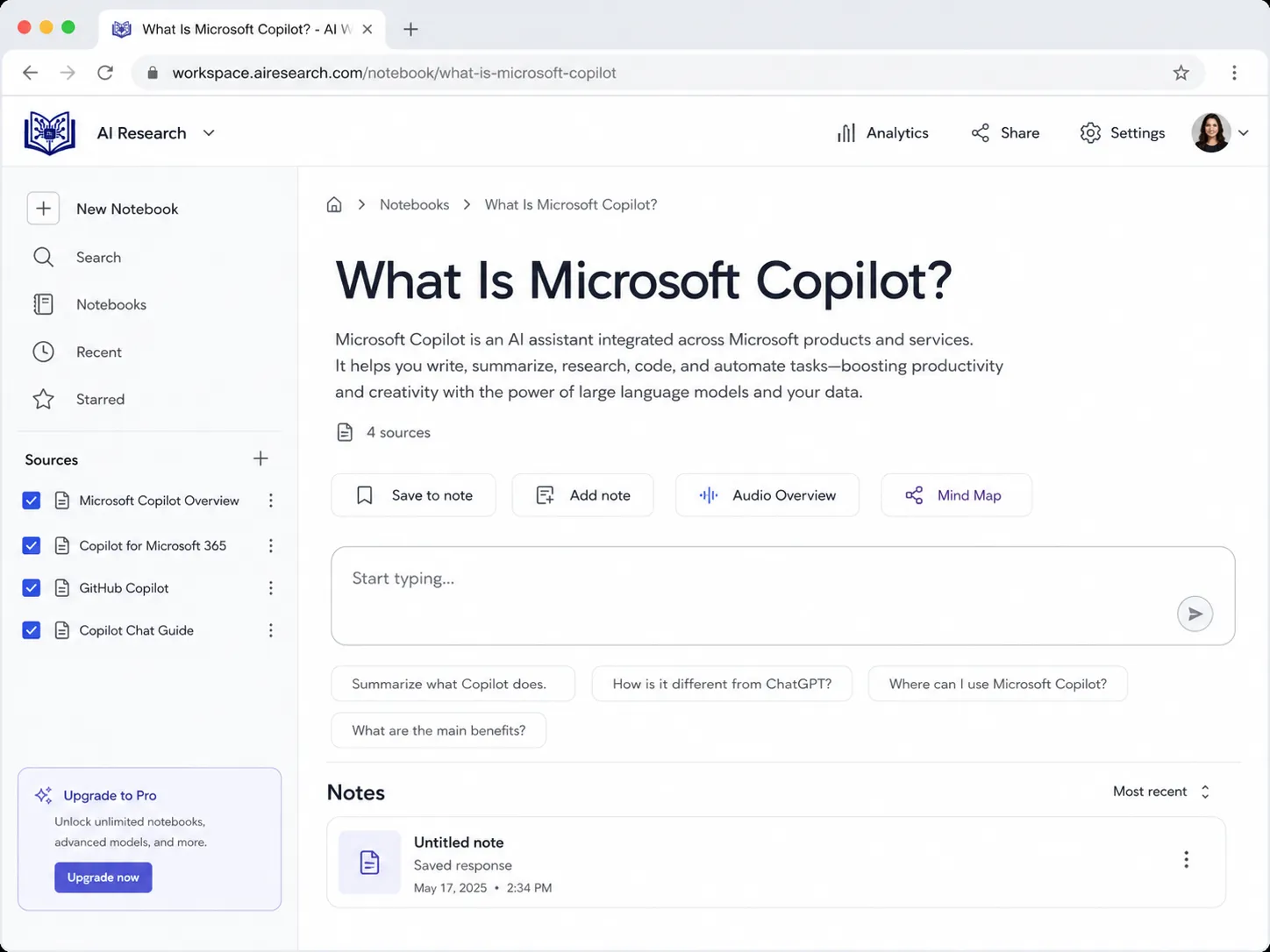
Microsoft Copilot is an AI assistant by Microsoft that helps users chat, search, write, summarize, analyze files, create content, and work inside Microsoft 365 apps.
For students, Copilot can work like:
- A study assistant
- A writing helper
- A research assistant
- A quiz generator
- A presentation planner
- An Excel tutor
- A homework explainer
- A note summarizer
- A career planning assistant
There are different versions of Copilot, and this can be confusing. One training transcript explains that there is a free version with limitations, and there are upgraded Microsoft 365 Copilot versions that work more deeply inside Microsoft apps like Word, Excel, Outlook, and PowerPoint.
For students, the simple explanation is this:
| Version | Best For Students Who Want |
|---|---|
| Microsoft Copilot free | General study help, explanations, brainstorming |
| Microsoft 365 Copilot Chat | Secure AI chat with school/work account |
| Microsoft 365 Copilot | Deeper help inside Word, Excel, PowerPoint, Outlook, Teams |
| Copilot mobile app | Studying from phone, quick questions, notes on the go |
Microsoft’s education pages also show that Copilot and Microsoft 365 tools are being positioned for learning, productivity, and AI-supported school work. (Microsoft)
Is Microsoft Copilot Free for Students?
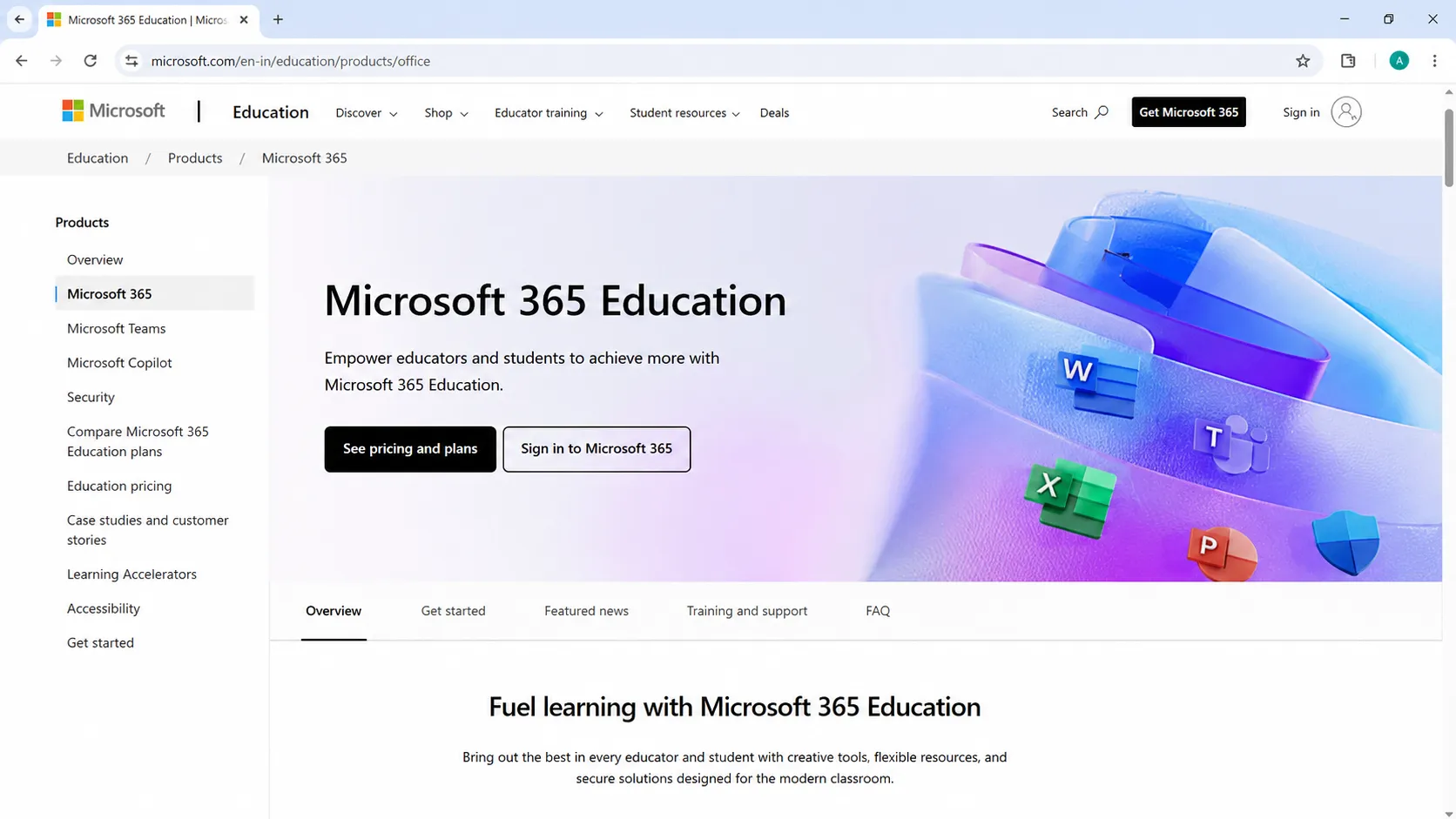
Many students can use Microsoft tools through their school or university account. Microsoft says Office 365 Education is available for eligible institutions and includes web versions of Word, Excel, PowerPoint, OneNote, Teams, and Copilot Chat. (Microsoft)
However, availability depends on:
- Your school or university
- Your Microsoft 365 education license
- Your age
- Your country
- Your institution’s IT settings
- Whether your school has enabled Copilot access
Microsoft also provides education licensing information for Microsoft 365 Copilot, and eligible education subscriptions can be part of Copilot licensing options. (Microsoft Learn)
So the best answer is:
Microsoft Copilot Chat may be available to many eligible students through their school account, but full Microsoft 365 Copilot features may require an upgraded license.
Before publishing this article, you can add this note:
Availability and features can change, so students should check with their school, university, or Microsoft 365 admin to confirm what Copilot features they can access.
Microsoft Copilot Free vs Microsoft 365 Copilot
Before using Copilot, students should understand the difference between free Copilot and Microsoft 365 Copilot.
| Feature | Microsoft Copilot Free | Microsoft 365 Copilot |
|---|---|---|
| General AI chat | Yes | Yes |
| Web search | Yes | Yes |
| Word integration | Limited / depends on plan | Strong |
| Excel integration | Limited / depends on plan | Strong |
| PowerPoint creation | Limited / depends on plan | Strong |
| Outlook email help | Limited / depends on plan | Strong |
| Work/school file access | Usually no | Yes, if enabled |
| Best for | General studying | Full productivity workflow |
In a training transcript, the instructor explains that the full Microsoft 365 Copilot subscription enables Copilot inside more productivity apps and can use secure work data such as emails, chats, shared documents, meetings, and coworkers.
For students, this means:
- Free Copilot is good for explanations, brainstorming, and general study help.
- Microsoft 365 Copilot is better if your school gives access and you want Copilot inside Word, Excel, PowerPoint, Outlook, OneNote, or Teams.
How to Access Microsoft Copilot as a Student
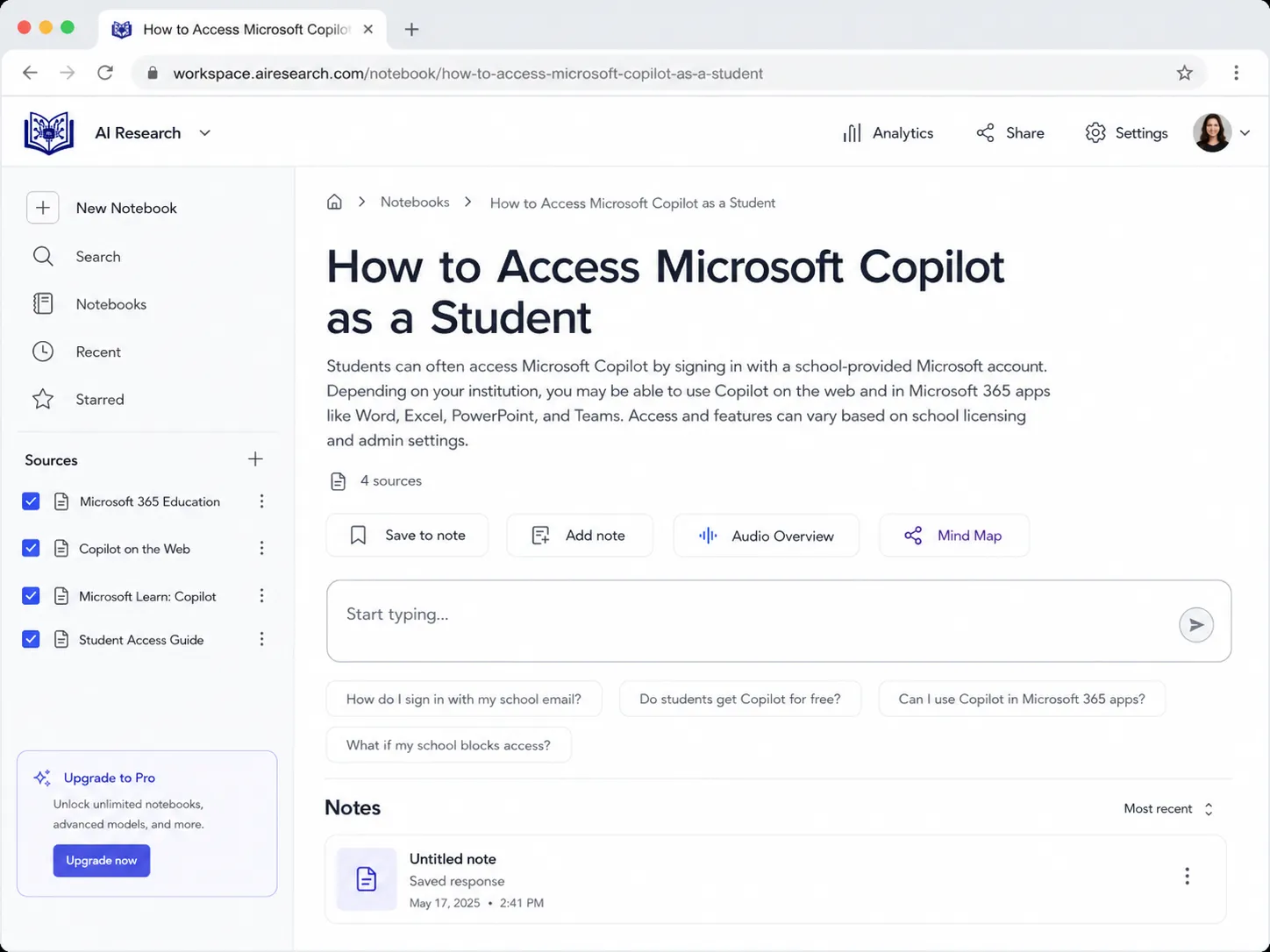
Students can access Copilot in different ways.
1. Copilot Website
You can open Copilot in a browser and sign in with your Microsoft account or school account.
A Copilot course transcript explains that users can go to copilot.microsoft.com, sign in, and start chatting like they would with an AI chatbot.
2. Microsoft 365 Copilot App
There is also a Microsoft 365 Copilot app. The transcript explains that the Microsoft 365 Copilot app is the right app for users with a company, school, or organization account, while the normal Microsoft Copilot app is for individual users.
3. Copilot Inside Microsoft Apps
Depending on your license, you may see Copilot inside:
- Word
- Excel
- PowerPoint
- OneNote
- Outlook
- Teams
This is where Copilot becomes very useful for students because you can use it directly inside the tools you already use for assignments.
Why Microsoft Copilot Is Useful for Students
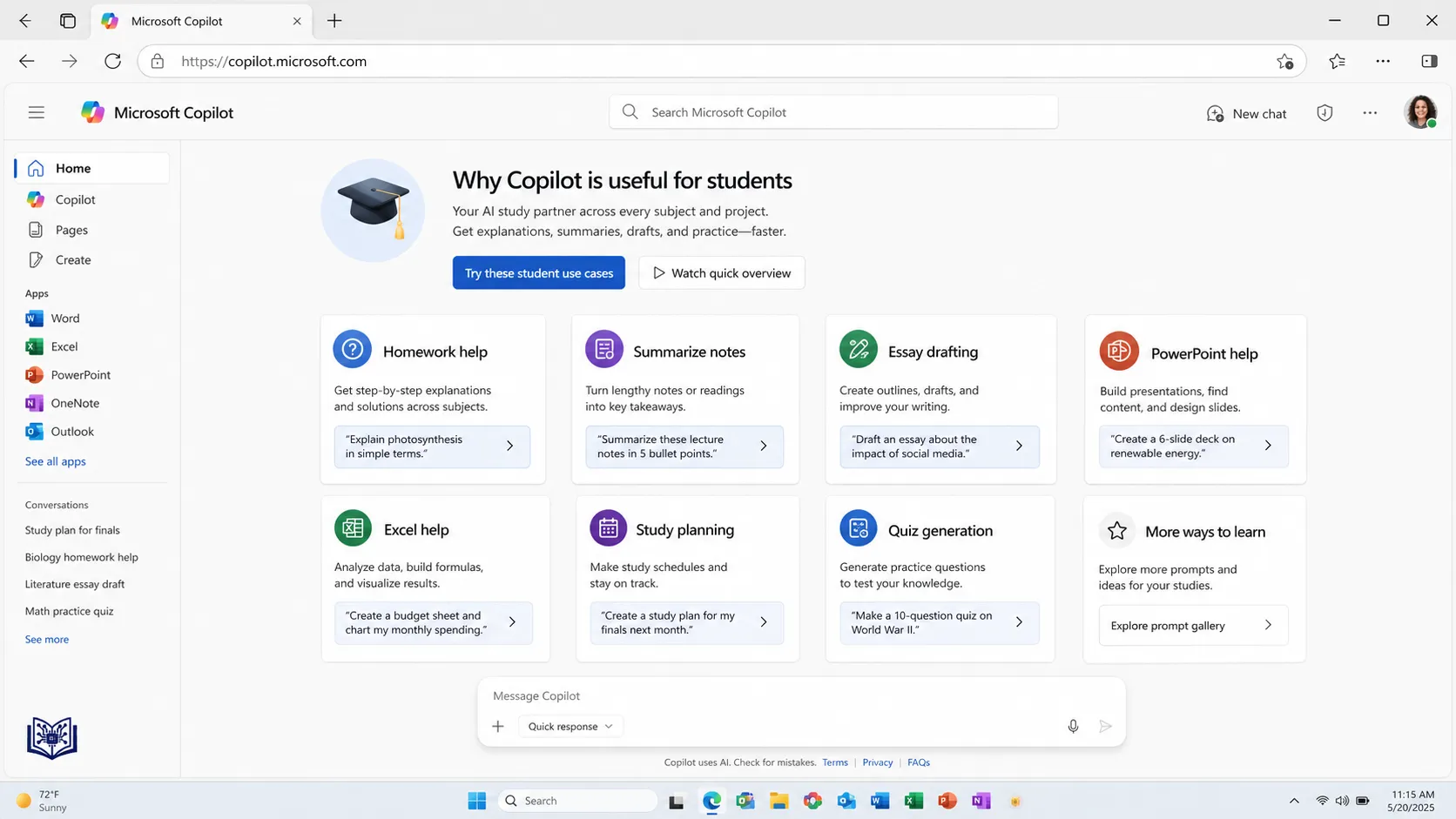
Copilot is useful because it can help students move from messy study material to organized learning.
Students can use it to:
- Understand difficult topics
- Summarize notes
- Create quizzes
- Make study plans
- Improve essays
- Analyze spreadsheets
- Create presentations
- Draft emails
- Prepare for exams
- Build career plans
- Review research papers
- Convert rough notes into structured content
The training transcript lists many productivity use cases, including analyzing data trends, generating Excel formulas, summarizing OneNote notes, creating PowerPoint slides, drafting emails, transforming PDFs or Word content into slides, and improving written content.
That is why Copilot can be especially helpful for students who already use Microsoft 365.
The Best Prompt Formula for Students
Bad prompts create weak results.
A bad prompt:
Explain biology.
A better prompt:
I am a high school student preparing for an exam. Explain photosynthesis in simple language, include key terms, give one real-life example, and create 5 quiz questions at the end.
A Copilot training transcript gives a useful prompt structure:
Goal + Context + Expectation + Source
The instructor explains that a strong prompt should include what response you want, why you need it, how Copilot should respond, and what source it should use.
For students, use this formula:
Role + Task + Topic + Format + Level + Source
Example:
I am a university student studying business. Explain market segmentation for my exam. Use simple language, give examples, make bullet-point notes, and create 10 multiple-choice questions at the end.
This is much better than:
Explain market segmentation.
15 Ways to Use Microsoft Copilot for Students
1. Use Copilot to Understand Difficult Topics
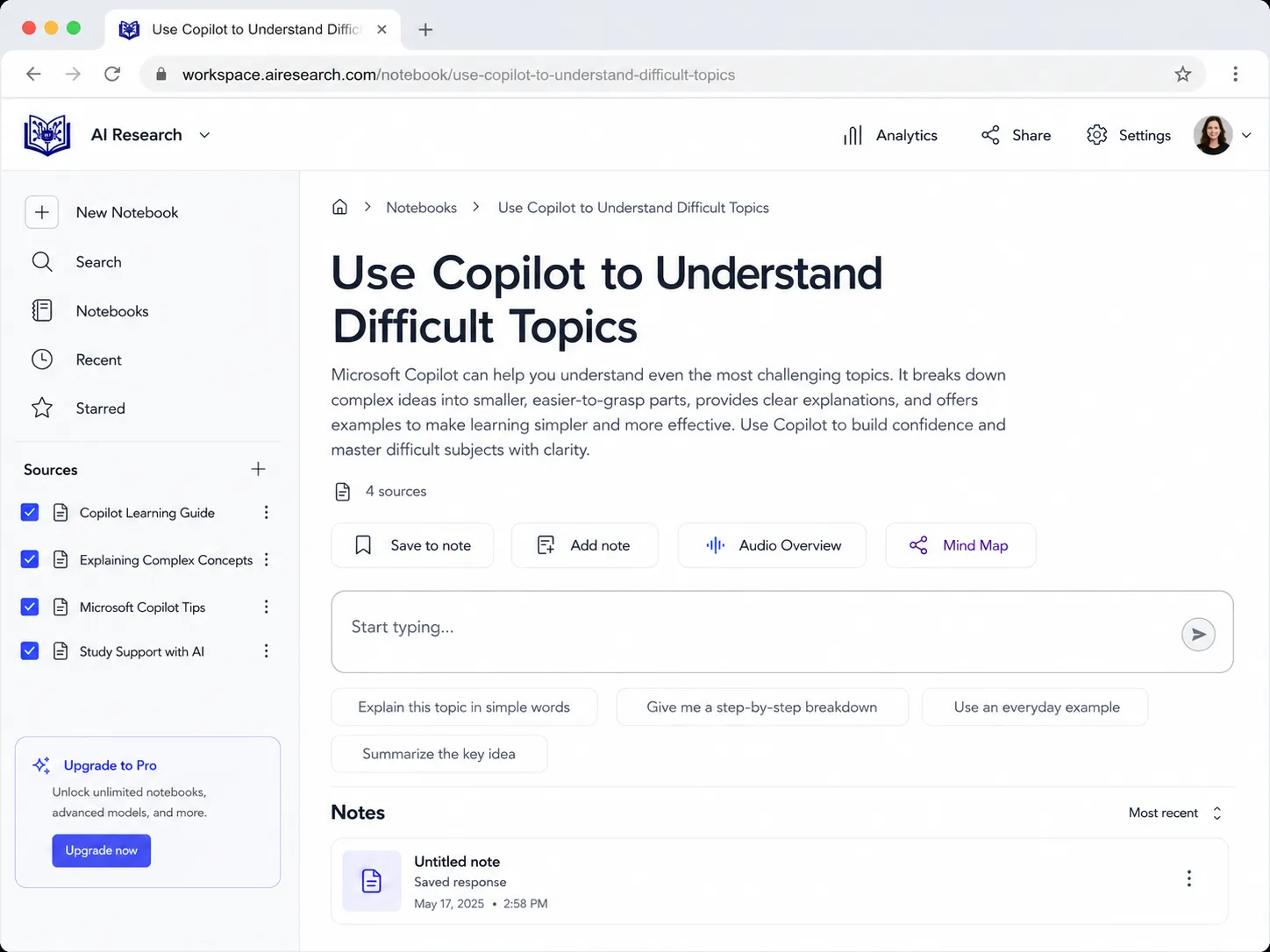
Copilot can explain difficult topics in simple language.
Use it when you do not understand:
- A science concept
- A history topic
- A programming idea
- A business theory
- A math method
- A literature theme
- A legal concept
Prompt
I am a student studying [topic]. Explain it in simple words. Give an example, list the key terms, and create 5 revision questions.
Example
I am a college student studying accounting. Explain depreciation in simple words. Give one example, list key terms, and create 5 revision questions.
This turns Copilot into a personal tutor instead of a basic answer machine.
2. Use Copilot for Homework Help
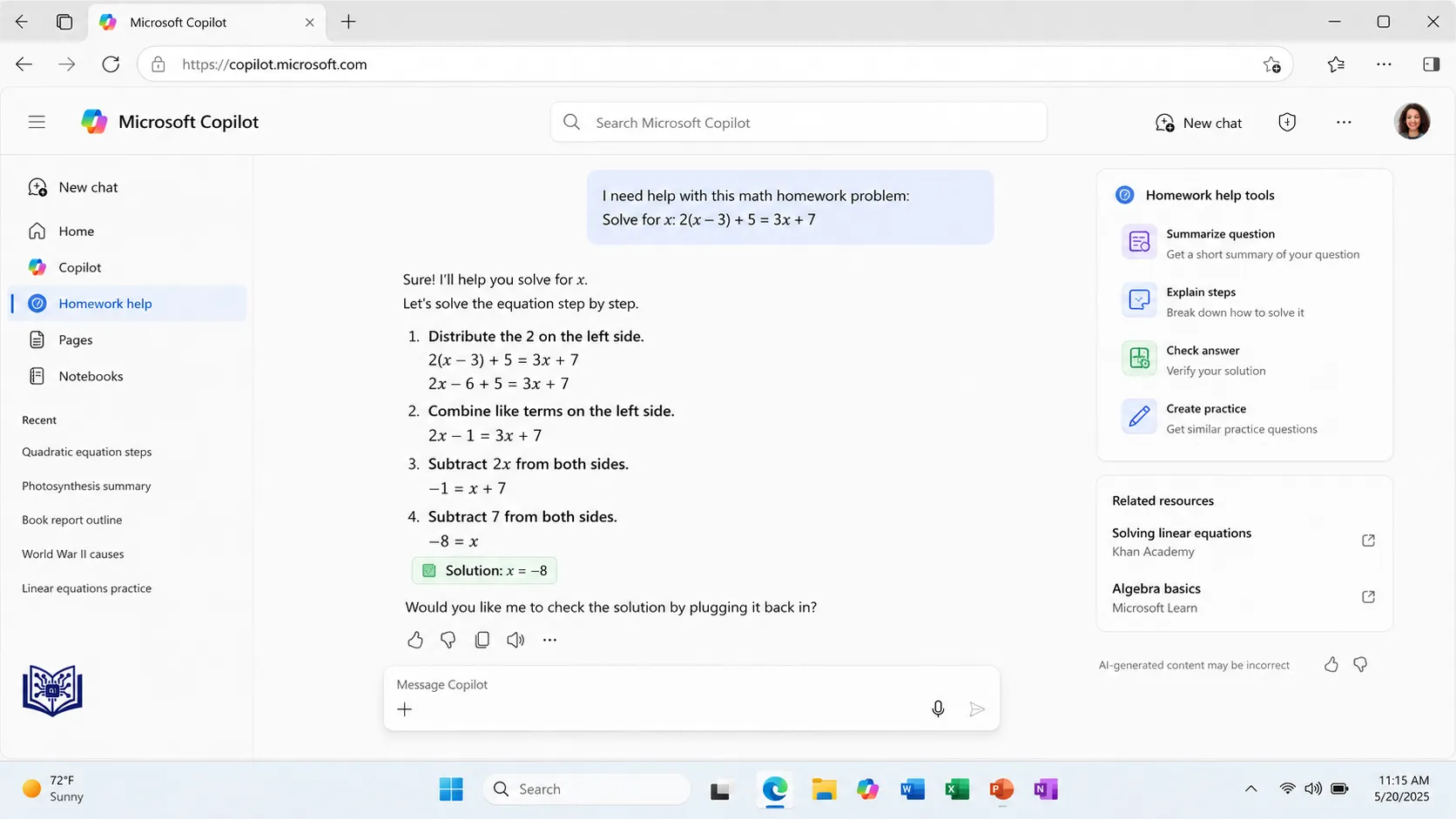
Copilot can help with homework, but students should use it ethically.
Do not ask it to simply do the full homework for you. Instead, ask it to teach you.
Bad Prompt
Do my homework.
Better Prompt
Help me understand this homework question. Explain the method step by step, show me how to think about it, and then give me a similar practice question.
This helps you actually learn.
Homework Prompt
I have this homework question: [paste question]. Do not give only the final answer. Explain the steps, tell me why each step matters, and then give me one similar question for practice.
This is useful for math, science, English, business, coding, and research assignments.
3. Use Copilot to Summarize Long Notes
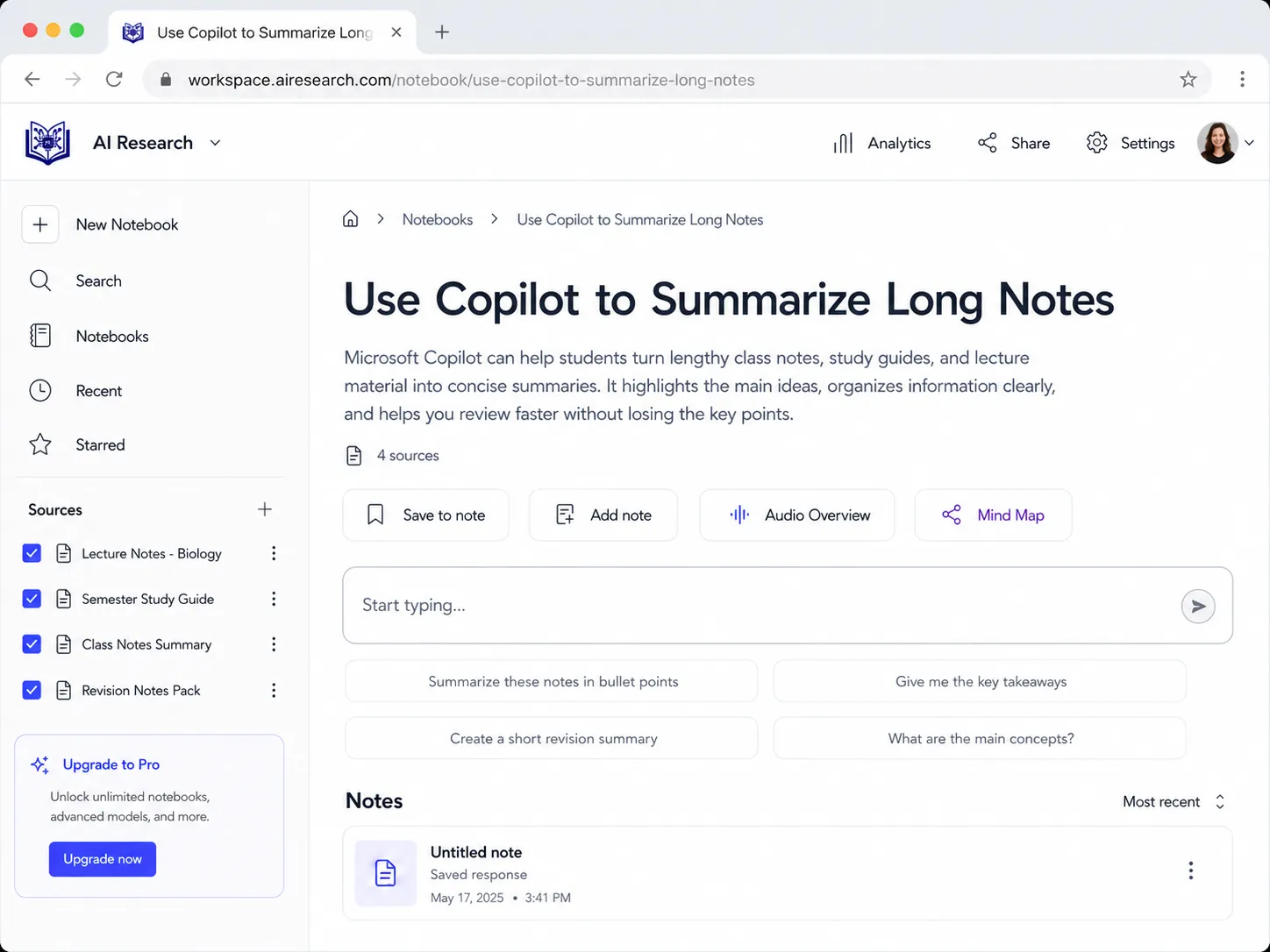
Students often have long class notes, lecture slides, PDFs, or online articles. Copilot can convert long content into short revision notes.
Prompt
Summarize this content into clear student notes. Use headings, bullet points, key definitions, examples, and a final revision checklist.
Better Prompt
I am preparing for an exam. Turn this lecture into easy revision notes. Include key concepts, definitions, examples, possible exam questions, and a 5-minute revision summary.
This is helpful when your teacher gives you long material and you need to revise quickly.
4. Use Copilot to Create Study Guides
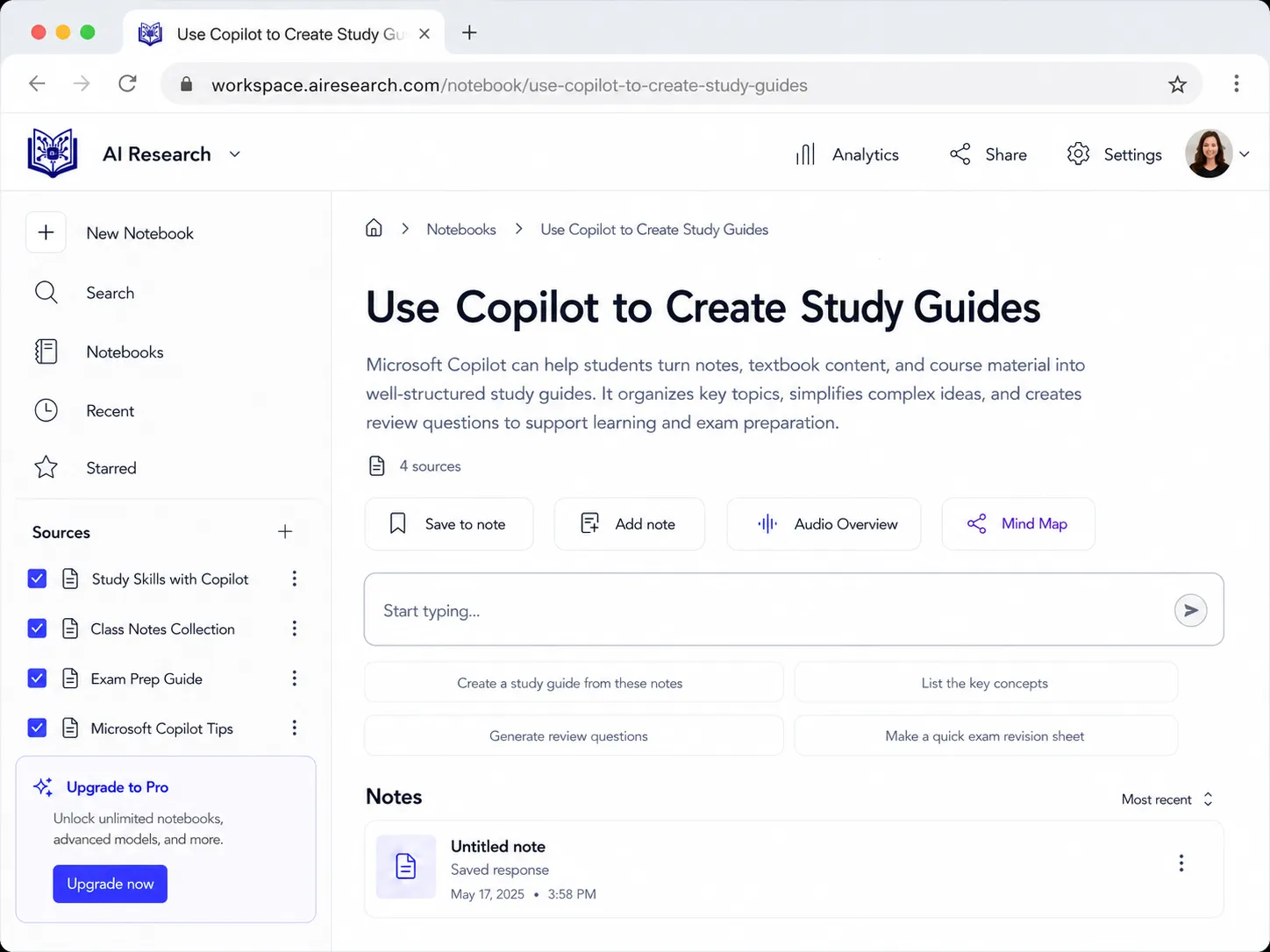
A study guide is better than a normal summary because it organizes the material for revision.
Prompt
Create a complete study guide from this topic. Include key terms, important ideas, examples, common mistakes, exam questions, and a final checklist.
Best Use Cases
- Exam preparation
- Semester revision
- Chapter summaries
- Long lectures
- Research topics
- Online course notes
A strong study guide can help you prepare faster than reading messy notes again and again.
5. Use Copilot to Make Quizzes
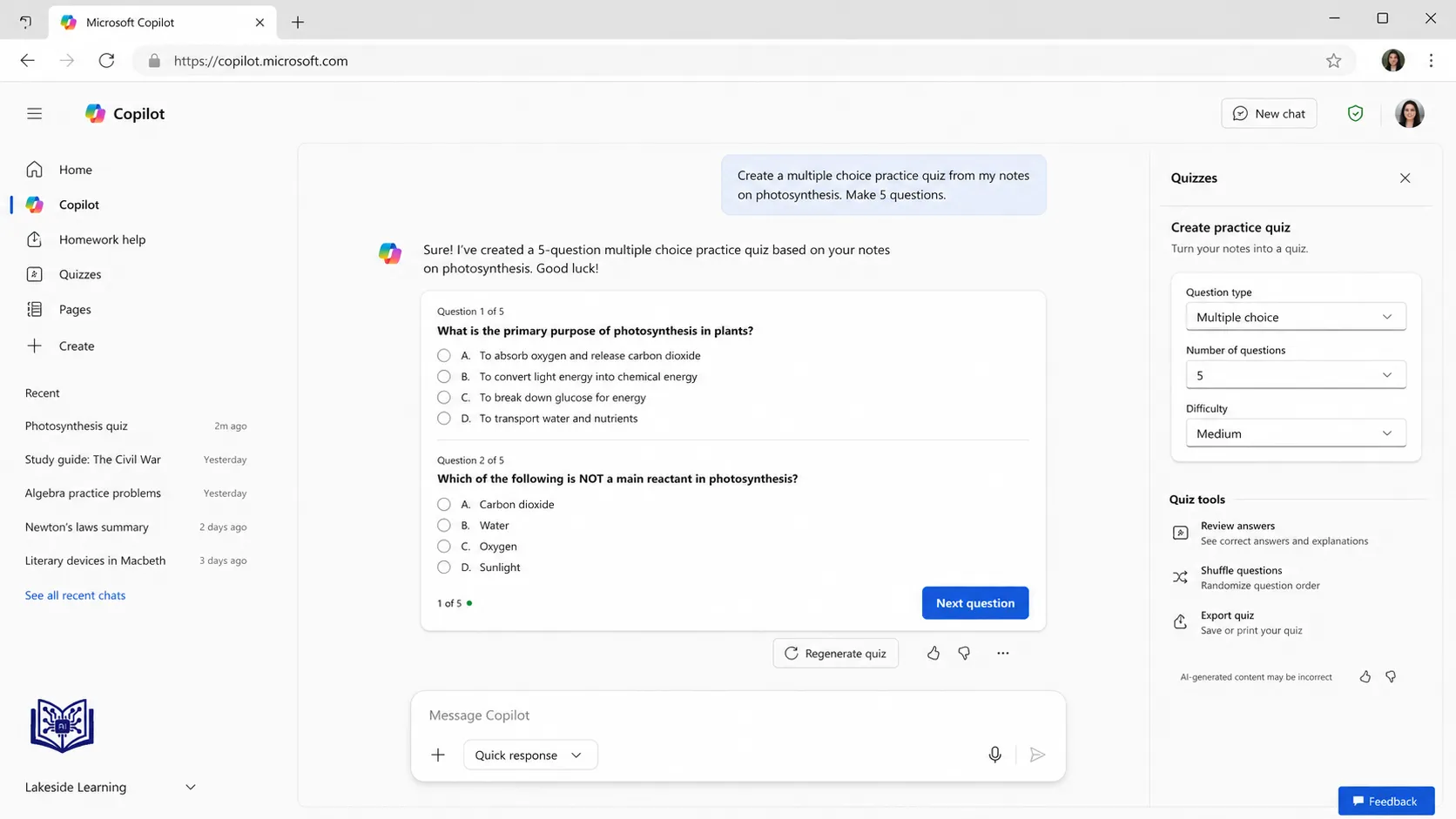
Quizzes are one of the best ways to check whether you actually understand something.
Prompt
Create a 20-question quiz from this topic. Include 10 multiple-choice questions, 5 short-answer questions, and 5 true/false questions. Put answers at the end with explanations.
Exam-Style Prompt
Create an exam-style quiz from this chapter. Make the questions a mix of easy, medium, and difficult. Do not show the answers until the end.
This is useful for:
- Biology
- Computer science
- History
- English
- Accounting
- Business
- Law
- Psychology
- IT certifications
6. Use Copilot in Word for Essays and Reports
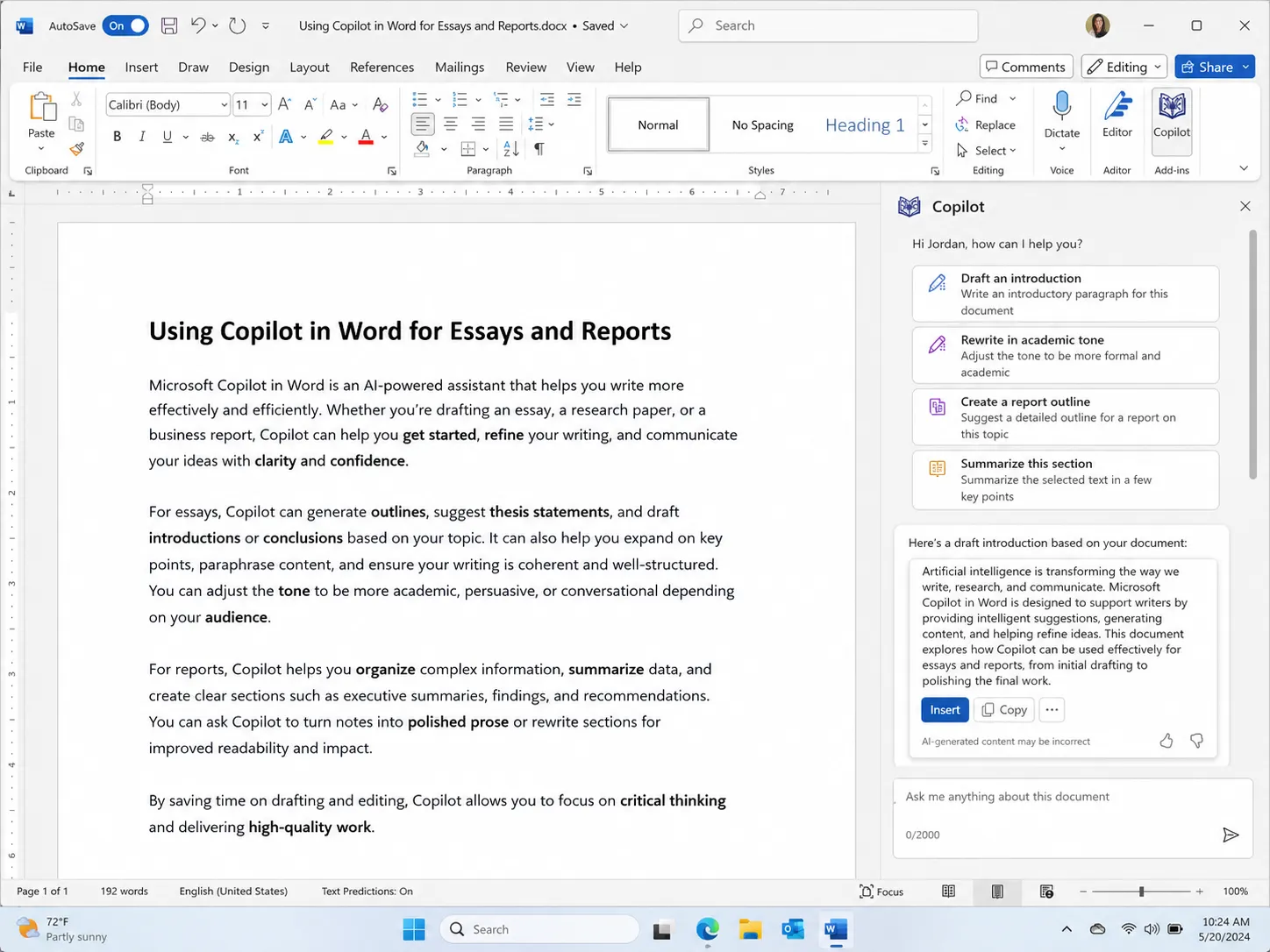
If you have access to Copilot in Word, it can help you write and improve assignments.
Copilot in Word can help with:
- First drafts
- Essay outlines
- Grammar improvement
- Document summaries
- Rewriting paragraphs
- Translating content
- Finding specific information
- Turning text into tables
The transcript explains that Copilot in Word can format documents, generate first drafts, check grammar, summarize documents, explain documents, translate documents, find information, draft emails from documents, generate text from documents, and transform text into tables.
Essay Outline Prompt
Create an essay outline on [topic]. Include an introduction, thesis statement, 3 main arguments, evidence ideas, counterargument, and conclusion.
Essay Improvement Prompt
Improve this paragraph for clarity, grammar, and flow. Keep my original meaning and make it sound like a student wrote it.
Report Prompt
Turn these rough notes into a student report with headings, bullet points, and a short conclusion.
Important: Do not submit Copilot’s first draft as your final work. Use it as a helper, then edit it yourself.
7. Use Copilot in PowerPoint for Presentations
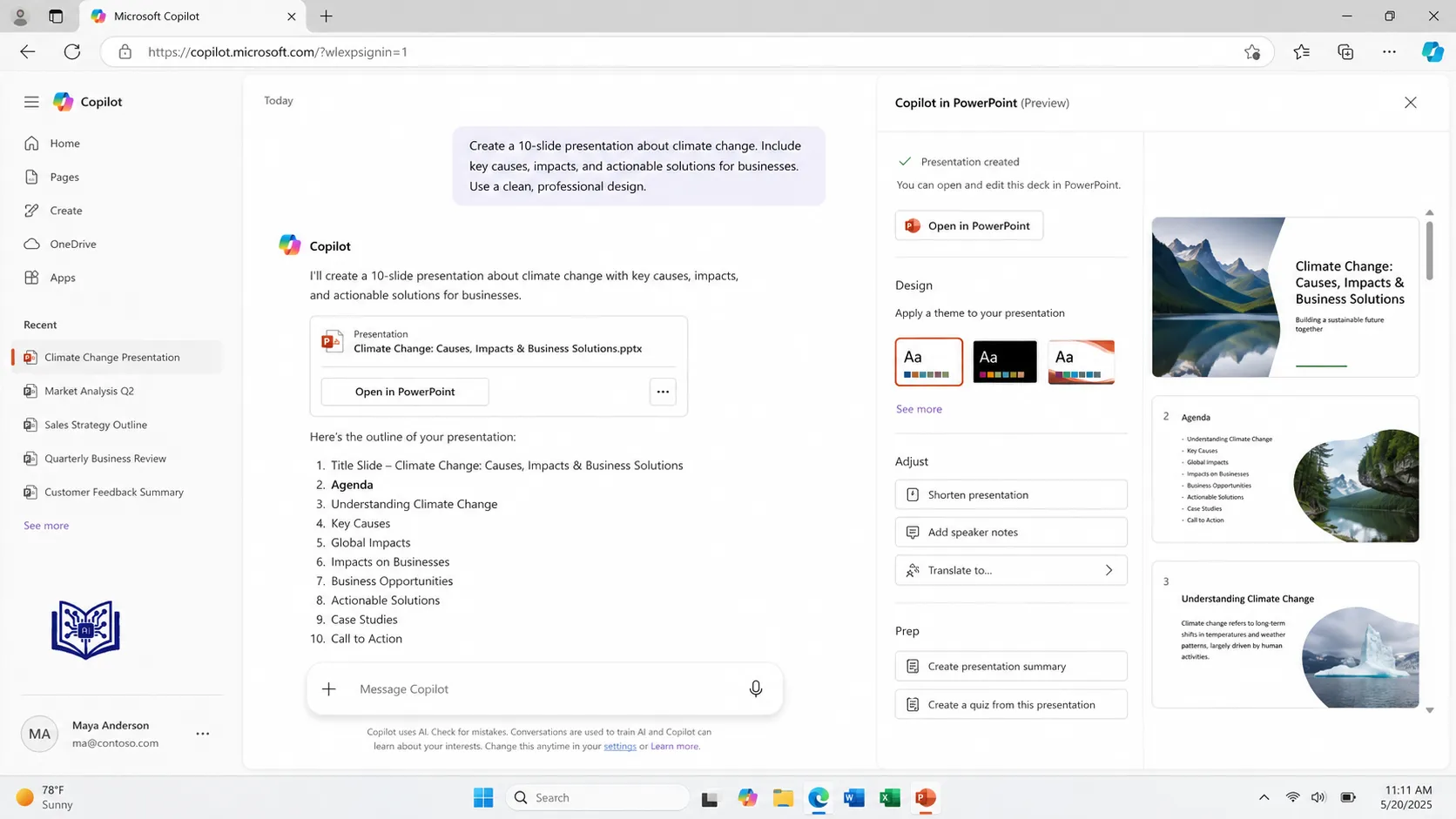
Students often spend hours designing slides. Copilot can help create a first draft of a presentation.
Copilot can help with:
- Slide outlines
- Full slide decks
- Speaker notes
- Presentation summaries
- Visual ideas
- Slide improvement
- Images for slides
The transcript lists PowerPoint use cases such as creating PowerPoint from a PDF, organizing presentations by sections, creating slides from Word documents, generating speaker notes, adding images, and summarizing presentations.
Presentation Prompt
Create a 10-slide presentation on [topic] for a class project. Include slide titles, bullet points, speaker notes, and a simple conclusion slide.
Better Prompt
Create a 7-minute student presentation on [topic]. Make the slides simple, visual, and easy to explain. Add speaker notes for each slide.
Slide Improvement Prompt
Improve this presentation. Make it clearer, reduce text, suggest better slide titles, and add speaker notes.
One transcript also notes that after Copilot creates images or slide content, PowerPoint Designer can help improve the visual layout.
8. Use Copilot in Excel for Assignments
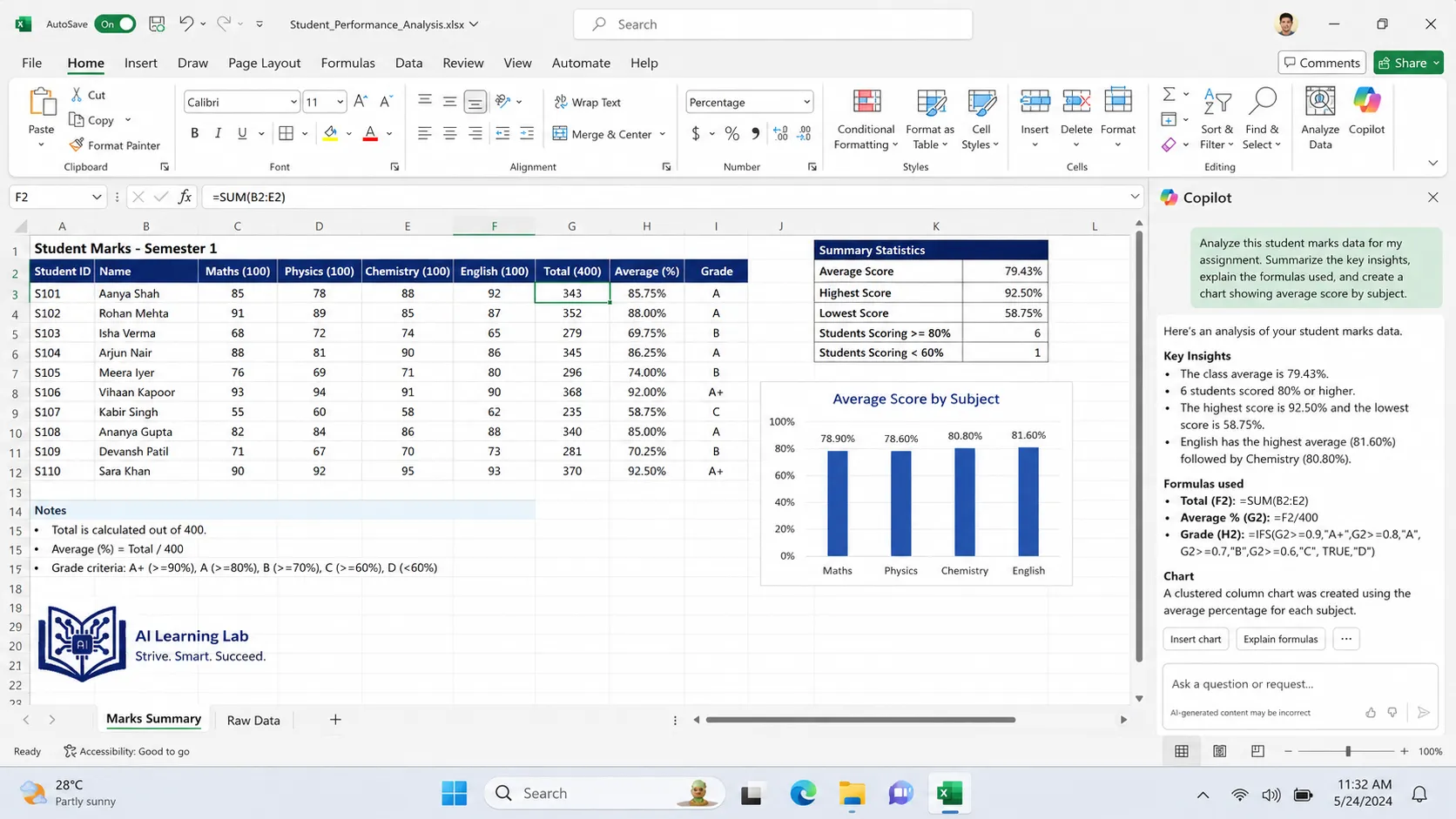
If you study business, accounting, statistics, IT, economics, or data analysis, Copilot in Excel can save a lot of time.
Copilot can help students:
- Write formulas
- Explain formulas
- Analyze data
- Create charts
- Create pivot tables
- Clean data
- Find trends
- Create dashboards
- Apply conditional formatting
The transcript lists Copilot in Excel use cases such as merging data like XLOOKUP, writing formulas, explaining formulas, making charts, applying conditional formatting, getting data insights, summarizing data with pivot tables, creating dashboards, and cleaning data.
Excel Formula Prompt
Write an Excel formula to calculate [task]. Explain the formula in simple words.
Data Analysis Prompt
Analyze this spreadsheet. Tell me the main trends, highest values, lowest values, unusual patterns, and what chart I should use.
Dashboard Prompt
Create a simple dashboard plan for this data. Include the best charts, key metrics, and insights a student should mention in a report.
This is very useful for student projects and data-based assignments.
9. Use Copilot for Research
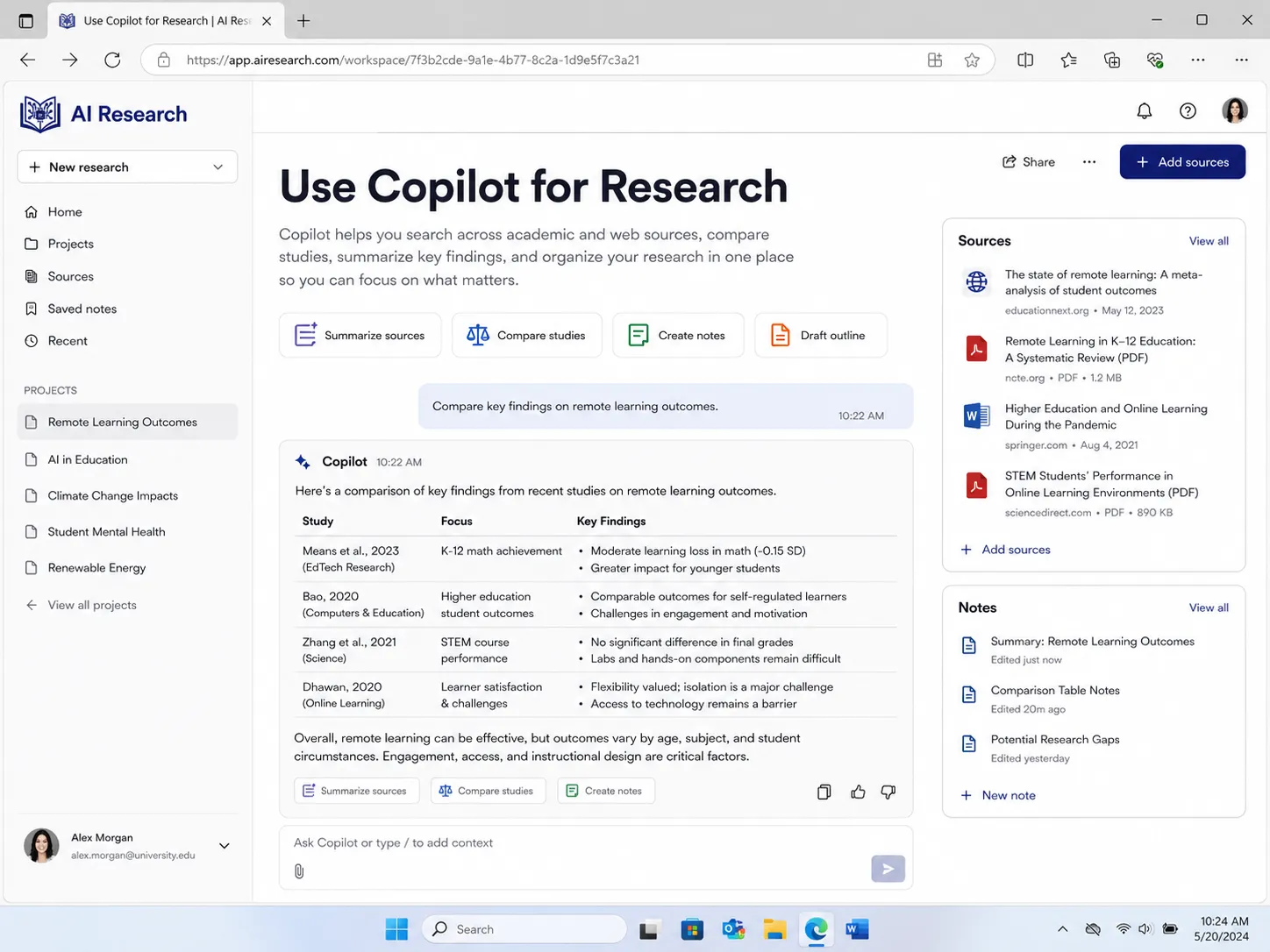
Research is difficult because students often collect too much information and do not know what matters.
Copilot can help you:
- Understand a research topic
- Summarize sources
- Compare arguments
- Find research questions
- Create literature review tables
- Explain difficult papers
- Organize references
Research Prompt
Explain this research topic for a beginner. Include key concepts, important debates, examples, and 5 research questions I can explore.
Literature Review Prompt
Compare these sources in a table. Include author, year, topic, method, findings, limitations, and how each source relates to my research question.
Research Paper Prompt
Summarize this research paper. Include the research problem, method, findings, limitations, and conclusion in student-friendly language.
Copilot can help you understand research faster, but you must verify important claims and check original sources.
10. Use Copilot to Analyze PDFs and Documents
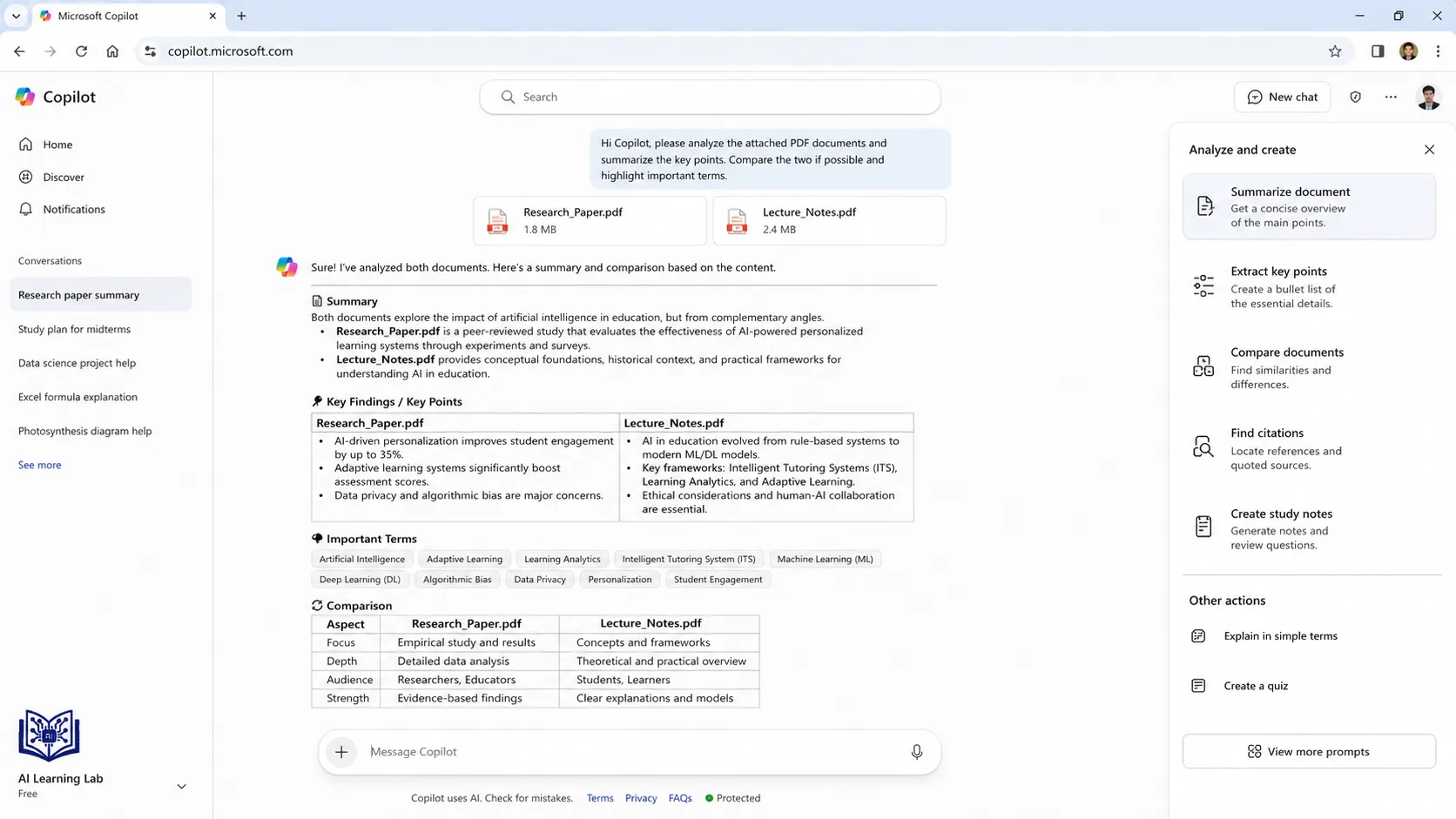
Students often need to read long PDFs, reports, and documents. Copilot can help summarize or compare them.
In one transcript, Copilot is used to analyze long financial PDFs and compare differences between two reports, then create charts from the information.
For students, this can be useful for:
- Research papers
- Case studies
- Business reports
- Legal documents
- Academic readings
- Course PDFs
- Project documents
PDF Prompt
Summarize this PDF in simple language. Give me the main points, important terms, examples, and 10 possible exam questions.
Compare PDFs Prompt
Compare these two PDFs. Show the main similarities, differences, key arguments, and which one is more useful for my assignment.
11. Use Copilot to Draft Professional Emails
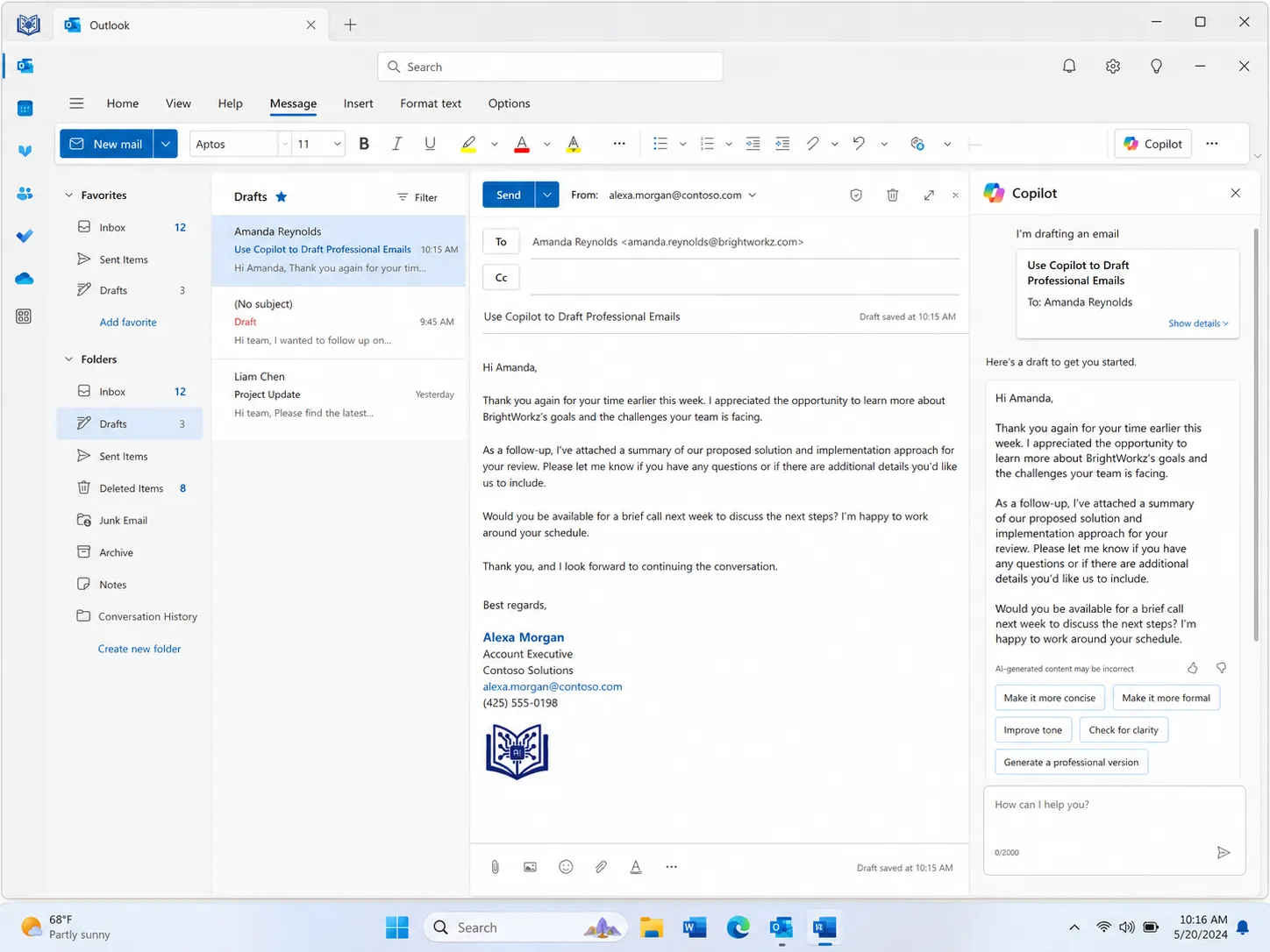
Students need to write emails for:
- Teachers
- University staff
- Internship managers
- Group project members
- Scholarship offices
- Supervisors
Copilot can help make emails polite and professional.
Teacher Email Prompt
Write a polite email to my teacher asking for clarification about the assignment deadline. Keep it short, respectful, and professional.
Internship Email Prompt
Write a professional email to apply for an internship. I am a student studying [field]. I want to sound confident, polite, and serious.
Group Project Email Prompt
Write a message to my group members asking them to submit their part of the project by Friday. Keep it friendly but clear.
The transcript shows how adding more context to an email prompt helps Copilot create a better message.
12. Use Copilot for OneNote and Class Notes
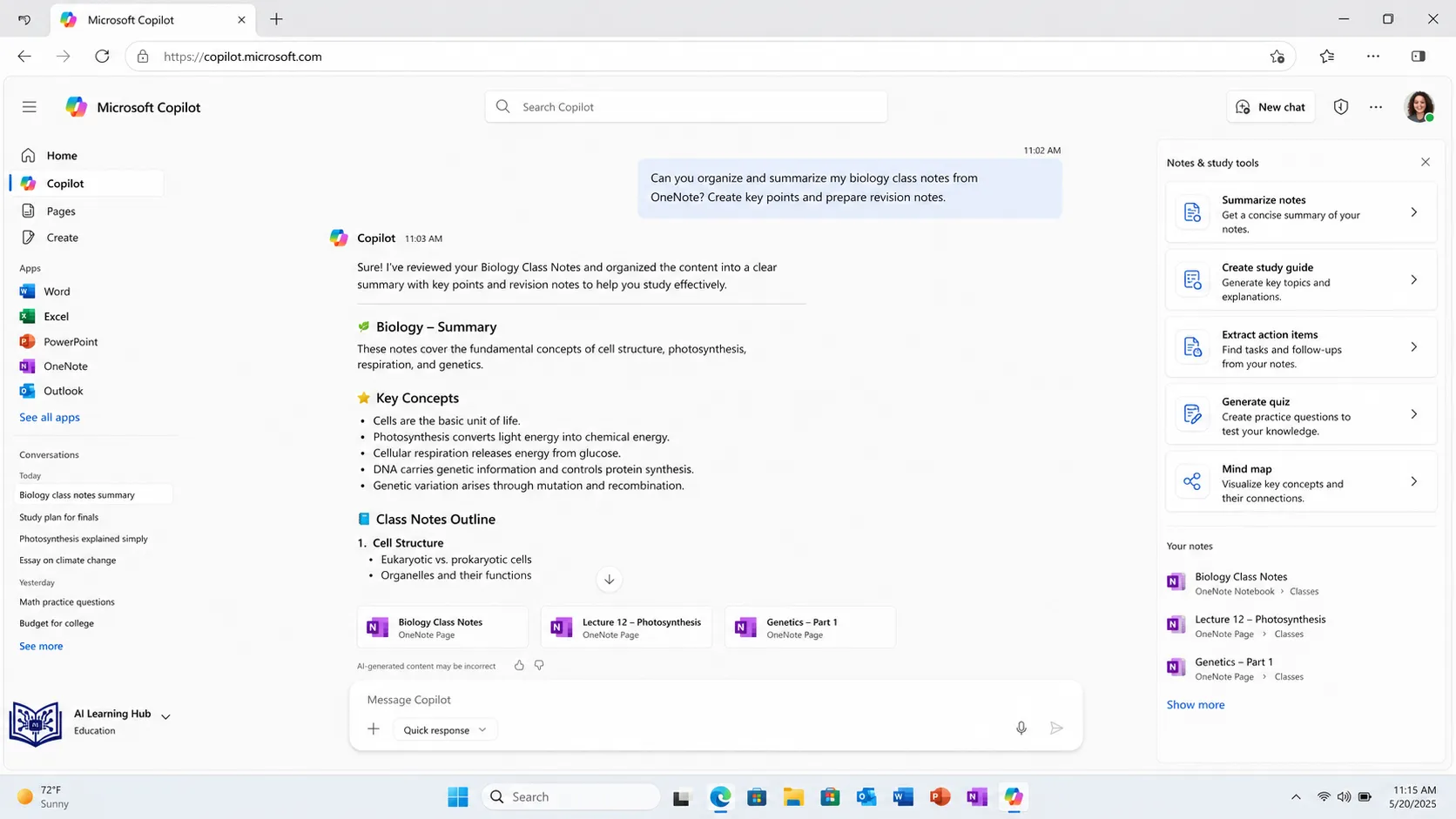
Many students use OneNote for class notes. Copilot can help turn notes into useful study material.
The transcript mentions OneNote use cases such as summarizing notes, creating to-do lists, and generating ideas.
OneNote Prompt
Summarize these class notes into key points, definitions, examples, and action items.
Revision Prompt
Turn these notes into a 30-minute revision plan with key topics, quiz questions, and weak areas to review.
To-Do Prompt
Create a study to-do list from these notes. Organize it by priority and deadline.
This is useful if your class notes are messy and you need structure.
13. Use Copilot for Study Planning
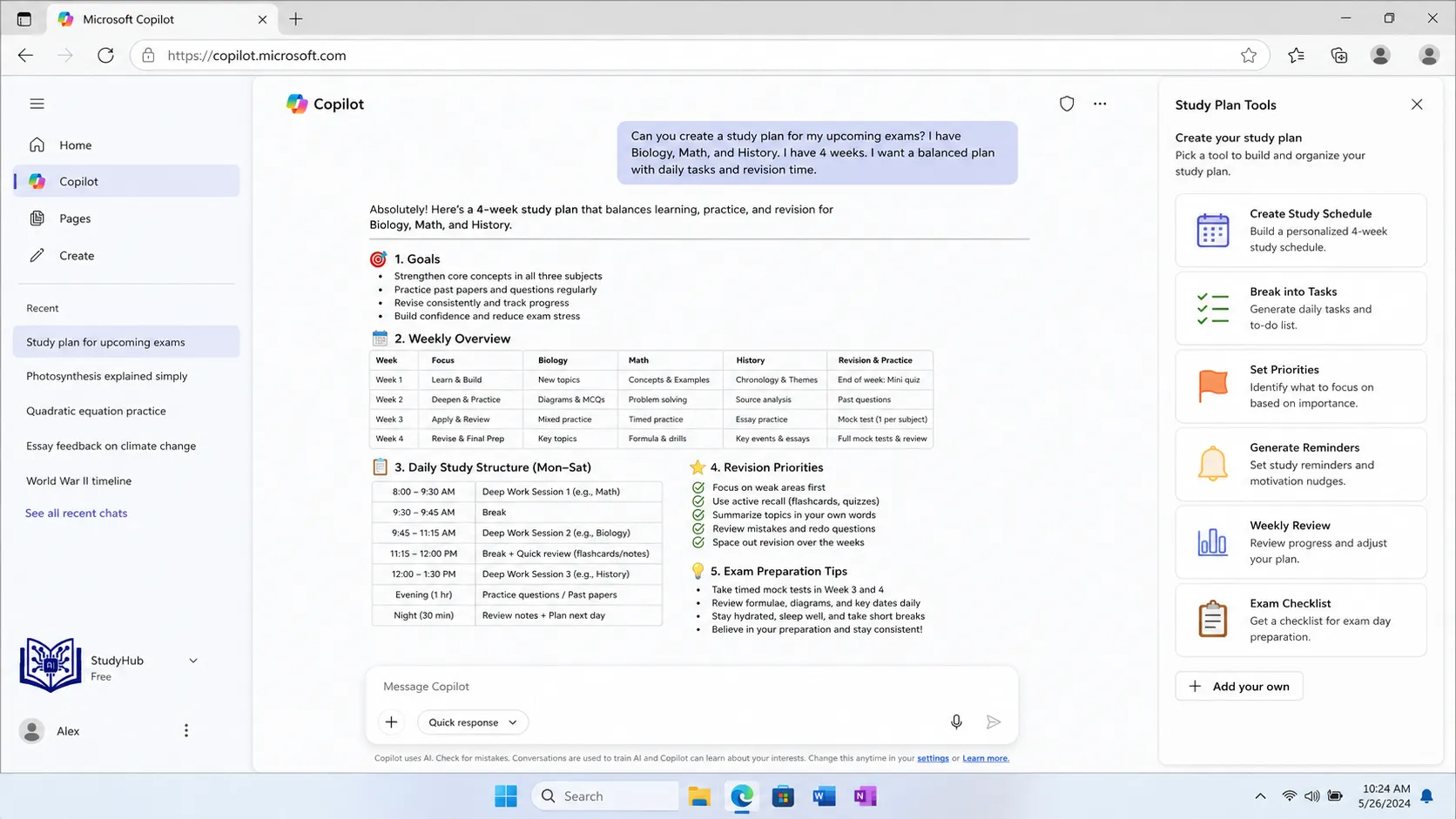
Copilot can create a realistic study plan based on your subjects, exam date, and available time.
7-Day Study Plan Prompt
I have an exam in 7 days on [subject]. I can study 2 hours per day. Create a study plan with topics, revision tasks, practice questions, and daily goals.
30-Day Study Plan Prompt
Create a 30-day study plan for [subject]. Include reading, note-making, quizzes, revision, and mock tests.
Weak Area Prompt
Based on these quiz results, identify my weak areas and create a focused revision plan.
This helps students avoid random studying and focus on what matters.
14. Use Copilot for Career Planning
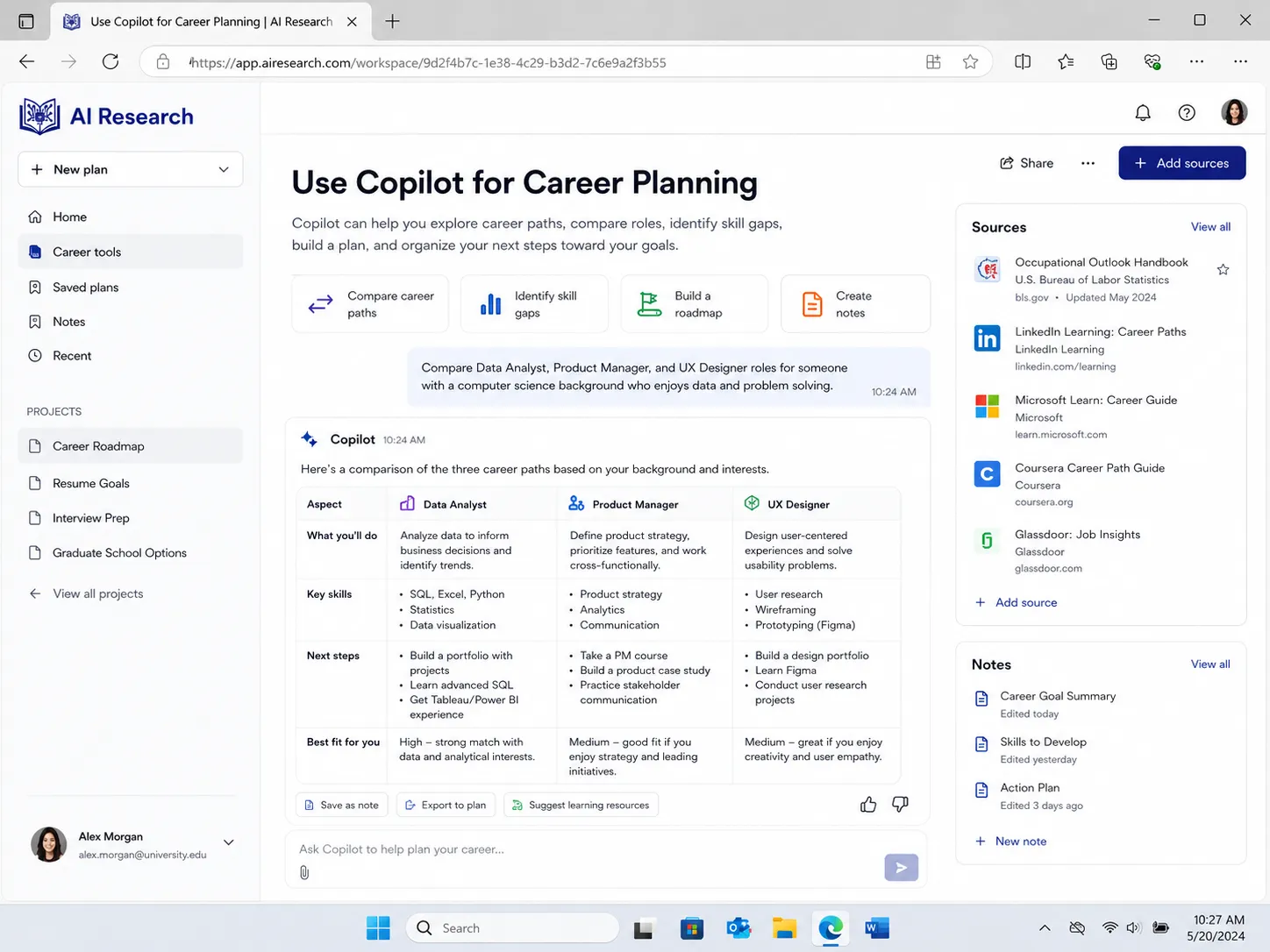
Copilot is not only for homework. It can also help students prepare for jobs, internships, and career growth.
Use it for:
- Resume improvement
- Cover letters
- Interview questions
- Skill roadmaps
- LinkedIn profile ideas
- Portfolio planning
- Career comparison
Career Plan Prompt
I am a student studying [subject]. I want to become a [career]. Create a 6-month learning plan with skills, projects, portfolio ideas, and interview preparation.
Resume Prompt
Improve this resume for an entry-level [job role]. Make it ATS-friendly and suitable for a student with limited experience.
Interview Prompt
Create 20 interview questions for an entry-level [role]. Include sample answers and tips.
15. Use Copilot for Group Projects
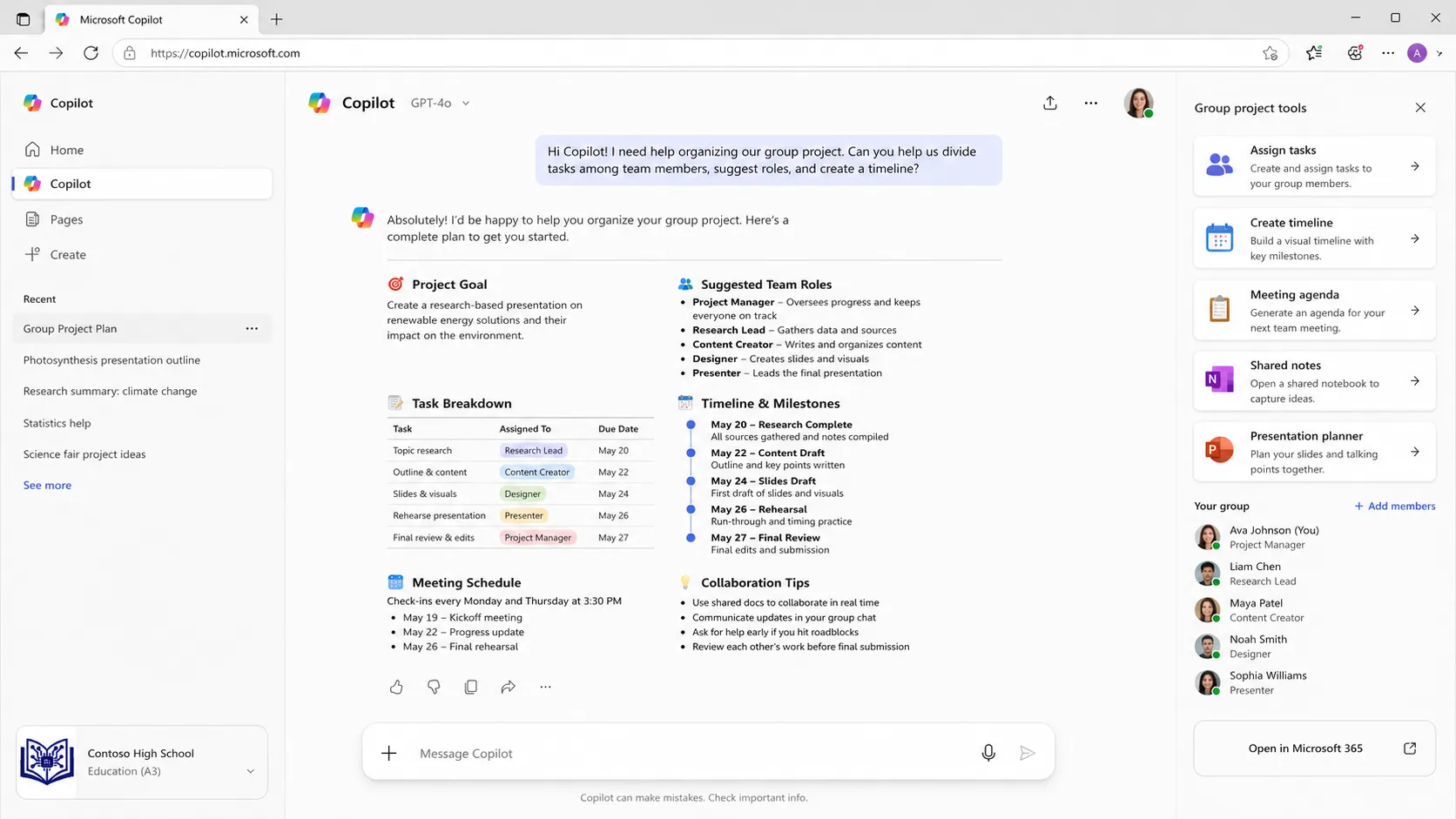
Group projects can become messy. Copilot can help organize tasks, deadlines, roles, and presentation structure.
Group Project Prompt
Help me organize a group project on [topic]. Create roles for 4 students, a timeline, task list, presentation outline, and final checklist.
Meeting Notes Prompt
Turn these group discussion notes into action items, deadlines, responsibilities, and next steps.
If your school uses Teams with Microsoft 365 Copilot, it may also help with meeting summaries and action items depending on your license. A transcript explains that Microsoft 365 Copilot can work with meetings, chats, shared documents, and email messages when grounded in work data.
Best Microsoft Copilot Prompts for Students
| Student Goal | Copilot Prompt |
|---|---|
| Understand a topic | Explain [topic] in simple words with examples and quiz questions. |
| Summarize notes | Turn this content into clear study notes with headings and bullet points. |
| Prepare for exam | Create a 7-day revision plan for [subject]. |
| Make quiz | Create 20 MCQs from this chapter with answers and explanations. |
| Improve essay | Improve this essay for clarity, grammar, and flow while keeping my voice. |
| Create presentation | Make a 10-slide presentation outline with speaker notes. |
| Analyze Excel data | Find trends, insights, and chart suggestions from this spreadsheet. |
| Research help | Summarize this source and create a literature review table. |
| Draft email | Write a polite email to [person] about [situation]. |
| Career planning | Create a 6-month roadmap to become a [career]. |
Microsoft Copilot vs ChatGPT vs NotebookLM for Students
| Tool | Best For | Weakness |
|---|---|---|
| Microsoft Copilot | Microsoft apps, Word, Excel, PowerPoint, school workflow | Some features depend on license |
| ChatGPT | Flexible tutoring, brainstorming, writing help | Not naturally built into Microsoft 365 |
| NotebookLM | Studying from your own PDFs, notes, and sources | Less useful for Excel/PowerPoint workflows |
Use Microsoft Copilot if you already work in Microsoft Word, Excel, PowerPoint, OneNote, Outlook, or Teams.
Use ChatGPT if you want flexible explanations, brainstorming, or tutoring.
Use NotebookLM if you want to study directly from your own notes, PDFs, and documents.
If you want a source-based AI study tool, read our guide on NotebookLM for Students.
Is Microsoft Copilot Safe for Students?
Microsoft says Copilot Chat for education includes enterprise data protection for eligible education users. (Microsoft) A transcript also explains that Copilot may show a shield icon for enterprise data protection and that protected information is not used to train the AI models, but users should still check organization policies.
Still, students should be careful.
Do not paste:
- Passwords
- Student ID numbers
- Private medical information
- Financial details
- Someone else’s personal information
- Confidential school documents without permission
Also, remember that schools or organizations may have policies about AI usage. One transcript warns that temporary chats may still be stored depending on organization policies and may be accessible to administrators.
So use Copilot responsibly.
Common Mistakes Students Make with Copilot
Mistake 1: Using Short Prompts
Bad:
Make notes.
Better:
Turn this chapter into exam revision notes with headings, bullet points, definitions, examples, and 10 quiz questions.
Mistake 2: Copying AI Answers
Copilot should help you learn. Do not copy final answers without understanding them.
Mistake 3: Not Checking Facts
Copilot can make mistakes. Always verify important facts, especially in academic research.
A transcript also explains that Copilot responses should be fact-checked with citations and sources for complex topics.
Mistake 4: Not Giving Sources
If you want Copilot to use a specific document, paste or upload the content when possible.
Mistake 5: Ignoring Assignment Rules
Some teachers allow AI for brainstorming but not for final writing. Always follow your school’s AI policy.
Best Study Workflow with Microsoft Copilot
Here is a simple workflow students can follow:
- Open Copilot.
- Paste your notes, topic, or assignment instructions.
- Ask for a simple explanation.
- Ask for a summary.
- Ask for key terms.
- Ask for examples.
- Ask for a quiz.
- Ask Copilot to identify weak areas.
- Create a revision checklist.
- Rewrite everything in your own words.
- Verify facts before submitting.
This workflow makes Copilot a study partner instead of a shortcut.
FAQ: Microsoft Copilot for Students
What is Microsoft Copilot for students?
Microsoft Copilot for students is an AI assistant that can help with studying, homework, research, writing, quizzes, summaries, presentations, Excel assignments, emails, and study planning.
Is Microsoft Copilot free for students?
Microsoft says eligible institutions can access Office 365 Education, which includes Microsoft 365 Copilot Chat along with web versions of Word, Excel, PowerPoint, OneNote, and Teams. Availability depends on the student’s school or university license. (Microsoft)
Can Microsoft Copilot help with homework?
Yes, Copilot can help explain homework questions, show steps, summarize topics, and create practice questions. Students should use it to learn, not to copy final answers.
Can Copilot write essays for students?
Copilot can help create essay outlines, improve grammar, rewrite paragraphs, and organize ideas. Students should still write, edit, and verify their own final work.
Can Microsoft Copilot create PowerPoint presentations?
Yes, depending on your Microsoft 365 access, Copilot can help create PowerPoint drafts, speaker notes, slide outlines, images, and presentation summaries. The transcript includes PowerPoint use cases such as creating slides from PDFs or Word documents and generating speaker notes.
Can Microsoft Copilot help with Excel assignments?
Yes. Copilot can help write formulas, explain formulas, analyze data, create charts, apply conditional formatting, and summarize data with pivot tables.
Is Copilot better than ChatGPT for students?
Copilot may be better for students who use Microsoft Word, Excel, PowerPoint, Outlook, OneNote, or Teams. ChatGPT may be better for flexible tutoring, brainstorming, and general writing support.
Can Copilot summarize PDFs?
Yes, depending on version and access. In the transcript, Copilot is shown analyzing long PDFs and comparing financial statements.
What is the best Copilot prompt for students?
A strong prompt includes your role, topic, task, format, and level. Example: “I am a college student studying biology. Explain this topic in simple words, create revision notes, and make 10 quiz questions with answers.”
Should students use Copilot for exams?
Students can use Copilot for revision, practice questions, summaries, and study planning. They should not use it to cheat during exams or violate school rules.
Final Verdict
Microsoft Copilot can be a powerful AI study assistant for students in 2026. It can help you understand difficult topics, summarize notes, create quizzes, improve essays, analyze Excel data, prepare PowerPoint presentations, draft emails, and organize your study plan.
The key is to use Copilot properly.
Do not just ask lazy prompts. Give it context, explain your level, tell it your goal, and ask for the output in the format you need.
Use Copilot as a tutor, study planner, writing assistant, research helper, and productivity tool — not as a shortcut to avoid learning.
If you already use Microsoft Word, Excel, PowerPoint, OneNote, Outlook, or Teams, then Microsoft Copilot can become one of the most useful AI tools in your student workflow.
Commonly Asked Questions
Q: What is Microsoft Copilot for students?
Microsoft Copilot for students is an AI assistant that helps learners with homework, notes, research, writing, quizzes, presentations, Excel assignments, emails, and study planning.
Q: Is Microsoft Copilot free for students?
Some eligible students can access Microsoft 365 Copilot Chat through their school or university Microsoft 365 Education account. Full features may depend on the institution’s license and settings.
Q: How can students use Microsoft Copilot?
Students can use Copilot to explain topics, summarize notes, create quizzes, improve essays, analyze Excel data, make PowerPoint presentations, draft emails, and plan exam revision.
Q: Can Microsoft Copilot help with homework?
Yes, Copilot can explain homework questions step by step, create practice questions, and help students understand the method. Students should use it for learning, not copying.
Q: Is Microsoft Copilot better than ChatGPT for students?
Microsoft Copilot is better for students who use Word, Excel, PowerPoint, Outlook, OneNote, or Teams. ChatGPT is often better for flexible brainstorming and general tutoring.
Q: Can Copilot create PowerPoint presentations?
Yes, depending on Microsoft 365 access, Copilot can help create slide drafts, speaker notes, outlines, images, and presentation summaries.
Q: Can Copilot help with Excel assignments?
Yes, Copilot can help write formulas, explain formulas, analyze data, create charts, apply formatting, and summarize spreadsheet data.
Q: What is the best prompt formula for Microsoft Copilot?
A good Copilot prompt includes role, task, context, format, and source. Example: “I am a student studying biology. Explain this chapter in simple words, make notes, and create 10 quiz questions.”
Helpful AI Study Guides
Explore these useful student guides to study smarter, prepare faster, and use AI tools more effectively.