
NotebookLM for Students: How to Study Smarter in 2026
Studying is not just about reading notes anymore. In 2026, students can use AI tools to summarize lectures, understand PDFs, create quizzes, review flashcards, and even turn boring study material into audio or video lessons.
One of the best tools for this is Google NotebookLM.
NotebookLM is an AI-powered research and study assistant from Google. Instead of giving general answers from the internet, it works with the sources you upload, such as PDFs, notes, Google Docs, websites, YouTube videos, copied text, slides, and more. Google describes NotebookLM as an AI research tool and thinking partner that can analyze your sources and help turn complex information into clearer content. (Google NotebookLM)
For students, this means you can upload your class notes, lecture slides, textbook PDFs, or YouTube tutorials and ask questions directly from that material.
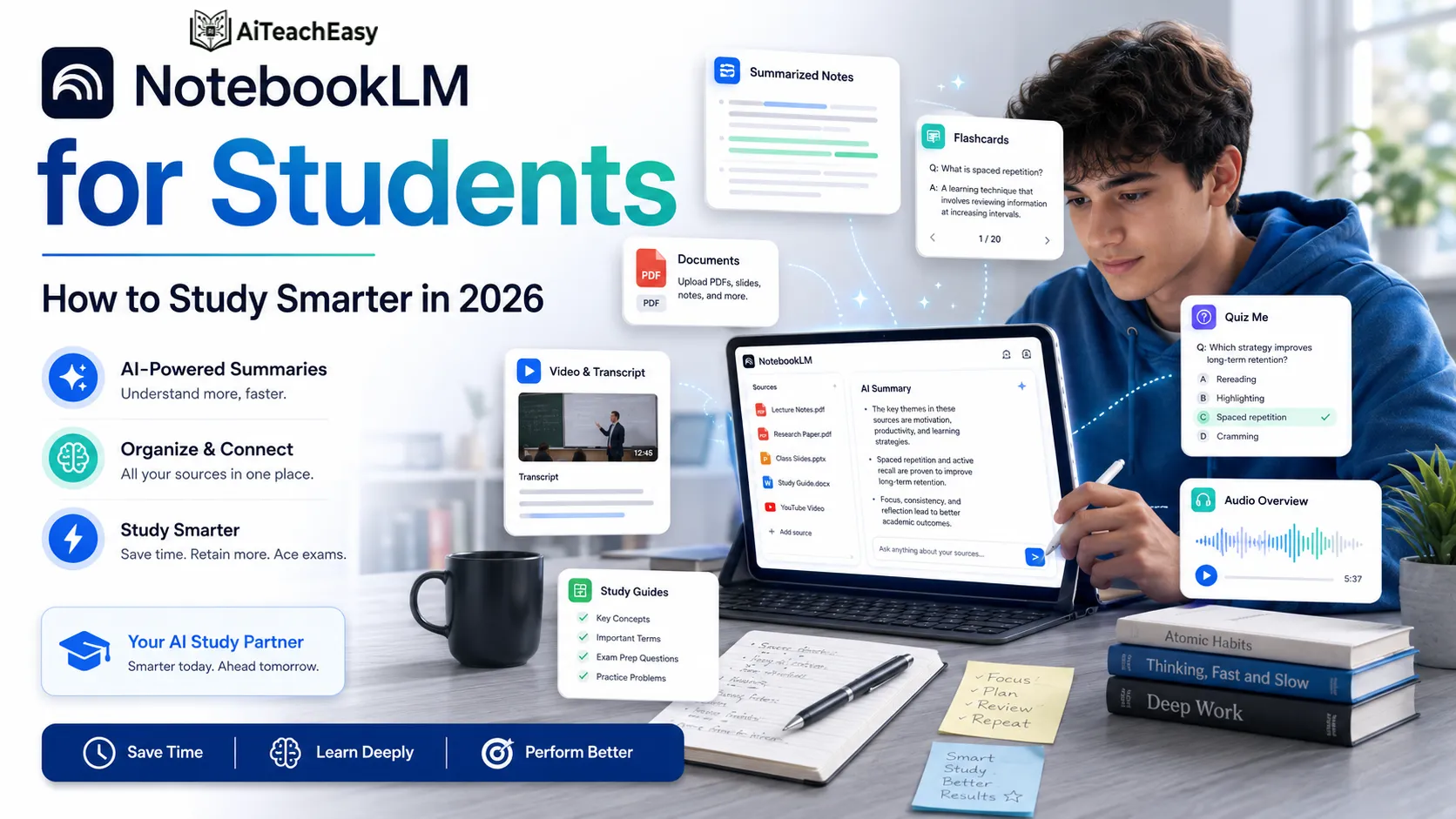
In this guide, you will learn how to use NotebookLM for students, what it can do, and how to use it for homework, research, exam preparation, coding, notes, flashcards, and presentations.
What Is NotebookLM?
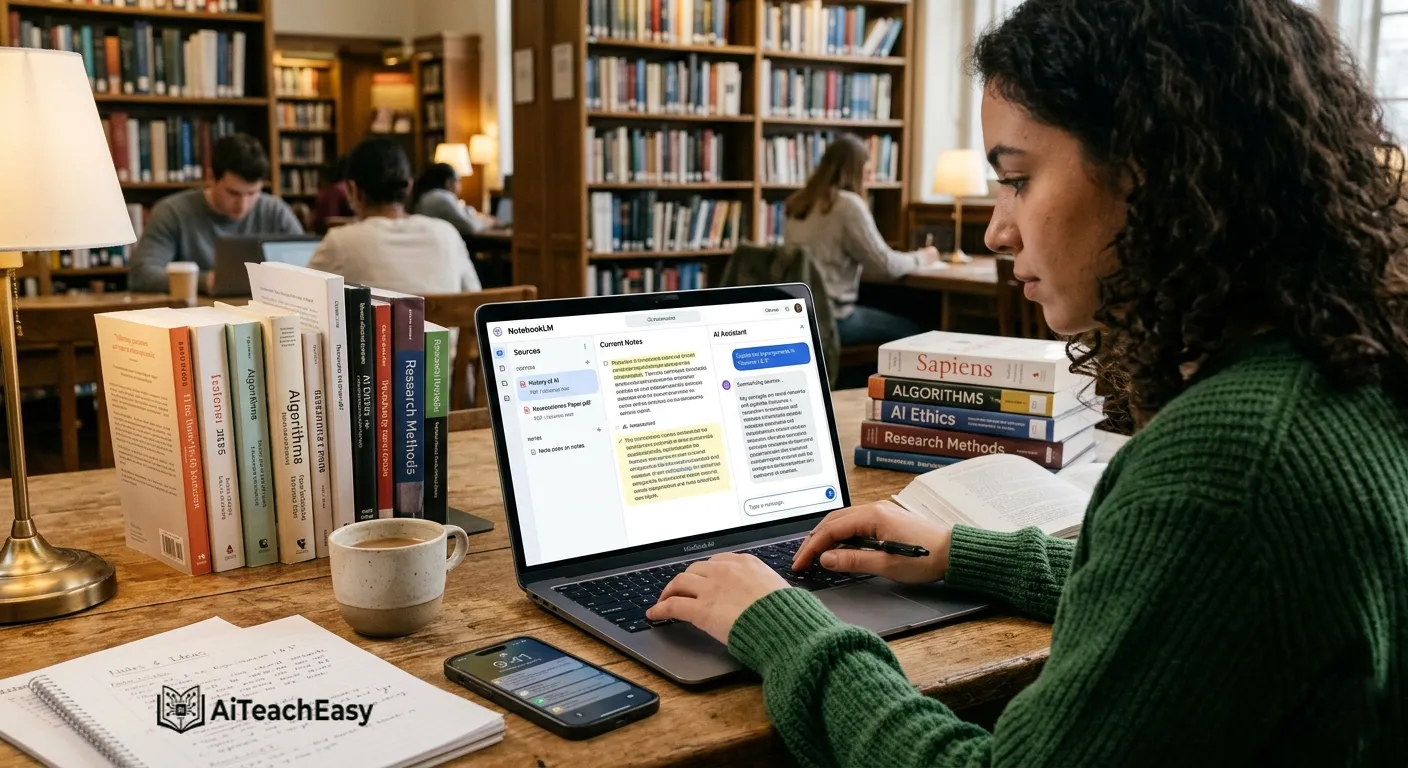
NotebookLM is Google’s AI study and research tool that helps you understand your own documents. You create a notebook, add your sources, and then ask questions based on those sources.
For example, you can upload:
- Class notes
- PDFs
- Google Docs
- Google Slides
- Websites
- YouTube video links
- Copied text
- Audio files
- Images
- Word documents
- PowerPoint files
- CSV files
Google’s official help page says NotebookLM supports many source types, including PDFs, websites, Google Docs, Google Slides, copied text, audio files, images, Microsoft Word files, PowerPoint files, CSV files, ePub files, and more. (Google Help)
This makes it useful for students because your study material is usually scattered across PDFs, videos, notes, slides, and websites. NotebookLM brings everything into one notebook.
Why NotebookLM Is Useful for Students
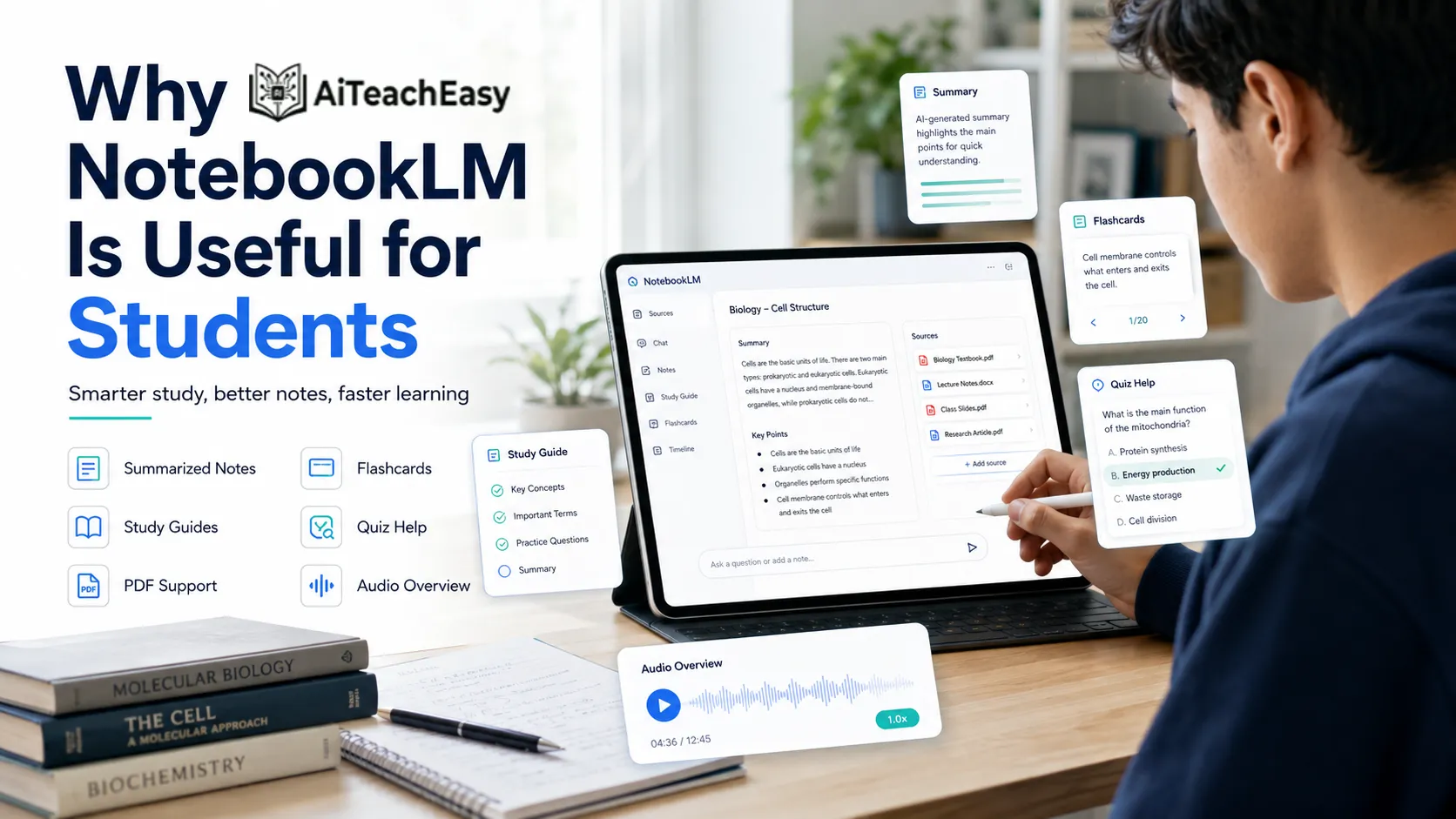
Most AI chatbots can answer questions, but NotebookLM is different because it focuses on your uploaded sources.
That means you can ask:
- “Summarize this lecture.”
- “Explain this PDF in simple words.”
- “Create a quiz from my notes.”
- “Make flashcards for exam revision.”
- “Explain this code line by line.”
- “Turn this topic into a slide deck.”
- “Create an audio overview of this chapter.”
- “What are the most important points for my test?”
The transcript also explains this point clearly: NotebookLM can summarize notes, analyze PDFs, explain code, simplify research, and help users work from their own documents instead of random information.
This is especially helpful for students who want answers based on their own syllabus, teacher notes, or textbook chapters.
Quick Overview: What Students Can Do with NotebookLM
| Feature | Best For | Student Use Case |
|---|---|---|
| Source-based chat | Understanding notes | Ask questions from PDFs, slides, or lectures |
| Summaries | Fast revision | Summarize long chapters |
| Study guides | Exam prep | Turn notes into structured study material |
| Flashcards | Memorization | Learn key terms and definitions |
| Quizzes | Self-testing | Practice before exams |
| Audio Overview | Learning on the go | Listen to notes like a podcast |
| Video Overview | Visual learning | Turn notes into a short explained video |
| Mind Maps | Topic clarity | Understand relationships between ideas |
| Slide Decks | Presentations | Create presentation drafts from sources |
| Reports | Assignments | Generate structured reports from material |
Google’s NotebookLM Help Center includes features like Audio Overview, Video Overview, Mind Maps, Flashcards, Quizzes, Infographics, and Slide Decks. (Google Help)
How to Use NotebookLM for Students
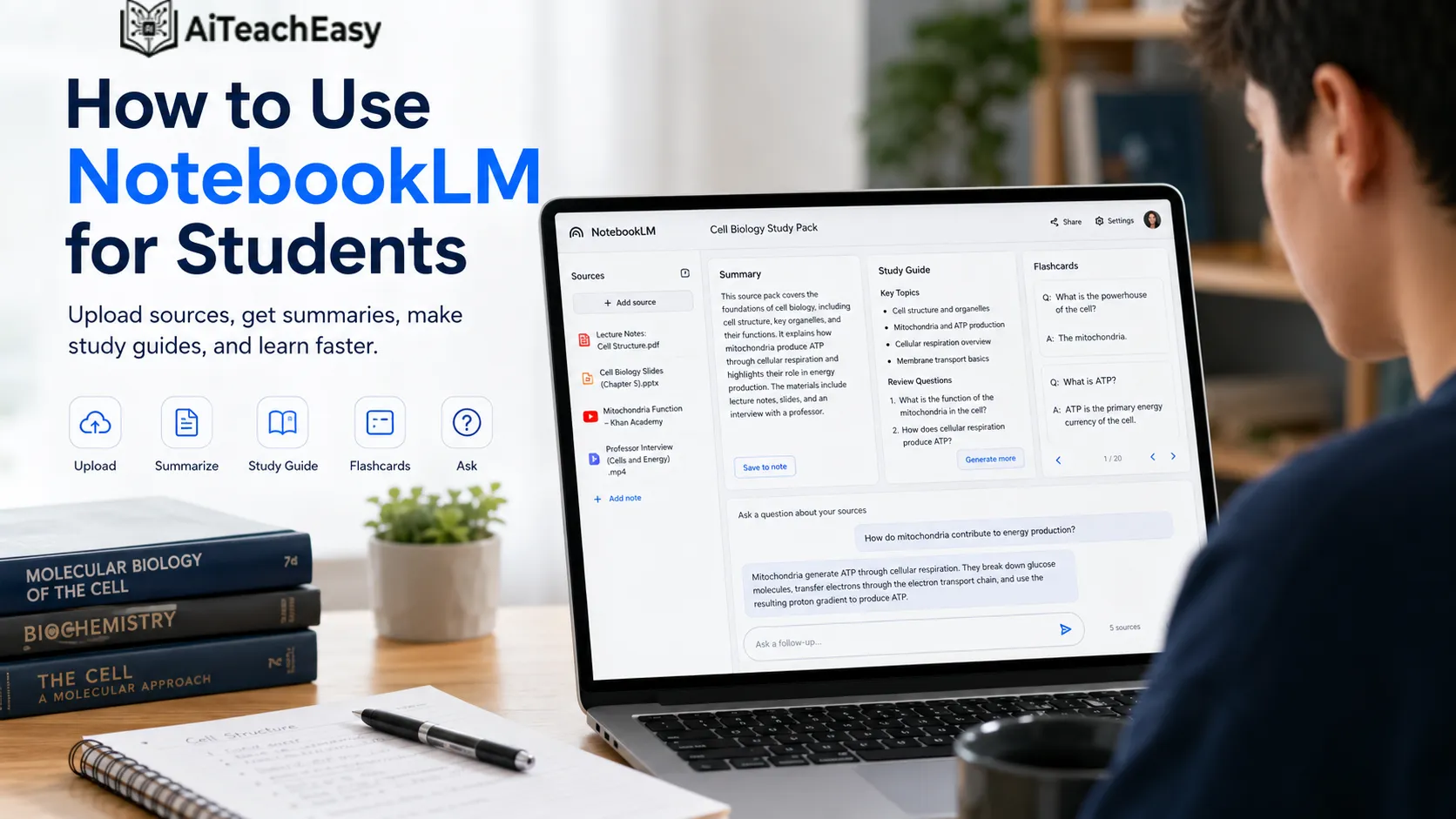
Step 1: Open NotebookLM
Go to Google and search for NotebookLM. Open the official NotebookLM website and sign in with your Google account.
After that, you can create a new notebook. A notebook is like a study folder where you collect all your sources for one subject or topic.
Example notebooks:
- Biology Chapter 3
- English Literature Notes
- Computer Science Assignment
- Research Paper Sources
- Exam Revision
- Flutter Documentation
- History Lecture Notes
Step 2: Add Your Study Sources
After creating a notebook, add your sources.
You can upload or paste:
- PDF notes
- Class handouts
- Lecture slides
- Website links
- YouTube video links
- Copied text
- Google Docs
- Google Slides
- Audio files
- Images or screenshots
The transcript shows the same workflow: add sources first, then ask questions around only those selected sources. It also explains that you can select or unselect sources, so NotebookLM answers from the exact document you want.
This is useful when you have multiple files but want answers from only one chapter, one lecture, or one document.
Step 3: Ask Questions from Your Notes
Once your sources are added, ask questions like:
- “Explain this chapter in simple English.”
- “What are the key points from this lecture?”
- “Create short notes from this PDF.”
- “Explain this topic like I am a beginner.”
- “Give me important exam questions from this source.”
- “What is the difference between these two concepts?”
NotebookLM can answer with citations from your sources, which helps you check where the answer came from. Google says NotebookLM lets users chat with their notebook and get grounded information based on sources with in-line citations. (Google Help)
This is one of the biggest benefits for students because you can verify the answer instead of blindly trusting AI.
Best Ways Students Can Use NotebookLM
1. Summarize Long PDFs
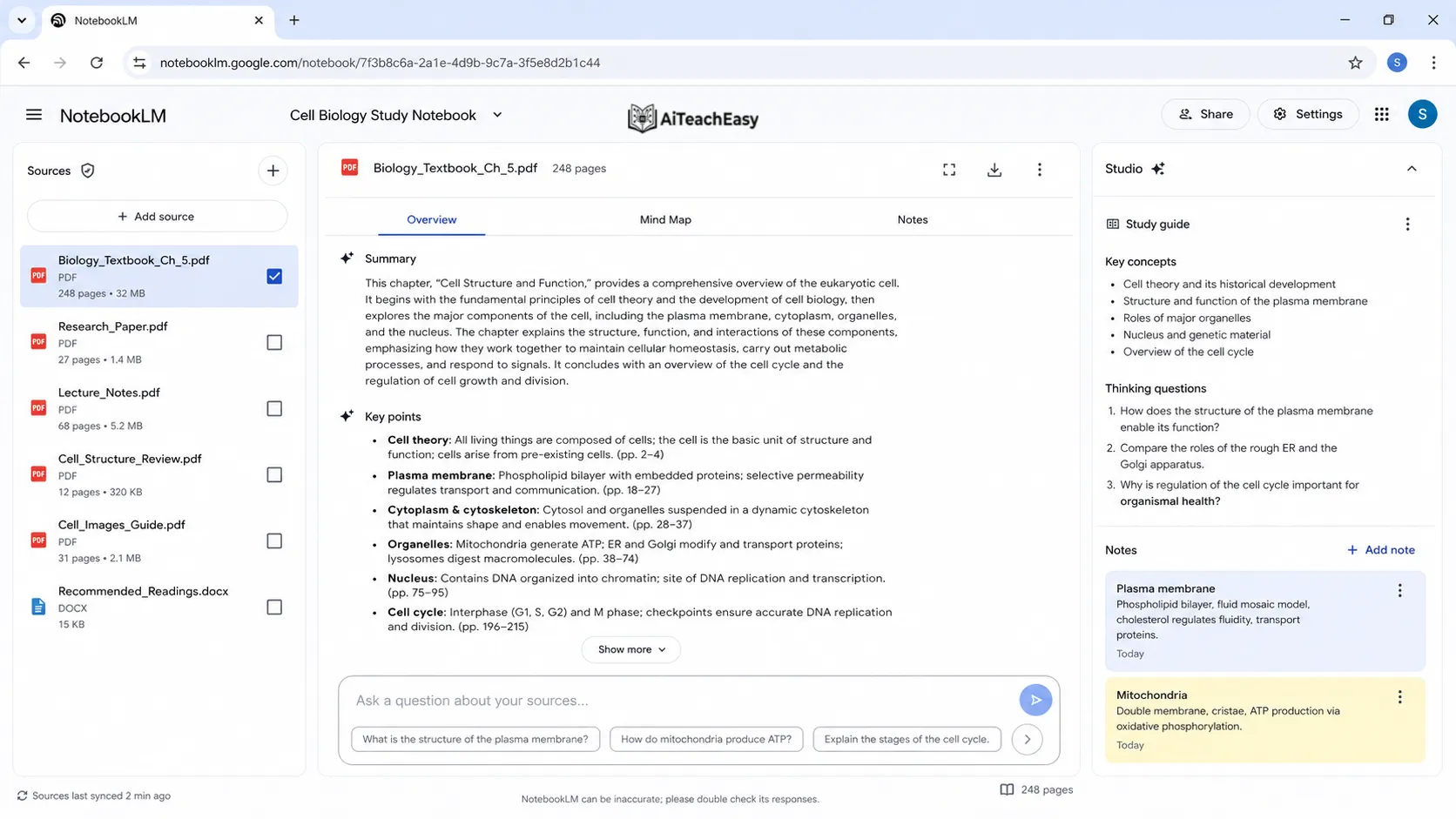
Students often get long PDFs from teachers, universities, or online courses. Reading everything can take hours.
With NotebookLM, you can upload the PDF and ask:
“Summarize this PDF in 10 bullet points.”
Or:
“Create a chapter summary with key terms and examples.”
This is useful for:
- Lecture notes
- Research papers
- Textbook chapters
- Assignment readings
- Study guides
- Exam material
For students who struggle with long reading, this can save a lot of time.
2. Turn Lecture Notes into Study Guides
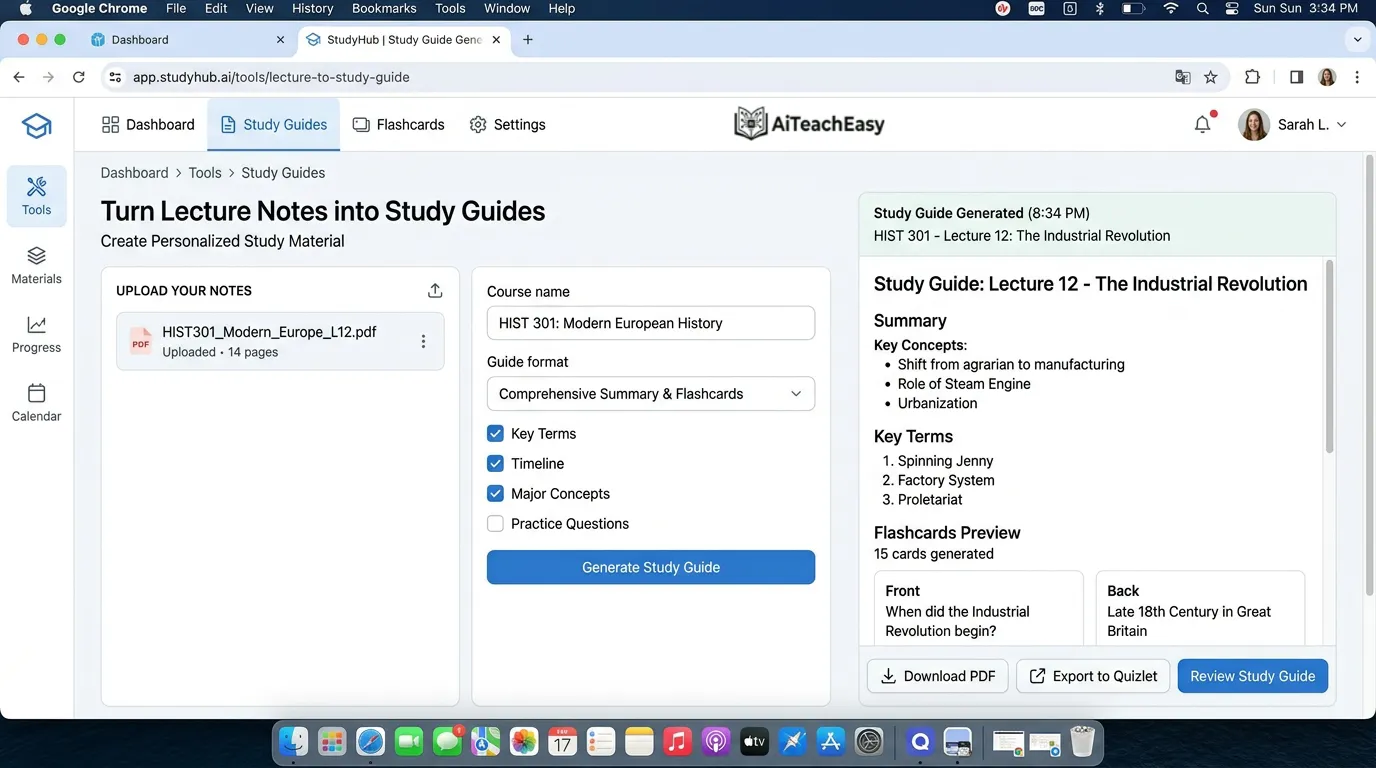
NotebookLM can help you convert messy lecture notes into structured study guides.
Use this prompt:
Create a complete study guide from these notes. Include key concepts, definitions, examples, important questions, and a short revision summary.
This works well for:
- Biology
- Computer science
- History
- Business studies
- English
- Psychology
- Law
- Medical topics
Google’s student-focused NotebookLM page says students can use it to summarize lecture notes, create study guides, and learn new topics faster. (Google NotebookLM)
3. Create Flashcards for Revision
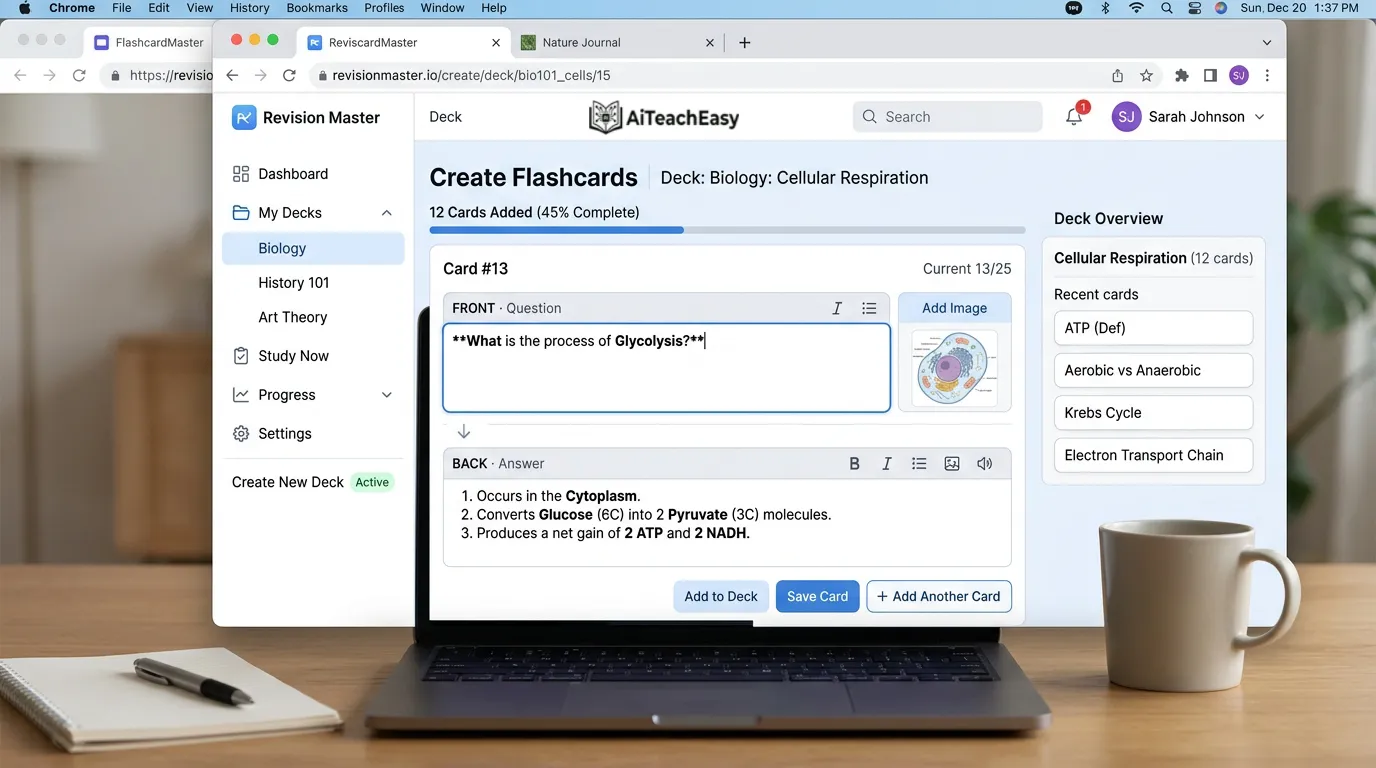
Flashcards are great for memorizing definitions, dates, formulas, and key concepts.
NotebookLM can generate flashcards from your uploaded sources. Google’s mobile app help page also mentions that students can review material using flashcards or quizzes, and customize flashcards by language, number, difficulty level, selected sources, and prompts. (Google Help)
Use this prompt:
Create 20 flashcards from this chapter for exam revision.
You can use flashcards for:
- Vocabulary
- Science terms
- Medical definitions
- Historical dates
- Programming concepts
- Business terms
- Law cases
- Formula revision
4. Create Quizzes from Your Notes
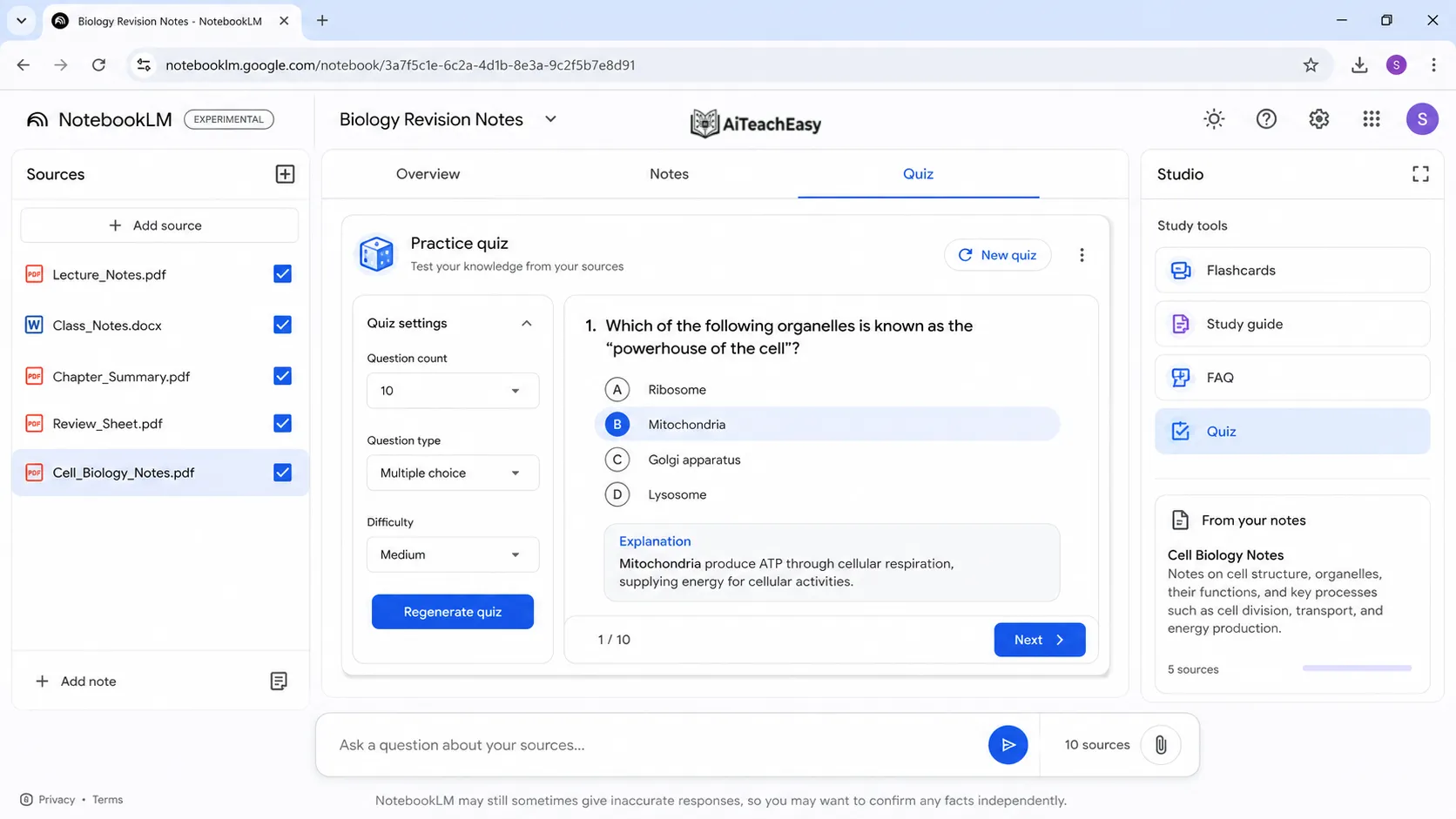
Quizzes are useful because they show what you actually remember.
NotebookLM can create quizzes from your sources. The transcript shows an example where a quiz is created from technical documentation, and the tool checks answers with explanations.
Use this prompt:
Create a 15-question multiple-choice quiz from these notes. Include answers and short explanations.
Or:
Create exam-style questions from this lecture.
This is useful before:
- Class tests
- Semester exams
- Interviews
- Presentations
- Competitive exams
5. Use Audio Overview Like a Study Podcast
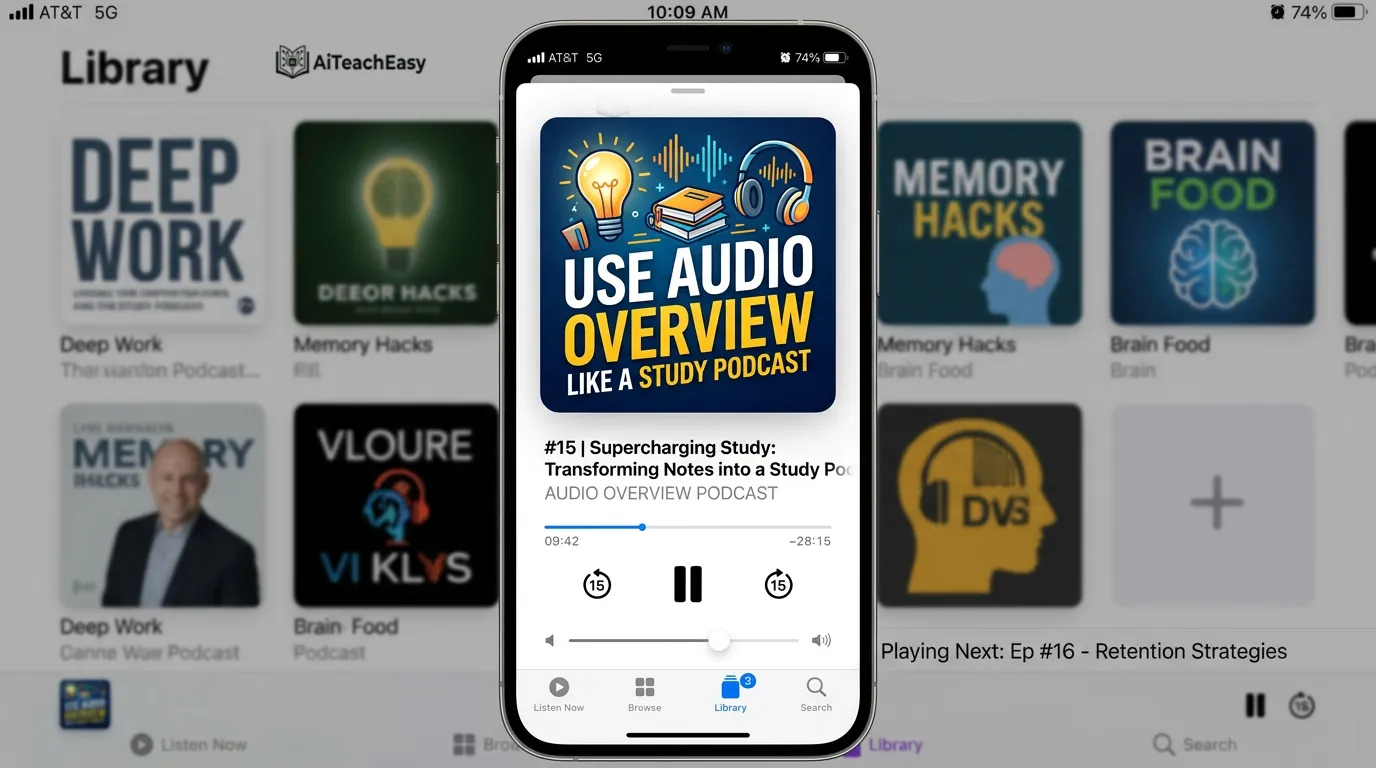
One of NotebookLM’s most popular features is Audio Overview.
Audio Overviews turn your uploaded sources into a conversation-style audio discussion. Google says Audio Overviews are deep-dive discussions between AI hosts that summarize key topics from uploaded sources. (Google Help)
This is very useful for students who like listening instead of reading.
You can use Audio Overview while:
- Walking
- Traveling
- Exercising
- Revising before sleep
- Reviewing notes on the bus
- Preparing before class
Use this prompt idea:
Create an audio overview of this chapter for quick revision.
NotebookLM also offers formats such as Deep Dive, Brief, and Critique for Audio Overviews. (Google Help)
6. Use Video Overview for Visual Learning
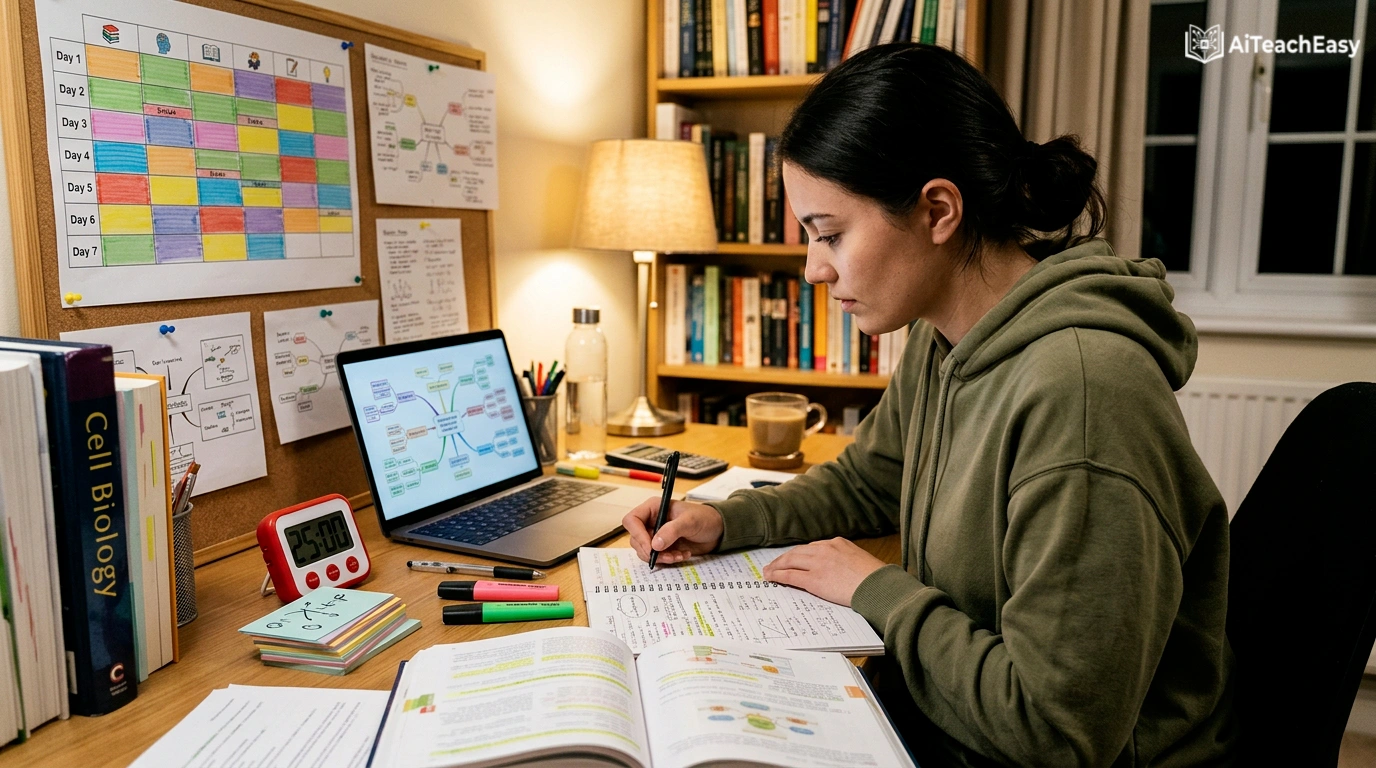
Some students learn better visually. NotebookLM’s Video Overview can turn sources into an explained video-style summary.
Google says Video Overviews transform notebook sources into engaging videos and help explain complex information in a digestible visual format. (Google Help)
This can help with:
- Difficult chapters
- Science diagrams
- Programming concepts
- Historical timelines
- Business case studies
- Research summaries
Use this prompt:
Create a video overview explaining the main ideas from these notes in simple language.
7. Create Mind Maps from Difficult Topics
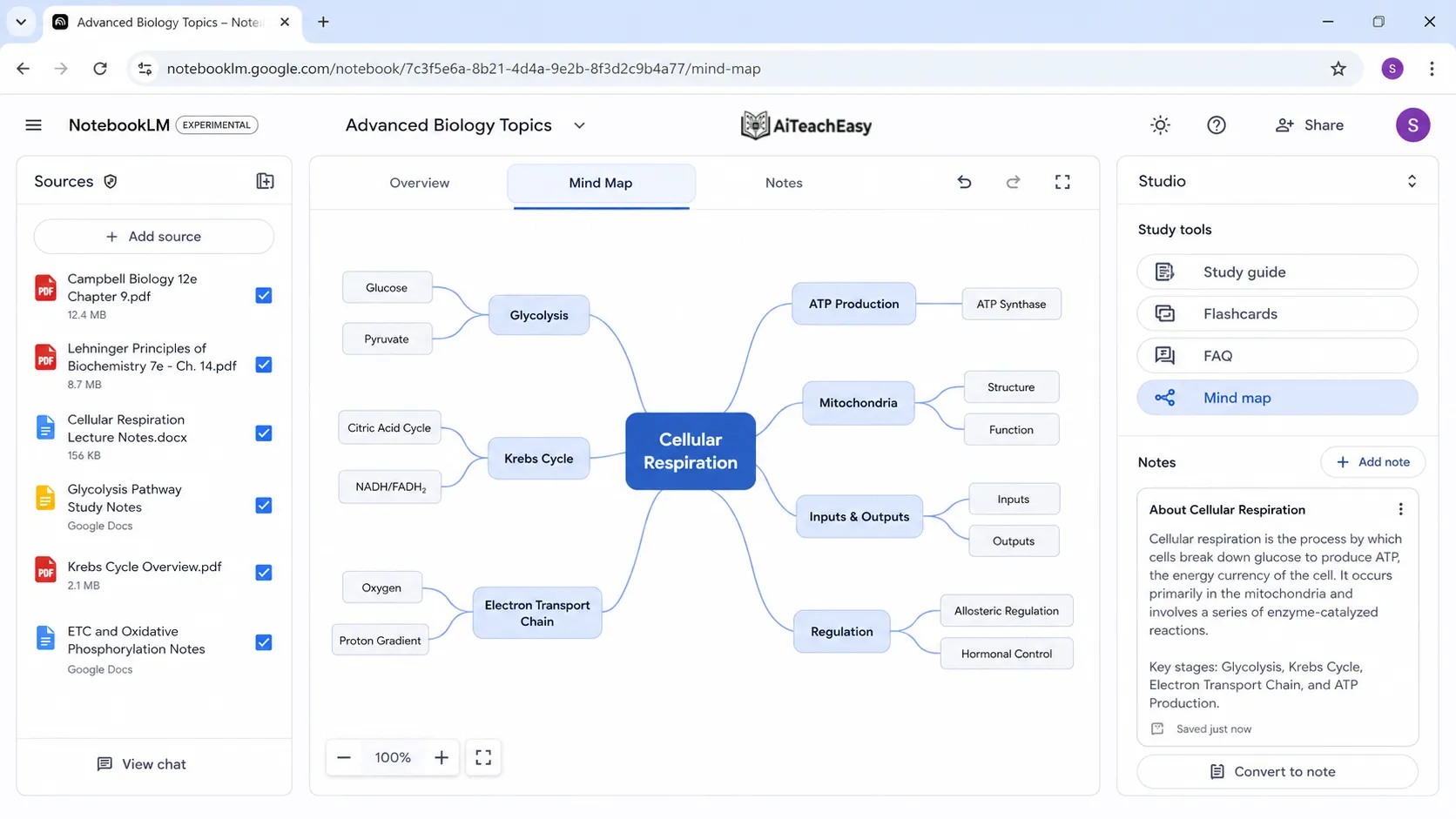
Mind maps help students understand how different ideas connect.
In the transcript, NotebookLM is used to create a mind map from technical documentation, turning a complex topic into a structured roadmap.
Use this prompt:
Create a mind map from this topic with main ideas, subtopics, and examples.
This is useful for:
- Brainstorming essays
- Planning assignments
- Understanding chapters
- Revising large topics
- Preparing presentations
8. Make Slide Decks for Presentations
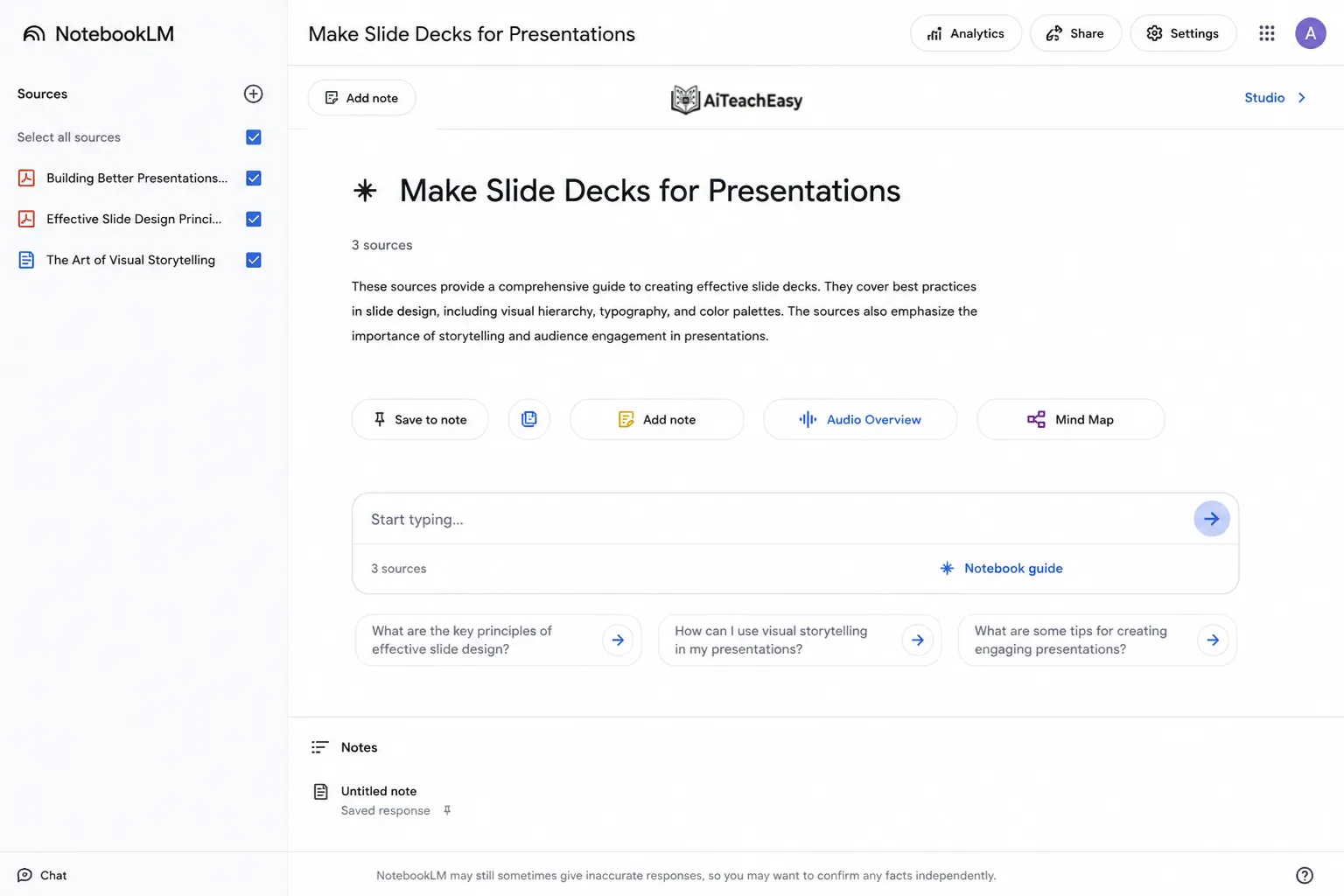
Students often need to create presentations for school, college, or university.
NotebookLM can help turn notes and sources into slide deck drafts. Google’s Help Center includes Slide Decks as one of the outputs that can be created from NotebookLM sources. (Google Help)
Use this prompt:
Create a 10-slide presentation from these notes. Include slide titles, bullet points, and speaker notes.
This can help with:
- Class presentations
- Group projects
- Research presentations
- Assignment demos
- Seminar topics
Do not submit AI-generated slides without checking them. Use them as a first draft, then improve with your own examples and teacher requirements.
9. Explain Code and Technical Documentation
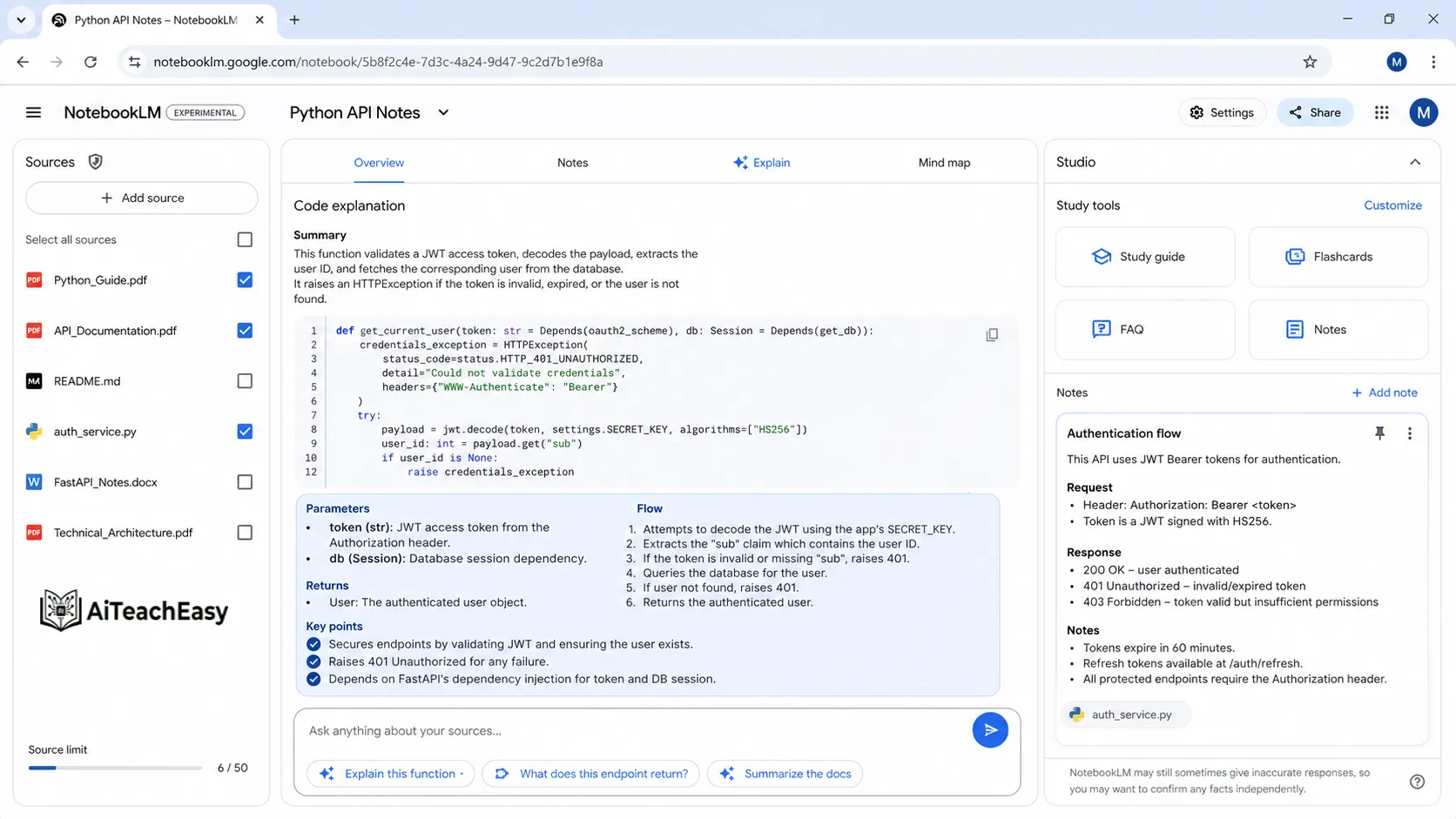
NotebookLM is not only for normal study notes. It can also help students who are learning coding.
The transcript gives examples where NotebookLM is used to explain code, understand documentation, compare programming packages, and generate step-by-step implementation guidance based on provided docs.
Students can use it for:
- Explaining code line by line
- Understanding documentation
- Comparing libraries
- Creating interview questions
- Finding improvements in code
- Making quizzes from programming topics
Useful prompts:
Explain this code line by line.
Find improvement suggestions in this code.
Explain this documentation like I am a beginner.
Create interview questions from these programming notes.
10. Use NotebookLM for Research Papers
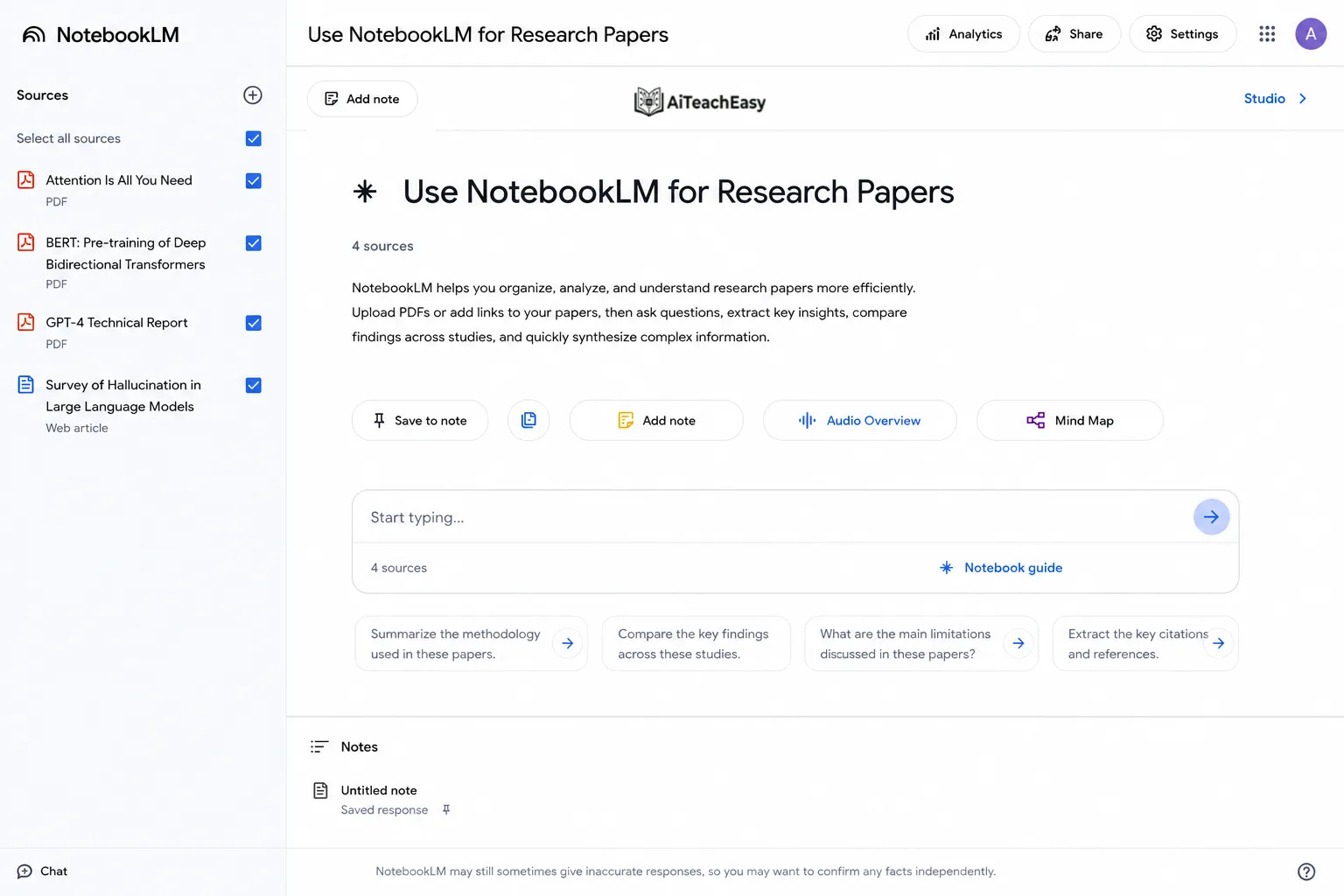
NotebookLM can help students understand research papers and academic sources.
Upload your research paper or article and ask:
Summarize this research paper in simple language.
What is the research problem, methodology, findings, and conclusion?
Create a literature review summary from these sources.
Compare these two research papers.
This is especially useful for university students, but you should still read the original paper and verify important points.
Best NotebookLM Prompts for Students
Here are ready-to-use prompts:
Summary Prompt
Summarize this source in simple language. Include key points, examples, and important terms.
Study Guide Prompt
Create a complete study guide from these notes with definitions, examples, important questions, and a final revision checklist.
Quiz Prompt
Create 20 multiple-choice questions from this chapter. Include correct answers and short explanations.
Flashcard Prompt
Create flashcards for the most important terms in this source.
Exam Prep Prompt
What are the most important topics I should revise for an exam from this material?
Presentation Prompt
Create a 10-slide presentation outline from these sources with slide titles, bullet points, and speaker notes.
Research Prompt
Summarize this research paper with problem, method, results, limitations, and conclusion.
Code Prompt
Explain this code line by line and suggest improvements.
NotebookLM vs ChatGPT for Students
| Feature | NotebookLM | ChatGPT |
|---|---|---|
| Works from uploaded sources | Yes | Yes, depending on version/tools |
| Source citations | Strong focus | Varies |
| Best for class notes | Excellent | Good |
| Best for general brainstorming | Good | Excellent |
| Audio overview | Yes | Not the same built-in workflow |
| Flashcards/quizzes from sources | Yes | Possible with prompts |
| Best use | Study from your own material | General AI help and writing support |
NotebookLM is better when you want answers from your own class material. ChatGPT is better when you want broader brainstorming, writing help, or general explanations.
Is NotebookLM Free for Students?
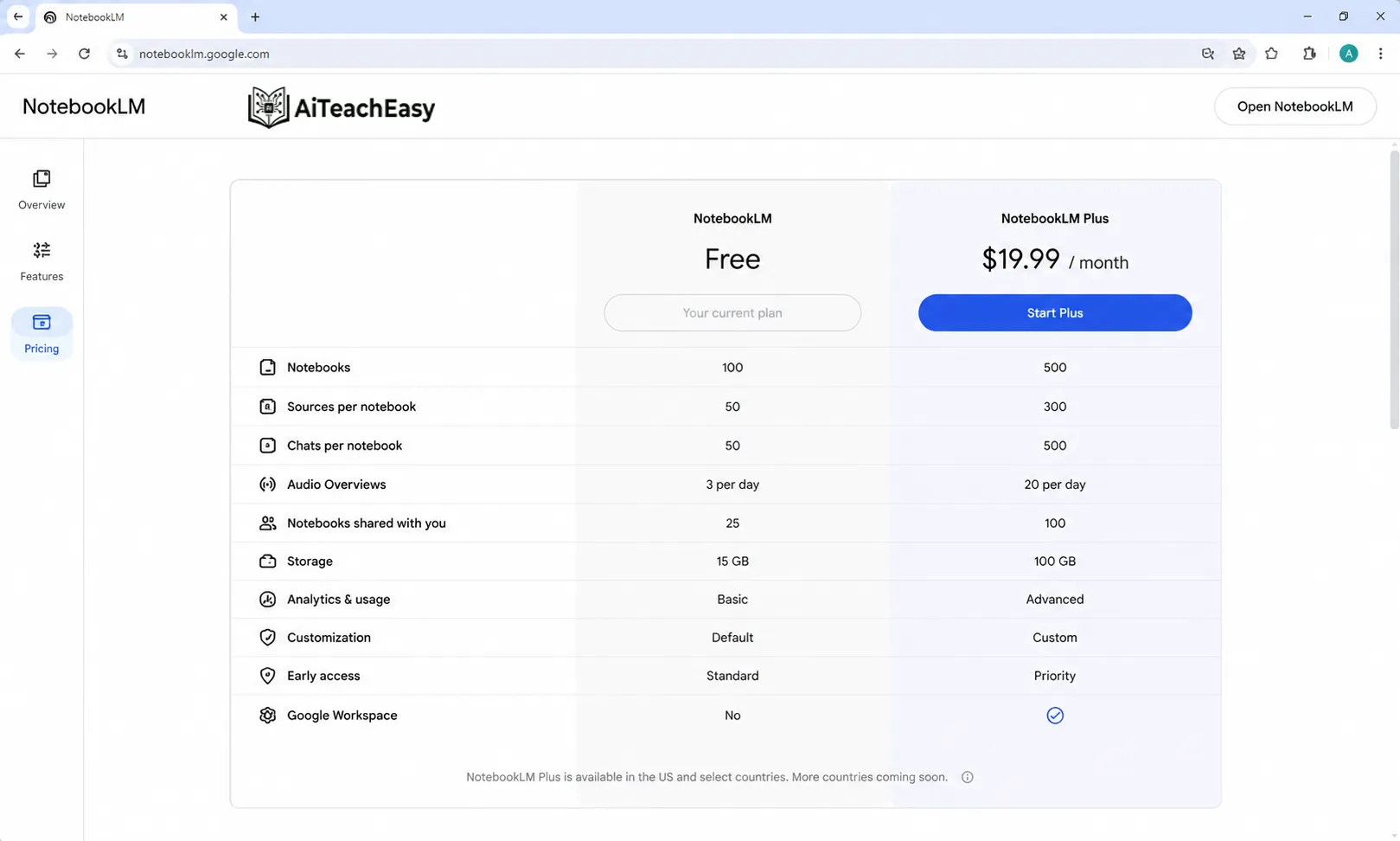
NotebookLM has a free version, but limits can change. Google’s FAQ says users get notebooks, sources per notebook, source word limits, chat query limits, and audio generation limits, with upgrades available for higher limits. (Google Help)
Before writing pricing details in your post, add a line like:
NotebookLM offers a free version, but limits and availability can change, so always check Google’s official NotebookLM page for the latest details.
This keeps your post safe from outdated information.
Pros and Cons of NotebookLM for Students
Pros
- Works with your own notes and PDFs
- Can summarize long study material
- Creates study guides, quizzes, and flashcards
- Supports audio and video learning
- Good for research and exam prep
- Useful for coding students
- Provides source-grounded answers with citations
Cons
- You still need to verify important answers
- It depends on the quality of your uploaded sources
- Some features may have limits
- It may not replace deep reading
- Very recent or restricted content may not always work perfectly
FAQ: NotebookLM for Students
What is NotebookLM used for?
NotebookLM is used to understand, summarize, and ask questions from your own sources, such as notes, PDFs, websites, YouTube videos, slides, and documents.
Is NotebookLM good for students?
Yes. NotebookLM is useful for students because it can create summaries, study guides, flashcards, quizzes, audio overviews, video overviews, and explanations based on uploaded study material.
Can NotebookLM summarize PDFs?
Yes. NotebookLM can work with PDF files and help summarize, explain, and answer questions from them. Google’s source support page lists PDF files among supported source types. (Google Help)
Can NotebookLM create quizzes?
Yes. NotebookLM can create quizzes from your sources, which is helpful for exam preparation and self-testing.
Can NotebookLM summarize YouTube videos?
NotebookLM can use YouTube links as sources when transcripts are available. Google’s supported source documentation includes web URLs and other source types, and the transcript also demonstrates adding YouTube links as study sources. (Google Help)
Is NotebookLM better than ChatGPT for studying?
NotebookLM can be better when you want answers from your own notes, PDFs, slides, or lecture material. ChatGPT is better for broader brainstorming and general explanations.
Can NotebookLM help with coding?
Yes. Students can add code snippets or documentation and ask NotebookLM to explain code, suggest improvements, create quizzes, or generate interview questions.
Final Verdict
NotebookLM for students is one of the most useful AI study tools in 2026 because it works with your own learning material. You can upload notes, PDFs, YouTube videos, websites, slides, and copied text, then turn them into summaries, quizzes, flashcards, audio overviews, video overviews, reports, mind maps, and presentation drafts.
The best way to use NotebookLM is simple:
Upload your study material, select the right sources, ask clear questions, and use the outputs for revision, practice, and understanding.
It will not replace studying completely, but it can make studying faster, more organized, and easier to understand.
Commonly Asked Questions
Q: What is NotebookLM for students?
NotebookLM for students is Google’s AI study tool that helps learners summarize notes, understand PDFs, create study guides, generate flashcards, make quizzes, and ask questions from their own sources.
Q: Is NotebookLM free for students?
NotebookLM has a free version, but usage limits and availability can change. Students should check Google’s official NotebookLM page for the latest limits.
Q: Can NotebookLM create flashcards?
Yes, NotebookLM can create flashcards from uploaded sources, making it useful for memorizing key terms, definitions, and exam concepts.
Q: Can NotebookLM help with homework?
Yes, NotebookLM can help students understand homework material, summarize sources, explain difficult topics, and create revision notes, but students should use it ethically and avoid copying AI answers directly.
Q: Does NotebookLM work with YouTube videos?
NotebookLM can work with YouTube links when transcript content is available, allowing students to summarize and ask questions about video lessons.