
Best AI Tools for Teachers
(Teacher-Tested, Free Options Included)
Discover AI tools that help teachers create lessons faster, automate grading, and focus more on teaching instead of repetitive work.
Looking for the best AI tools for teachers in 2026? This guide compares the top AI teaching tools for lesson planning, worksheet creation, grading, classroom activities, student feedback, and teacher productivity. I tested and reviewed tools like MagicSchool AI, Eduaide, Brisk Teaching, Quizizz AI, NotebookLM, Curipod, and TeacherServer to help teachers choose the right tool quickly.
What Are the Best AI Tools for Teachers in 2026?
The best AI tools for teachers in 2026 are purpose-built platforms that save educators 5 to 7 hours every week — not by replacing teaching, but by automating the parts that drain time without adding learning value: grading, lesson planning, rubric creation, differentiation, and parent communication.
The short answer: MagicSchool AI leads for lesson planning, Brisk Teaching leads for all-in-one classroom use, NotebookLM leads for content-based studying, and Diffit leads for differentiation. But the right tool depends on what’s eating your time — and this guide maps each one to the exact problem it solves.
Quick Comparison: Best AI Tools for Teachers in 2026
This comparison helps teachers quickly choose the right AI tool for lesson planning, worksheet creation, grading, feedback, classroom engagement, and daily productivity.
| AI Tool | Best For | Main Strength | Free Plan | Difficulty | Time Saved | Best Use Case |
|---|---|---|---|---|---|---|
| MagicSchool AI | All-in-one AI tool for teachers | Lesson planning, rubrics, feedback, emails, differentiation, and classroom tasks | Yes | Easy | 3–4 hrs/week | Best for teachers who want one complete AI teaching assistant. |
| Brisk Teaching | Google Docs and feedback workflow | Student feedback, writing support, and browser-based teaching tasks | Yes | Easy | 2–3 hrs/week | Best for teachers using Google Classroom, Docs, and Chrome. |
| NotebookLM | Source-based teaching content | Summaries, study guides, notes, Q&A, and lesson content from PDFs or documents | Yes | Easy | 1–2 hrs/week | Best for teachers who work with notes, PDFs, research, and reading material. |
| Diffit | Differentiated reading materials | Leveled texts, reading passages, vocabulary, and student-ready activities | Limited | Easy | 1–2 hrs/week | Best for mixed-ability classrooms and reading support. |
| Curipod | Interactive lessons | Slides, polls, student responses, discussion prompts, and live activities | Yes | Easy | 1–2 hrs/week | Best for student engagement and interactive classroom lessons. |
| Snorkl | Oral and visual assessment | Voice explanations, drawings, visual responses, and student thinking assessment | Limited | Easy | 1 hr/week | Best for checking how students explain their thinking. |
| TeacherServer | Free teacher tools | Lesson ideas, worksheets, classroom prompts, and quick teaching resources | Free | Easy | 1–2 hrs/week | Best for teachers who want simple free tools without complicated setup. |
| Eduaide.Ai | Lesson resources and teaching materials | Lesson plans, activities, assessments, worksheets, and teacher support content | Limited | Easy | 2 hrs/week | Best for creating structured teaching resources quickly. |
| Suno | Educational songs | Songs, rhymes, memory hooks, and creative audio learning | Yes | Easy | 30 min/week | Best for making lessons more memorable through music. |
| Gradescope | Bulk grading | Faster grading for assignments, quizzes, exams, and assessment workflows | Limited | Medium | 2–3 hrs/week | Best for teachers handling many assignments or exam papers. |
| Quizizz AI | Quiz creation and games | Quizzes, practice questions, review games, and classroom activities | Yes | Easy | 1 hr/week | Best for classroom engagement and quick quiz creation. |
| Claude AI | Long-form lesson drafting | Lesson drafts, explanations, emails, classroom instructions, and writing support | Yes | Easy | 2–3 hrs/week | Best for teachers who need high-quality long-form writing and planning support. |
Tip: Start with MagicSchool AI if you want one all-in-one teacher assistant. Use Brisk Teaching for feedback, NotebookLM for source-based notes, and Quizizz AI for classroom engagement.
Why Most Teachers Are Still Using the Wrong AI Tools
I’ve spent over a decade in education. In the last two years, I’ve personally tested more than forty AI platforms — not for a review website, but because teachers I work with kept asking the same question: “Sir, which AI tool actually saves me time without creating more work?”
The honest answer is: most of the tools recommended in popular edtech articles are either too generic, too expensive, or genuinely built for marketers — not classrooms. The five or six tools that get recycled across every listicle aren’t necessarily the best. They’re just the most advertised.
What I’ve done here is different. Each tool on this list has been evaluated against a simple standard — does it solve a real classroom problem, does it have a usable free tier, and can a teacher with zero technical background get value from it within 20 minutes? If it passed all three, it made this list.
Before you dive in, you might also want to read my guides on AI content tools for teachers and the best AI productivity tools for teachers — both pair directly with what I cover below.
⚡ Quick Use-Case Navigation
Find AI tools tailored for your specific teaching task
Lesson Planning
Generate lesson plans, activities, and curriculum ideas in seconds
→ 📝AI Grading Tools
Save hours with automated grading and feedback
→ 🎯Quiz & Assessment
Create quizzes, tests, and assessments automatically
→ 📊Presentation Creation
Beautiful slides and visuals in minutes with AI
→ 🤖Classroom Automation
Streamline routines, communication, and admin tasks
→1. MagicSchool AI — Best All-in-One AI Tool for Teachers in 2026
MagicSchool AI is one of the best AI tools for lesson planning because it helps teachers create complete lesson plans, objectives, activities, rubrics, and differentiated instruction in minutes.
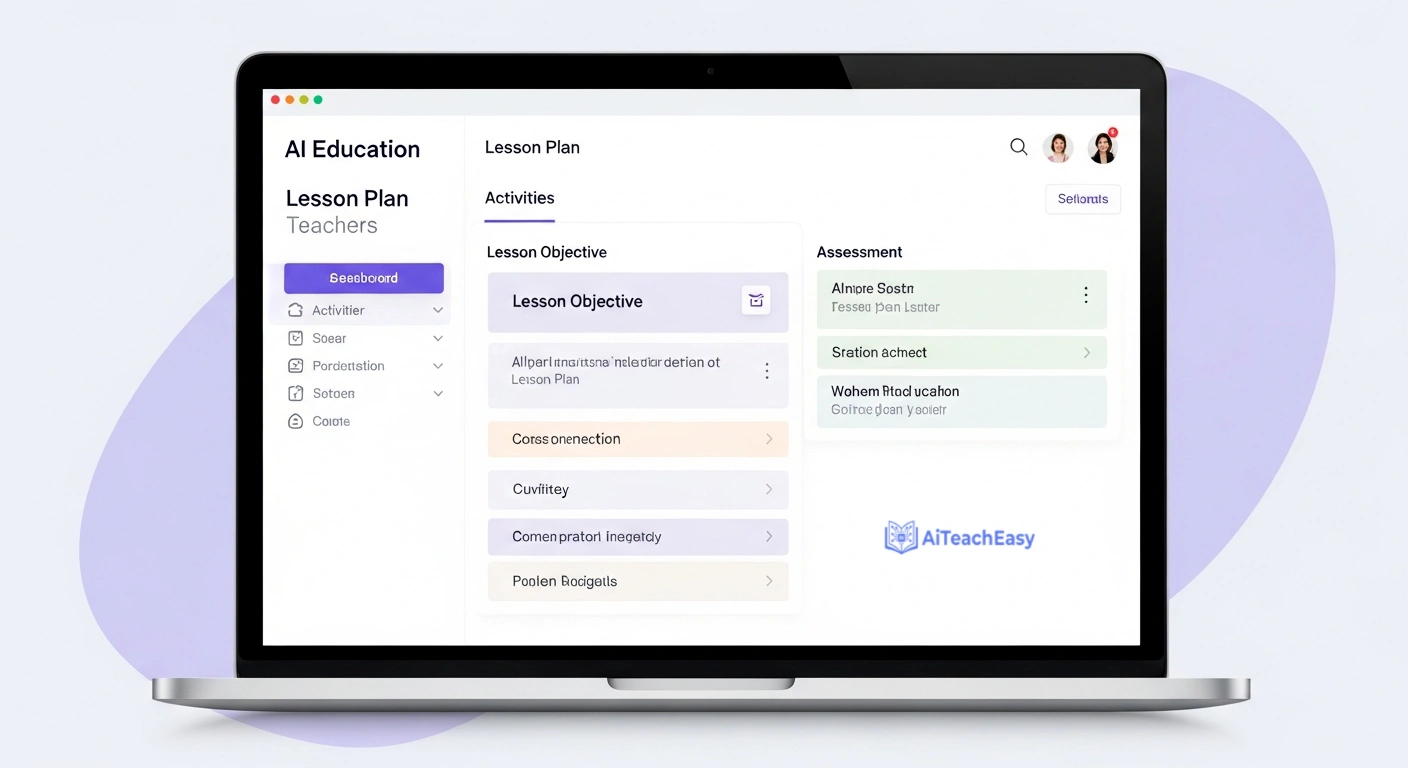
Website: magicschool.ai
If I could only recommend one AI tool to a teacher who has never used AI before, it would be MagicSchool AI. No competition.
MagicSchool AI was built exclusively for educators. It isn’t a general AI tool retrofitted for classrooms — it was designed from the ground up by teachers, for teachers. The platform currently offers over 60 purpose-built tools covering every major teaching task you can think of: lesson plans, rubrics, IEP goal generators, parent email drafts, differentiated materials, quiz creation, student report comments, and more.
What makes MagicSchool AI different from generic chatbots is the structure. Instead of typing a prompt from scratch and hoping for the right output, you fill in a guided form — subject, grade level, standard, specific needs — and MagicSchool AI generates exactly what you asked for. Teachers who use it consistently report saving between three and four hours every single week.
I’ve seen a grade 7 English teacher use MagicSchool AI to generate a complete differentiated reading lesson with three Lexile-level versions of the same text, a vocabulary list, and a rubric — in under nine minutes. That used to take her a full afternoon.
For deeper reading on how AI can support your full classroom content workflow, I’ve covered the best AI course content generators for teachers separately — MagicSchool AI sits at the top of that list too.
How to Use MagicSchool AI (Step by Step for Beginners)
- Go to magicschool.ai and sign up with your school Google account — it takes under two minutes
- From the dashboard, browse tools by category: Lesson Planning, Assessment, Differentiation, Communication, and more
- Select the tool you need — for example, “Lesson Plan Generator”
- Fill in the guided fields: subject, grade level, learning objective, duration, and any specific standards
- Click Generate — the full lesson plan appears in 10–15 seconds
- Review and edit directly on screen — the output is a starting point, not a final draft
- Export to Google Docs or copy directly into your LMS
MagicSchool AI vs. ChatGPT for Teachers
| Feature | MagicSchool AI | ChatGPT |
|---|---|---|
| Built for teachers specifically | Yes | No |
| 60+ education-specific tools | Yes | No |
| Guided input (no prompt engineering) | Yes | No |
| Free plan with full features | Yes | Limited |
| IEP goal generator | Yes | No |
| Parent communication drafts | Yes | Needs prompting |
| Student data privacy (FERPA) | Yes | Check terms |
2. Brisk Teaching — Best AI Chrome Extension for Teachers (2026)
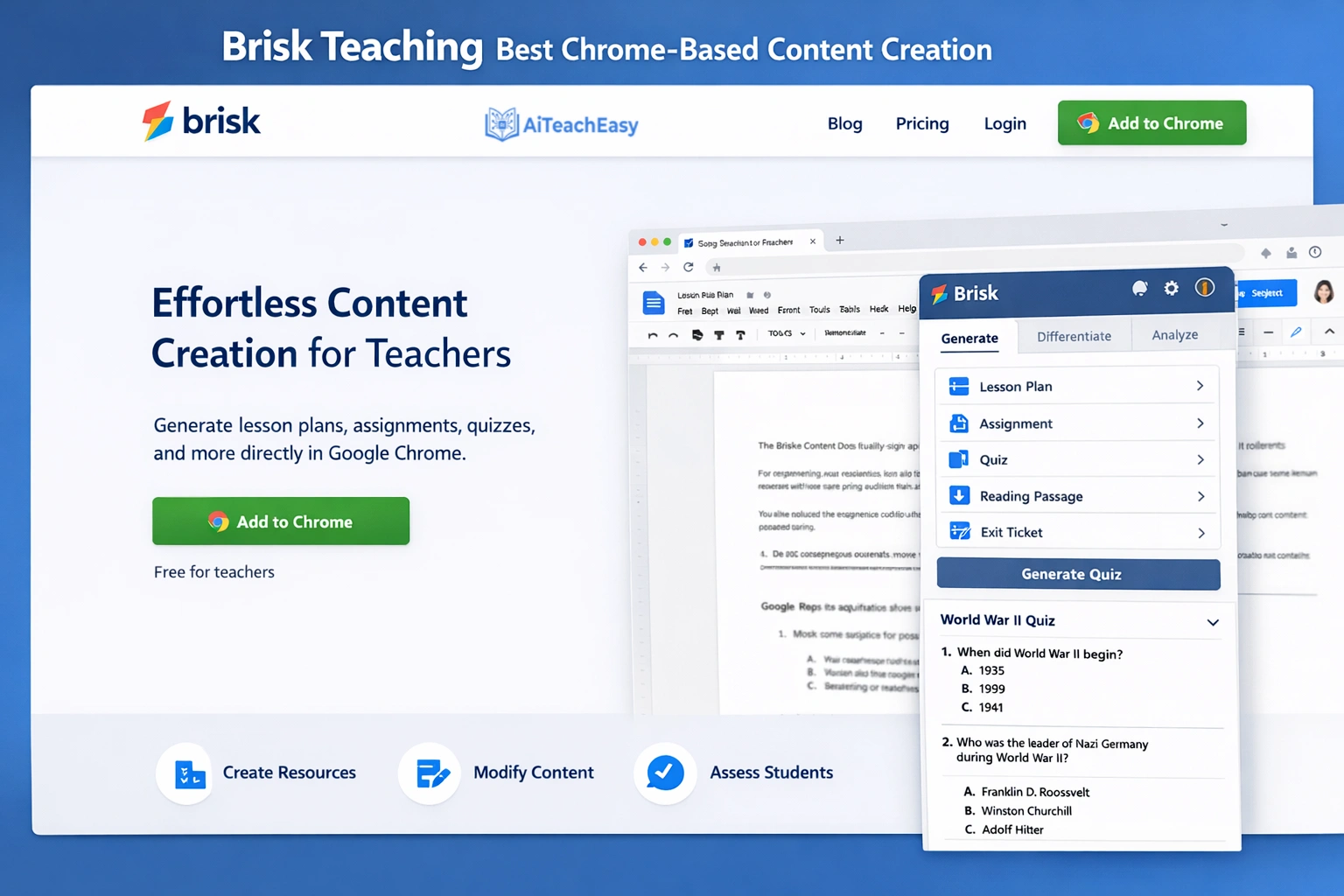
Brisk Teaching helps teachers plan faster by turning online content, documents, and classroom material into lesson ideas, feedback, and teaching resources.
Website: briskteaching.com
Think of Brisk Teaching as the Swiss Army knife of AI tools for teachers — except it lives in your browser and follows you everywhere you go. That’s the key difference between Brisk Teaching and every other tool on this list: it’s a Chrome extension, not a separate platform you have to log into.
Once you install Brisk Teaching, it activates on whatever you’re looking at — a Google Doc, a PDF, a YouTube video, a web article. You click the Brisk Teaching icon and immediately get options: generate a quiz from this content, provide writing feedback, re-level this text for different reading abilities, create a lesson plan around this topic, or generate guided notes your students can use.
The writing feedback feature is particularly impressive. A student submits an essay. You open it in Google Docs. You click Brisk Teaching, choose “Give Feedback,” upload your rubric, and within thirty seconds the tool generates personalized, rubric-aligned written feedback for that student. Not a generic comment — specific, criterion-referenced feedback.
For teachers who want AI-generated feedback tools in more depth, I’ve written about the best AI feedback generators — Brisk Teaching is the top recommendation there for classroom writing contexts.
How to Use Brisk Teaching (Step by Step)
- Go to the Chrome Web Store and search “Brisk Teaching” — install the extension in under a minute
- Pin the Brisk Teaching icon to your Chrome toolbar
- Open any content — a student’s Google Doc, a PDF textbook, a YouTube lecture
- Click the Brisk Teaching icon in the top-right corner of your browser
- Choose your action: Give Feedback, Create Quiz, Re-level Content, Generate Lesson Plan, or Create Slide Show
- For feedback: upload your rubric under “Rubric Criteria” for aligned feedback
- Copy, share, or export the output directly
Brisk Teaching: Free vs. Paid Plan
| Feature | Free Plan | Paid Plan |
|---|---|---|
| Number of tools | 40+ | 60+ |
| AI model | Standard | More powerful |
| Usage limits | Yes | No limits |
| Rubric-aligned feedback | Yes | Yes |
| Price | Free | From ~$10/month |
3. NotebookLM — Best AI Tool for Teachers Who Use Their Own Resources (2026)
NotebookLM is useful for lesson planning when teachers want to create lessons from PDFs, notes, articles, or source-based classroom material.

Website: notebooklm.google.com
Most AI tools generate content from the internet — which means you have no control over what sources they draw from. NotebookLM flips this entirely. You upload your own resources — textbook PDFs, slide decks, lesson notes, YouTube video links, Google Docs — and NotebookLM only uses those materials to generate responses and content.
This matters enormously in education. When I ask NotebookLM to generate Depth of Knowledge questions about Chapter 5, it generates questions from Chapter 5 — not from a random internet article about the same topic. The accuracy and curriculum alignment is incomparably better.
Upload up to 50 sources into a single notebook. Then use the chat to generate: study guides, FAQ lists, lesson outlines, differentiated question sets, timelines — all grounded in your own vetted materials.
The Audio Overview feature is something I didn’t expect to find genuinely useful. NotebookLM converts your uploaded resources into a podcast-style conversation between two AI hosts. It sounds strange, but students who commute or have reading difficulties have used this to revise on the bus without looking at a screen. Teachers are using it to create audio supplements for students who struggle with dense written text.
If you’re interested in tools that specifically summarize lecture content, I’ve reviewed the best AI lecture summary tools — NotebookLM is the top pick for teacher-created content summarization.
How to Use NotebookLM for Classroom Preparation (Step by Step)
- Go to notebooklm.google.com and sign in with a Google account
- Click New Notebook and name it by unit or topic
- Click Add Sources — upload PDFs, paste links to YouTube videos or websites, or add Google Docs
- Wait 60–90 seconds for NotebookLM to process all uploaded materials
- Use the chat panel to generate content: “Create 10 Depth of Knowledge Level 3 questions from my sources”
- Generate a Study Guide automatically using the panel on the right
- Click Audio Overview to create a podcast version of your unit materials
- Share the notebook link with students or download the audio for class use
NotebookLM vs. General AI Chatbots for Teachers
| Feature | NotebookLM | General ChatGPT / Claude |
|---|---|---|
| Uses only your uploaded sources | Yes | No |
| Curriculum accuracy | Very high | Variable |
| Generates audio summaries | Yes | No |
| Up to 50 sources per notebook | Yes | No |
| Completely free | Yes | Limited |
| Source citations in answers | Yes | No |
4. Diffit — Best AI Tool for Differentiated Reading in the Classroom (2026)
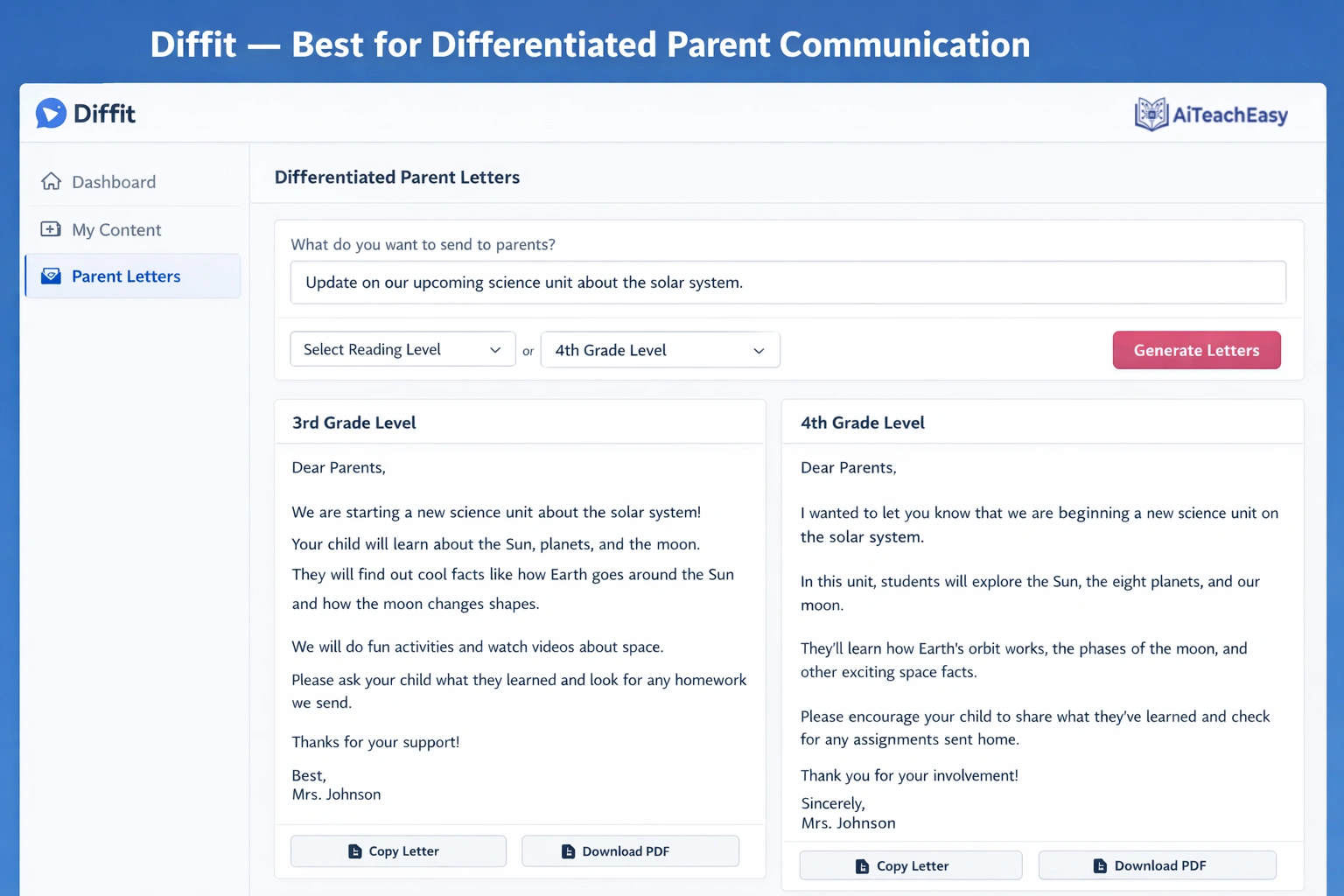
Diffit helps teachers plan reading-based lessons by adapting texts, creating leveled passages, vocabulary tasks, and student-friendly activities.
Website: diffit.me
Differentiation is one of the most time-consuming parts of teaching. One classroom, thirty students, three or four reading levels — and you’re expected to produce appropriately leveled materials for all of them. Diffit was built to make this specific problem disappear.
You give Diffit any text, article, book excerpt, or YouTube video. You tell it the target reading level. Diffit instantly re-levels the content — same topic, same key ideas, adjusted vocabulary and sentence complexity. It also generates comprehension questions, vocabulary lists, and discussion prompts for each level automatically.
I showed Diffit to a high school history teacher who was spending four hours every Sunday differentiating a single primary source document. She got the same result in four minutes using Diffit. She spent the remaining three hours and fifty-six minutes doing something else.
For teachers who work with students with additional needs, this pairs naturally with what I’ve covered in AI tools for special needs students — differentiated reading is one of the highest-impact interventions that Diffit directly enables.
How to Use Diffit for Reading Differentiation (Step by Step)
- Go to diffit.me and create a free teacher account
- Click Search or Enter a URL — paste in any article, paste text directly, or link a YouTube video
- Diffit generates a summarized, simplified version of the content immediately
- Use the Reading Level slider to adjust from grade 2 to grade 12
- Toggle on the Comprehension Questions, Vocabulary, and Discussion Prompts sections
- Export as a Google Doc or PDF — one click, classroom-ready
Diffit: Free vs. Paid Plan
| Feature | Free Plan | Paid Plan |
|---|---|---|
| Re-leveled texts | Yes (limited) | Unlimited |
| Comprehension questions | Yes | Yes |
| Translation options | No | Yes |
| Google Classroom integration | No | Yes |
| Price | Free | ~$12/month |
5. Curipod — Best AI Tool for Interactive Lesson Slides (2026)
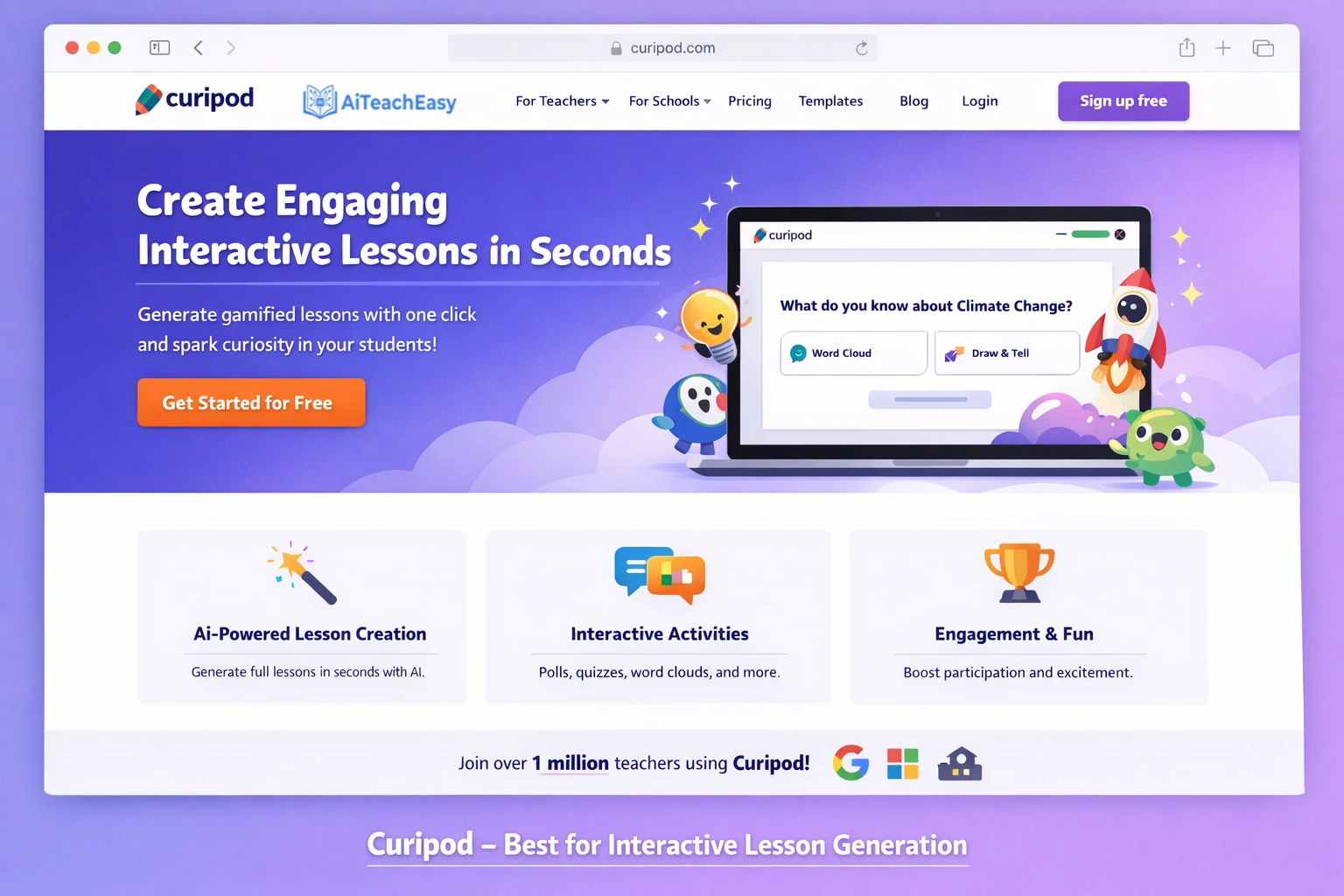
Curipod is strong for interactive lesson planning because it helps teachers create discussion-based slides, polls, questions, and live classroom activities.
Website: curipod.com
Curipod sits in a unique category: it creates interactive lesson presentations that students can respond to in real time — not just slides a teacher reads from, but live activities, polls, word clouds, open-ended questions, and drawing activities that students complete on their own devices while the lesson runs.
You type a topic. Curipod generates a complete interactive lesson in under thirty seconds. You review it, customise as needed, and launch the session. Students join on their phones or laptops. Every response gets collected, displayed, and used to guide the discussion.
The difference between Curipod and traditional slide tools is engagement. Students aren’t watching — they’re participating. And the Curipod dashboard shows you who responded, what they said, and where the misconceptions are, in real time.
For teachers who create a lot of presentations, I’ve also covered the best AI teaching presentation tools and AI lecture slide creators in separate guides — Curipod sits at the top for interactive, student-response presentations specifically.
How to Use Curipod (Step by Step)
- Go to curipod.com and sign up for a free teacher account
- Click Create and type your lesson topic — e.g., “Introduction to photosynthesis, grade 8”
- Curipod generates a complete interactive lesson: text slides, a poll, a word cloud, a drawing activity, and an open-ended question
- Review each slide — edit, remove, or add activities using the drag-and-drop editor
- Click Launch — students join using a code on their device (no app download needed)
- Watch responses appear live on your teacher dashboard
- Save the session data for review or parent communication
Free plan: Yes — generous free tier for individual teachers. School plans available.
6. Snorkl — Best AI Tool for Assessing Oral and Visual Explanations (2026)
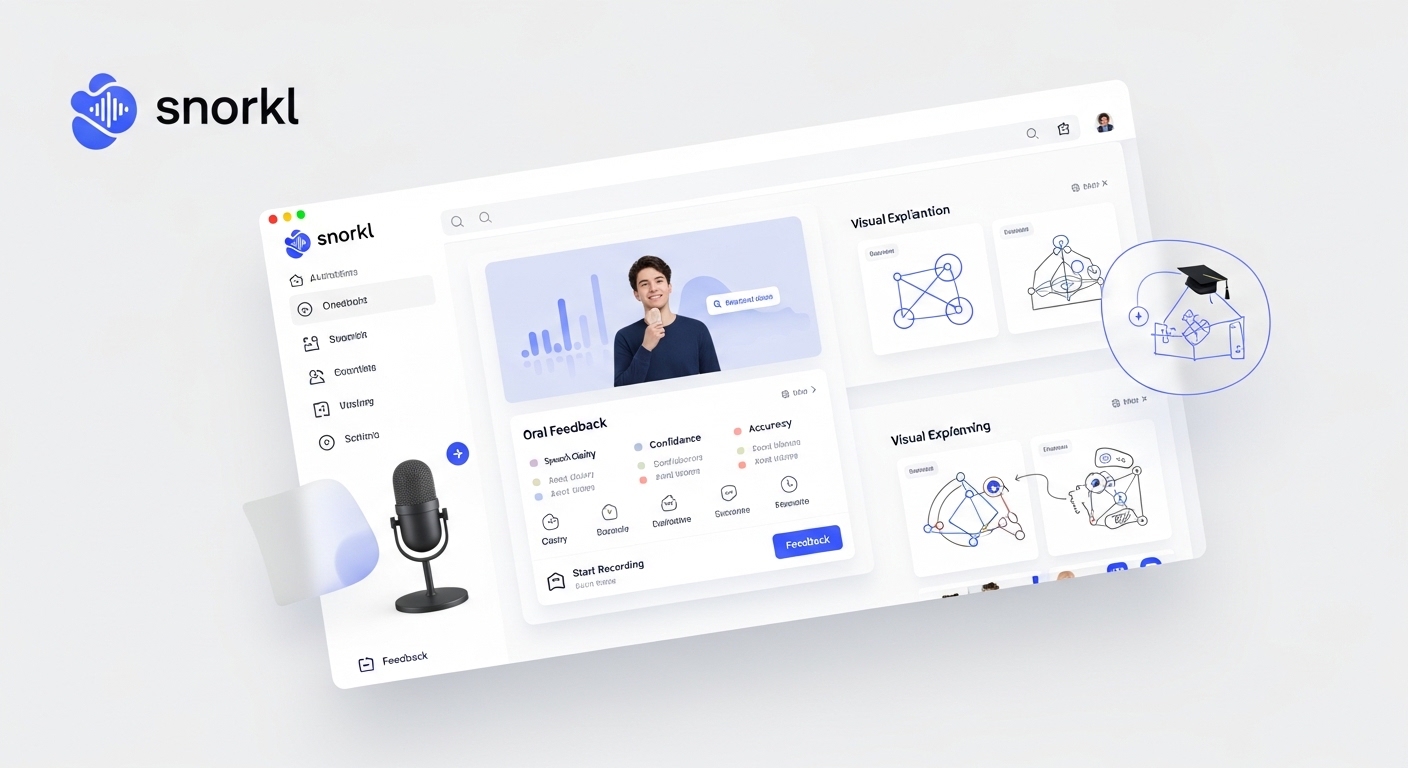
Snorkl supports lesson planning by helping teachers design activities where students explain ideas through voice, drawings, and visual responses.
Website: snorkl.app
Written assessments don’t capture everything a student knows — especially in math, science, and subjects that require students to explain their thinking through diagrams or verbal reasoning. Snorkl was built specifically for this gap.
As a teacher, you create a question or problem in Snorkl. You specify the subject, grade level, and provide an example answer. Students then record their response — speaking into their microphone and drawing on a digital whiteboard simultaneously. Snorkl processes both the speech and the drawing within about a minute and generates personalized, three-part feedback assessing the accuracy and quality of the student’s response.
What makes Snorkl remarkable is that it works on non-written thinking — the kind that most AI tools completely ignore. A student explaining the steps of a math problem out loud while drawing each step is demonstrating deeper understanding than one who writes the steps from memory. Snorkl captures and evaluates this.
How to Use Snorkl (Step by Step)
- Go to snorkl.app and create a free teacher account
- Click New Assignment and type your question or problem
- Select subject area, grade level, and write or paste an example answer
- Share the Snorkl assignment link with students
- Students open the link, speak their explanation into the microphone, and draw their answer on the digital whiteboard
- Within approximately one minute, Snorkl generates three-part feedback for each student
- Review all responses from your teacher dashboard — no manual grading required
Free plan: Up to 20 active assignments at once. Paid plan removes limits and adds a school dashboard.
7. TeacherServer — Best Completely Free AI Platform for Teachers (2026)
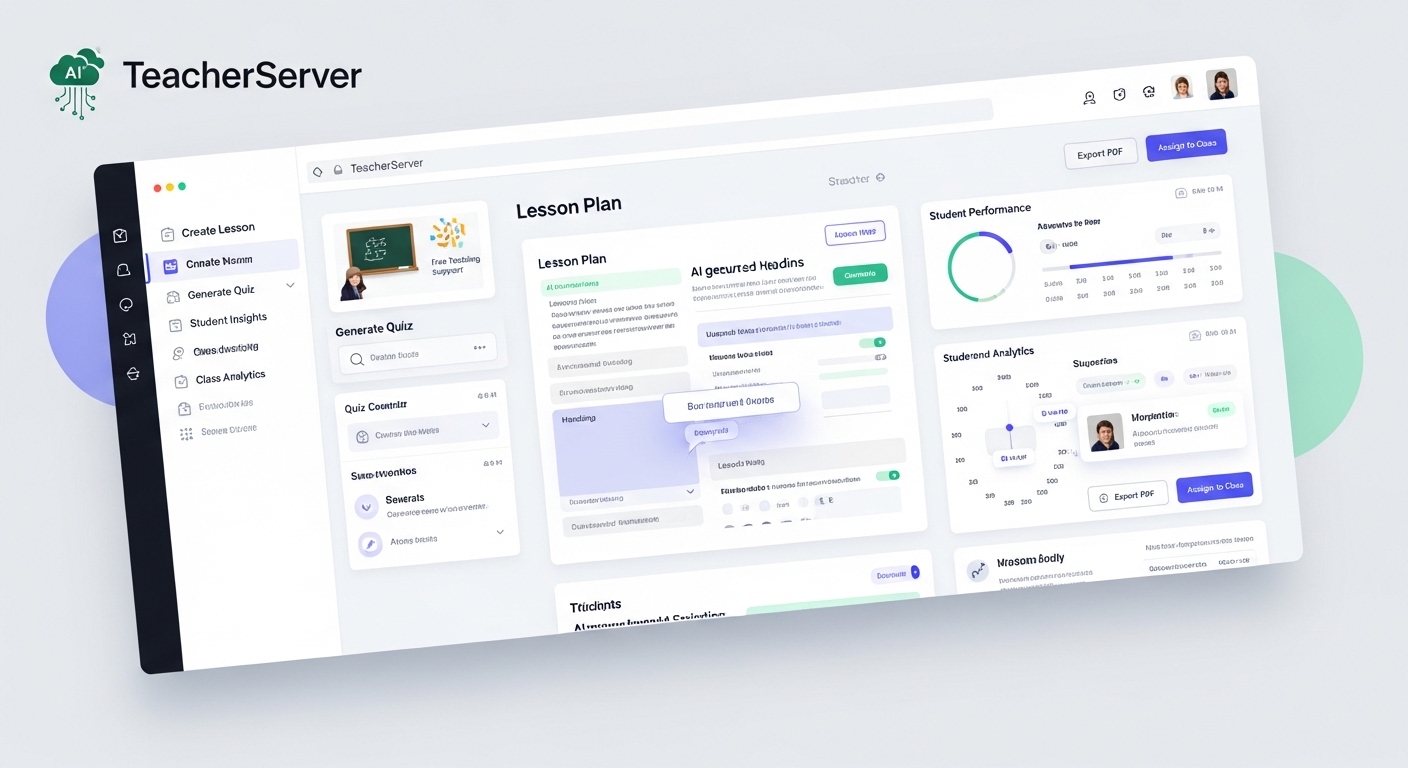
TeacherServer is useful for quick lesson planning because it provides free teacher tools, lesson ideas, prompts, and classroom-ready resources.
Website: teacherserver.com
TeacherServer is the hidden gem of this list. Run by the University of South Florida St. Petersburg, it is completely free — no ads, no subscription tiers, no freemium limits. It offers over 1,000 AI-powered tools across virtually every subject area: science, social studies, math, reading, writing, art, music, and PE.
What makes TeacherServer remarkable for budget-conscious schools and teachers is that the quality is genuinely high — not a watered-down experience to drive you toward a paid plan. You enter your grade level, topic, and standard, and it generates lesson plans, rubrics, discussion questions, reading passages, experiment ideas, historical what-if scenarios, and more.
This is the tool I recommend first to teachers in underfunded schools or in countries where EdTech subscription costs are prohibitive. The breadth of TeacherServer is wider than any paid platform I’ve tested, and the price is zero.
How to Use TeacherServer (Step by Step)
- Go to teacherserver.com — no account required to start
- Browse tools by subject or use the search bar to find what you need
- Select a tool — e.g., “Lesson Plan Generator” or “Rubric Creator”
- Enter your grade level, topic, and any specific standard you’re targeting
- Click Generate — output appears in seconds
- Copy the content directly into your documents or LMS
Free plan: Completely free. No signup required for most tools.
8. Eduaide.Ai — Best AI Tool for Building Complete Teaching Resources (2026)
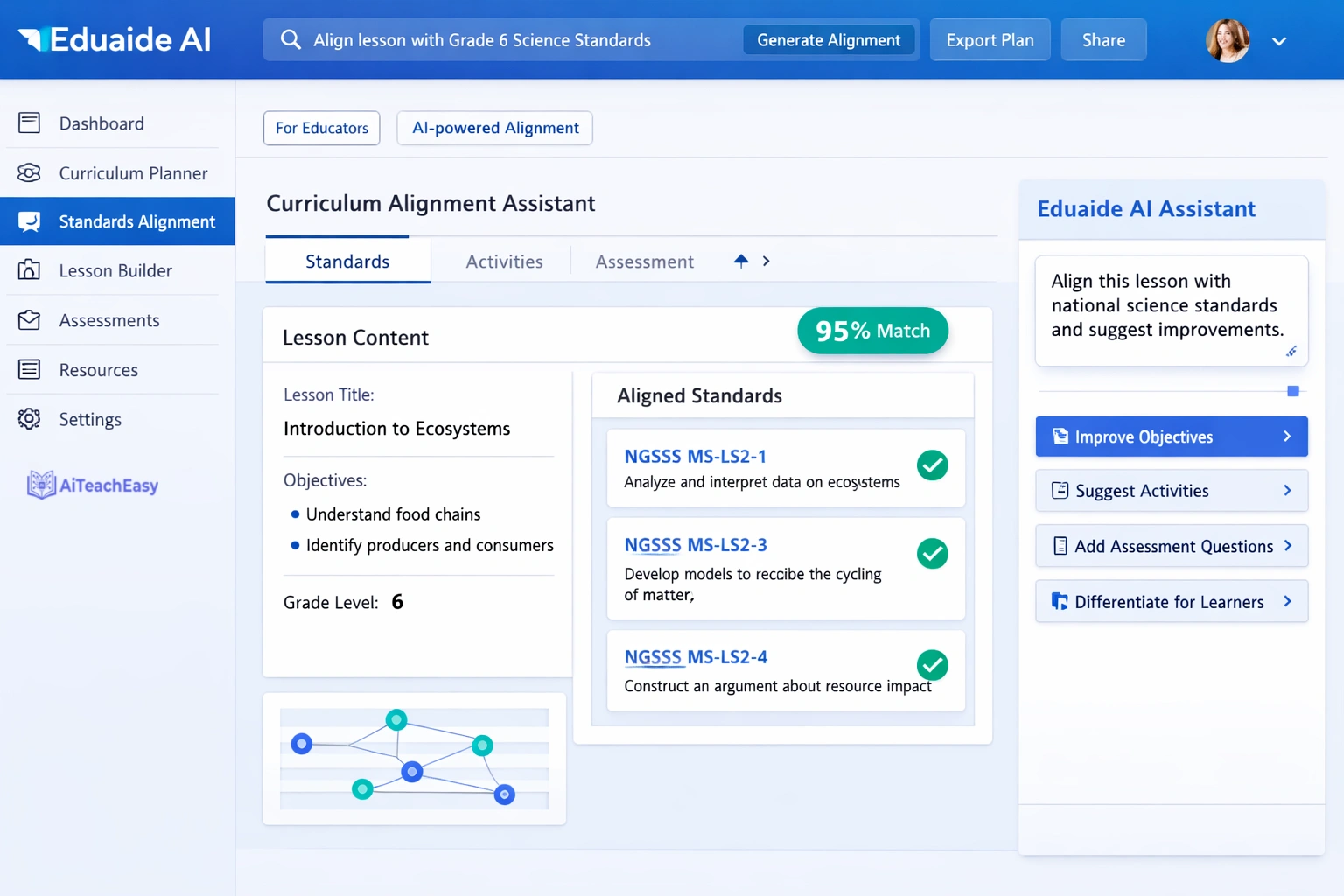
Eduaide.Ai helps teachers generate structured lesson plans, learning activities, assessments, explanations, and teaching materials.
Website: eduaide.ai
Eduaide.Ai is a comprehensive AI teaching assistant used by over 200,000 educators. Its Content Generator produces more than 100 types of educational resources — from warm-up activities and bell ringers to full unit plans, exit tickets, rubrics, and parent communication templates.
What sets Eduaide.Ai apart from simpler generators is the Feedback Bot. You paste in a student assignment, and Eduaide.Ai analyses it and returns feedback in your chosen format — typographic, syntactical, semantic, or based on custom instructions you provide. This is structured, teacher-directed feedback, not generic AI commentary.
The platform also adjusts every output by subject and grade level, which means a Grade 3 rubric and a Grade 11 rubric actually look and read differently — as they should.
For teachers focused on grading efficiency, this connects directly with my roundup of AI auto-grading tools and best AI grading tools for teachers — Eduaide.Ai covers the feedback side of grading exceptionally well.
How to Use Eduaide.Ai (Step by Step)
- Go to eduaide.ai and create a free account
- Select Content Generator from the dashboard
- Choose your resource type from 100+ options — lesson plan, rubric, quiz, exit ticket, etc.
- Specify subject, grade level, topic, and any standards alignment
- Generate and review the output — edit directly on screen
- For feedback: go to Feedback Bot, paste in a student assignment, and choose your feedback format
- Export or copy the result directly
Free plan: Limited but functional. Paid plan expands generation limits and unlocks advanced tools.
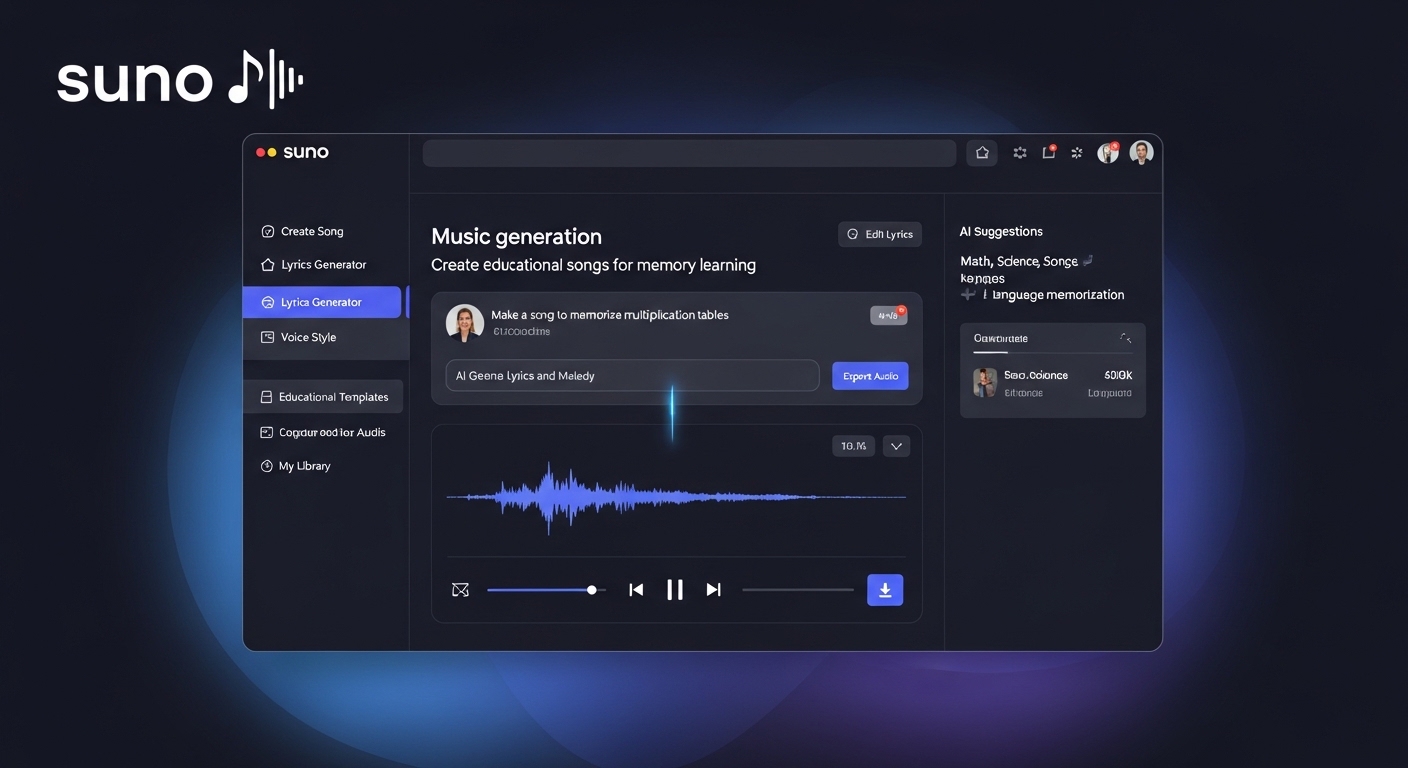
9. Suno — Best AI Tool for Creating Educational Songs for Memory (2026)
Suno can support lesson planning by helping teachers create educational songs, rhymes, and memory hooks for difficult topics.
Website: suno.com
This one surprises people every time I mention it — but the research on music and memory is well established, and Suno is the most practical way to put that research to use in a classroom.
Suno is an AI music generator. You describe the song you want, and within a few minutes it generates a complete, full-quality song — music, vocals, and all — in whatever style you specify. Pop, rap, country, folk, hip-hop, blues: you choose. You can write custom lyrics or let Suno generate them from your prompt.
I’ve used ChatGPT to write the lyrics for educational songs, then fed those lyrics into Suno with a style instruction. The resulting songs — on topics like cell division, the water cycle, the French Revolution — are genuinely good. Students remember content from them in ways that flashcards don’t achieve.
The songs can be downloaded as audio or video files and used however you need: played in class, embedded in a slide, shared with students as a revision resource.
How to Use Suno to Create Educational Songs (Step by Step)
- Go to suno.com and create a free account
- For simple songs: use Default Mode — describe the song in one sentence, e.g., “A hip-hop song explaining the water cycle for 6th graders”
- For custom lyrics: switch to Custom Mode — paste your own lyrics and specify the music style
- Click Create — Suno generates two versions of the song in 2–4 minutes
- Listen to both versions and choose the one that works best
- Download as an audio file (.mp3) or video file (.mp4) for classroom use
Pro tip: Use Claude AI or ChatGPT to write the lyrics first — prompt it with “Write educational song lyrics about [topic] for [grade level] in a [genre] style.” Then paste the lyrics into Suno Custom Mode.
Free plan: 50 credits per day (replenishes daily) — enough to create 10 songs every day at no cost.
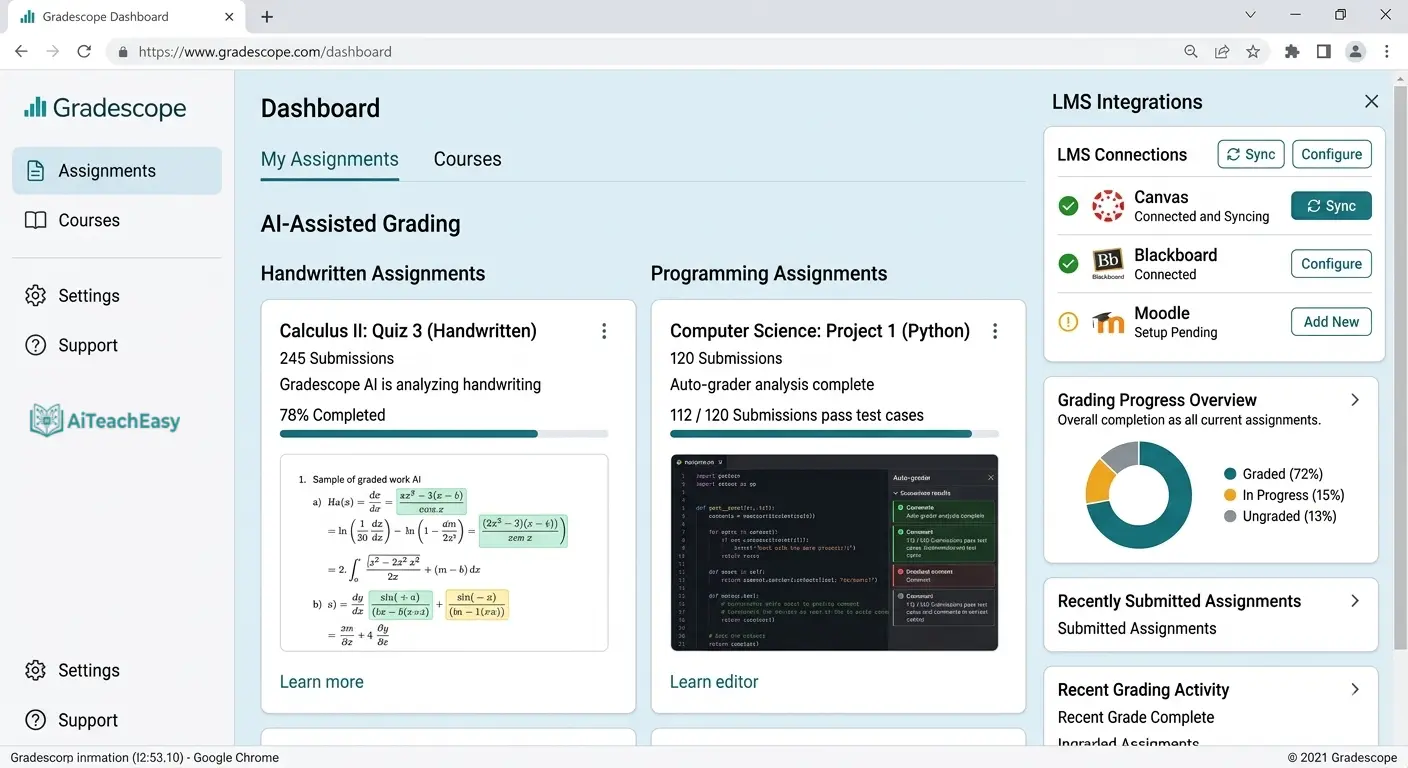
10. Gradescope — Best AI Tool for Grading Assignments at Scale (2026)
Gradescope is not mainly a lesson planning tool, but it helps teachers plan assessments, grading workflows, and exam-based activities.
Website: gradescope.com
Gradescope is the most powerful AI grading tool available to teachers in 2026. Originally built for university settings, it is now used widely in secondary schools and is particularly valuable for math, science, and any subject with structured written responses.
Students submit work digitally (or teachers scan physical work). Gradescope uses AI to group similar student responses together. You grade one response in each group, and Gradescope applies that grade and feedback to all similar responses automatically. For a class of thirty students answering ten questions, this can reduce grading time by sixty to seventy percent.
The rubric-building inside Gradescope is also excellent — you build the rubric once, and it applies consistently across all submissions, eliminating grading drift.
For teachers looking at the full range of AI grading options, I’ve reviewed the best AI grading tools for teachers in detail — Gradescope is the top recommendation for structured, high-volume grading scenarios.
How to Use Gradescope (Step by Step)
- Go to gradescope.com and create a free instructor account
- Create a course and an assignment — specify whether it’s a homework, exam, or project
- Set the submission method: student upload, instructor scan of physical papers, or online submission
- Build your rubric inside Gradescope — add criteria and point values
- Once submissions are in, use AI-Assisted Grading to group similar responses
- Grade one response per group — Gradescope applies the grade to all grouped responses
- Review all grades, release feedback to students with one click
Free plan: Available for individual instructors. Institutional plans through your school.
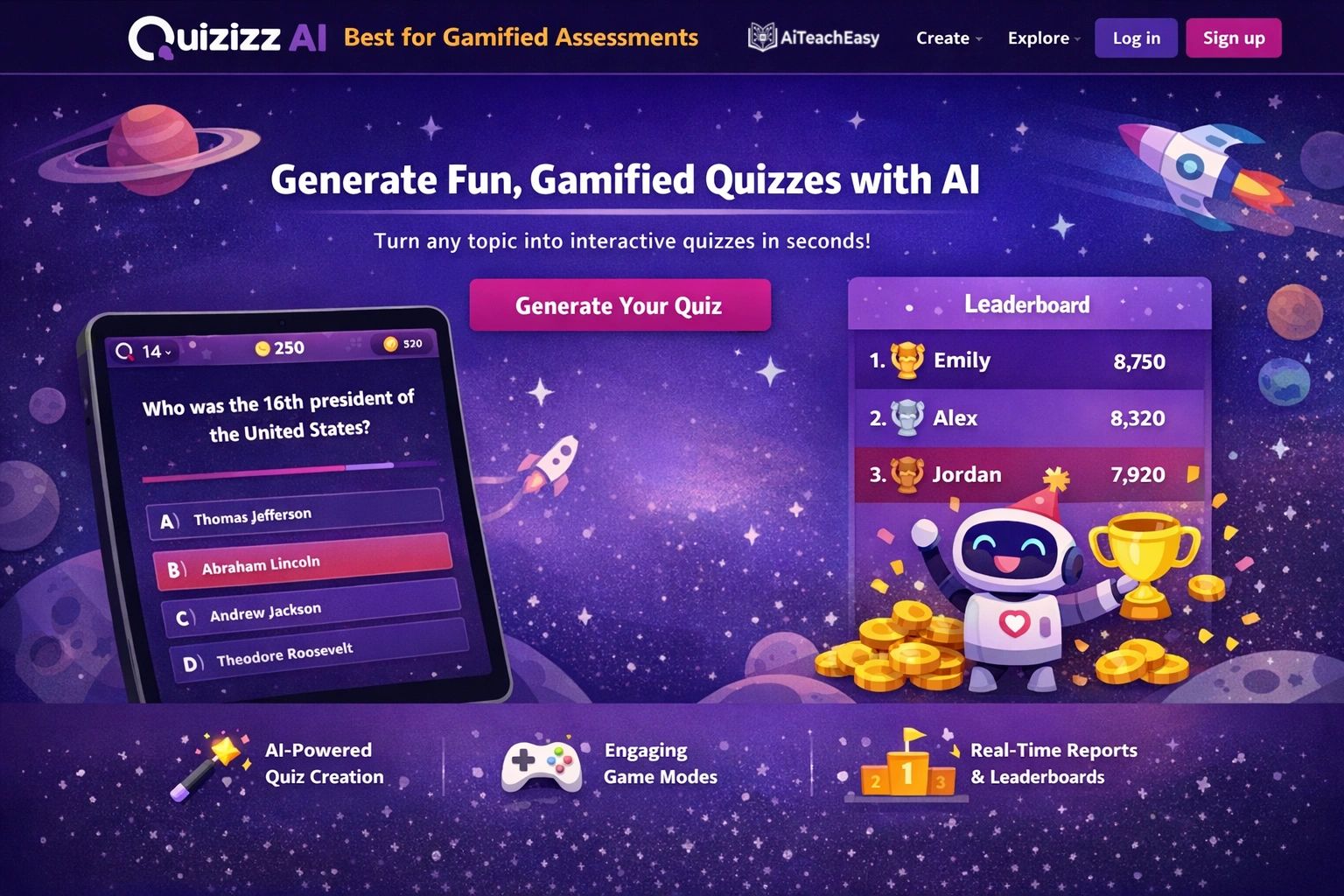
11. Quizizz AI — Best Free AI Quiz Generator for Teachers (2026)
Quizizz AI helps teachers plan quiz-based lessons, review activities, warm-ups, exit tickets, and student practice sessions.
Website: quizizz.com
Quizizz AI lets teachers generate complete, ready-to-use quizzes from any topic, text, or document in under a minute. You paste in content or describe a topic, and Quizizz AI creates multiple-choice questions, true/false questions, fill-in-the-blank questions, and open-ended prompts — all of which can be customised before deploying.
What makes Quizizz AI especially useful for everyday classroom assessment is the student experience. Students take the quiz on their own devices at their own pace, getting immediate feedback and explanations after each answer. You see real-time results on your teacher dashboard: who got what right, what the most common wrong answers were, and which concepts need re-teaching.
For teachers focused on preparing students for high-stakes tests, this sits naturally alongside my roundup of the best AI tools for online exam preparation — Quizizz AI is a powerful low-prep formative assessment companion.
How to Use Quizizz AI (Step by Step)
- Go to quizizz.com and sign up for a free teacher account
- Click Create and select Quiz
- Choose AI Generator — paste in text, a document, or type a topic and grade level
- Select question types: multiple choice, true/false, fill-in-the-blank, open-ended
- Choose the number of questions and click Generate
- Review and edit each question — swap, rewrite, or remove as needed
- Assign to your class live or as homework — students join with a code or link
Free plan: Yes — generous free tier. Paid plans add advanced reporting and gamification.
12. Claude AI — Best General AI Assistant for Teachers Who Want Flexibility (2026)
Claude AI is helpful for writing detailed lesson plans, classroom explanations, unit outlines, learning objectives, and long-form teaching material.
Website: claude.ai
Every tool on this list is purpose-built for a specific task. Claude AI is different — it’s a general AI assistant that is, in my experience, the best available option for teachers who want total flexibility: drafting lesson plans from scratch, writing parent emails in a specific tone, creating differentiated materials, giving feedback on student writing, generating rubrics, or simply thinking through a pedagogical problem out loud.
What makes Claude AI stand out among general AI tools for teachers is its nuance. It understands context exceptionally well, maintains long conversations without losing track of earlier details, and produces written output that reads naturally — which matters when you’re generating parent-facing communication or student-facing feedback.
I use Claude AI personally for drafting complex lesson sequences, writing professional development materials, and when I need something that doesn’t fit neatly into a pre-built template. The free tier is genuinely functional for daily use.
For a step-by-step guide specifically on using Claude AI for academic research and study, I’ve written how to use Claude AI for study and research — directly applicable for both teachers and students.
How to Use Claude AI for Teaching Tasks (Step by Step)
- Go to claude.ai and create a free account
- Start a new conversation — describe your role and context: “I’m a Grade 9 English teacher creating a unit on persuasive writing”
- Give a specific, detailed request: “Create a 5-day lesson plan with daily objectives, activities, and an assessment for a unit on persuasive essay writing, aligned to Common Core standards”
- Review the output — ask follow-up questions to refine any section
- Request specific additions: “Now create a rubric for the final essay assignment” or “Draft a parent email explaining the upcoming unit”
- Copy the content directly into your planning documents or LMS
Free plan: Yes — functional free tier. Claude Pro plan adds more usage and longer conversations.
Explore Ai Tools
Discover AI tools designed to lighten your workload — from lesson planning in seconds to grading that actually saves time. Explore teacher-tested tools that help you focus more on students and less on paperwork.
The Complete AI Tools for Teachers 2026
Task-Based Recommendation Table for Smarter Teaching
| Your Biggest Time Problem | Best AI Tool | Second Choice |
|---|---|---|
| Writing lesson plans | MagicSchool AI | Eduaide.Ai |
| Differentiating reading levels | Diffit | Brisk Teaching |
| Creating quizzes and assessments | Quizizz AI | MagicSchool AI |
| Grading large sets of assignments | Gradescope | Brisk Teaching |
| Creating interactive lesson slides | Curipod | NotebookLM |
| Assessing oral/visual explanations | Snorkl | Gradescope |
| Building content from your own resources | NotebookLM | Eduaide.Ai |
| Writing parent communication | Claude AI | MagicSchool AI |
| Songs and memory-based content | Suno | TeacherServer / NotebookLM |
| Report writing and comments | Eduaide.Ai | Claude AI |
| Time management across all tasks | MagicSchool AI | Best AI time management tools for teachers |
Are These AI Tools Safe to Use in Schools?
This is the question I get from school administrators and department heads more than any other, and it deserves a direct answer.
The tools on this list — MagicSchool AI, Brisk Teaching, NotebookLM, Diffit, Snorkl, Curipod, Gradescope, and Eduaide.Ai — are all designed for educational environments and the reputable ones comply with FERPA and GDPR standards, meaning student data is encrypted and not used to train their models without consent.
That said, here are the rules I follow personally:
Never enter identifiable student data (full names, dates of birth, ID numbers) into any AI platform. Use anonymized descriptors like “a student in my Grade 8 class” when asking for feedback advice. Always check your platform’s privacy policy before use, and flag any AI tool your school hasn’t formally approved to your IT department first.
For a full guide to this topic, I’ve written specifically about privacy-first AI tools for students and teachers — the same principles apply here.
How Much Time Can AI Tools Actually Save Teachers?
Based on real educator reports after 6+ weeks of AI adoption
| Task | Manual Time | With AI Tools | Weekly Saving |
|---|---|---|---|
| Lesson planning | 3–4 hrs/week | 30–45 min | ~3 hrs |
| Grading and feedback | 4–6 hrs/week | 1–2 hrs | ~4 hrs |
| Differentiated materials | 2–3 hrs/week | 20–30 min | ~2 hrs |
| Parent communication | 1–2 hrs/week | 10–15 min | ~1 hr |
| Quiz & assessment creation | 1–2 hrs/week | 10 min | ~1.5 hrs |
| Total Weekly Impact | 11–17 hrs/week | 2–4 hrs | ~8–12 hrs saved |
Eight to twelve hours. Every week. That’s the number that changes teacher retention rates, wellbeing, and the quality of instruction — because teachers who aren’t buried in administrative work can spend more time on what actually matters: the students in front of them.
How Teachers Should Use AI Responsibly
I’ve spent a lot of time testing these tools, and here’s what I always tell fellow educators: AI is incredibly powerful, but it works best when you use it thoughtfully. Let me share some principles that keep your teaching professional and your students safe.
AI assists, it doesn't replace you
This is the most important thing to remember. AI can draft a lesson plan, but you’re the one who knows your students’ needs. It can generate quiz questions, but you decide which ones actually assess learning. Think of AI as your teaching assistant — helpful, but never in charge. Your expertise, your instincts, and your relationships with students are what truly matter.
Always review AI-generated material
I’ve learned this the hard way: AI can sound confident while being completely wrong. It might suggest an activity that doesn’t fit your grade level, include inaccurate information, or miss cultural context. Before you bring anything into your classroom, read it carefully, fact-check important claims, and adapt it to your students. AI is a starting point, not a final draft.
Maintain academic integrity — for yourself and your students
When you use AI to create materials, that’s smart. But if you’re asking AI to write student report cards or complete professional evaluations, that crosses a line. Model the honesty you want to see in your students. Be transparent about how you use AI, and teach them to do the same. Show them that using AI as a learning tool is different from using it to cheat.
Protect student privacy like it's non-negotiable
This one matters more than ever. Never enter student names, personal information, or identifiable data into AI tools. Don’t paste IEPs, medical information, or sensitive records. Most AI platforms train on your data, so assume anything you type could be seen. Use generic placeholders instead — “Student A” instead of names, generic descriptions instead of real details. When in doubt, leave it out.
Be transparent with your students and their families
I’ve found that honesty builds trust. Let students know when you’re using AI to create materials or when they’re allowed to use it for assignments. Explain your reasoning. When families understand that you’re using AI thoughtfully to save time and create better lessons, they appreciate it. Secrecy creates suspicion — openness builds confidence.
The bottom line? AI is one of the most helpful tools to come into education in decades. But like any tool, it’s only as good as the person using it. Use it wisely, use it ethically, and it will make you an even better teacher than you already are.
MagicSchool AI vs Eduaide AI vs Brisk Teaching: Which Is Better for Teachers?
MagicSchool AI, Eduaide AI, and Brisk Teaching are three popular AI tools for teachers, but they are not built for the exact same purpose. MagicSchool AI is best for all-in-one teacher tasks, Eduaide AI is strong for lesson resources, and Brisk Teaching is especially useful for feedback and Google Docs workflows.
MagicSchool AI
Best All-in-One ChoiceMagicSchool AI is a strong starting point for teachers who want one platform for lesson planning, rubrics, feedback, differentiation, emails, and classroom tasks.
- Best for: All-in-one teacher productivity
- Strong in: Lesson plans, rubrics, feedback, classroom tasks
- Weakness: Some useful features may require signup or paid access
Eduaide AI
Best for Lesson ResourcesEduaide AI is helpful for teachers who want structured teaching materials, lesson ideas, assessments, activities, explanations, and classroom-ready resources.
- Best for: Lesson resources and teaching materials
- Strong in: Activities, assessments, explanations, worksheets
- Weakness: Interface may feel complex for some new users
Brisk Teaching
Best for FeedbackBrisk Teaching is useful for teachers who work with Google Docs, Google Classroom, browser content, and student writing because it supports faster feedback workflows.
- Best for: Feedback and Google Docs workflows
- Strong in: Student feedback, writing support, browser-based tasks
- Weakness: Less useful outside document and browser workflows
| Tool | Best For | Main Strength | Weakness | Best Teacher Type |
|---|---|---|---|---|
| MagicSchool AI | All-in-one teacher tasks | Lesson planning, rubrics, student feedback, emails, differentiation, classroom activities, and teacher productivity. | Some features may need signup or paid access. | Best for teachers who want one complete AI teaching assistant instead of using many separate tools. |
| Eduaide AI | Lesson resources | Structured lesson materials, activities, assessments, explanations, worksheets, and classroom resources. | Interface may feel complex for teachers who want a very simple tool. | Best for teachers who mainly need lesson content, teaching resources, and classroom material generation. |
| Brisk Teaching | Feedback and Google Docs | Fast student feedback, writing support, Google Docs workflow, Google Classroom support, and browser-based teaching tasks. | Less useful outside Google Docs, browser pages, and document-based workflows. | Best for teachers who give regular feedback on student writing and use Google tools in their classroom. |
Final Verdict: Which Tool Should Teachers Choose?
For most teachers, MagicSchool AI is the best starting point because it covers the widest range of teaching tasks in one place. It can help with lesson planning, rubrics, feedback, emails, differentiation, and classroom activities.
Eduaide AI is better for lesson resources when teachers want structured activities, assessments, worksheets, and classroom-ready material. Brisk Teaching is strongest for feedback and Google Docs workflows, especially for teachers who use Google Classroom or review student writing online.
SEO Tip: Because comparison queries like “MagicSchool AI vs Eduaide AI vs Brisk Teaching” are appearing in Google Search Console, this section should also become a separate detailed article later. From this page, internally link to that article using anchor text like MagicSchool AI vs Eduaide AI vs Brisk Teaching.
Frequently Asked Questions
Are AI tools safe for teachers to use?
Safety depends on how you use them. Most established tools like ChatGPT, MagicSchool, and Canva take privacy seriously, but you still need to be careful. Never upload student names, personal information, or sensitive documents into any AI tool. Assume anything you type could be used for training. Stick to reputable platforms with clear privacy policies, and when in doubt, leave out identifying details. Your students’ privacy always comes first.
Can AI really grade assignments?
Yes and no. AI is great for grading multiple-choice questions, true/false, and fill-in-the-blank assessments instantly. It can also provide feedback suggestions for written work. But here’s the thing: AI should never be the final judge of student writing. Use it to handle the repetitive stuff, but save the meaningful feedback for yourself. You know your students best — AI doesn’t.
Is AI even allowed in schools?
This varies by district and even by classroom. Some schools have embraced AI and provide training. Others are still figuring out policies. My advice? Check your school’s acceptable use policy first. If there’s no clear guidance, ask your administration. And when you do use AI, be transparent with colleagues and parents about how you’re using it to support instruction, not replace it.
Do I need to be tech-savvy to use AI tools?
Not at all. Most AI tools for teachers are designed to be simple — you type what you need, and it gives you results. If you can send an email or type into Google, you can use these tools. Start with something easy like ChatGPT or Canva Magic Write. Play around. You’ll be surprised how intuitive they are. No coding, no complicated setup.
What are the best free AI tools for teachers right now?
If I had to pick a few: ChatGPT is a great all-rounder for planning and ideas. MagicSchool AI is built specifically for educators and has a generous free tier. Canva Magic Write helps create beautiful visuals and worksheets. Quizizz AI makes engaging quizzes for free. And Brisk Teaching is a Chrome extension that works inside Google Docs at no cost. Start there and see what fits your style.
Can AI help with lesson planning for specific grade levels?
Absolutely. In fact, that’s where AI shines. You can say things like “Create a 45-minute lesson on photosynthesis for 7th graders” or “Generate discussion questions about To Kill a Mockingbird for high school students.” The more specific you are, the better the results. Just remember to review and adapt — AI might not know your classroom dynamics, but you do.
Will AI replace teachers someday?
This is the question I get most often, and here’s my honest answer: no. AI will never replace the connection you build with students, the intuition you bring to tough situations, or the care you show every day. What AI can do is handle the paperwork, the planning grind, and the repetitive tasks — so you have more energy for what actually matters. AI isn’t your replacement. It’s your assistant.
How do I know if AI is giving me accurate information?
Great question. AI can sound very confident while being completely wrong — we call this “hallucination.” Always fact-check important information, especially for subjects like history, science, or current events. Use AI as a starting point, then verify with trusted sources. Think of it as a helpful colleague who sometimes gets things wrong, not an infallible expert.
What about students using AI to cheat?
This is a real concern, and ignoring it won’t help. Instead, talk openly with students about ethical AI use. Show them how AI can be a learning tool — for brainstorming, explaining concepts, or practicing — rather than a shortcut. When you model responsible use, they’re more likely to follow. Some teachers even have students document how they used AI in assignments, which promotes honesty.
Can AI help with communicating with parents?
Yes, and this is a huge time-saver. AI can draft newsletters, parent emails, and updates in seconds. You can say “Write a friendly email to parents about next week’s field trip” and get a solid draft. Just personalize it before sending. Your voice still matters — AI just handles the blank page problem.
Do I need special training to use these tools?
Not really, but a little curiosity goes a long way. Most tools work on simple prompts: tell it what you need, and it delivers. If you want to go deeper, there are plenty of YouTube tutorials and teacher communities sharing tips. But honestly? The best way to learn is to pick one tool and start experimenting.
What if I try a tool and don't like it?
That’s totally fine! Not every tool works for every teacher. Some are better for elementary, some for high school. Some excel at visuals, others at text. The beauty of this site is you can explore different options and find what fits your style. There’s no one-size-fits-all, and that’s okay.
Commonly Asked Questions
Here are quick answers to common questions teachers ask before choosing the best AI tools for lesson planning, worksheets, grading, feedback, classroom engagement, and productivity in 2026.
What is the best AI tool for teachers in 2026?
MagicSchool AI is one of the best AI tools for teachers in 2026 because it is built specifically for education and covers many daily teaching tasks in one place. Teachers can use it for lesson planning, rubrics, student feedback, classroom activities, differentiation, email writing, and productivity. However, the best AI tool depends on your need: Brisk Teaching is great for feedback, NotebookLM is useful for source-based notes, and Quizizz AI is strong for quizzes and classroom engagement.
Which AI tool is best for lesson planning?
For lesson planning, MagicSchool AI, Eduaide AI, TeacherServer, Claude AI, and NotebookLM are strong options. MagicSchool AI is best for complete lesson plans, objectives, rubrics, and differentiation. Eduaide AI is better for structured lesson resources and teaching materials, while NotebookLM is useful when teachers want to create lesson content from PDFs, notes, or classroom documents.
What is the best free AI tool for teachers?
The best free AI tool for teachers depends on the task. TeacherServer is useful for free teacher tools and quick classroom resources. NotebookLM is excellent for working with notes, PDFs, and study guides. ChatGPT or Claude AI can help with lesson drafting, explanations, worksheet ideas, and teacher productivity. Many tools also offer free or limited plans, including MagicSchool AI, Quizizz AI, Curipod, and Brisk Teaching.
Which AI tool can create worksheets for teachers?
MagicSchool AI, Eduaide AI, Diffit, TeacherServer, Quizizz AI, and Claude AI can help teachers create worksheet-style activities. Diffit is especially useful for reading worksheets, leveled passages, vocabulary tasks, and comprehension questions. Quizizz AI is better for quiz-based worksheets and practice questions, while MagicSchool AI and Eduaide AI are good for general classroom worksheets across different subjects and grade levels.
Is MagicSchool AI better than Eduaide AI?
MagicSchool AI is better for teachers who want an all-in-one AI teaching assistant for lesson plans, rubrics, feedback, emails, differentiation, and classroom tasks. Eduaide AI is better for teachers who mainly need structured lesson resources, activities, assessments, explanations, and teaching materials. So, in the MagicSchool AI vs Eduaide AI comparison, MagicSchool is the better starting point for most teachers, while Eduaide is strong for resource creation.
Which AI tools help teachers save time?
The best AI tools for teacher productivity include MagicSchool AI, Brisk Teaching, NotebookLM, Eduaide AI, Claude AI, and Quizizz AI. MagicSchool AI saves time on daily teacher tasks, Brisk Teaching helps with faster feedback inside Google Docs and browser workflows, NotebookLM saves time on summaries and source-based notes, and Quizizz AI helps teachers quickly create quizzes and review activities.
Can AI tools grade student work?
Yes, some AI tools can help with grading and feedback, but teachers should always review the final results. Brisk Teaching is strong for student feedback, especially in Google Docs and Google Classroom workflows. Gradescope is useful for grading assignments, quizzes, and exams. MagicSchool AI and Eduaide AI can help create rubrics, feedback comments, and assessment support.
Are AI tools safe for teachers to use?
AI tools can be safe for teachers when used carefully. Teachers should avoid uploading private student information, sensitive records, grades, or personal data into any AI tool unless the school has approved it. The safest way to use AI teaching tools is for lesson planning, worksheet creation, classroom activities, general feedback drafts, and productivity tasks while keeping student privacy in mind.
What is the best AI classroom tool for student engagement?
For student engagement, Quizizz AI, Curipod, ClassTools, Suno, and MagicSchool AI are useful choices. Quizizz AI is best for quizzes, review games, and practice questions. Curipod is strong for interactive slides, polls, and student responses. Suno can make lessons more creative with educational songs and memory rhymes, while MagicSchool AI can generate discussion questions, warm-ups, role plays, and exit tickets.
Which AI tool should a new teacher start with?
A new teacher should start with MagicSchool AI because it is simple, education-focused, and useful for many classroom tasks. It can help with lesson planning, worksheets, rubrics, feedback, emails, classroom activities, and teacher productivity. After that, new teachers can try NotebookLM for notes and study guides, Brisk Teaching for feedback, and Quizizz AI for student engagement.
Quick Answers — What Teachers Ask Most
Straight answers to the top questions about AI tools for teachers in 2026
What is the best AI tool for teachers in 2026?
MagicSchool AI is the best AI tool for teachers in 2026 for most use cases — it offers 60+ education-specific tools covering lesson planning, assessment, differentiation, and parent communication, with a generous free tier and no prompt engineering required.
What free AI tools can teachers use right now?
The best completely free AI tools for teachers in 2026 are:
- TeacherServer — 1,000+ tools, no account needed
- NotebookLM — source-grounded content, completely free
- MagicSchool AI — 60+ tools, free tier available
- Curipod — interactive lessons, free plan included
All are usable today without any payment.
How much time can AI save teachers every week?
Teachers who consistently use AI tools for lesson planning, grading, differentiation, and communication typically save 8 to 12 hours per week — based on educator-reported data from schools using these tools in 2025 and 2026.
Final Thoughts
From my experience, AI tools have made teaching more manageable and less stressful. They help me save time, focus on students, and improve learning outcomes. When used wisely and ethically, AI becomes a teacher’s assistant—not a replacement.
If you’re a teacher, I genuinely recommend trying AI tools step by step. You’ll quickly see how much easier your teaching journey can become.
My Advice for Starting Don’t try to master all 15 tools at once. Start with one “walled garden” tool like NotebookLM for your personal notes, and one engagement tool like Quizizz AI for the kids. Once you see the time-saving “magic” in those two, the rest of the AI landscape won’t feel so overwhelming.
About Author
Prof. Irfan is an educator and academic researcher with over a decade of experience in higher education and teacher professional development. He writes at aiteacheasy.com — a resource focused on practical AI applications for teachers and students. His goal: give every educator the tools and knowledge to reclaim their time and teach better.
Explore more at aiteacheasy.com: AI lesson plan generators for teachers | AI report writing tools for teachers | AI email writing tools for teachers | AI tools for classroom management | Best free homework helper tools for students