
How to Use AI with MS Word for Students and Teachers
Microsoft Word is still one of the most useful tools in education. Students use it for assignments, reports, notes, resumes, and project files. Teachers use it for lesson plans, worksheets, quizzes, reports, feedback, and classroom handouts.
Now add AI to that workflow, and MS Word becomes even more powerful.
AI can help you plan, write, summarize, improve, and organize content. MS Word helps you format, edit, print, protect, and share the final document. When both are used together, students and teachers can save time and create better work without starting from a blank page every time.
This guide will show you exactly how to use AI with MS Word for students and teachers in a practical way. It is built around real MS Word learning topics such as creating files, saving documents, formatting text, using headings, printing, exporting PDFs, protecting files, and working with tables. The course transcript you provided also focuses on practical MS Word learning for assignments, projects, file handling, formatting, printing, PDF export, and daily practice.
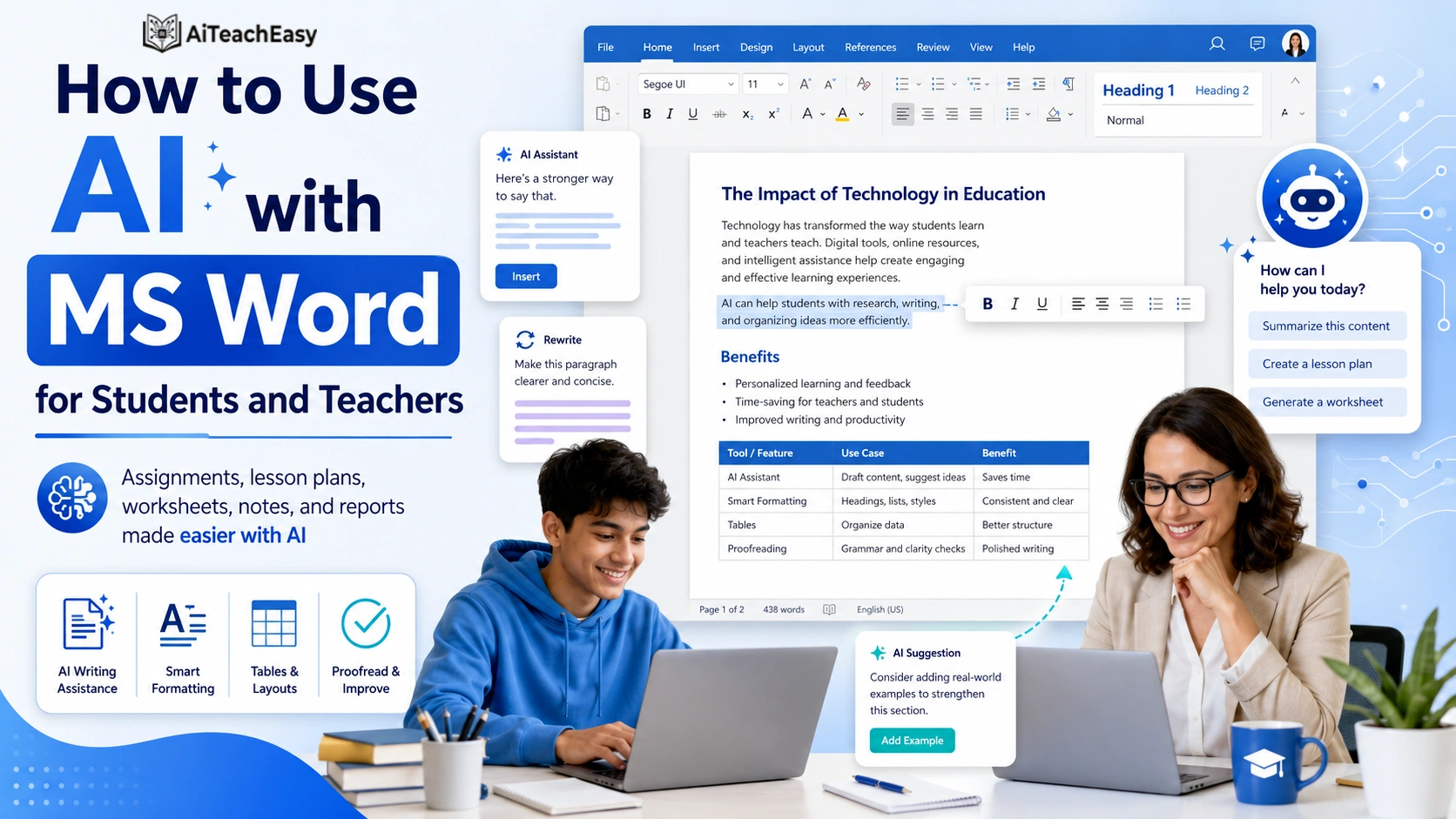
How Can Students and Teachers Use AI with MS Word?
Students and teachers can use AI with MS Word by using AI to create the first draft and then using Microsoft Word to polish the final document. Students can create assignment outlines, summaries, study notes, and reports. Teachers can create lesson plans, worksheets, quizzes, rubrics, and student feedback. MS Word is then used for headings, tables, formatting, page layout, print preview, PDF export, and final submission.
The simple workflow is:
Ask AI → Get draft → Paste into MS Word → Format → Review → Save or export as PDF
That is the easiest way to combine AI and Microsoft Word.
Why AI with MS Word Is Useful for Students and Teachers
Most students and teachers do not struggle because they cannot type. They struggle because they do not know where to start.
A student may know the assignment topic but not know how to create the structure. A teacher may know the lesson but not have time to design a clean worksheet. This is where AI becomes useful.
AI helps with the thinking part. MS Word helps with the presentation part.
For example:
A student can ask AI to create an assignment outline, then paste it into Word and format it with headings.
A teacher can ask AI to create a lesson plan, then paste it into Word and turn it into a printable table.
A student can ask AI to summarize lecture notes, then save them in Word as exam revision notes.
A teacher can ask AI to create quiz questions, then arrange them in MS Word with marks and answer spaces.
This is not about replacing learning or teaching. It is about removing the blank-page problem and saving time on repetitive work.
AI with MS Word: What Should AI Do and What Should Word Do?
| Task | AI Should Help With | MS Word Should Help With |
|---|---|---|
| Assignment | Ideas, outline, explanation | Formatting, headings, PDF |
| Lesson plan | Objectives, activities, assessment | Table layout, printable format |
| Worksheet | Questions, instructions, answer key | Spacing, numbering, print preview |
| Study notes | Summary, definitions, examples | Bullets, headings, clean layout |
| Report | Draft structure and sections | Cover page, page breaks, tables |
| Feedback | Polite wording and tone | Report format and record keeping |
| Quiz | Questions and answer key | Marks, sections, final paper layout |
AI is good at creating content. MS Word is good at making that content look professional.
How Students Can Use AI with MS Word
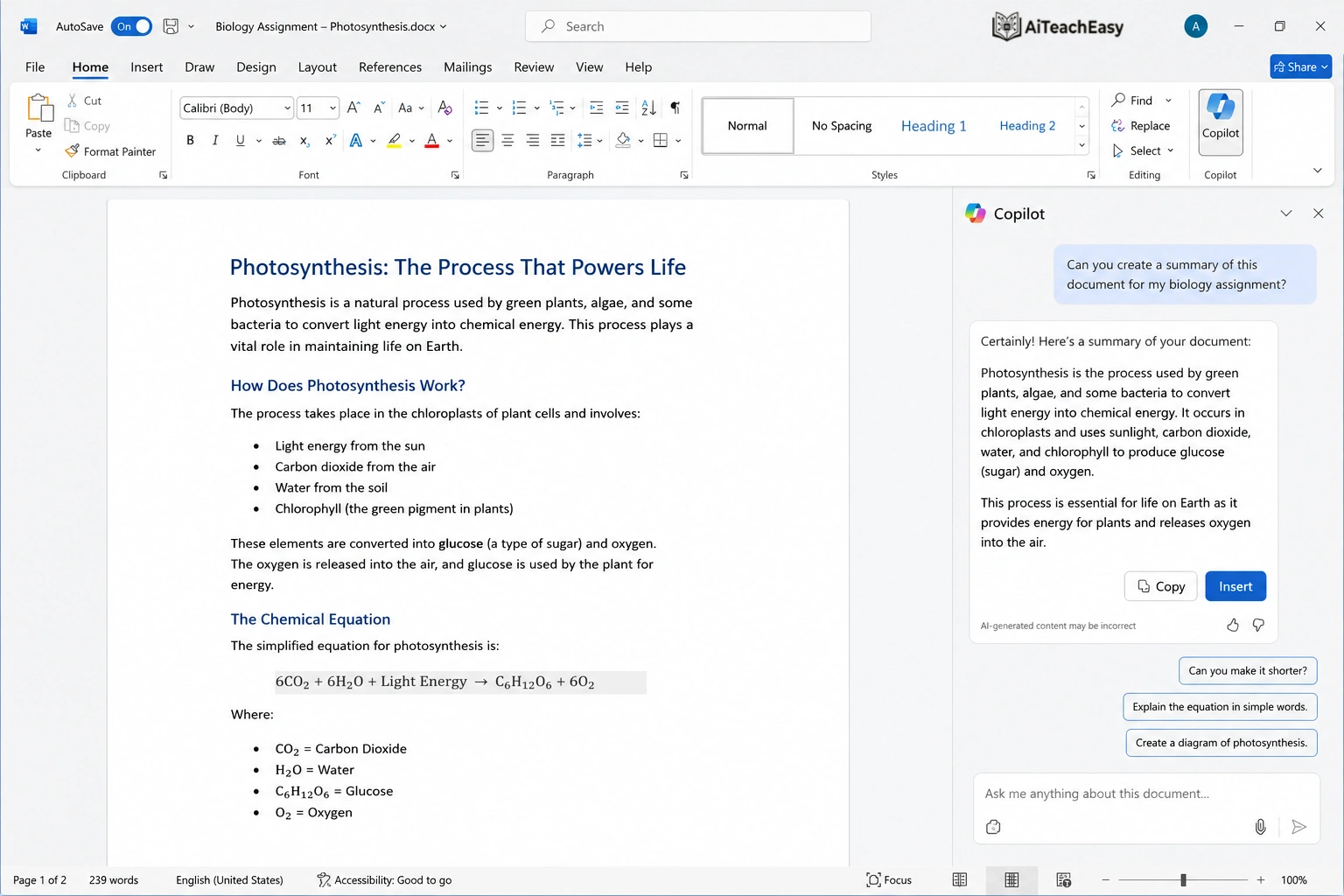
Use AI with MS Word for Assignment Planning
Many students open MS Word and stare at a blank page. A better method is to use AI first for planning.
Ask AI to create the assignment structure. Then use MS Word to write and format the final version.
Prompt for Assignment Outline
Create a simple assignment outline on “[topic]” for a [class/grade] student. Include a title page, introduction, main headings, subheadings, conclusion, and references section. Make it suitable for Microsoft Word.What to Do in MS Word
After AI gives the outline, paste it into MS Word.
Then:
Use Heading 1 for main sections.
Use Heading 2 for sub-sections.
Use bullet points for short notes.
Use normal paragraphs for explanations.
Add your name, class, teacher name, and date.
Save the file.
Export it as PDF if required.
This makes the assignment easier to complete because the structure is already ready.
Students can also use ChatGPT Prompts for Answering Assignments for more assignment-related prompts.
Use AI to Improve Assignment Writing in MS Word
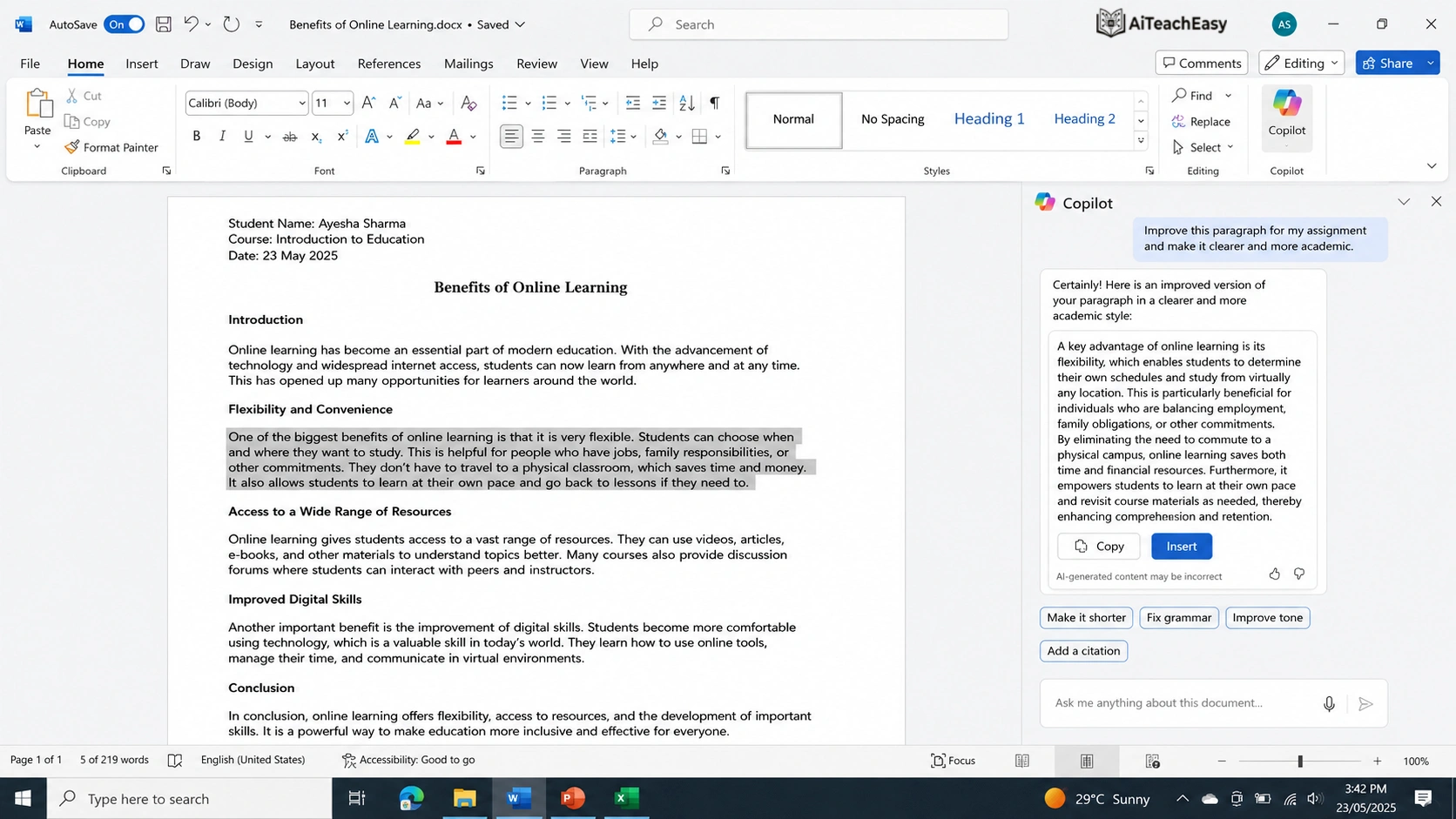
AI can help improve your writing, but you should not copy blindly. The best method is to write your own paragraph first and then ask AI to improve it.
Prompt to Improve a Paragraph
Improve this paragraph for a student assignment. Keep the meaning the same, make it clear, simple, and academic:
[paste your paragraph]
After AI improves the paragraph, paste it into MS Word and read it again. Remove anything that sounds too advanced, too robotic, or not like your own writing.
MS Word Formatting Tips for Assignments
Use a readable font.
Keep font size around 11 or 12.
Use proper line spacing.
Use headings for sections.
Keep paragraphs short.
Use page numbers for long assignments.
Export the final file as PDF.
Helpful Meterial:
For a complete assignment workflow, read AI Assignment Generator: Create Assignments with AI.
Use AI with MS Word for Study Notes
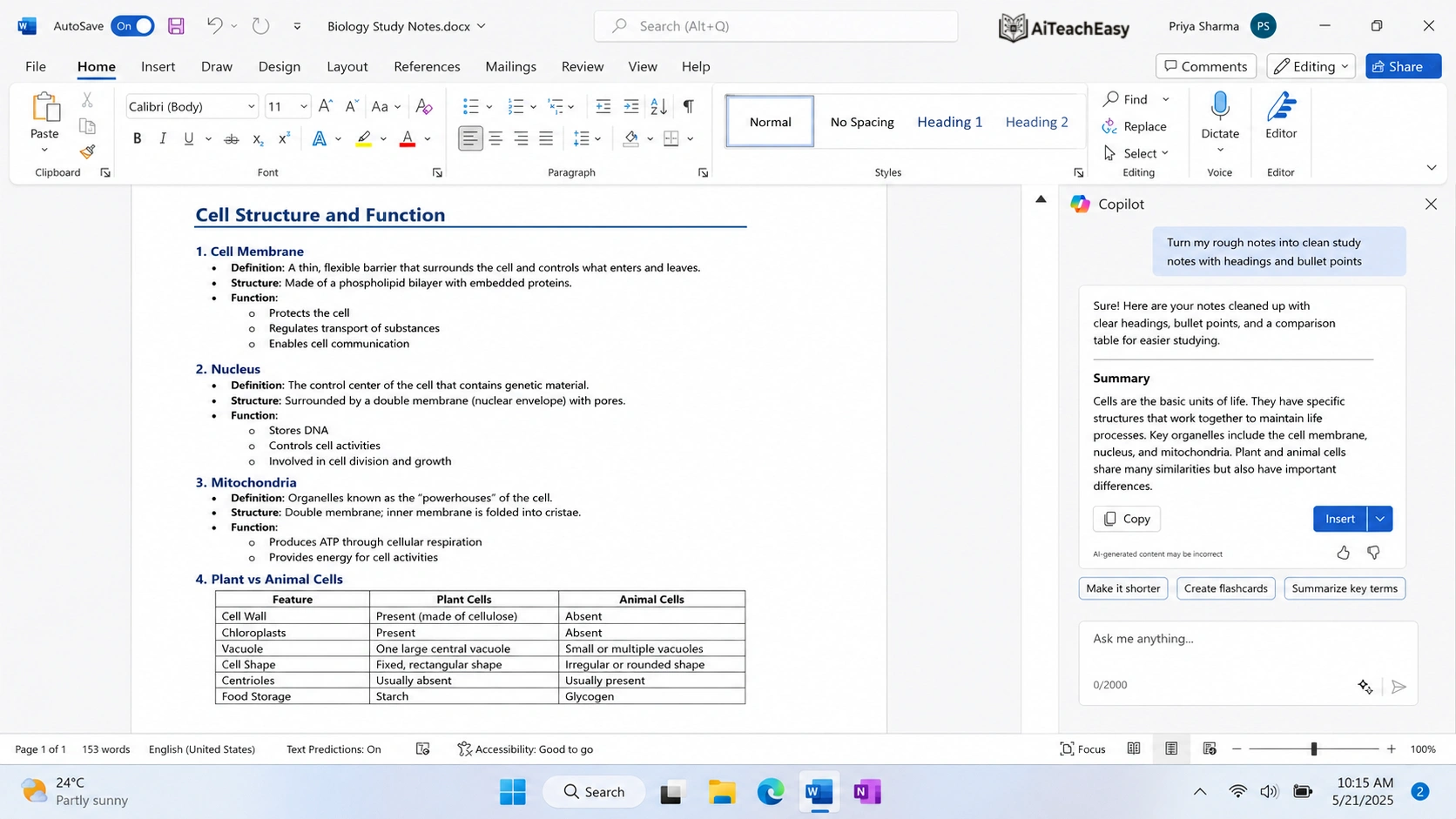
Students often have long notes from lectures, YouTube videos, PDFs, or class recordings. AI can turn those rough notes into clean revision material.
Prompt for Study Notes
Convert these rough notes into clean study notes for Microsoft Word. Use headings, bullet points, key definitions, examples, and a short summary:
[paste notes]
How to Format Study Notes in MS Word
Use a clear title at the top.
Divide topics with headings.
Use bullet points for quick revision.
Use tables for comparisons.
Highlight important definitions.
Keep enough spacing so the notes are easy to read.
Save the file as PDF for mobile study.
This is useful before exams because you can create short, organized notes from long material.
Helpful Posts For Students:
How to Take Notes from YouTube Lectures Using AI
How to Convert Notes into Flashcards
Best Free AI Note Takers
Use AI to Create Tables in MS Word
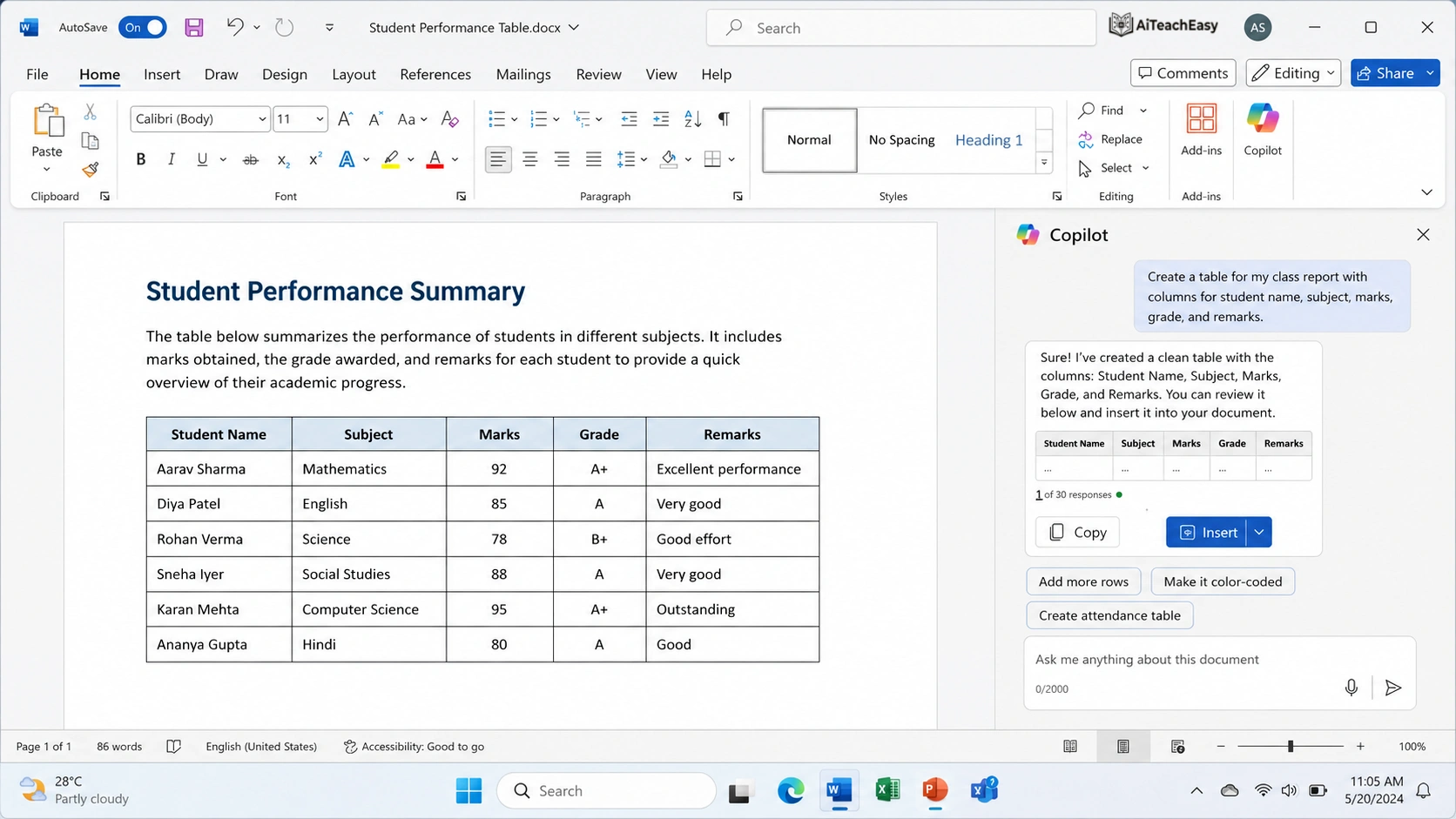
Tables make information easier to understand. Students can use tables for study plans, comparison charts, marks records, project data, or assignment schedules.
Prompt for a Study Table
Create a 7-day study plan table for a student preparing for exams. Include day, subject, topic, task, time, and revision activity. Make it easy to paste into Microsoft Word.Example Table
| Day | Subject | Topic | Task | Time |
|---|---|---|---|---|
| Monday | English | Essay Writing | Create outline and write introduction | 1 hour |
| Tuesday | Science | Photosynthesis | Revise notes and diagrams | 1 hour |
| Wednesday | Math | Algebra | Solve practice questions | 1.5 hours |
| Thursday | Computer | MS Word | Practice tables and formatting | 1 hour |
After pasting the table into Word, adjust the column width, add borders, and make the first row bold.
Use AI with MS Word for Reports and Projects
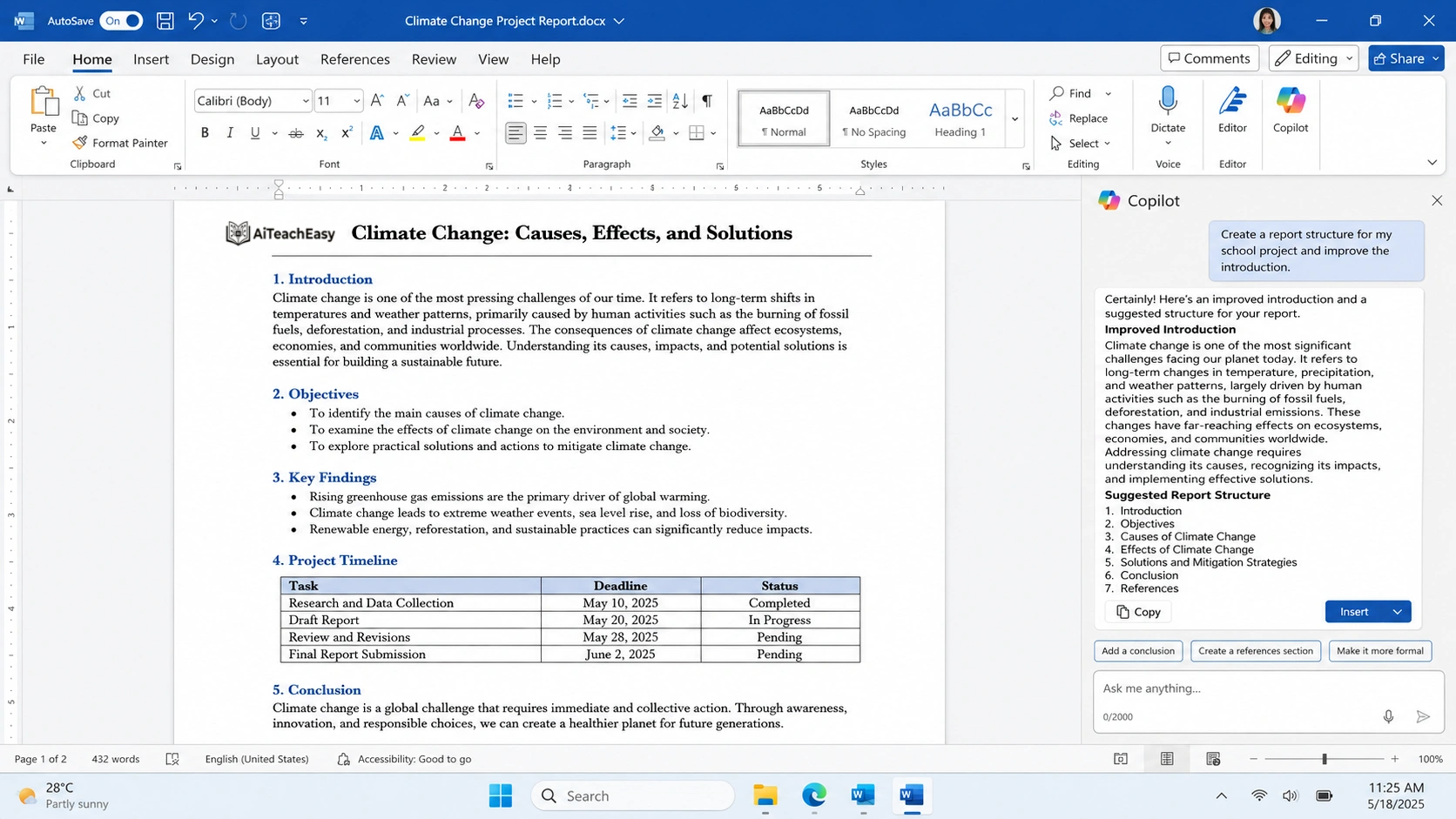
Reports and projects need structure. AI can help you create the sections, and MS Word can help you present them properly.
Prompt for a Student Report
Create a Microsoft Word report structure on “[topic]”. Include title page text, introduction, objectives, main discussion, table suggestion, conclusion, and references section.Good MS Word Report Structure
Title Page
Introduction
Objectives
Main Discussion
Table or Data Section
Conclusion
References
Appendix, if needed
This structure works for school projects, college assignments, internship reports, and basic research work.
You Hould Check These Also:
How to Build an AI Study System
How to Learn Anything 10x Faster
How Teachers Can Use AI with MS Word
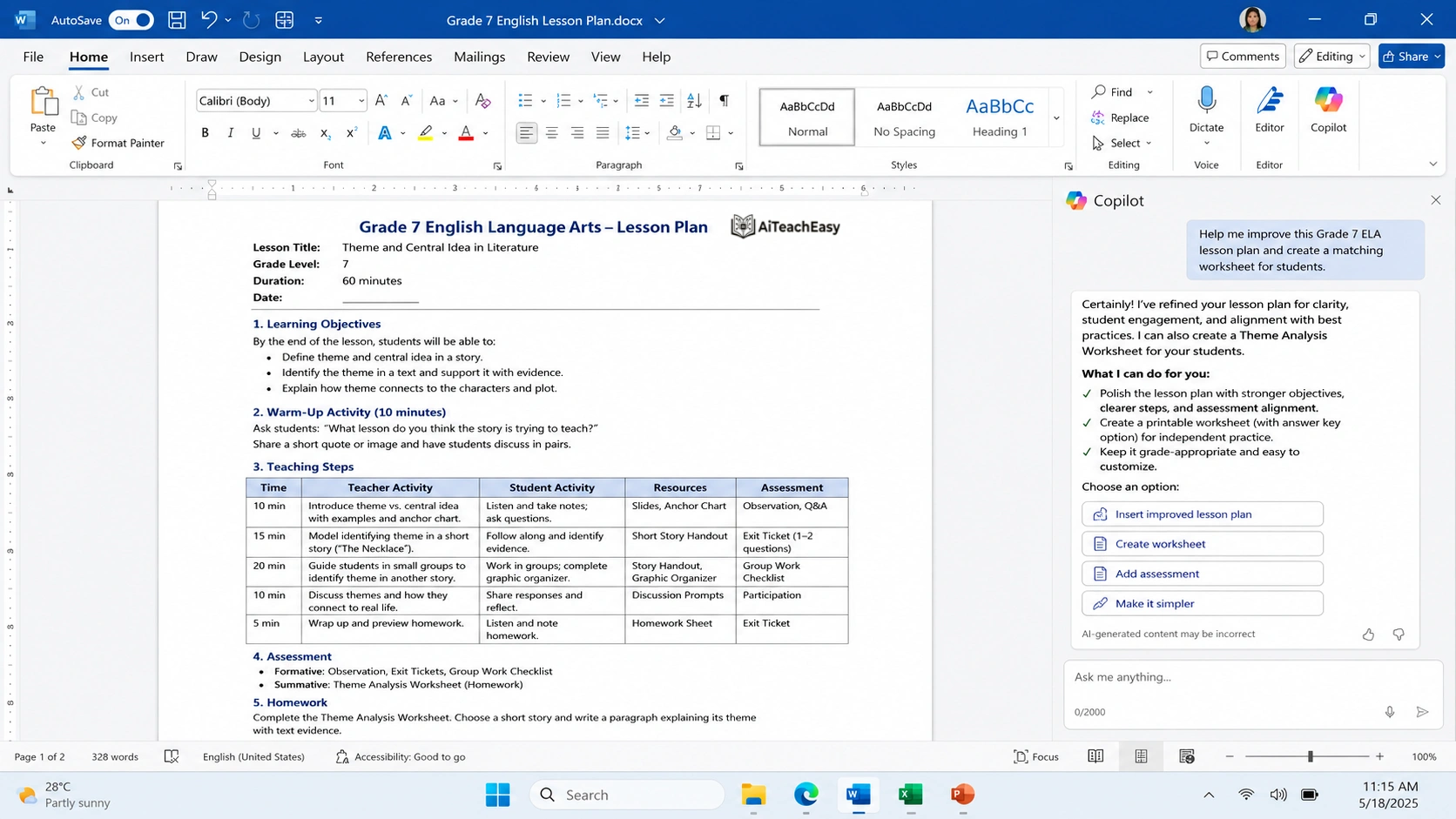
Use AI with MS Word for Lesson Plans
Teachers spend a lot of time planning lessons. AI can create a first draft of a lesson plan, and MS Word can turn it into a clean school-ready document.
Prompt for Lesson Plan
Create a 40-minute lesson plan for Grade [X] on “[topic]”. Include learning objectives, warm-up activity, teaching steps, student activity, assessment, homework, and required materials. Format it as a table for Microsoft Word.Example Lesson Plan Format
| Time | Teacher Activity | Student Activity | Resources | Assessment |
|---|---|---|---|---|
| 5 min | Introduce the topic | Answer warm-up question | Board | Oral response |
| 15 min | Explain the concept | Take notes | Book/slides | Questions |
| 15 min | Give practice activity | Work in pairs | Worksheet | Activity check |
| 5 min | Recap the lesson | Ask final questions | Board | Exit question |
Teachers can paste this table into MS Word, add school name, class, subject, date, and print it.
Helping Posts For Teachers And Students:
Best AI Lesson Plan Generators for Teachers
Best AI Course Content Generators for Teachers
Best AI Productivity Tools for Teachers
Use AI with MS Word to Create Worksheets
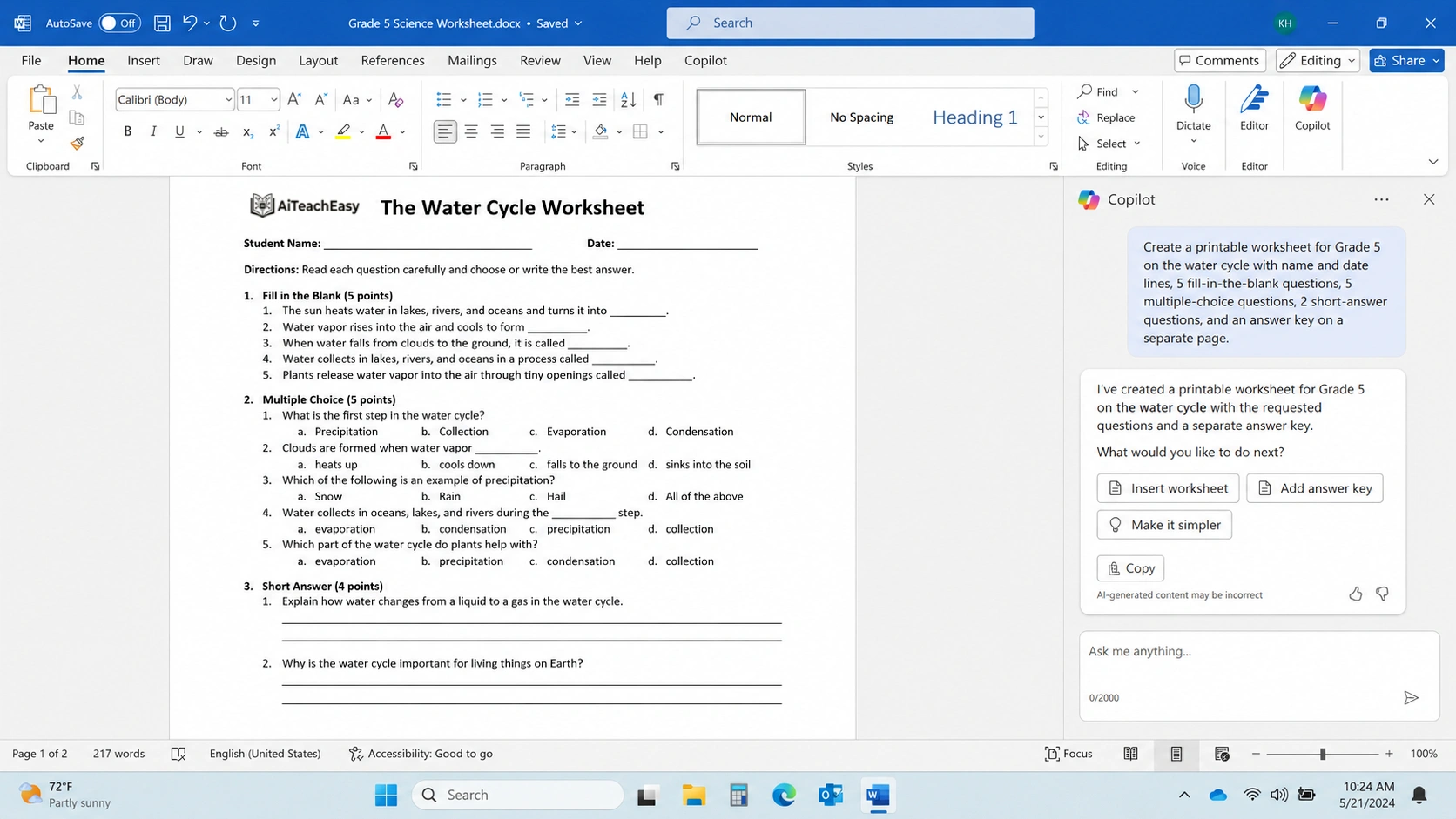
A worksheet should not only have questions. It should be printable, readable, and easy for students to complete.
AI can create the worksheet content. MS Word can fix the spacing, numbering, margins, and answer area.
Prompt for Worksheet
Create a printable worksheet for Grade [X] on “[topic]”. Include student name line, date line, instructions, 10 fill-in-the-blank questions, 10 multiple-choice questions, 5 short questions, and an answer key on a separate page.MS Word Worksheet Checklist
Add school name.
Add student name and date line.
Keep instructions clear.
Use numbering.
Leave blank space for answers.
Keep answer key separate.
Check print preview before printing.
Save a PDF copy.
Helpful Meterial:
AI Content Tools for Teachers
AI Teaching Presentation Tools
Use AI with MS Word for Student Feedback
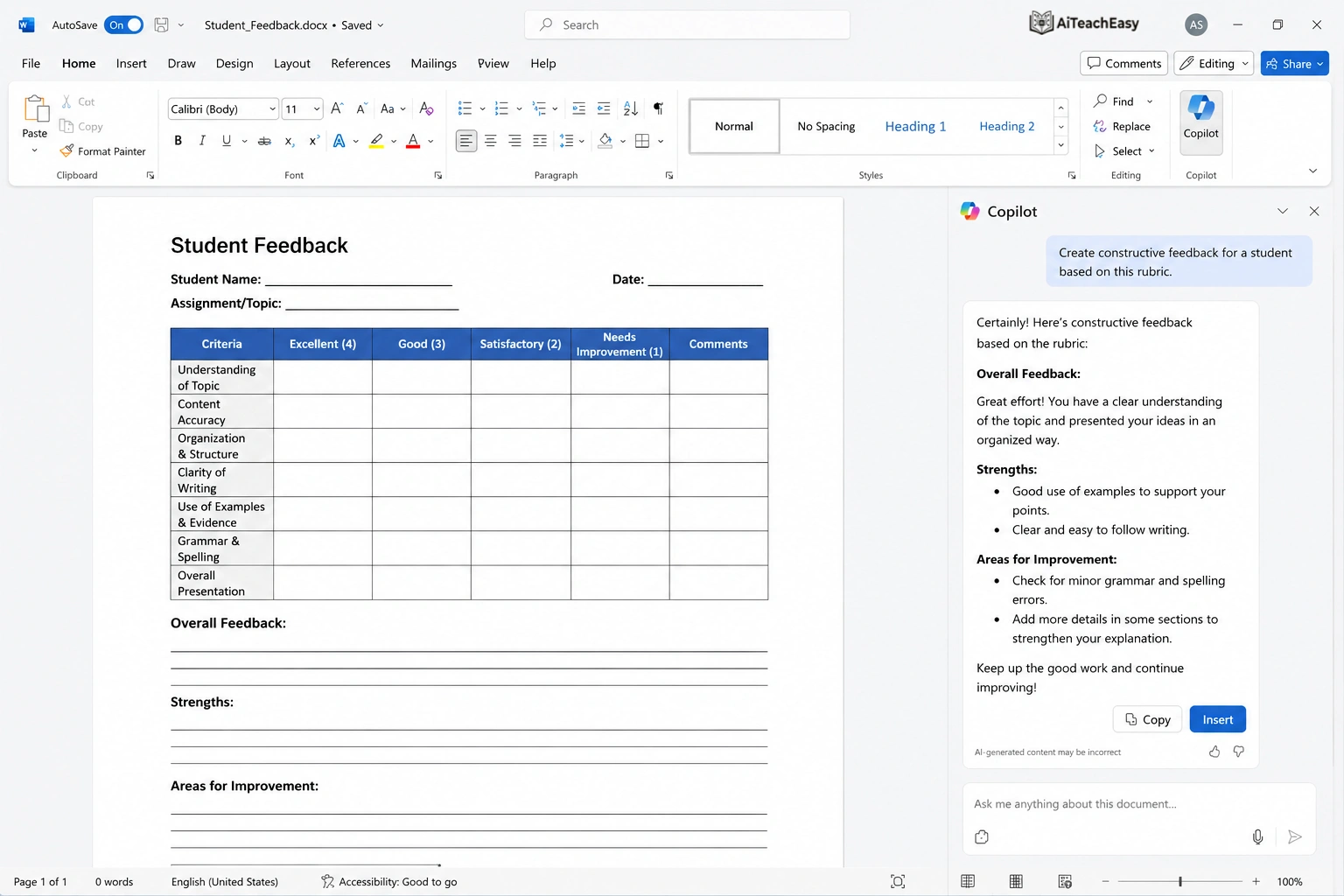
Writing feedback for every student takes time. AI can help teachers write polite and balanced feedback, especially for reports or parent communication.
Prompt for Student Feedback
Write short teacher feedback for a student who is improving in class participation but needs to work on homework completion and handwriting. Keep the tone positive, simple, and professional.Example Feedback
The student is showing improvement in class participation and is becoming more confident during discussions. To improve further, regular homework completion and handwriting practice are recommended.
Teachers can paste feedback into MS Word and create a simple report format for each student.
Helpful Stuff For Teachers And Students:
AI Feedback Generators
Best AI Report Writing Tools for Teachers
Best AI Email Writing Tools for Teachers
Use AI with MS Word to Create Quizzes and Tests
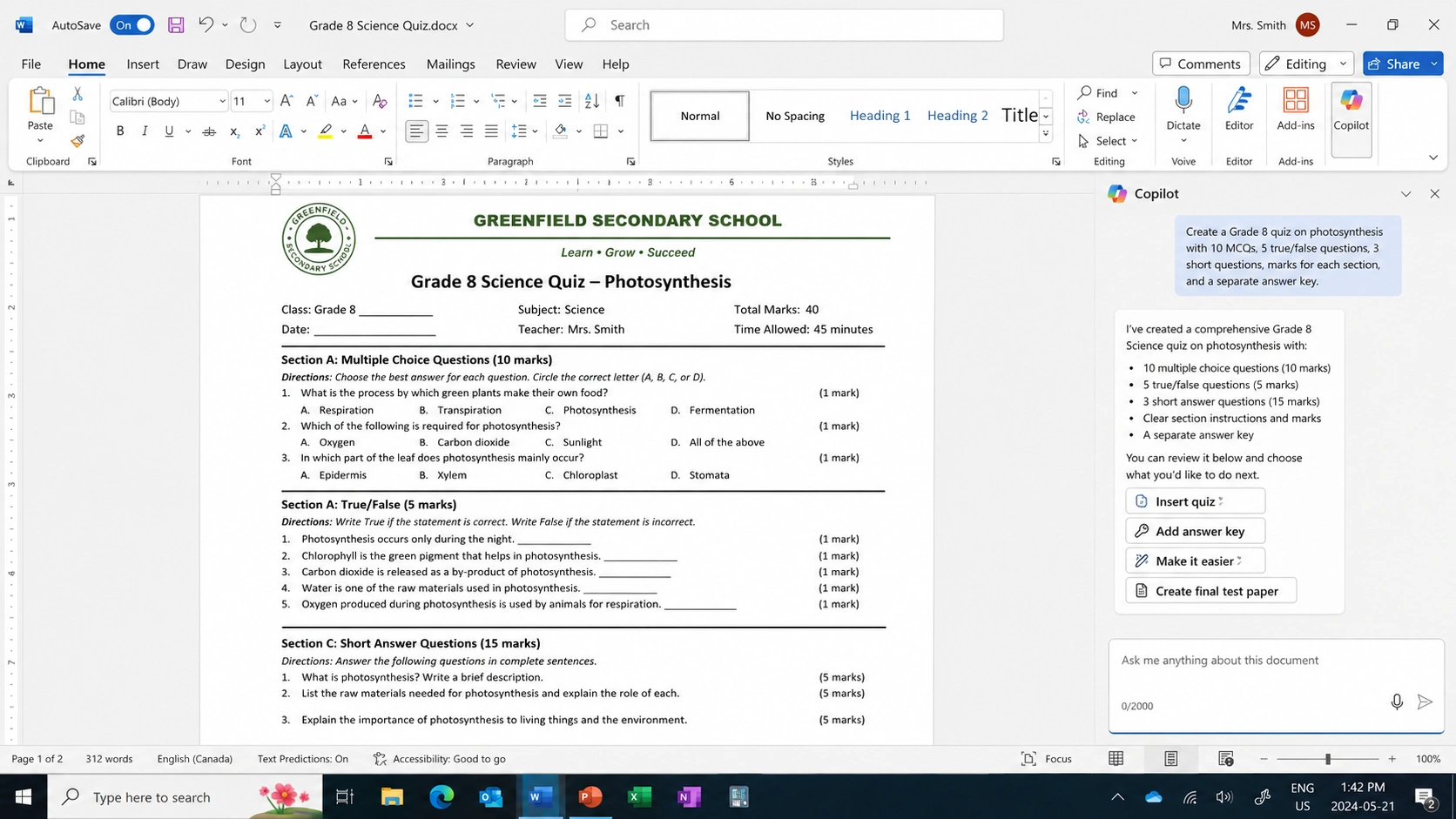
AI can help teachers create quiz questions, but teachers should always check the answers before using them in class.
Prompt for Quiz
Create a quiz for Grade [X] on “[topic]”. Include 10 MCQs, 5 true/false questions, 5 short questions, marks for each section, and an answer key.MS Word Test Paper Format
School name
Subject
Class
Total marks
Time allowed
Section A: MCQs
Section B: Short questions
Section C: Long questions
Answer key on a separate page
This gives teachers a proper test paper instead of a rough list of questions.
Students And Teachers Should Check These:
Best AI Grading Tools for Teachers
AI Auto-Grading Tools
Best AI Tools for Online Exam Preparation
Important MS Word Skills Students and Teachers Still Need
AI can write and organize content, but it cannot replace basic MS Word skills. If you do not know how to format and save your document properly, even a good AI draft can look unprofessional.
Create, Save, Open, and Save As
Every student and teacher should know these basic file commands.
Use New to create a fresh document.
Use Save to protect your work.
Use Save As to create another copy.
Use Open to continue an old file.
This is especially important for assignments, reports, lesson plans, and worksheets.
Use Headings and Styles
Headings make documents easier to read. They also make long documents more organized.
Use:
Heading 1 for main sections.
Heading 2 for sub-sections.
Normal text for paragraphs.
For example, in an assignment, “Introduction” can be Heading 1, and “Benefits of Online Learning” can be Heading 2.
Use Tables Properly
Tables are useful for both students and teachers.
Students can use tables for study plans, comparisons, and project data.
Teachers can use tables for lesson plans, attendance, rubrics, and result records.
In MS Word, tables make information easier to scan and understand.
Use Find and Replace
Find and Replace is a small command, but it saves a lot of time.
For example:
A teacher wrote the wrong class name in a worksheet.
A student wrote the wrong city name in a report.
A document has the same spelling mistake many times.
Instead of fixing each word manually, use Find and Replace.
Export Word Documents as PDF
PDF is better when you want your formatting to stay the same. Students can submit assignments as PDF. Teachers can share worksheets as PDF.
Use PDF when:
You are submitting an assignment.
You are sending a worksheet.
You do not want formatting to change.
You want the file to open easily on mobile.
Microsoft guide: Save or convert to PDF in Office
Protect Important Word Documents
Teachers may need to protect exam papers, result sheets, or private school files. Students may also protect personal projects or important notes.
MS Word allows users to protect documents with a password. But remember one important point: if you forget the password, recovery may be difficult or impossible.
Microsoft guide: Protect a Word document with a password
Best AI Prompts for MS Word Documents
AI Prompt for MS Word Assignment
Create a complete Microsoft Word assignment on “[topic]” for a [class/grade] student. Include title page text, introduction, headings, subheadings, one table idea, conclusion, and references section.AI Prompt for MS Word Lesson Plan
Create a lesson plan for Grade [X] on “[topic]”. Format it for Microsoft Word with a table including time, teacher activity, student activity, resources, assessment, and homework.AI Prompt for MS Word Worksheet
Create a printable worksheet for Grade [X] on “[topic]”. Include instructions, name line, date line, questions, blank answer space, and answer key.AI Prompt for MS Word Study Notes
Convert these notes into a clean Microsoft Word study document. Use headings, bullet points, definitions, examples, and a final summary:
[paste notes]
AI Prompt for MS Word Table
Create a table for Microsoft Word on “[topic]”. Use columns for concept, explanation, example, and student activity.AI Prompt for MS Word Formatting
Suggest a professional MS Word format for this document. Tell me where to use headings, tables, bullets, page breaks, spacing, and PDF export:
[paste document]
7-Day Practice Plan: AI with MS Word for Students and Teachers
| Day | Student Practice | Teacher Practice | MS Word Skill |
|---|---|---|---|
| Day 1 | Create an assignment outline with AI | Create a lesson plan with AI | New file, Save, Save As |
| Day 2 | Improve a paragraph with AI | Write student feedback | Copy, Paste, Format Painter |
| Day 3 | Summarize notes with AI | Create worksheet questions | Headings, bullets, numbering |
| Day 4 | Create a study table | Create lesson plan table | Insert Table |
| Day 5 | Format an assignment | Format a worksheet | Margins, spacing, alignment |
| Day 6 | Export assignment as PDF | Export worksheet as PDF | PDF export, Print Preview |
| Day 7 | Create a complete project file | Create a weekly teaching pack | Cover page, tables, final review |
This plan is simple, but it builds real skill. The goal is not only to use AI. The goal is to create better documents in less time.
Common Mistakes When Using AI with MS Word
Copying AI Content Without Reading It
AI can make mistakes. It can also write in a style that does not sound like you. Always read and edit before using the content.
Using AI for Cheating
Students should use AI for understanding, planning, summarizing, and improving. They should not use it to submit dishonest work.
Ignoring Formatting
Good content can still look bad if formatting is messy. Use headings, spacing, tables, margins, and page numbers properly.
Not Checking Facts
Teachers and students should verify facts, definitions, formulas, and examples before using AI-generated content.
Forgetting to Save
Save your file before making big changes. This protects your work.
Sharing Word Files When PDF Is Better
If you want the document to look the same on every device, export it as PDF.
Some Helpful Posts For Students And Teachers
Use these links naturally inside the article:
How Students Can Use ChatGPT for Study
ChatGPT Prompts for Answering Assignments
AI Assignment Generator: Create Assignments with AI
How to Take Notes from YouTube Lectures Using AI
How to Convert Notes into Flashcards
Best Free AI Note Takers
Best AI Lesson Plan Generators for Teachers
Best AI Course Content Generators for Teachers
Best AI Report Writing Tools for Teachers
AI Feedback Generators
Best AI Productivity Tools for Teachers
Best AI Grading Tools for Teachers
AI Auto-Grading Tools
FAQs For How to Use AI with MS Word for Students and Teachers
How can students use AI with MS Word?
Students can use AI with MS Word to create assignment outlines, improve paragraphs, summarize notes, make study tables, prepare reports, and export final work as PDF. AI helps with ideas and drafting, while MS Word helps with formatting and submission.
How can teachers use AI with MS Word?
Teachers can use AI with MS Word to create lesson plans, worksheets, quizzes, rubrics, feedback, and classroom handouts. AI creates the first draft, and MS Word turns it into a printable or shareable document.
Can AI write assignments in MS Word?
AI can help create outlines, examples, explanations, and draft content, but students should edit the work in their own words. AI should support learning, not replace honest student effort.
What is the best AI tool for MS Word?
Microsoft Copilot is useful if you work inside Microsoft Word. Students and teachers can also use ChatGPT, Gemini, Claude, or other AI tools to create content and then paste it into MS Word for formatting.
Can teachers create lesson plans with AI and MS Word?
Yes. Teachers can use AI to create objectives, teaching steps, activities, assessment ideas, and homework. Then they can use MS Word to format the lesson plan as a table and print or save it.
Can AI create worksheets for MS Word?
Yes. AI can create worksheet questions, instructions, activities, and answer keys. Teachers can paste the worksheet into MS Word, add student name and date lines, adjust spacing, and print it.
How do I convert AI-generated content into a Word document?
Copy the AI-generated content, paste it into MS Word, apply headings, adjust spacing, add tables if needed, proofread it, save the file, and export it as PDF.
Is MS Word still useful if AI tools exist?
Yes. AI helps with writing and ideas, but MS Word is still needed for formatting, page layout, tables, printing, PDF export, password protection, and professional document creation.
How do I use ChatGPT with MS Word?
Use ChatGPT to create outlines, summaries, tables, lesson plans, worksheets, or improved paragraphs. Then copy the result into MS Word and format it with headings, spacing, tables, and page layout.
Can students use AI with MS Word responsibly?
Yes. Students can use AI responsibly for planning, understanding, note-making, summarizing, and improving writing. They should not use AI to submit dishonest or copied work.
Final Thoughts
AI and MS Word work best together.
AI helps you get started. MS Word helps you finish properly.
For students, this means better assignments, cleaner notes, stronger reports, and faster revision material. For teachers, it means quicker lesson plans, better worksheets, useful quizzes, and more organized classroom documents.
The best workflow is simple:
Use AI for ideas and drafts. Use MS Word for editing, formatting, printing, and sharing.
When students and teachers learn this workflow, they do not just save time. They also create documents that are clearer, better organized, and more useful in real study and classroom situations.
About the Author
Prof. Irfan writes practical guides for students, teachers, and beginner learners who want to use AI tools in real academic and classroom work. His content focuses on simple workflows, useful prompts, digital learning, assignment support, lesson planning, productivity, and education technology.
At AI Teach Easy, Prof. Irfan helps students and teachers use tools like ChatGPT, Microsoft Word, AI note takers, AI lesson plan generators, AI assignment tools, and classroom productivity apps in a responsible and practical way.