
How to Take Notes from YouTube Lectures Using AI (2026 Guide)
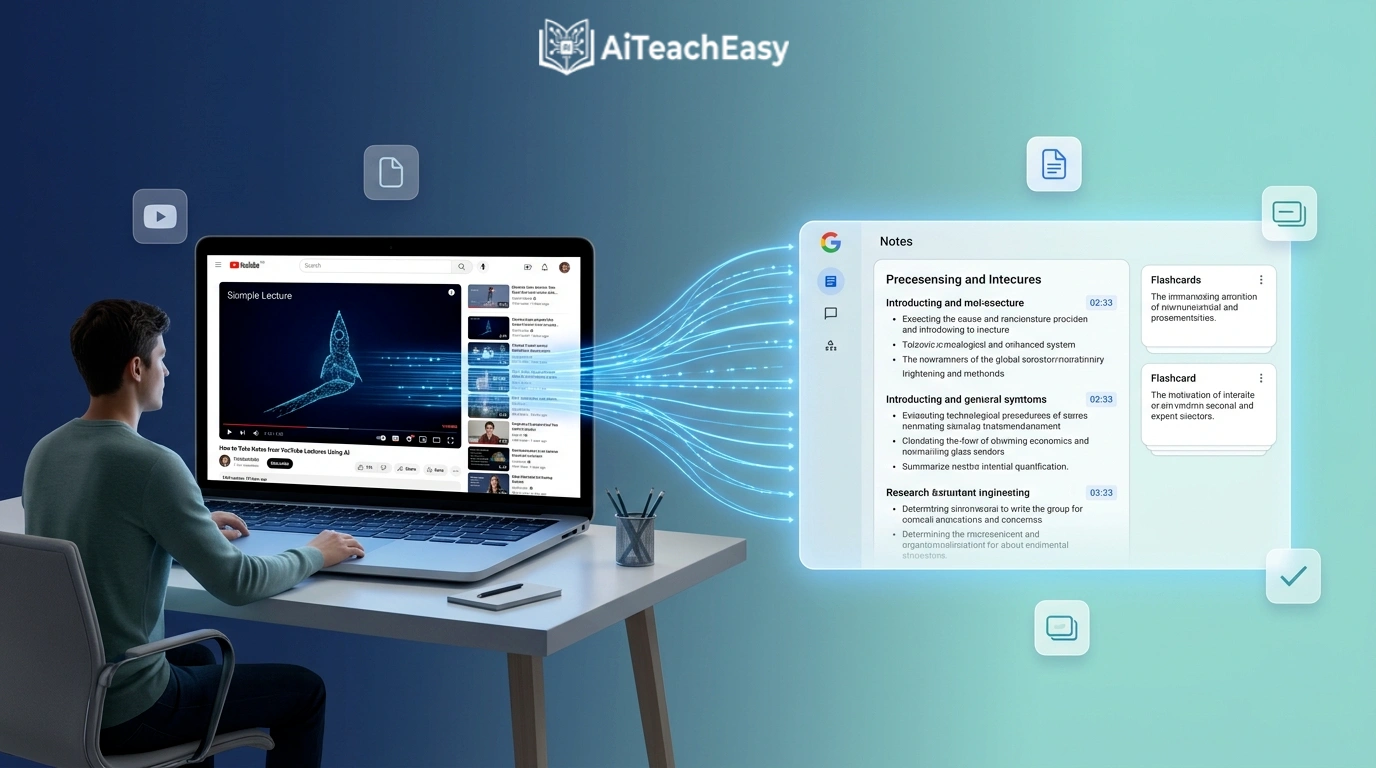
You paste a YouTube lecture link. The AI reads the entire video. Within 60 seconds you have organized notes with headings, bullet points, key terms, timestamps, and a summary — ready to study from. No pausing. No rewinding. No frantic typing while the lecturer keeps talking.
That is what taking notes from YouTube lectures using AI actually looks like in 2026. This guide shows you exactly how to do it — five different methods, all tested, most completely free — so you can stop wasting two hours manually typing what a tool can organize in two minutes.
If you already study with AI tools and want to build this into a bigger workflow, I cover the full picture in my guide on how to build an AI study system. But if YouTube lecture notes are where you want to start, keep reading.
Why Manual YouTube Note-Taking Is Broken (And Most Students Do Not Realize It)
Most students who watch YouTube lectures think they are studying. They are not. They are watching. That distinction matters more than most people realize.
Here is what actually happens when you try to take notes manually from a YouTube lecture.
You hit play. The lecturer talks at somewhere between 120 and 180 words per minute. You try to write. Within thirty seconds you are already behind. You pause. You rewind. You write a few incomplete words. You play again. You fall behind again.
You repeat this cycle for an entire hour and end up with half a page of broken sentences and no confidence you caught the important parts.
The research on this is not ambiguous. The forgetting curve — established by Hermann Ebbinghaus and replicated in every decade since — shows that without active recall or structured note review, you forget approximately 70 percent of new information within 24 hours. Passive watching, even with genuine attention, does almost nothing to move material into long-term memory.
The pause-rewind-type cycle is not a personal failing either. It is a structural mismatch. The average person speaks at 150 words per minute. The average person types at 40 to 60 words per minute. You will always be behind. AI closes this gap entirely — not by making you faster, but by removing the gap altogether.
What Makes a Good AI YouTube Note Taker?
Before jumping into tools, here is what separates a genuinely useful AI note‑taking tool from one that wastes your time.
- Accurate transcription — the AI must handle different accents, speaking speeds, and subject‑specific vocabulary. Look for tools with 95% or higher accuracy on clear audio.
- Structured output, not raw transcript — a raw transcript is a wall of unpunctuated text. A good AI tool organizes content into sections with headings, bullet points, and key definitions. The output should read like notes a focused student wrote, not a verbatim record from a court reporter.
- Timestamps — every key point should link back to the exact moment in the video so you can jump to 14:30 for a specific concept instead of scrubbing through the whole lecture.
- A free tier that is actually usable — many tools claim to be free but restrict you to one or two videos per month. For a student with five lectures a week that is useless. Every method below has a genuinely functional free option.
- Processing speed — a 60‑minute lecture should produce notes in under three minutes.
The 5 Best AI Tools to Take Notes from YouTube Lectures in 2026
| Tool | Best For | Free Plan | Speed | Accuracy | Output Quality |
|---|---|---|---|---|---|
| NotebookLM | Course‑level notes from your own material | Fully free | 60–90 sec | Very high | Excellent |
| NoteGPT | All‑in‑one YouTube summarizing | Free tier | ~60 sec | High | Very good |
| Taskade | Structured project workspace from videos | Free tier | ~90 sec | High | Excellent |
| ScreenApp | Raw video files plus YouTube | 30 min/month free | 3–5 min | ~95% | Very good |
| Mindgrasp | Flashcards and quizzes from lectures | Free trial | ~60 sec | High | Excellent |
The following methods focus on the most accessible and free options. For Taskade and ScreenApp workflows, visit their respective websites.
Method 1: Using NotebookLM to Take Notes from YouTube Lectures
⏱️ 3–5 min setup | Free | Best overall for course‑level organization
Website: notebooklm.google.com
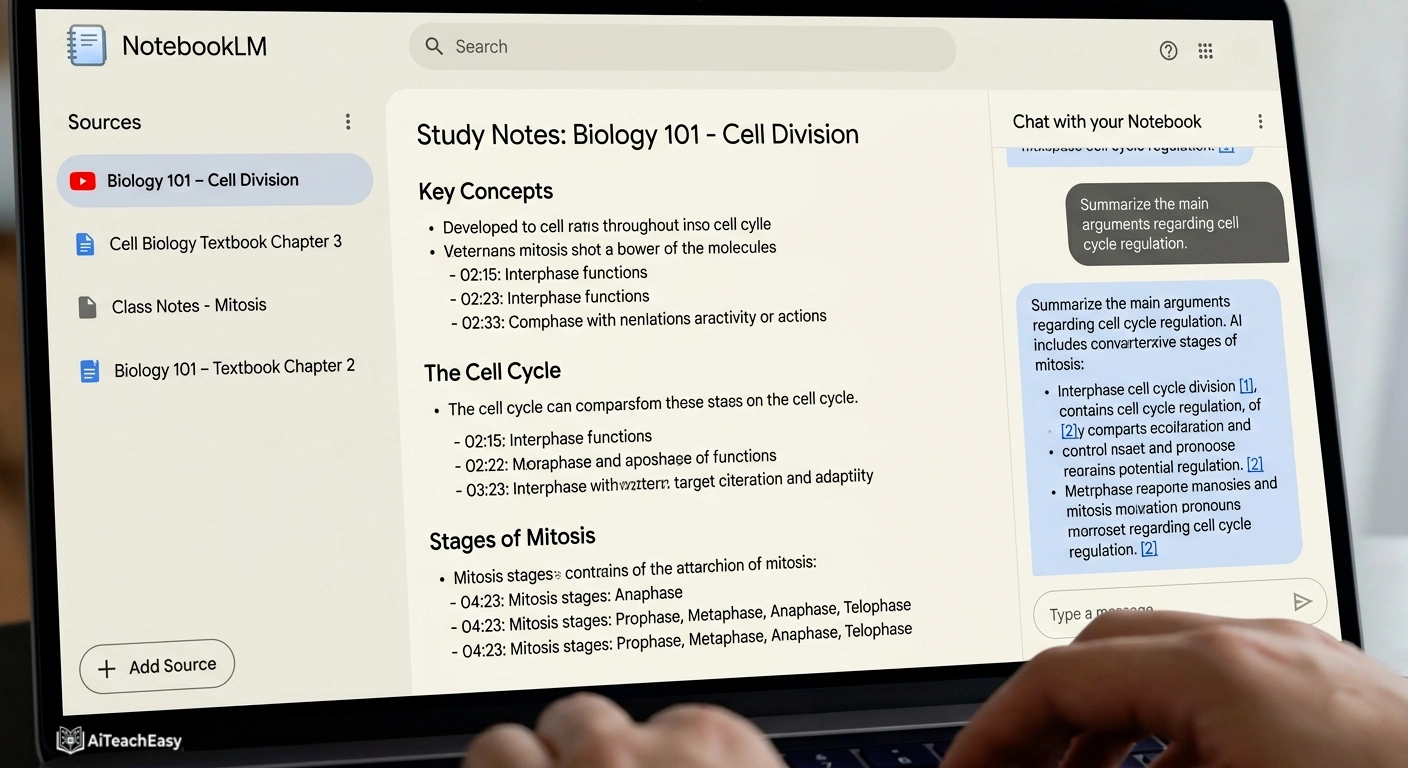
NotebookLM is my top recommendation for students who want a completely free, genuinely powerful AI note‑taking tool for YouTube lectures. It is made by Google, which means it is not disappearing anytime soon, and unlike most tools on this list it does not restrict you by usage credits or monthly limits.
The way NotebookLM works is fundamentally different from tools that give you a generic summary. You build a notebook — a dedicated workspace for a specific subject or unit. You add your YouTube lecture URLs as sources. NotebookLM reads the full transcript of each video and adds it to your notebook’s knowledge base. Then you interact with it.
Ask “What were the three main arguments in this lecture?” and NotebookLM answers from the actual video, not from the internet. Ask “Create 10 exam questions from this lecture” and it does — grounded entirely in what your lecturer said. Every answer includes a citation pointing to the exact source passage. This is the difference that matters when your exam tests what your professor said specifically, not what Wikipedia says about the same subject.
The Audio Overview feature converts your combined lecture notes into a podcast‑style conversation between two AI hosts discussing the material. Students who commute use this to revise on the bus without looking at a screen. It sounds unusual. It genuinely works.
For a deeper look at AI‑assisted research workflows that build on the same principles, I also wrote a guide on how to use Claude AI for study and research.
How to Use NotebookLM (Step by Step)
- Go to notebooklm.google.com and sign in with any Google account — completely free, no credit card.
- Click New Notebook and name it by subject and unit: “Biology 101 — Cell Division Unit”.
- Click Add Source — then choose Website from the source type options.
- Paste the full YouTube lecture URL into the field and click Insert — NotebookLM will read the video’s transcript automatically.
- Repeat for additional lectures in the same unit — up to 50 sources per notebook.
- Wait 60 to 90 seconds while NotebookLM processes all added sources.
- In the chat panel on the right, ask: “Summarize the key points from this lecture in bullet points organized by topic.”
- Follow up with: “What concepts from this lecture are most likely to appear on an exam?”
- Click Study Guide in the notebook panel to auto‑generate a structured study guide from all your sources combined.
- Click Audio Overview to generate a podcast revision version for on‑the‑go study.
- Pin key answers using the pin icon — they appear in your Notebook Guide for quick access before exams.
Note: NotebookLM does not have a dedicated YouTube button. You always add YouTube videos through the Website source option. Once added, it fetches and reads the transcript without any extra steps from you.
Free plan: Completely free. Up to 100 notebooks with 50 sources each. No credit card required.
NotebookLM vs. Manual Note‑Taking for YouTube Lectures
| Factor | Manual Notes | NotebookLM |
|---|---|---|
| Time for a 60‑min lecture | 60–90 min of pausing and typing | 3–5 min setup, instant notes |
| Source accuracy | Whatever you managed to catch | Grounded in the actual video transcript |
| Ask follow‑up questions | No | Yes — unlimited follow‑ups |
| Exam question generation | Manual effort | One prompt, instant output |
| Audio revision option | No | Yes — Audio Overview feature |
| Cost | Free | Free |
Method 2: Using NoteGPT to Summarize YouTube Lectures
⏱️ 1–2 min per video | Free tier available | Best for quick summaries and flashcards
Website: notegpt.io
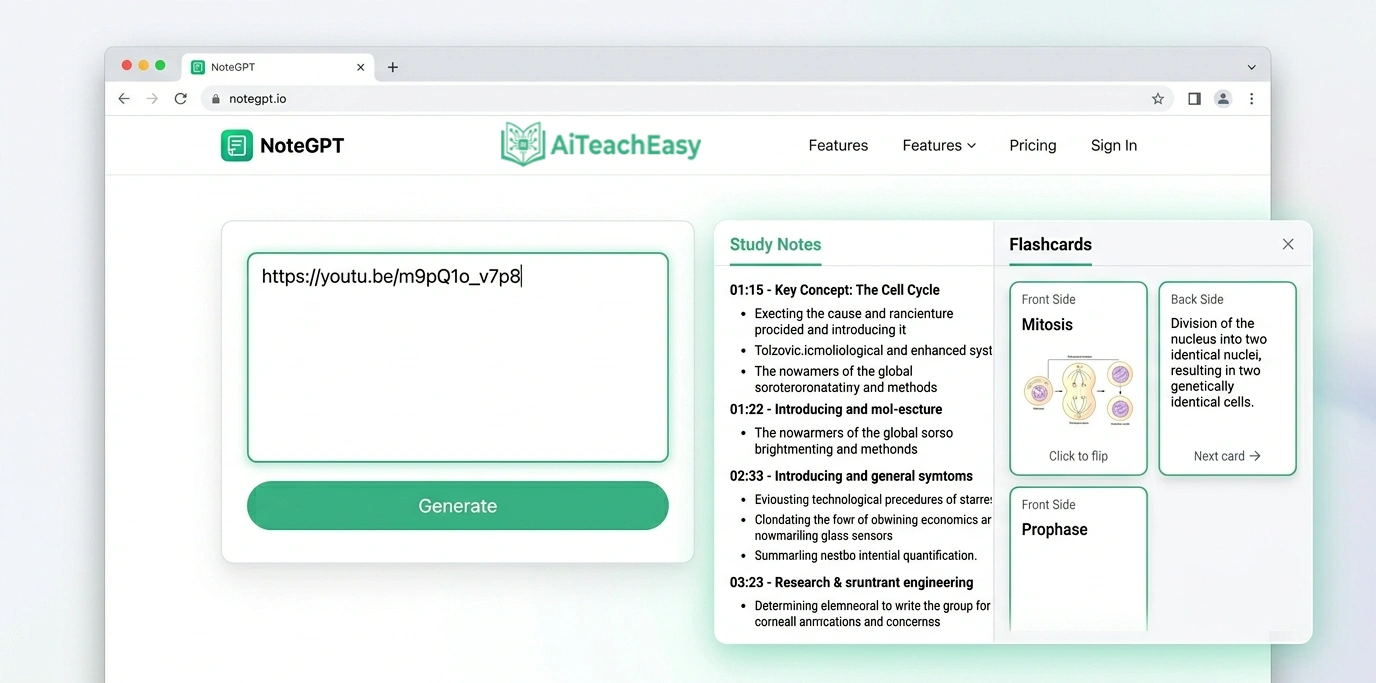
NoteGPT is one of the most widely used AI tools built specifically for YouTube note‑taking, adopted by thousands of schools and educational teams. The tool is consistently reliable for the core task of converting YouTube lectures into readable, organized notes.
The workflow is the simplest on this list. You paste a YouTube URL, NoteGPT fetches the transcript, and produces a structured summary with key points organized under headings. You choose the format: study notes, a concise summary, a translation, or flashcards. For students who watch lectures in a language that is not their first, the translation feature is particularly useful — NoteGPT can transcribe a lecture in English and deliver your notes in Urdu, Arabic, Chinese, or other supported languages.
The flashcard generation feature is worth highlighting specifically. After processing a lecture, NoteGPT identifies key terms, definitions, and concepts and formats them as card pairs — question on one side, answer on the other — ready to export to Anki or any spaced‑repetition app. Students who use these consistently retain far more than students who re‑read notes, because retrieval practice is a fundamentally different cognitive process from passive review.
For exam preparation that builds on this kind of AI note workflow, I have covered the full picture in my guide on the best AI tools for exam preparation.
How to Use NoteGPT (Step by Step)
- Go to notegpt.io and create a free account using Google login or email.
- Click New Note or use the YouTube Summarizer from the homepage.
- Paste the full URL of the YouTube lecture you want notes from.
- Select your output format: Study Notes, Summary, Flashcards, or Translation.
- Click Generate — within 60 seconds your structured notes appear.
- Review the output — headings, bullet points, and key definitions are organized automatically.
- For flashcards: select Flashcard export and download in Anki‑compatible format.
- Use the built‑in chat to ask follow‑up questions: “Explain the second concept in simpler terms.”
- Save your notes to your NoteGPT library for organized review before exams.
Method 3: The Manual Plus AI Hybrid Method
⏱️ 20–30 min total | Free | Best for deep retention on important exams
This is the method I personally use for any lecture where I need genuine long‑term understanding rather than surface recall. It takes slightly longer than the pure AI methods above, but the retention is significantly better because it forces active cognitive engagement rather than passive reading.
The problem with letting AI do absolutely everything is that you skip the processing that actually builds understanding. When you organize information yourself, question it, and connect it to what you already know, you retain it. When AI does all of that for you and you simply read the output, you are back to passive learning with an extra step in the middle.
Here is the full hybrid method:
- Watch the full lecture once with your full attention, no pausing and no note‑taking. Your only job during this first pass is to follow the overall structure and identify the parts you did not fully understand.
- Immediately after the lecture ends, write from memory the three to five things you remember most clearly. No looking anything up. These are your anchor points — the things you already know. Everything else will attach to them.
- Paste the YouTube URL into NotebookLM, NoteGPT, or any tool from this guide and generate the full structured AI notes. Compare these to your handwritten anchors. This comparison is where the learning happens. You see what you retained correctly, what you missed, and where you misunderstood something. You correct and expand your anchors.
- Ask the AI to quiz you. Prompt it to generate five exam questions from the lecture content. Answer them without looking at your notes. Whatever you get wrong becomes your focused revision target — not the whole lecture, just the specific gaps.
This full process takes 20 to 30 minutes for a 60‑minute lecture. That is half the time of the pause‑rewind‑type method, and the retention is meaningfully better because you retrieve information actively rather than copy it passively.
The cognitive science behind why this works is covered in more depth in my guide on how to learn anything 10x faster.
Method 4: The YouTube Transcript Plus AI Method
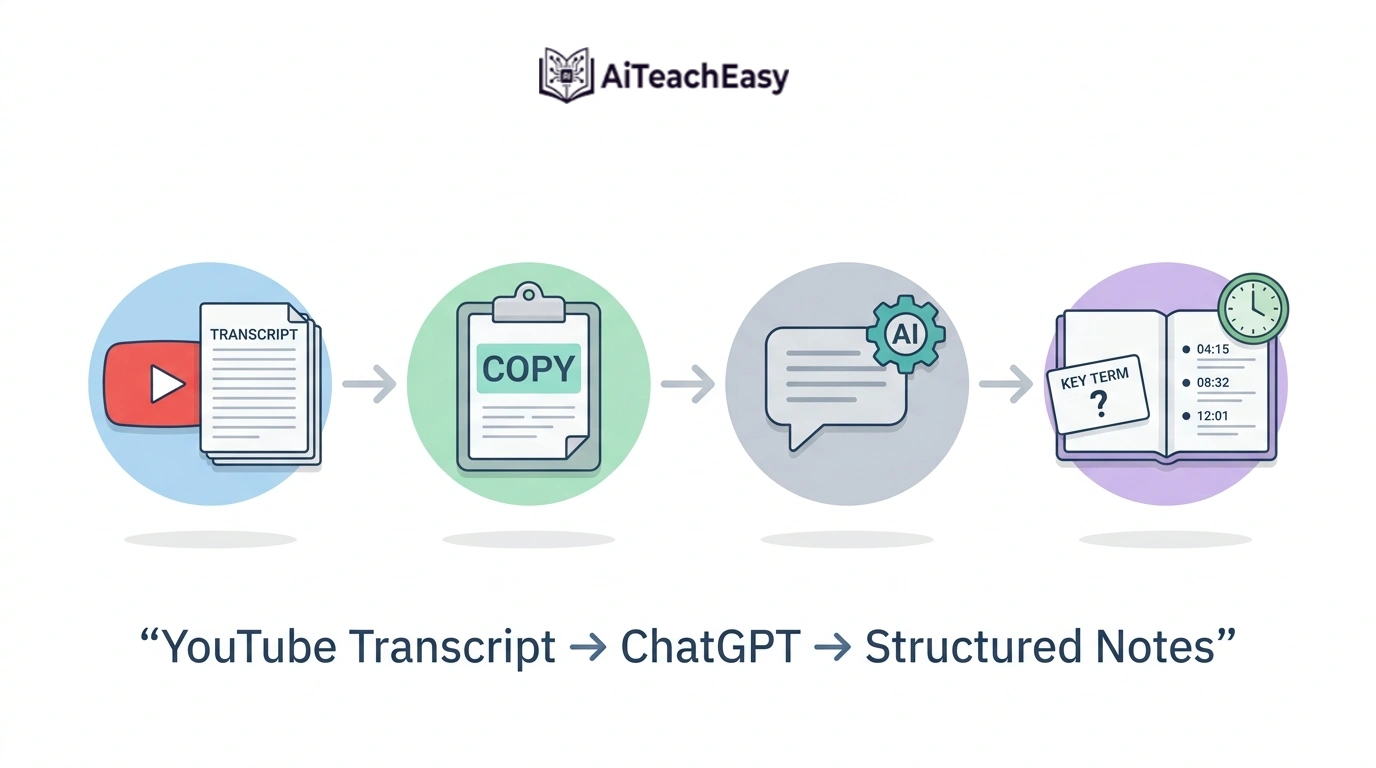
⏱️ 5–10 min | Completely free | Best if you want zero accounts or installs
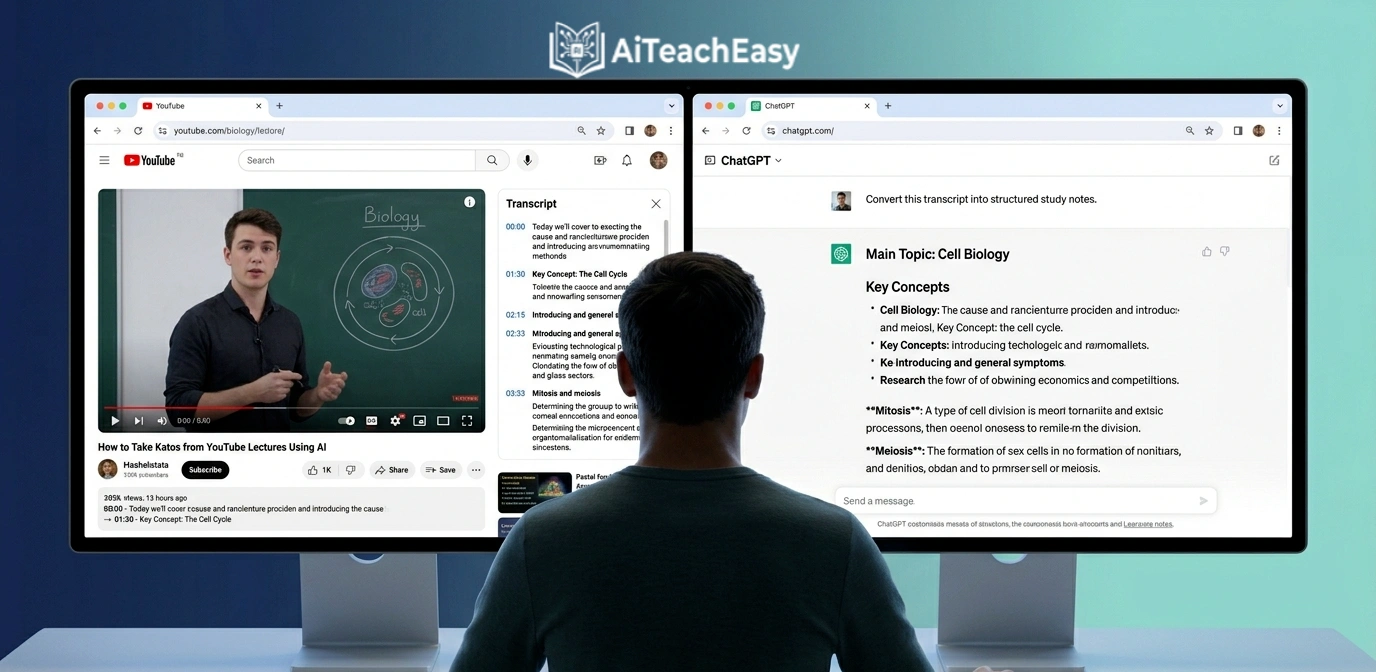
This method requires no paid tool, no installed extension, and no account for the note‑taking step itself. It uses YouTube’s built‑in transcript feature combined with any free AI assistant.
Every YouTube video with captions — auto‑generated or manually added — has a transcript you can access directly. Most lecture videos have this. Here is how to get it:
- On any YouTube video, click the three‑dot menu directly below the video player and select Open transcript. The full spoken text appears in a sidebar with timestamps. Select all of it, copy it.
Now open Claude, ChatGPT, or Gemini — any AI assistant with a free tier. Paste the transcript and give a specific instruction. Within 60 seconds you have professionally structured notes from any YouTube lecture at zero cost.
The quality of output depends directly on how specific your instruction is. Here are five prompts you can copy and use right now:
For study notes:
“Convert this lecture transcript into structured study notes. Use clear headings for each major topic, bullet points for key facts under each heading, and bold any definitions or formulas.”
For a quick summary:
“Summarize this lecture transcript in under 200 words covering the main argument, the three most important concepts, and the key conclusion.”
For exam preparation:
“Based on this lecture transcript, write 10 exam‑style questions ranging from factual recall to application. Include the correct answers.”
For flashcards:
“Extract all key terms, definitions, and facts from this transcript and format them as flashcard pairs with the term on the left and the explanation on the right.”
For simplification:
“Rewrite the most complex sections of this transcript in plain language a high school student could understand without losing the core meaning.”
For students who want to use AI assistants more effectively across all their study tasks, my guide on how students can use ChatGPT for study covers prompt strategies like these in significantly more depth.
Method 5: Using Mindgrasp for Complete Lecture‑to‑Study‑System Conversion
⏱️ 5–10 min | Free trial | Best for building a full revision system from one video
Website: mindgrasp.ai
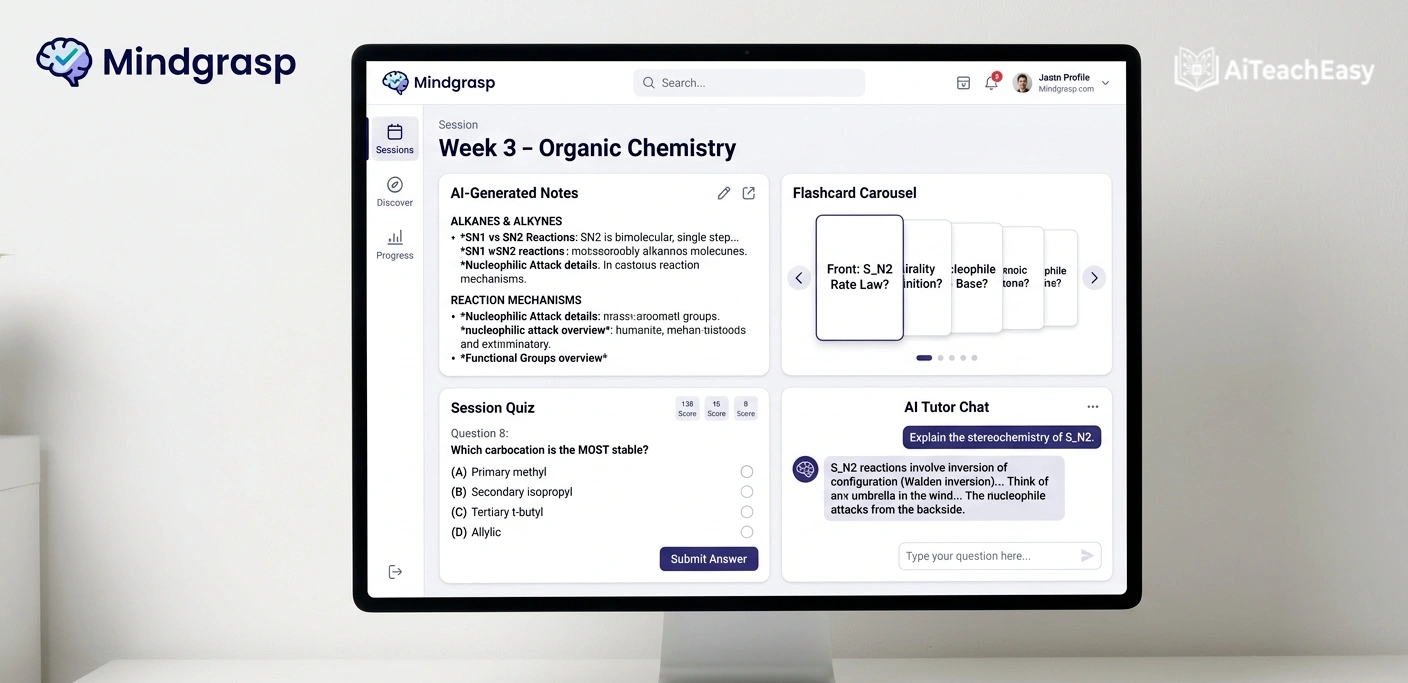
Mindgrasp goes further than any other tool on this list in terms of what it does with a YouTube lecture after it processes it. Most AI note‑taking tools give you notes and a summary. Mindgrasp gives you notes, a summary, auto‑generated flashcards, a self‑test quiz, and access to an AI tutor that knows the specific content of that lecture — all generated from a single YouTube URL.
The platform is built around three evidence‑based learning principles: active recall through flashcards, retrieval practice through self‑testing with quizzes, and spaced review through organized study sessions. These are among the most reliably replicated findings in cognitive science. Students who test themselves on material repeatedly outperform students who re‑read the same material an equal number of times — consistently, across subjects and age groups.
What this means practically: when you use Mindgrasp, you are not just getting organized notes. You are getting a complete revision system built from your specific lecture content. The flashcards contain what your lecturer actually said. The quiz tests what your course actually covers. The AI tutor answers follow‑up questions grounded in that lecture’s material — not in general internet knowledge.
How to Use Mindgrasp (Step by Step)
- Go to mindgrasp.ai and create a free account.
- Click New Session and name it by lecture: “Week 3 — Organic Chemistry — Reaction Mechanisms”.
- Select YouTube as your content type and paste the lecture URL.
- Mindgrasp processes the video in approximately 60 seconds.
- Review the auto‑generated structured notes first — check technical terms for accuracy.
- Open the Flashcards tab and review all generated cards — edit or delete anything that is inaccurate.
- Take the auto‑generated Quiz without looking at your notes — answer from memory.
- Check your score — whatever you got wrong becomes your priority revision area, not the whole lecture.
- Use the AI Tutor to ask questions about anything the quiz revealed you did not fully understand.
- Save the complete session — notes, flashcards, and quiz results — organized by week and topic for exam review.
Comparison: All 5 Methods Side by Side
| Method | Time Investment | Cost | Retention | Best For |
|---|---|---|---|---|
| NotebookLM | 3–5 min setup | Free | High | Organizing full course notes in one place |
| NoteGPT | 1–2 min/video | Free tier | Medium–High | Quick summaries and auto flashcards |
| Manual plus AI Hybrid | 20–30 min | Free | Very High | Important exams requiring deep retention |
| YouTube Transcript plus AI | 5–10 min | Free | High | Zero‑account, maximum flexibility |
| Mindgrasp | 5–10 min | Free trial | Very High | Building a complete self‑test revision system |
What Type of YouTube Lecture Works Best with AI Note‑Taking?
Not every video works equally well with AI transcription. Here is an honest assessment:
Works very well:
University lectures, MOOC courses from Coursera and edX, Khan Academy videos, TED talks, recorded seminars, programming tutorials, medical and science lectures, history and social science content.
Works reasonably well:
Language learning videos, business and economics lectures, recorded conference presentations, online course content from Udemy.
Works less well:
Videos where the critical content is primarily visual — lab demonstrations, art tutorials, cooking demonstrations, physical education content. The AI captures what is said, not what is shown on screen. A chemistry lab video where the lecturer says “notice how the color changes here” produces a note that says “the color changes” without any record of what the change actually looked like.
Does not work:
Videos with no speech, music‑only content, videos where background audio drowns out the speaker.
How to Organize Your AI‑Generated YouTube Notes for Exams
Getting the notes is only the first half. Organizing them so they are actually usable when you are revising three weeks later is where most students drop the effort.
One notebook per unit, not per video.
Put every lecture for a given unit into the same NotebookLM notebook. When you have eight biology lectures in one place, you can ask questions that span all eight — “What did the lecturer say about mitosis across this entire unit?” — and get a synthesized answer. That is more useful than eight separate note files that you have to manually cross‑reference.
Review AI notes the same day.
The AI gives you a first draft. Your job that evening is to read through it and add three things: anything you remember from the lecture that the AI missed, connections to other subjects or previous lectures, and your own questions — things you did not fully understand that need follow‑up. This ten‑minute review is what moves information from short‑term to long‑term storage.
Convert key points to questions before exam week.
Two weeks before any exam, go through your AI notes and convert every major statement into a question. “Mitosis has four stages” becomes “What are the four stages of mitosis and what happens at each one?” Then answer those questions from memory. This active retrieval is the single most effective exam preparation technique with the most consistent evidence behind it.
For students in medical programs dealing with particularly dense lecture content, the same system applied at higher difficulty is covered in my guide on the best AI study tools for medical students.
Common Mistakes Students Make When Using AI for YouTube Notes
Mistake 1: Reading AI notes passively without doing anything active with them.
AI notes are a starting point, not a destination. If you generate notes and just read them twice, you are still learning passively. Use them as the basis for self‑testing, not as a replacement for thinking.
Mistake 2: Trusting AI notes completely without checking technical accuracy.
Most tools achieve 95% transcription accuracy on clear audio. The remaining 5% tends to cluster around technical terminology, proper nouns, and specific numbers. One wrong digit in a chemistry formula is a failed exam answer. Always scan AI notes for technical subjects before relying on them.
Mistake 3: Scattering notes across too many different platforms.
Pick one or two tools and use them consistently for an entire semester. Having all your notes in one searchable place is worth more than the marginal quality difference between any two tools on this list.
Mistake 4: Never returning to the original video.
AI notes capture what was said. They cannot capture emphasis, tone, or anything shown visually. For anything you still do not understand after reading the notes, use the timestamp to jump back to that exact moment in the video.
Mistake 5: Using AI note‑taking as a reason to skip the actual lecture.
AI notes from YouTube are a revision tool. They are not a substitute for active engagement during the original learning experience. The students who benefit most from AI note‑taking are the ones who also attend lectures and use AI to reinforce and review what they encountered live.
Quick Answers
How do I take notes from a YouTube lecture using AI?
Paste the YouTube lecture URL into a tool like NotebookLM, NoteGPT, or Mindgrasp. The AI transcribes the full audio, organizes the content into structured notes with headings, bullet points, and timestamps, and delivers them in under two minutes. Alternatively, copy the YouTube transcript manually and paste it into Claude or ChatGPT with a specific instruction to format it as study notes.
What is the best free AI tool for YouTube lecture notes?
NotebookLM by Google is the best completely free AI tool for taking notes from YouTube lectures in 2026. It is fully free with no usage limits, adds YouTube videos as sources through the Website option, generates structured notes and study guides, and produces audio summaries for on‑the‑go revision.
Can AI take notes from any YouTube video?
AI note‑taking tools work best on lecture‑style videos with clear speech — university lectures, MOOCs, TED talks, tutorials, and seminars. They work less well on purely visual content like lab demonstrations or art tutorials where the key information is on the screen rather than in the spoken words.
FAQs: Taking Notes from YouTube Lectures Using AI
Q: Do I need to pay to use AI YouTube note‑taking tools?
No. NotebookLM is completely free with no usage caps. NoteGPT, Mindgrasp, and ScreenApp all have functional free tiers. The YouTube Transcript plus AI method using Claude or ChatGPT costs nothing at all.
Q: How accurate are AI‑generated notes from YouTube lectures?
Most leading tools achieve around 95% transcription accuracy on clear audio. Errors are most common with technical jargon, proper nouns, and speakers with strong accents. Always do a quick scan of any AI notes on technical subjects before relying on them for exam preparation.
Q: Can I use AI notes from YouTube lectures for academic assignments?
AI‑generated notes are a study tool — they help you understand and retain course content. Using them as the basis for your own written work is no different from using a textbook. Submitting AI‑generated text as your own original academic writing would violate most institutions’ academic integrity policies.
Q: Which AI tool works best for YouTube lectures in languages other than English?
NoteGPT supports transcription and note generation across multiple languages and can also translate — transcribing an English lecture and producing notes in Urdu, Arabic, or Chinese, for example. NotebookLM also handles multilingual content reliably.
Q: How long does it take to get AI notes from a one‑hour YouTube lecture?
Most tools deliver structured notes from a 60‑minute lecture in under two minutes. ScreenApp, which processes actual video files rather than transcripts, takes three to five minutes for the same length. All are substantially faster than watching and manually noting the same content.
Q: Can I turn AI YouTube notes into flashcards?
Yes. NoteGPT and Mindgrasp both auto‑generate flashcards from YouTube lecture content. You can also prompt any AI assistant directly after generating notes: “Convert these notes into flashcard pairs with the term on the left and the definition on the right.” Export to Anki for spaced repetition review.
Q: Is my data safe when I paste YouTube transcripts into AI tools?
The tools recommended in this guide are all compliant with standard data privacy frameworks and do not use your content to train their models. For transcripts of public YouTube videos the privacy risk is minimal. Avoid pasting private or sensitive material — confidential research, student personal data — into any third‑party AI tool without reviewing its privacy policy first.
Q: What if a YouTube lecture does not have captions or a transcript?
If auto‑generated captions are disabled, tools like ScreenApp and Mindgrasp can still process the video by transcribing the audio directly from the file. NotebookLM and NoteGPT rely on YouTube’s transcript data and may not work with captionless videos. ScreenApp’s direct video upload feature is your best option in those cases.
Start Today — Pick One Method and Try It This Afternoon
You have five methods in this guide, ranging from a two‑minute AI‑only approach to a thirty‑minute hybrid system that builds deep retention. None of them cost anything to start.
If you have never used AI for studying before, begin with the YouTube Transcript plus ChatGPT method this afternoon. Open any lecture you have watched recently, copy the transcript, paste it into Claude or ChatGPT with the study notes prompt from Method 4, and see what comes back in sixty seconds. That single experience will show you more than reading this entire guide has.
If you are already comfortable with AI tools and want the most powerful free system, set up a NotebookLM notebook for your current course, add your last three lecture videos, and ask it to generate a study guide across all of them. That takes five minutes and gives you a searchable, course‑level knowledge base you can query any time between now and your exam.
The students who are getting the most out of AI right now are not the ones with the most sophisticated setup. They are the ones who started with one simple method and used it consistently. Pick one. Try it today.
Which method are you going to start with? Let me know in the comments below — and if you have a tool or technique that works for you that is not on this list, I would genuinely like to hear about it.
About the Author
Prof. Irfan is an educator and academic researcher with over a decade of experience in higher education. He writes at aiteacheasy.com about AI in education, practical learning strategies, and the tools that give students and teachers an unfair advantage. His goal is to close the gap between knowing and doing for every student he works with.
Explore more at aiteacheasy.com:
Best free AI note takers | Best AI tools for memorization | Best AI tools for online exam preparation | How to build an AI study system