
How to Use Claude AI for Study & Research (Free Masterclass 2026)
Most people are using Claude WRONG.
They open the chat, type a question, get an answer, and close the tab. That’s like buying a private jet and using it as a parked car.
Claude – built by Anthropic – is not just another AI chatbot. It’s a powerful AI study assistant and AI research tool designed for serious knowledge work. I’ve been using it for months, and in this guide, I’ll show you exactly how to study with AI the right way. Everything here works on the free plan.

Table of Contents
Why You Can Trust Me To Use Claude AI for study & research

Before we dive, here’s my credibility:
- I’ve tested Claude AI daily for over 6 months across multiple research projects.
- I’ve used it to break down complex academic papers, generate interactive study tools, and organize semester-long research for students.
- This workflow helped me reduce study time by nearly 40% while improving retention.
I’m not an AI researcher at Anthropic – I’m a power user who has made every mistake so you don’t have to.
What Makes Claude AI Different for Students?
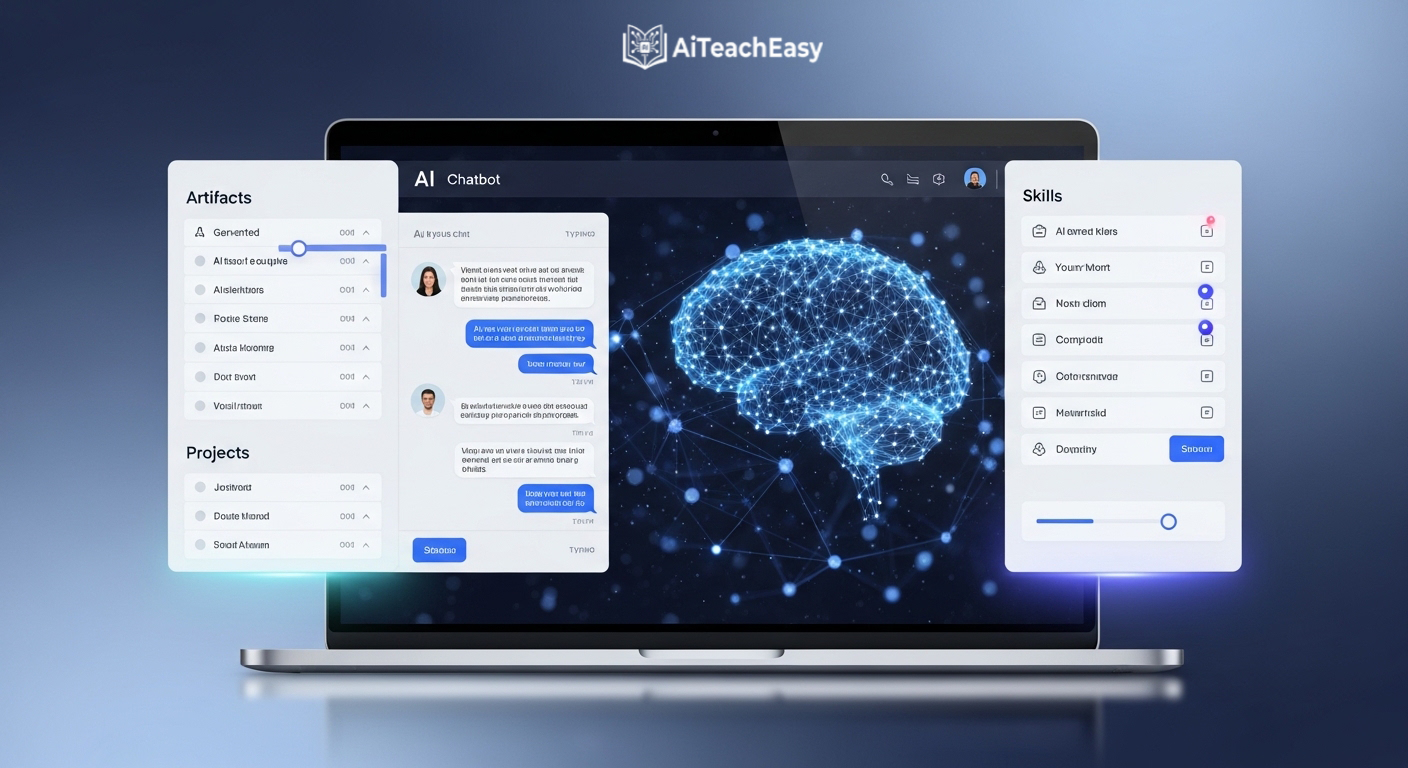
Claude (developed by Anthropic) is designed for deep reasoning and structured output. The free plan alone gives you features that other AI for students tools don’t offer:
- Artifacts – turn descriptions into interactive mini-apps (quizzes, flashcards, calculators)
- Projects – folder-based organization with custom instructions and file uploads
- Skills – train Claude for repetitive academic tasks
- Connectors – link to Google Calendar and other tools
Let me show you how to use each one for study and research.
1. Set Your Personal Preferences First (Most Skip This)
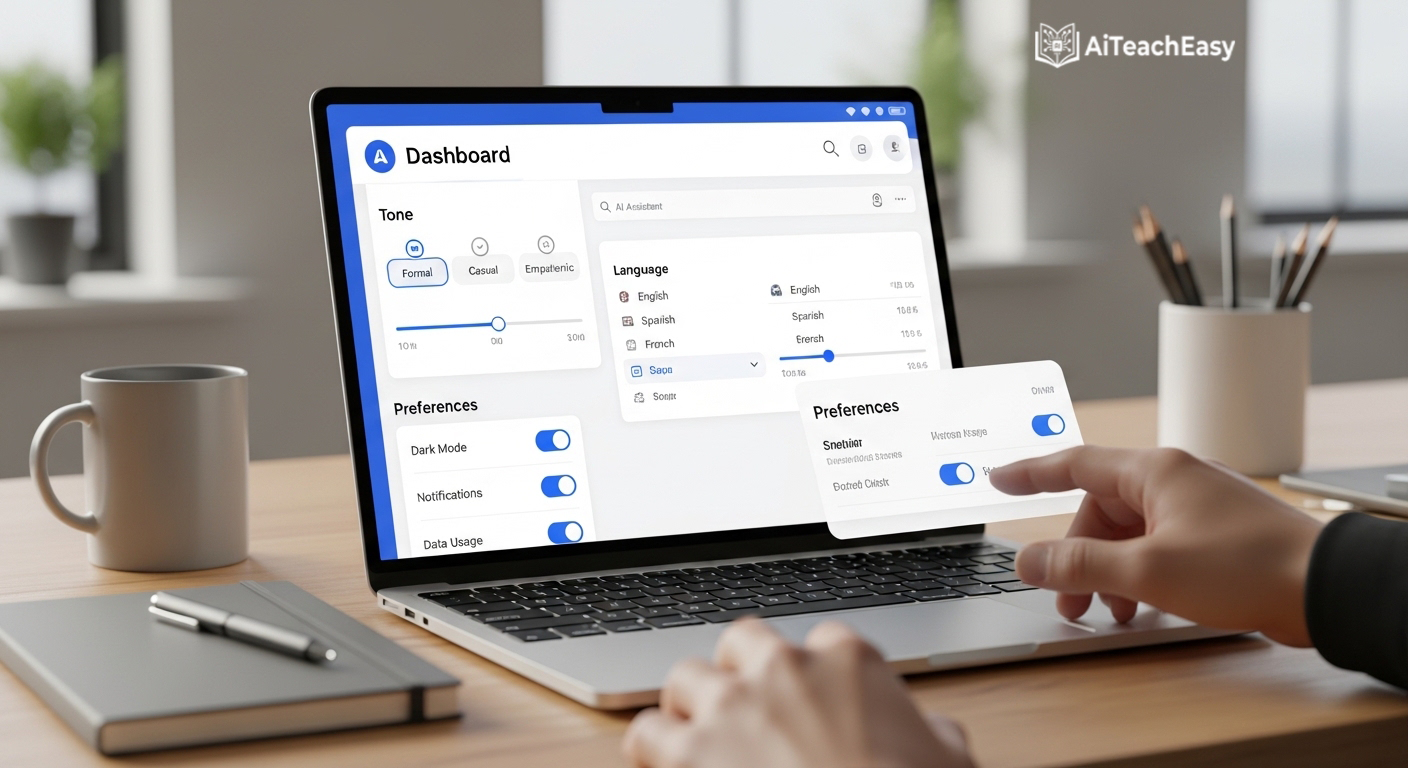
Go to Settings > Personal Preferences in your Claude account. This is where you tell Anthropic’s AI how to behave.
Here’s what I added:
“I am trying to improve my academic vocabulary. In your responses, use advanced English words once in a while and tell me their meaning. Keep explanations concise unless I ask for detail.”
Result: Now when I ask for a summary of a research paper, Claude naturally teaches me words like “elucidate” (to explain clearly) or “synthesize” (to combine ideas). My vocabulary grows without extra work – a perfect AI study assistant hack.
For students: You can add preferences like “Always cite sources” or “Use simple language for complex topics.”
External resource: Learn more about Anthropic’s safety approach from their official research page.
2. The A.I.M. Prompting Framework (Stop Asking Bad Questions)
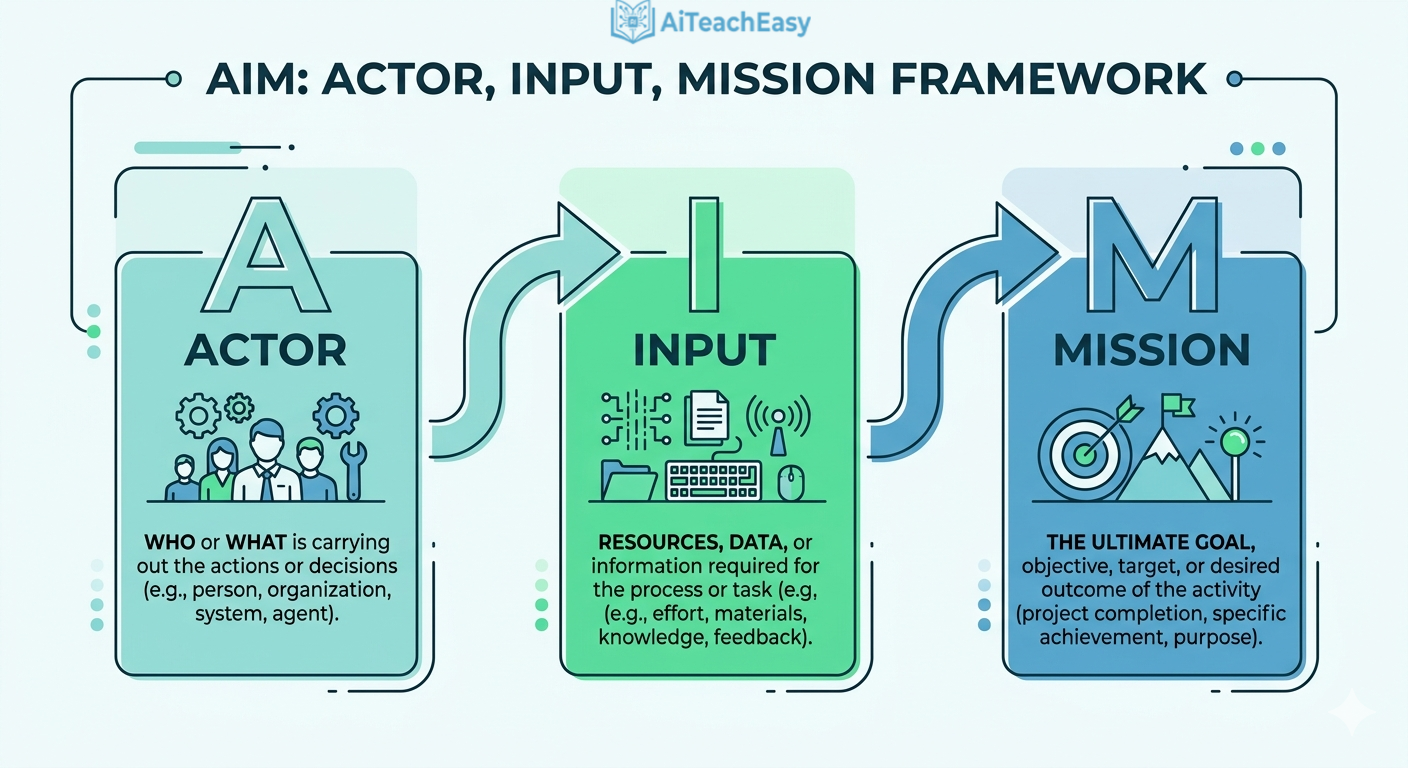
If you write vague prompts, you get vague answers. I use the A.I.M. framework for every research query. This is how you truly study with AI effectively.
| Letter | Meaning | Example for Study |
|---|---|---|
| A | Actor | “You are a research methods professor” |
| I | Input | “I am a third-year student who knows basic statistics but struggles with qualitative analysis” |
| M | Mission | “Explain grounded theory using a real-world example, then ask me 2 questions to check my understanding” |
Try this instead of “Explain qualitative research.” You’ll get a tailored, interactive lesson – not a generic paragraph.
For more on effective prompting, check out my guide on how to learn anything 10x faster.
3. Artifacts: Create Interactive Study Tools in Seconds
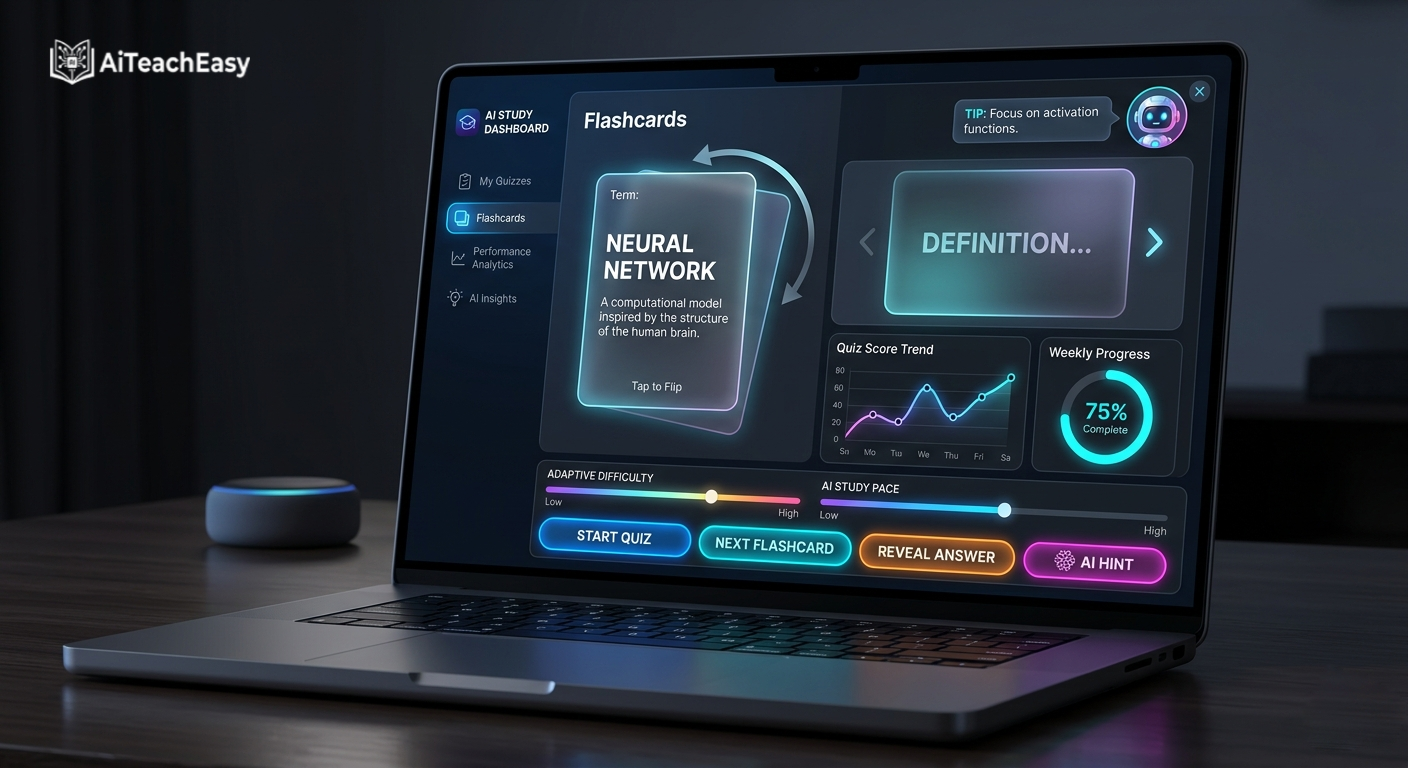
This is my favorite feature of Claude AI. Artifacts let you build mini-apps, quizzes, timelines, and calculators just by describing them. No coding required – perfect AI for students who need active recall tools.
Example 1: Flashcard Generator
I told Claude:
“Create an interactive flashcard set for the 10 most common drug names in pharmacology. Show the brand name on one side and the generic name on the other. Let me click to flip.”
Claude built a working flashcard app inside the chat. I could share it with a link.
Example 2: Study ROI Calculator
I needed to show how much time AI research tools save in content creation. I described the inputs (hours spent, videos per month, cost per video) and outputs (monthly savings, annual savings). Claude built a fully interactive dashboard with sliders and automatic calculations.
For students: Imagine creating a memorization tool for your anatomy exam, a timeline for history, or a mock test for math – just by describing it. All free.
External link: See how Anthropic describes Artifacts in their official documentation.
4. Projects: Organize Every Subject Like a Pro
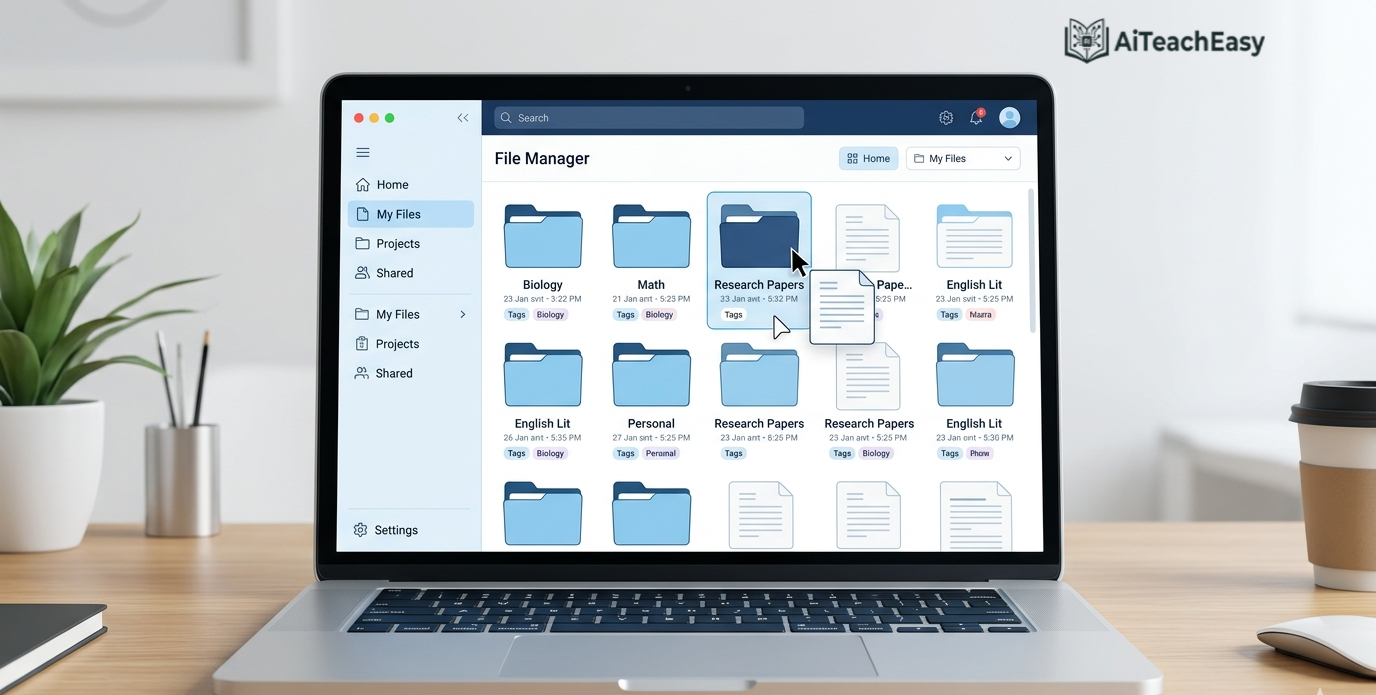
If you study multiple subjects, you need Projects. They work like folders with superpowers – a core feature for anyone serious about study with AI.
How I set up a project in Claude:
- Click Projects in the sidebar → New Project
- Name it (e.g., “Biology 101 – Cell Division”)
- Add project-level instructions: “Always answer with simple analogies. Include a summary at the end.”
- Upload relevant files (PDFs, lecture notes, past exams)
Now every chat inside that project follows those instructions and has access to your files. You never repeat yourself.
Internal resource: For more organization tips, see my list of hidden AI tools students are using – many work beautifully alongside Claude Projects.
5. Skills: Automate Repetitive Research Tasks
Do you find yourself asking the same type of question again and again? Skills let you train Claude to handle those tasks permanently. This is next-level AI for research.
Real example from my workflow
I created a Skill that takes a long YouTube transcript and recommends 5 short, viral-worthy video ideas. I simply told Claude:
“Create a skill that takes a YouTube video link or script and recommends 5 short video content ideas optimized for Instagram Reels and YouTube Shorts. Include a hook and content outline for each idea.”
Claude asked a few follow-up questions (platform, tone, output format), then built the complete Skill. Now I just paste a script and say “Give me 5 short ideas” – Claude automatically uses the Skill.
For students: You could create Skills that:
- Summarize any research paper in 3 paragraphs
- Generate exam preparation questions from your notes
- Convert lecture audio transcripts into bullet-point study guides
- Create a homework helper for specific problem types
Skills are stored in your Claude account and work across all chats. One-time setup, lifetime use.
6. Connectors: Link Claude to Your Calendar (Free)
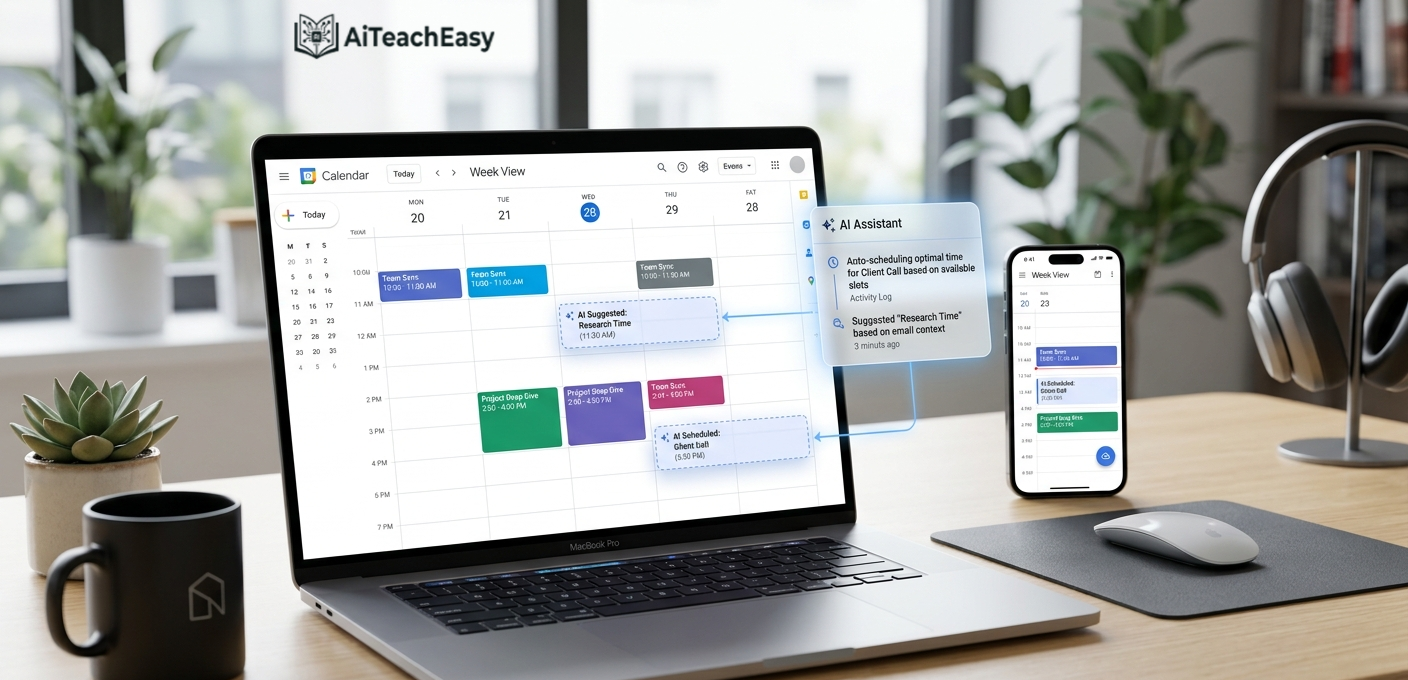
On the free plan, you can connect Google Calendar to Claude. Here’s why that matters for students using AI research tools:
- “What’s on my study schedule today?”
- *“Find a 2-hour free slot tomorrow for revision.”*
- “Create a study session with my group at 4 PM.”
Claude reads your calendar, finds free time, and even creates events (with your permission). You control exactly what Claude can do – read-only, create events, or delete.
Pro tip: Use this to build a weekly study timetable without manually checking your calendar.
External link: For privacy settings on Anthropic products, review their trust & safety page.
7. Bonus: Claude Code & Claude Cowork (Paid – Optional)
I promised to focus on the free plan, but here’s what you get if you ever upgrade to Claude Pro or Claude Max:
| Feature | What it does | Best for |
|---|---|---|
| Claude Code | Reads your codebase, edits files, runs commands | Research involving data analysis, simulations, or programming |
| Claude Cowork | An AI agent inside your laptop – accesses files, opens apps, performs tasks remotely | Automating complex workflows across multiple software |
For 99% of students and researchers, the free plan is more than enough. Don’t pay until you hit the limits.
Quick Reference Table: Claude Features for Study & Research
| Feature | What It Does | Best Study Use Case |
|---|---|---|
| Artifacts | Builds interactive mini-apps from descriptions | Quizzes, flashcards, timelines, calculators |
| Projects | Organizes chats + files + custom instructions | Separate folders for each subject or paper |
| Skills | Trains Claude for repetitive tasks | Auto-summarize papers, generate questions, format notes |
| Connectors | Links external tools (Google Calendar) | Schedule study sessions, check free time |
| Personal Preferences | Sets tone, vocabulary, response style | Learn advanced words naturally |
For even more specialized help, medical students should check out best AI study tools for medical students – many integrate with Claude workflows.
Most Common Mistakes (And How to Avoid Them)
| Mistake | Fix |
|---|---|
| Asking vague questions | Use A.I.M. framework (Actor, Input, Mission) |
| Ignoring Personal Preferences | Spend 2 minutes in Settings – pays off forever |
| Not using Projects | Organize by subject; upload lecture PDFs |
| Treating Claude like Google | Claude is a reasoning engine – give context, not keywords |
| Forgetting Artifacts | Describe, don’t code – Claude builds it for you |
FAQ (Frequently Asked Questions)
Q: Is Claude AI really free for students?
Yes. The free plan from Anthropic includes Artifacts, Projects, Skills, and Google Calendar Connector. You only need to pay for heavy usage or Claude Code/Claude Cowork.
Q: Can Claude read PDFs or lecture slides?
Yes. In any chat or Project, you can upload PDFs, text files, or images. Claude will extract and analyze the content.
Q: How is Claude different from other AI study assistants?
Claude’s Artifacts feature is unique – no other major AI for students tool lets you build interactive mini-apps just by describing them. It’s a game-changer for active recall and visualization.
Q: Can Claude help with online exam preparation?
Absolutely. Use the A.I.M. framework to act as an examiner. Claude will ask you questions, evaluate your answers, and tell you how to improve. For more, see best AI tools for online exam preparation.
Q: Does Claude work offline?
No, Claude requires an internet connection. But you can use the Claude mobile app (iOS/Android) to study anywhere.
Q: Can I share my Artifacts with classmates?
Yes. Click Publish on any Artifact and copy the link. Anyone can use it – no Claude account needed.
Q: Is my data safe with Anthropic?
Anthropic allows you to disable training on your chats. Go to Settings → Privacy and toggle off “Allow Claude to use my chats for training.”
Final Workflow Summary (Do This Every Time You Study)
| Step | Action |
|---|---|
| 1 | Open Claude (or use the mobile app) |
| 2 | Select the right Project for your subject |
| 3 | Write your prompt using the A.I.M. framework |
| 4 | If you need a study tool, ask for an Artifact |
| 5 | For repetitive tasks, use or create a Skill |
| 6 | Check your Google Calendar via Claude for scheduling |
| 7 | Review Claude’s response – it will teach you new vocabulary naturally |
Final Thoughts
Claude from Anthropic isn’t just another AI chatbot. It’s a complete AI study assistant and AI research tool – but only if you stop using it like a basic search box.
Start today:
- Set your Personal Preferences
- Create a Project for your hardest subject
- Upload your lecture notes
- Use the A.I.M. framework to ask your first real question
- Ask Claude to build an Artifact (quiz, timeline, or flashcard)
You’ll never go back to “type and hope” again.
Have you tried any of these Claude features? Which one are you most excited to use for your research? Drop a comment below – I read every one.
Resources you might like:
- AI lecture summary tools – pair with Claude for faster note-taking
- Best free AI homework helper tools – alternatives when Claude is busy
- How students can use ChatGPT for study – different approach, same goal
Resources For Students:
- Anthropic official website – learn about the company behind Claude
- Claude AI documentation – official guides and API references
- Anthropic research publications – constitutional AI, safety, and model cards
About the Author
Prof. Irfan is the founder of TeachWithAI – platforms dedicated to AI‑powered educational tools for teachers and medical students. With a background in edu tech development and a passion for making learning accessible, Prof. Irfan has built AI grading systems, lecture summarizers, and question generators used by over 50,000 students worldwide.
Unlike many “AI experts” who have never taken an online proctored exam, Prof. Irfan has personally tested every tool mentioned in this guide – from grayscale hacks to proctoring simulations. He holds advanced degrees in Computer Science and Educational Technology and continues to develop AI solutions that respect student privacy and academic integrity.
When not coding or writing, Prof. Irfan mentors first‑generation college students on how to use technology to bridge educational gaps. He also leads the Doctor LMS initiative, helping medical students ace the USMLE, MCAT, and NCLEX with adaptive AI question banks. You can reach him via the AI Teach Easy contact page.