
Best Free AI Chrome Extensions for Students in 2026: Study Smarter, Write Faster, Research Better, and Stay Focused
The top free AI Chrome extensions for students in 2026 have made it possible to bring artificial intelligence directly into the daily student study workflow — without switching apps, paying for subscriptions, or learning complicated tools. Instead of opening ten separate platforms, students can now summarize articles, rewrite paragraphs, capture notes from YouTube lecture videos, cite sources automatically, ask questions about research papers, translate text instantly, organize study material, and draft emails — all without leaving the Chrome browser.

That matters because almost all student work already happens inside Chrome. Google Docs, Gmail, YouTube lectures, online journals, university LMS portals, PDF textbooks, web articles, and academic research databases are all browser-based. The best AI Chrome extensions for students slot directly into this existing workflow instead of creating a new one.
This guide covers the top 12 free AI Chrome extensions for students in 2026 — ranked, tested, and explained for real student use cases including writing essays, understanding research papers, taking notes from video lectures, transcribing online classes, generating citations, and revising for exams.
If you’re looking for broader AI study tools beyond the browser, my guide on the best free AI homework helper tools for students covers the full picture.
Top 12 Free AI Chrome Extensions for Students in 2026: Quick Comparison
| Rank | AI Chrome Extension | Best For | Main Student Benefit |
|---|---|---|---|
| 1 | SurfMind | AI sidebar research and study support | Ask questions, summarize pages, work with multiple AI models |
| 2 | Grammarly | Academic writing and grammar improvement | Improve essays, emails, tone, clarity, and concision |
| 3 | SciSpace Copilot | Research papers and academic PDFs | Explain difficult papers and technical academic text |
| 4 | Tactiq | Online lectures and class meetings | Transcribe Google Meet, Zoom, and Teams sessions |
| 5 | Mindgrasp | Lecture notes and exam revision | Turn study content into notes, summaries, flashcards, and quizzes |
| 6 | Smodin | Writing, rewriting, and multilingual study support | Refine writing and analyze text across 40+ languages |
| 7 | Jenni AI Extension | Academic writing and research paper drafting | Help with academic drafting and source-backed writing |
| 8 | HoverNotes | YouTube, Udemy, and Coursera video notes | Capture smart timestamped video notes with screenshots |
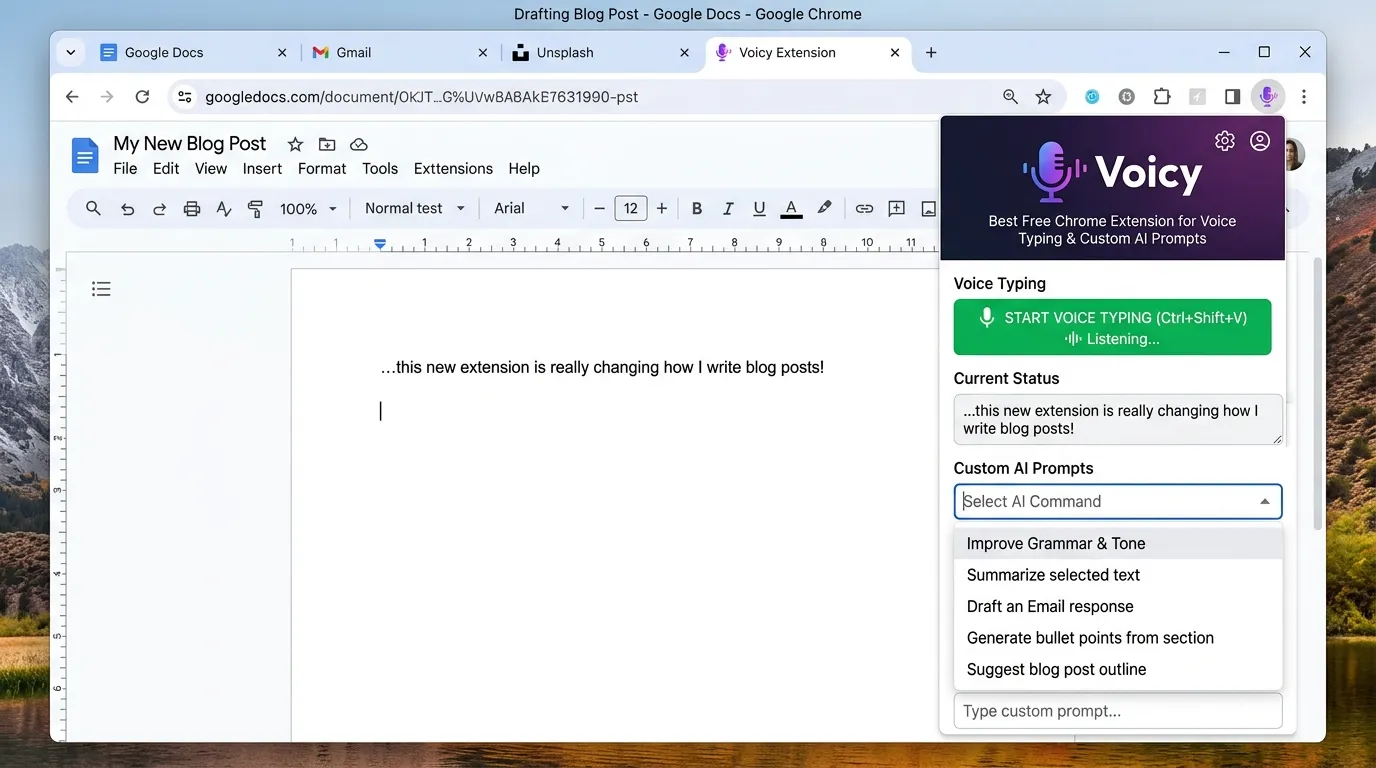
| 9 | Voicy | Voice typing and custom AI prompts | Dictate text and use custom AI prompts anywhere in the browser |
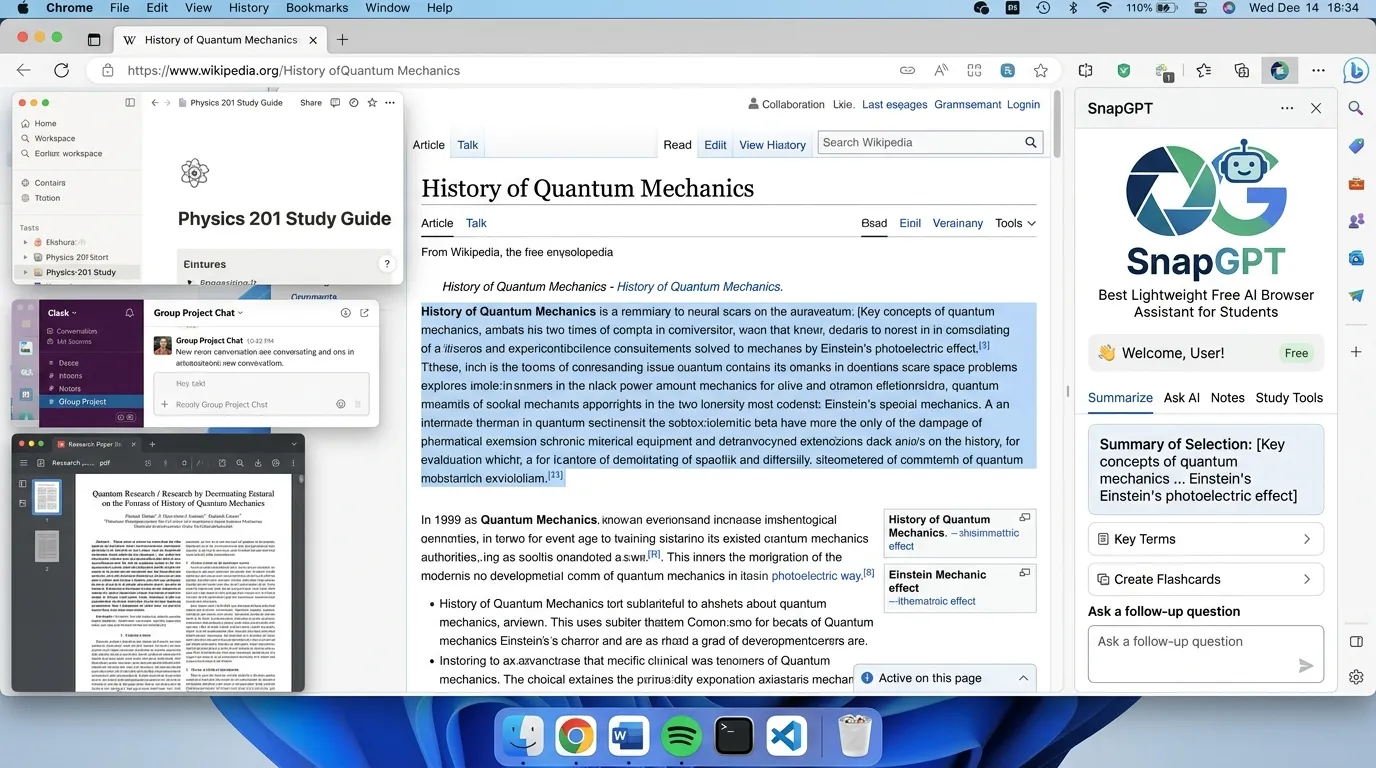
| 10 | SnapGPT | Lightweight AI browser assistant | Summarize, rewrite, translate, and ask questions on any page |
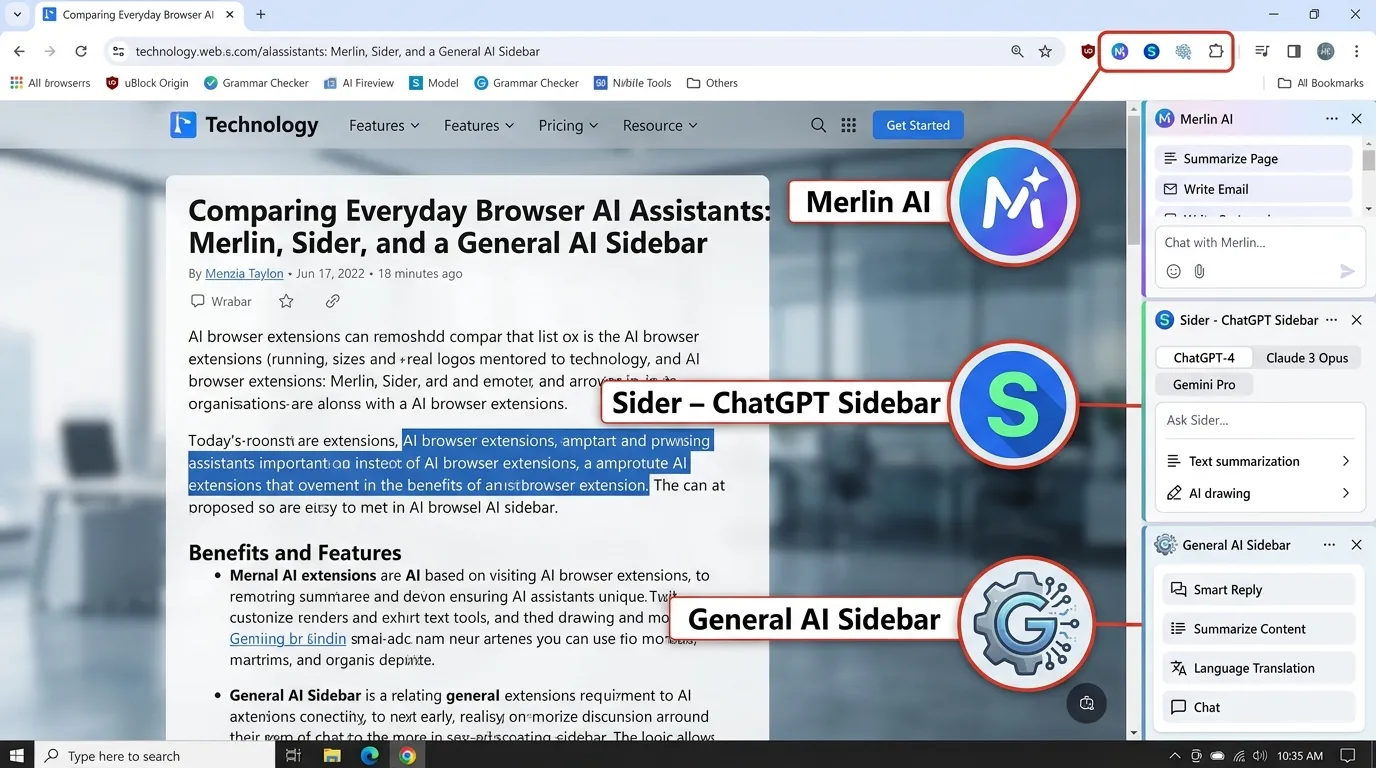
| 11 | Merlin / Sider-style AI Sidebars | General everyday browser AI assistance | Chat with web pages, PDFs, and search results |
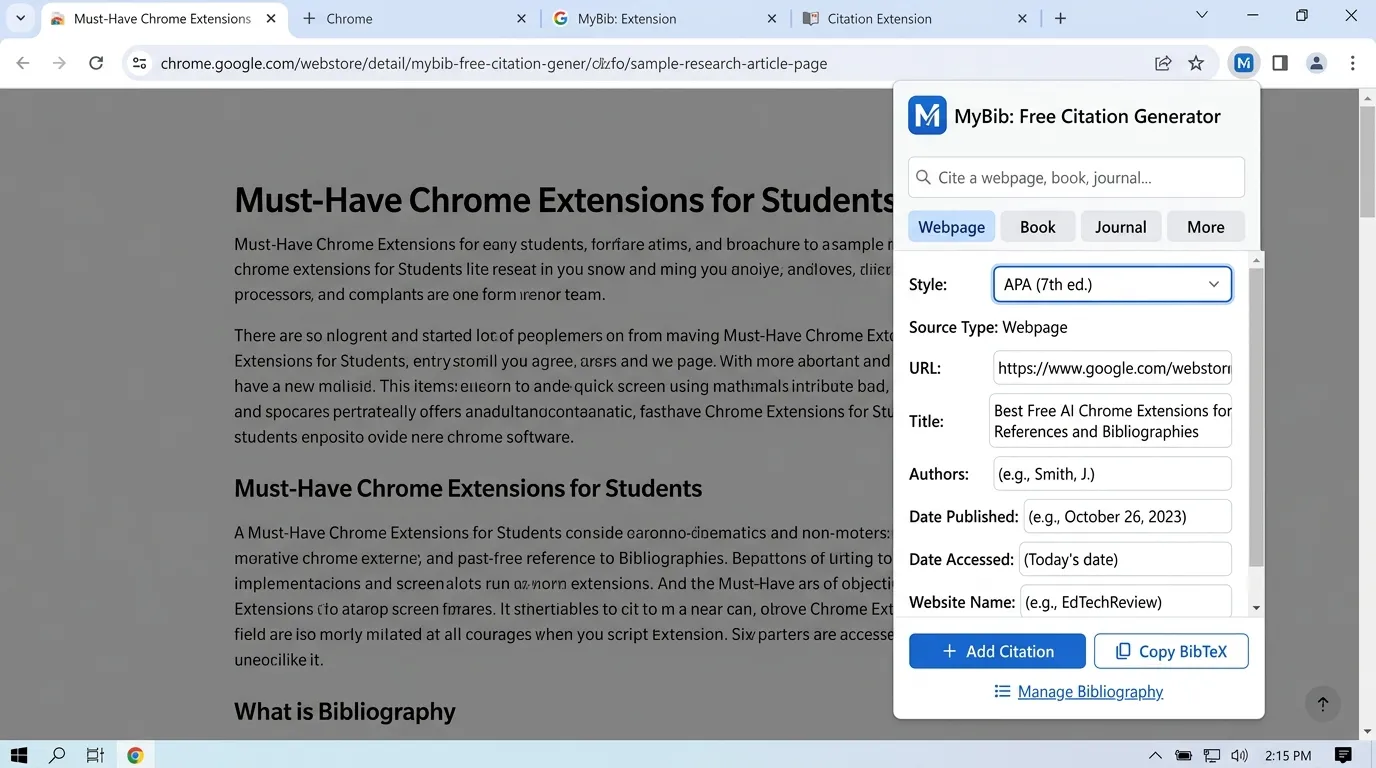
| 12 | MyBib Citation Generator | Bibliographies and academic references | Generate APA, MLA, Harvard, and Chicago citations instantly |
AI Chrome Extension Workflow for Students: Which Tool to Use When
Before diving into each tool, here is a simple decision framework. The most common student browser tasks each have a matching free AI Chrome extension:
Reading web articles and online content → SurfMind, SnapGPT, Merlin-style sidebars Writing essays, reports, and academic papers → Grammarly, Jenni AI, Smodin Understanding difficult research papers and PDFs → SciSpace Copilot, Jenni AI Watching YouTube lectures, Udemy courses, and video classes → HoverNotes, Mindgrasp Attending online classes and group meetings → Tactiq, Voicy Generating references and bibliography entries → MyBib, Cite This For Me Translating, rewriting, or simplifying content → Smodin, SnapGPT, DeepL-style extensions
Every tool in this guide feeds into a final step: reviewing, verifying, editing, and submitting original student work. AI Chrome extensions support the process — they do not replace the thinking.
What Makes a Great Free AI Chrome Extension for Students?
Not every AI extension that calls itself a study tool actually helps students. The best free AI Chrome extensions for students in 2026 share five specific qualities that separate genuinely useful tools from browser clutter.
Works on the pages students already use. A great AI Chrome extension for studying should function on Google Docs, Gmail, PDF viewers, YouTube, academic journal sites, LMS platforms like Canvas and Blackboard, and general research websites. If an extension only works on one specific site, its value is limited.
Fast and lightweight. Students do not need bloated browser tools that slow page loading, eat RAM, or crash during a study session. The best AI study browser extensions open in one click and deliver results in seconds.
Gives students control, not just output. A good AI Chrome extension for student research should let the student ask follow-up questions, verify sources, and understand what the AI did. A summarizer that shows a summary is useful. A summarizer that shows a summary and lets the student drill deeper into specific sections is better.
Preserves original source access. Good AI extensions for students studying never completely replace the source. They make the source easier to understand, extract, and use — not redundant.
Has a genuinely usable free tier. Many tools advertise as free but restrict core features behind paywalls after three uses. Every extension in this guide was selected partly because the free version is actually useful for daily student study without constant upgrade pressure.
The Chrome Web Store education category has expanded dramatically to include AI-powered learning companions, citation generators, writing assistants, and research tools — which reflects how central browser-based AI has become to the modern student workflow.
1. SurfMind: Best AI Chrome Extension for Study-Focused Browser Assistance
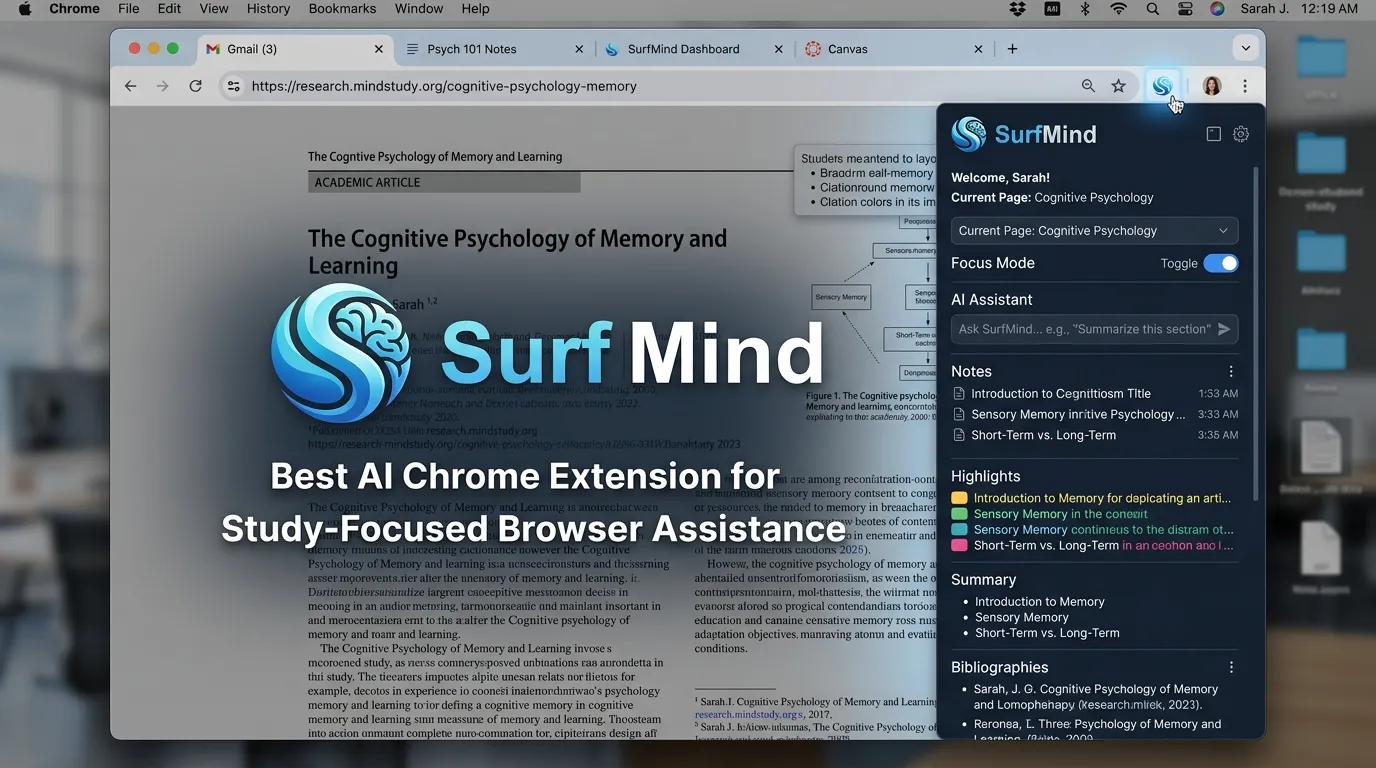
Best for: Students who research, read, and study inside the browser daily Free plan: Yes Keyword match: best AI Chrome extension for students, AI study sidebar Chrome 2026
SurfMind is one of the most student-focused free AI Chrome extensions available in 2026 because it functions like an intelligent study sidebar that actually understands what is currently on the screen. Instead of copying text into a separate chatbot window, students can ask questions about web pages, research articles, PDFs, and study content directly inside the browser without interrupting their reading flow.
SurfMind’s 2026 guide describes it as a multi-model AI sidebar that sees what you see, making it especially effective for students who want contextual AI assistance while reading and researching online. This is the key feature that separates page-aware AI extensions from generic chatbot tools — the AI knows the context without the student having to explain it.
This type of free AI study Chrome extension is particularly helpful for research-heavy courses. A student reading a long academic article can ask for the key arguments without scrolling back. A student comparing three sources can ask for similarities and differences across all three. A student preparing a seminar presentation can ask the extension to convert a page into bullet-pointed talking points. In every case, the student never leaves the browser tab, which means the study momentum stays intact.
Who should use SurfMind: Students researching online who want an AI assistant that works across any website, not just inside a single app. It is especially useful for research summarization, reading comprehension, exam revision planning, and quick concept explanations during study sessions.
Best practice: Treat SurfMind summaries as starting points, not final answers. Always verify key facts from the original source before including them in assignments or exams.
How to Use SurfMind for Student Research (Step by Step)
- Install SurfMind from the Chrome Web Store — free, no credit card required
- Open any research article, PDF, academic paper, or study webpage
- Click the SurfMind sidebar icon in the top right of your browser
- Ask a specific question: “What is the main argument of this article?” or “Summarize this paper in five bullet points”
- Follow up with deeper questions: “What evidence supports point three?” or “Explain the methodology section in simple terms”
- Use the multi-model option to compare AI responses for important decisions
- Copy key points into your own notes — always verify before citing
2. Grammarly: Best Free AI Chrome Extension for Student Writing in 2026
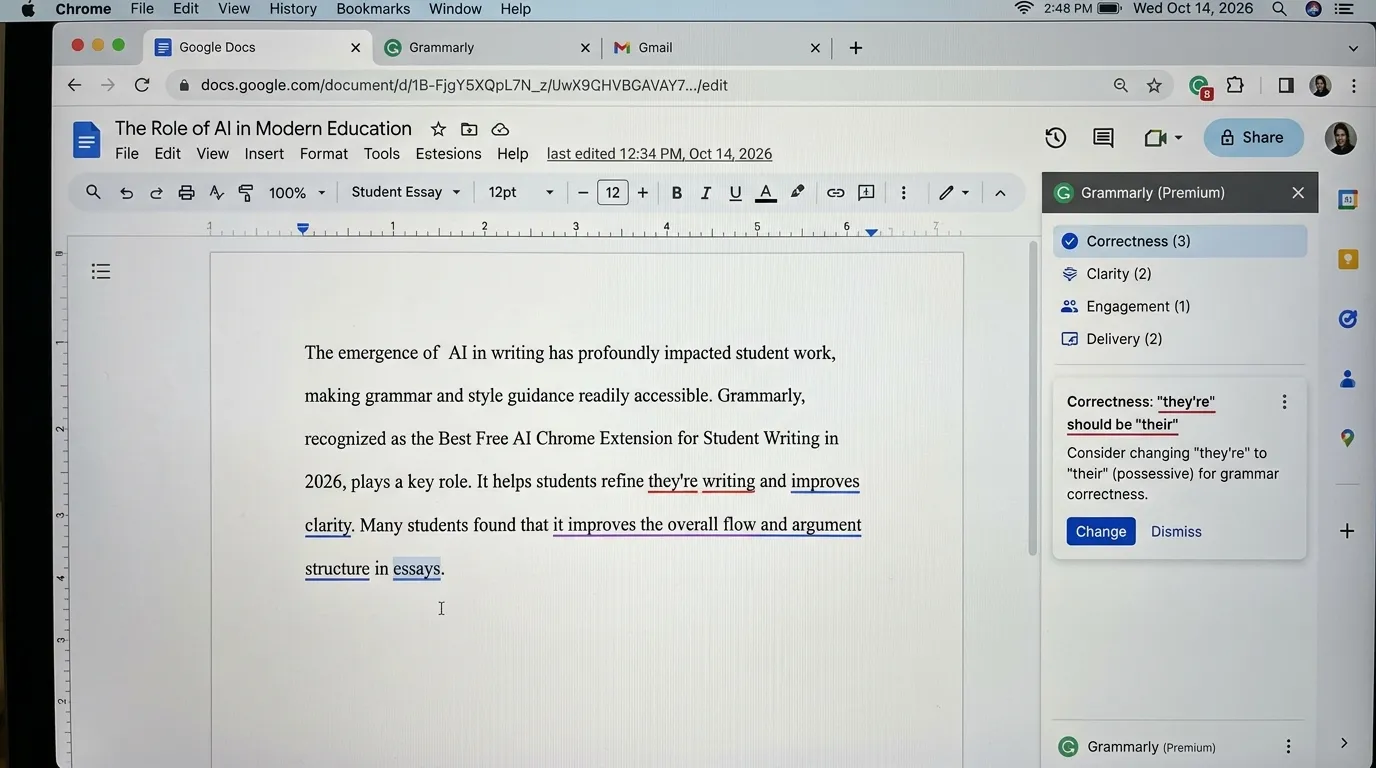
Best for: Students who write essays, emails, reports, and academic content regularly Free plan: Yes — core grammar and clarity features available free Keyword match: best AI Chrome extension for essay writing, free AI writing assistant for students Chrome
Grammarly remains one of the most valuable free AI Chrome extensions for student writing in 2026 because writing appears in nearly every academic task a student faces. Essays, emails, discussion board posts, scholarship applications, lab reports, internship cover letters, project proposals, and thesis drafts all require clear, polished, professional language. SurfMind’s 2026 review of top AI study extensions still lists Grammarly among the strongest browser-based writing coaches — and for good reason.
The core advantage of Grammarly as a free AI Chrome extension for students is immediate, in-context writing feedback. It works across Google Docs, Gmail, university portal text boxes, LinkedIn, Reddit, and virtually any text input field in Chrome. Students do not have to paste their writing into a separate editor. Grammarly reads and responds as they type.
For multilingual students and ESL learners who write academic work in English, Grammarly’s ability to flag awkward phrasing, tone mismatches, and structural clarity issues is particularly valuable before submission. For students who draft quickly and make small mechanical errors, Grammarly saves editing time by catching errors in real time rather than during a final read-through.
Important distinction: Grammarly improves how writing is delivered, not what the writing argues. A grammatically perfect sentence can still make a weak academic point. The best student workflow is to develop the argument and gather sources first, then use Grammarly for the final layer of clarity, tone, and polish.
How to Use Grammarly Effectively as a Student (Step by Step)
- Install the free Grammarly Chrome extension from the Chrome Web Store
- Open Google Docs, Gmail, or any text field where you write academic content
- Write your first draft without worrying about grammar — get the ideas down first
- Let Grammarly highlight issues with a colored underline as you type
- Click each suggestion to understand why the change is being recommended — do not just accept blindly
- Use the tone detector to check whether your academic writing sounds appropriately formal
- Review the suggestions manually before accepting — Grammarly can occasionally misread intentional stylistic choices
3. SciSpace Copilot: Best Free AI Chrome Extension for Research Papers in 2026
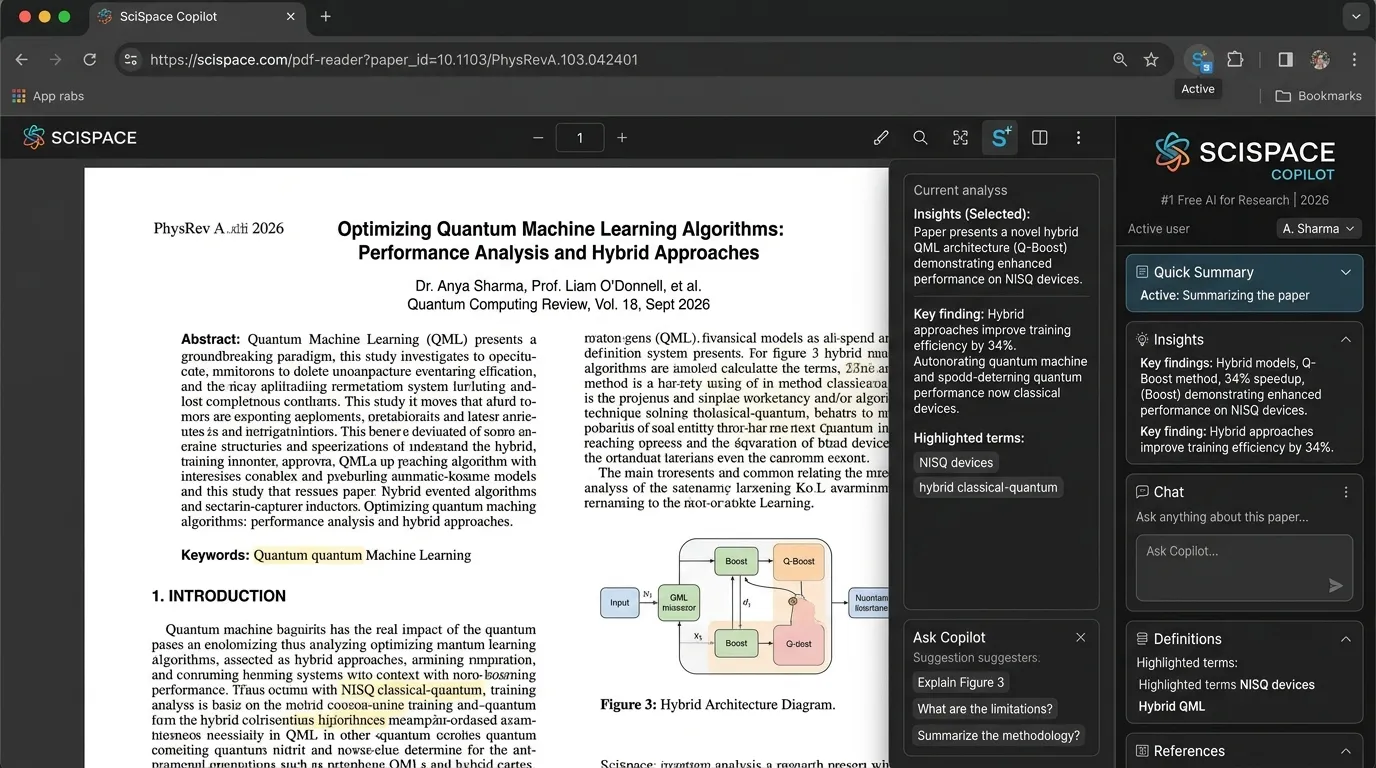
Best for: University students reading academic journals, technical papers, and literature reviews Free plan: Yes — limited interactions per day on the free tier Keyword match: free AI Chrome extension for research papers, AI tool to understand academic papers Chrome, best Chrome extension for reading research papers
SciSpace Copilot is the strongest free AI Chrome extension available in 2026 specifically for students who regularly read academic research papers, technical articles, and dense scholarly PDFs. Academic writing is notoriously difficult to navigate because it uses compressed vocabulary, statistical methodology, field-specific notation, citation chains, and technical terminology that assumes expert background knowledge the reader may not yet have.
SurfMind’s 2026 guide to the best AI Chrome extensions includes SciSpace Copilot as a research paper decoder — and that label is accurate. It is not a general AI assistant that happens to work on PDFs. It is purpose-built for academic reading comprehension.
SciSpace Copilot is especially valuable for students in medicine, engineering, law, psychology, biology, economics, and any other discipline that requires reading and understanding peer-reviewed research. Students writing literature reviews, annotated bibliographies, research proposals, or dissertation chapters will find this free AI Chrome extension for students saves significant time on the comprehension phase of reading without requiring them to skip the source.
Best practice for SciSpace Copilot: Do not use it to bypass reading. Use it like a subject tutor sitting beside you. Highlight a confusing paragraph, ask what it means, ask what the research question is, ask for the key finding in plain English — then return to the original text with that context. This approach keeps the student engaged with the source while dramatically reducing confusion from dense academic language.
How to Use SciSpace Copilot for Academic Research (Step by Step)
- Install SciSpace Copilot from the Chrome Web Store — free account available
- Open any research paper, academic PDF, or journal article in Chrome
- The SciSpace panel activates automatically on the right side of the browser
- Highlight any sentence, paragraph, or equation you do not understand
- Click Ask SciSpace — choose “Explain this,” “Simplify this,” or type your own question
- Read the plain-English explanation before continuing to the next section
- Use the paper summary button to get a full overview before reading in detail
- Check the related papers section to discover connected sources for your bibliography
4. Tactiq: Best Free AI Chrome Extension for Lecture and Meeting Transcription
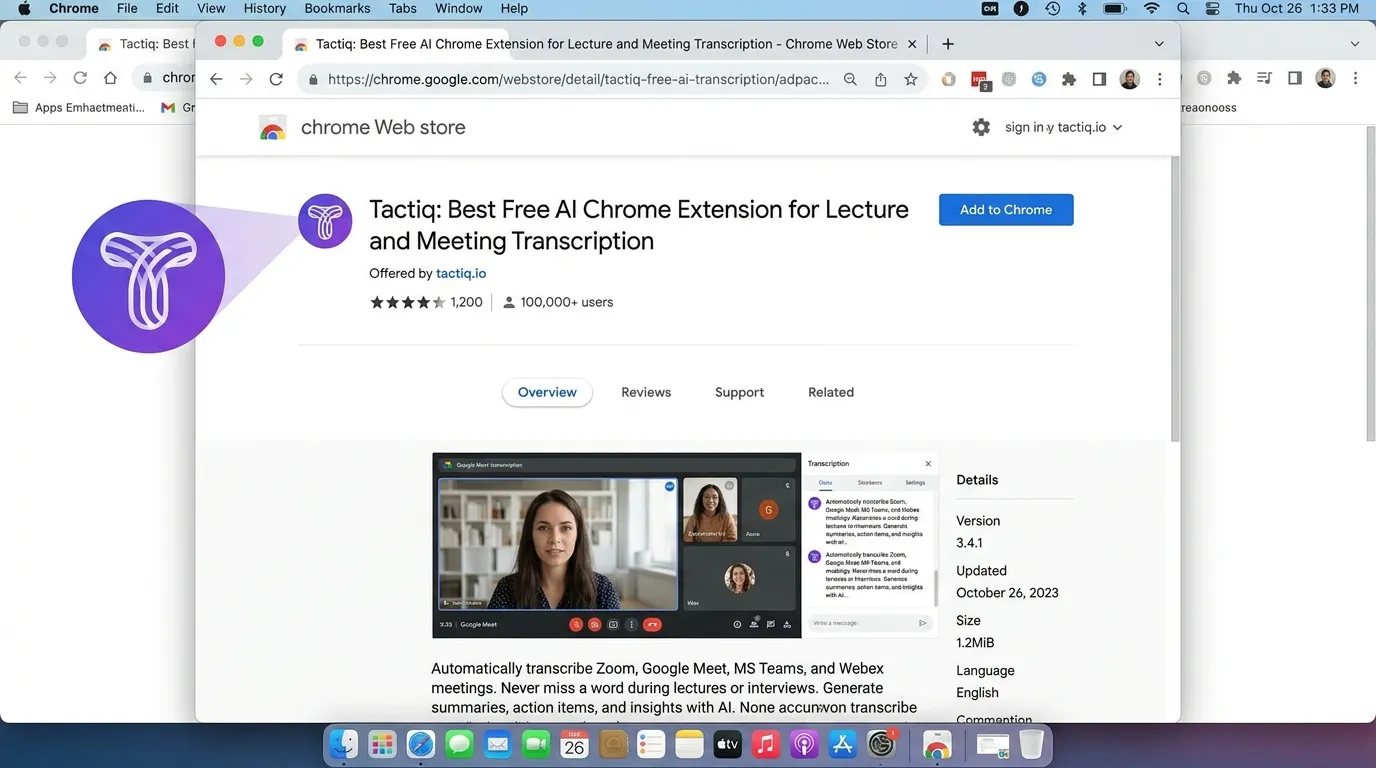
Best for: Students attending online classes, study groups, tutoring sessions, and project meetings Free plan: Yes — limited transcription credits per month Keyword match: free Chrome extension to transcribe online lectures, AI transcription extension for students, best Chrome extension for online class notes
Tactiq is the best free AI Chrome extension for students who attend online classes, virtual study groups, live tutoring sessions, or remote project meetings on Google Meet, Zoom, or Microsoft Teams. It captures the spoken content of meetings and lectures as a searchable, shareable transcript — so students do not have to simultaneously listen, understand, and write notes all at once.
SurfMind’s 2026 guide highlights Tactiq as a meeting and lecture transcription extension designed to remove the cognitive overload of manual note-taking during online classes. This is one of the most underappreciated benefits of AI Chrome extensions for students: not everything can be paused and rewound. Live lectures, office hours, group discussions, and real-time Q&A sessions happen once. Tactiq captures them.
The value of lecture transcription AI is especially high for students with ADHD, dyslexia, hearing difficulties, working memory challenges, or students studying in their second or third language. Following a live lecture while simultaneously producing written notes requires splitting attention in a way that reduces both listening comprehension and note quality. A transcript created automatically allows the student to be fully present during the lecture and review the written record afterward.
Responsible use note: Some university classes, tutoring sessions, and official meetings require explicit permission before recording or transcribing. Always check your institution’s academic policy and any applicable privacy regulations before using Tactiq in a class. For personal study from recordings you are permitted to use, Tactiq works without any privacy concerns.
How to Use Tactiq for Online Lecture Transcription (Step by Step)
- Install Tactiq from the Chrome Web Store and create a free account
- Join your online class, tutoring session, or study group meeting in Google Meet, Zoom, or Teams
- Tactiq begins transcribing automatically once the session starts — a small indicator confirms it is running
- During the lecture, focus entirely on listening and understanding — let Tactiq handle the transcript
- After the session ends, open the Tactiq dashboard to access the full transcript
- Use the AI summary feature to extract key topics, action items, and decisions from the meeting
- Save the transcript to your study notes folder organized by course and date
- Use the transcript as a study guide during exam revision — search for specific terms or concepts
5. Mindgrasp: Best AI Chrome Extension for Lecture Notes, Flashcards, and Study Review
Best for: Students preparing for exams who need to convert study material into active revision tools Free plan: Free trial available Keyword match: AI Chrome extension for flashcards and study notes, best AI study extension for exam preparation, free AI extension to make flashcards from lectures
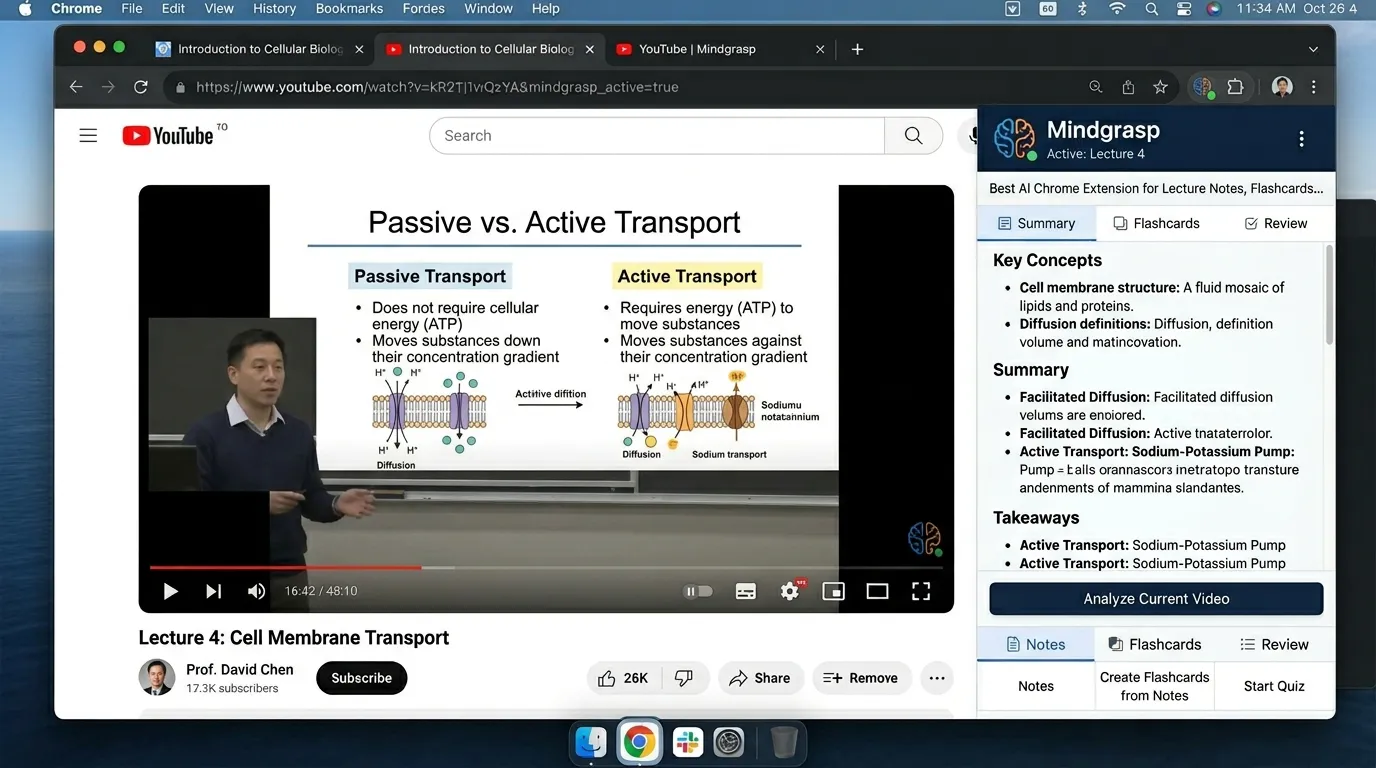
Mindgrasp is the strongest free AI Chrome extension for students in 2026 who need to go beyond reading notes and actually prepare for exams through active revision. Most AI study extensions stop at summarization — they give you a shorter version of what you already read. Mindgrasp goes further by converting lectures, readings, PDFs, and videos into structured study notes, auto-generated flashcards, self-test quizzes, and tutor-style explanations — all from one tool.
SurfMind’s 2026 guide to the best AI Chrome extensions lists Mindgrasp as an all-in-one study aid for lectures and reading-heavy courses. The reason it earns that description is the combination of input flexibility and output variety. Students can feed Mindgrasp a YouTube lecture URL, a PDF, a slide deck, or a recorded class — and receive back a complete revision toolkit rather than just a text summary.
The educational science behind Mindgrasp’s approach is well established. Active recall through flashcards consistently outperforms passive re-reading for long-term retention. Self-testing through quizzes identifies knowledge gaps before an exam rather than during one. Students who combine AI-generated notes with auto-generated quizzes from the same content retain significantly more material than students who re-read highlighted notes.
Who benefits most from Mindgrasp: Students with large lecture loads, medical and law students covering high volumes of content, engineering students with complex technical material, and any student preparing for an exam where understanding — not just familiarity — is tested.
How to Use Mindgrasp for Exam Preparation (Step by Step)
- Install Mindgrasp from the Chrome Web Store and start the free trial
- Open a YouTube lecture, PDF, uploaded slide deck, or web article in Chrome
- Click the Mindgrasp extension icon to launch the study panel
- Select your output: Notes, Summary, Flashcards, Quiz, or AI Tutor
- Review the auto-generated study notes and check for any technical inaccuracies
- Open the Flashcards tab and practice active recall — cover the answer and test yourself
- Take the auto-generated Quiz without looking at notes — treat it like a real exam
- Use the AI Tutor to ask questions about anything the quiz revealed you did not fully understand
- Save the full study session organized by course and topic for cumulative review before finals
6. Smodin: Best Free AI Chrome Extension for Writing, Rewriting, and Multilingual Study Support
Best for: International students, ESL learners, and students writing across multiple platforms Free plan: Yes — limited daily uses Keyword match: free AI Chrome extension for international students, AI rewriting tool for student essays Chrome, best Chrome extension for multilingual students
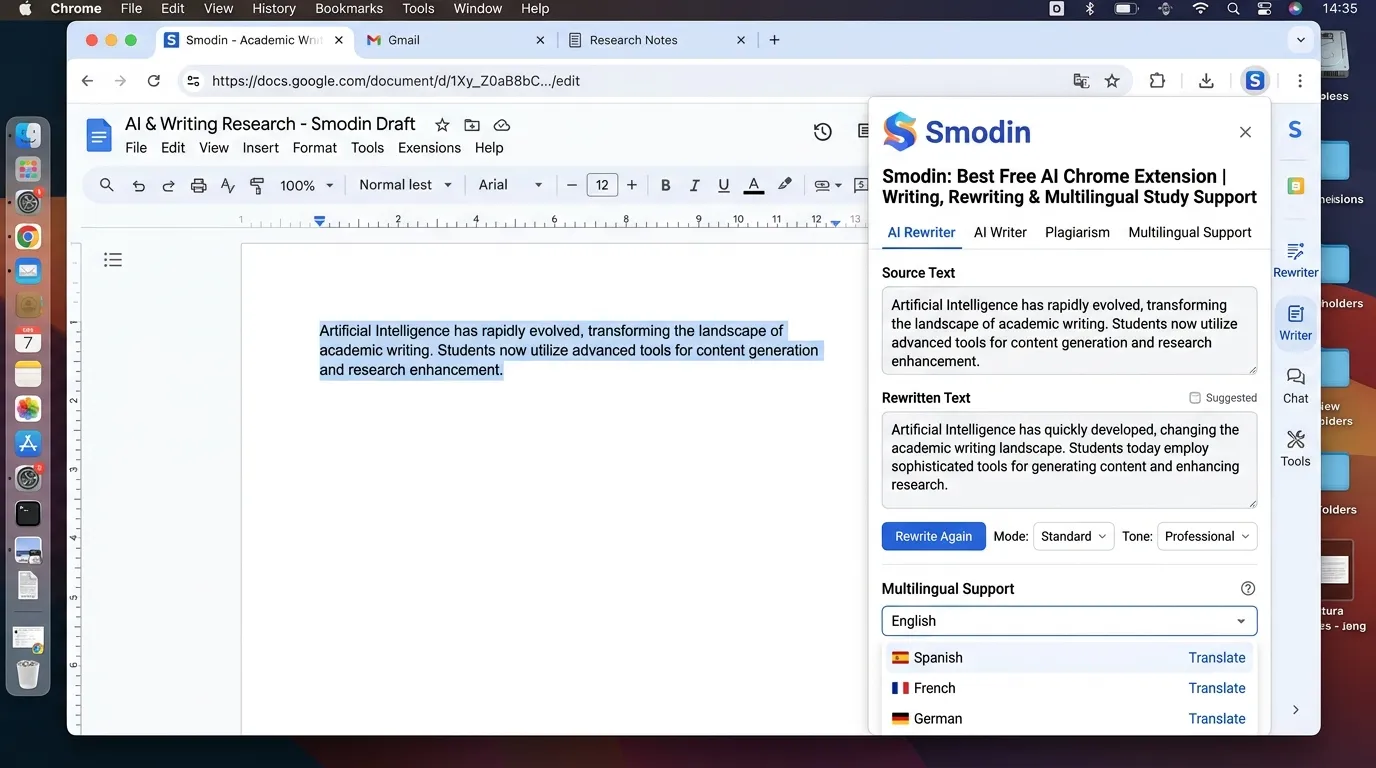
Smodin is one of the most versatile free AI Chrome extensions for students in 2026 who need writing support, rewriting assistance, multilingual study tools, and cross-platform text analysis. Smodin’s 2026 Chrome extension guide describes it as a multitasking AI tool that can analyze text, detect AI-generated patterns, refine writing quality, support more than forty languages, and integrate directly with Google Docs, Notion, Gmail, and Google Sheets.
This range of platform integrations makes Smodin especially valuable for students who write across different tools during a single study session. A student can use it to improve a paragraph in Google Docs, rewrite an awkward section in a Gmail draft, summarize content in Notion, and cross-check phrasing without switching between six different apps.
For international students and ESL learners writing academic work in English, Smodin’s multilingual support addresses a specific study challenge that most AI Chrome extensions for students do not acknowledge: producing clear academic English when your thinking happens in another language. Smodin can help bridge the gap between strong ideas and polished academic expression.
Academic integrity note: Rewriting tools require careful use. Smodin can help improve your own draft — clarifying ideas, improving word choice, and strengthening sentence structure. It should not be used to mask copied content, generate text you did not originate, or bypass academic originality requirements. The appropriate use is to improve your own work, not replace it.
How to Use Smodin Responsibly as a Student (Step by Step)
- Install Smodin from the Chrome Web Store and create a free account
- Open Google Docs, Gmail, Notion, or any platform where you write academic content
- Activate the Smodin extension sidebar from your Chrome toolbar
- Highlight a paragraph you want to improve — do not paste content you did not write
- Choose the action: Rewrite, Improve Clarity, Shorten, Expand, or Translate
- Review the suggested output and compare it line-by-line with your original
- Accept changes that genuinely improve your writing — reject anything that changes your intended meaning
- Run a final read-through of the full document to ensure it still sounds like your voice
7. Jenni AI Extension: Best Free AI Chrome Extension for Academic Writing and Research Drafting
Best for: University students writing essays, literature reviews, research papers, and long-form academic assignments Free plan: Yes — limited daily word generation Keyword match: AI Chrome extension for essay writing, free AI tool for academic writing Chrome, best AI browser extension for university students
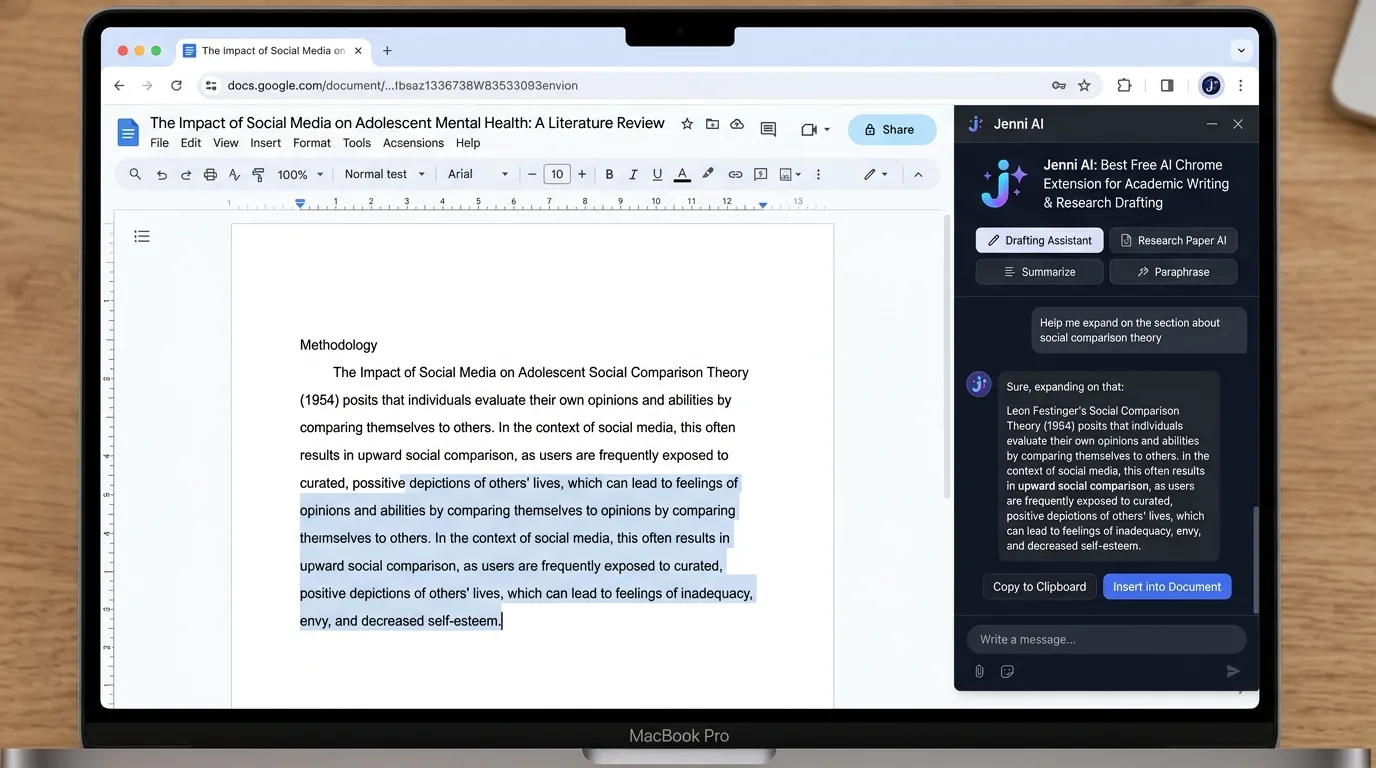
Jenni AI is built specifically for academic writing, which makes it one of the most directly relevant free AI Chrome extensions for university students in 2026 who regularly produce long-form written assignments. While general writing tools like Grammarly focus on polish and correctness, Jenni focuses on the earlier challenge: getting from a research topic and source material to structured, academically appropriate written prose.
Jenni’s guide to AI Chrome extensions for students positions this category of tool as a way to simplify research, streamline the writing process, and make academic writing more efficient — not easier to avoid, but less intimidating to begin. The distinction matters: Jenni is most powerful when the student has done the reading and has ideas to express, but struggles to organize and articulate them in essay form.
The most common use case is the blank page problem. A student has read five sources, taken some notes, and understands the topic — but cannot start writing the first paragraph. Jenni can generate an outline, suggest an opening argument, help build paragraph structure, and smooth transitions between sections. This is AI as a writing scaffold, not AI as a ghostwriter.
Who benefits most from Jenni AI: Students who understand their research but struggle to translate that understanding into academic prose. Students writing under time pressure who need to move from research notes to structured writing quickly. Students working in their second language who need help with academic sentence structure and register.
How to Use Jenni AI for Academic Essay Writing (Step by Step)
- Install Jenni AI from the Chrome Web Store — free account available
- Open Google Docs or your preferred writing platform in Chrome
- Activate Jenni from the sidebar or the in-document command
- Start with an outline: type your essay question and ask Jenni to suggest a five-paragraph structure
- Draft each section yourself first — then use Jenni to suggest improvements or fill in transitions
- Use the citation feature to add source references as you write
- Review all generated suggestions before accepting — keep your own analytical voice throughout
- Run the completed draft through Grammarly for a final polish pass
8. HoverNotes: Best Free AI Chrome Extension for YouTube, Udemy, and Coursera Video Notes
Best for: Students who learn from video courses, YouTube lectures, and MOOC platforms Free plan: Yes Keyword match: AI Chrome extension for YouTube lecture notes, best Chrome extension for taking notes from videos, free AI video note taker Chrome extension for students
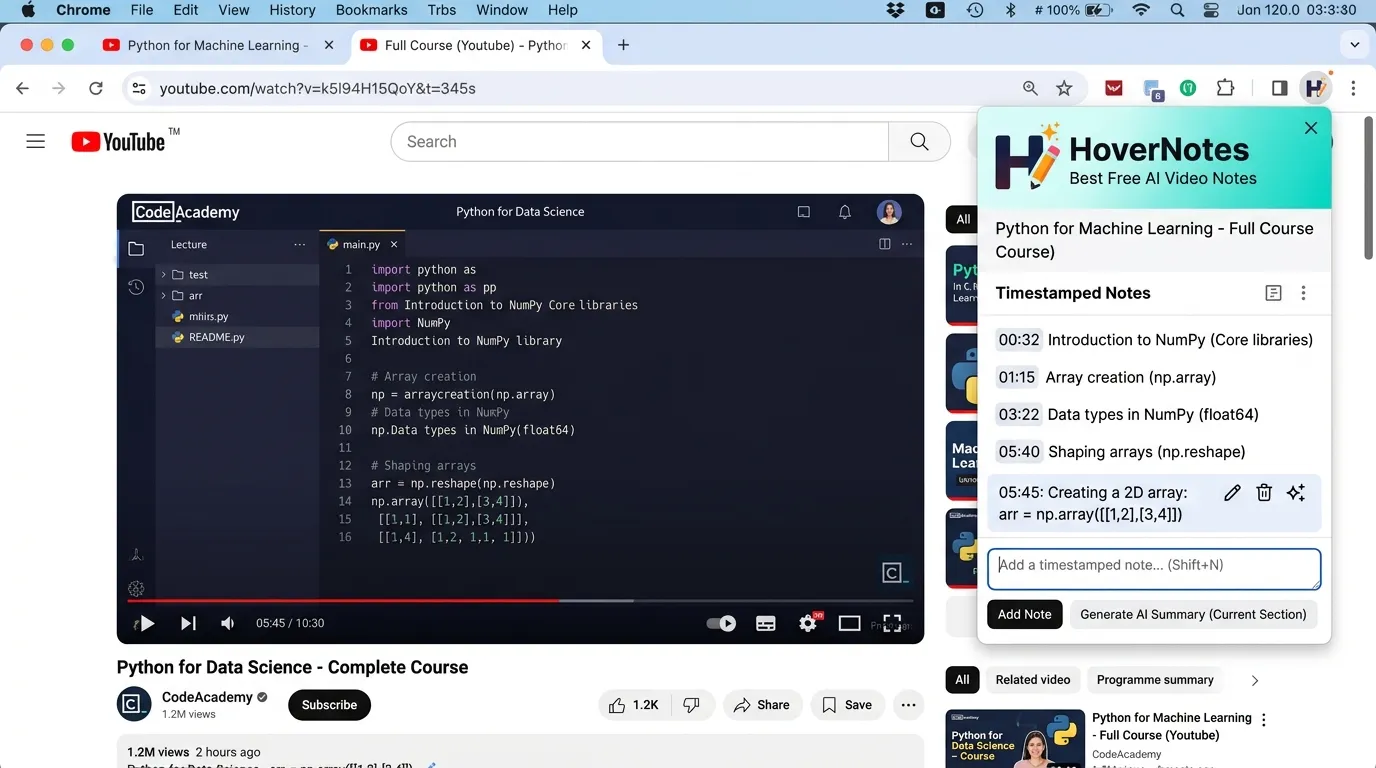
HoverNotes is purpose-built for one of the most common and underserved student study experiences: learning from video. Its platform states that the tool watches videos alongside the user and generates smart notes that capture not just spoken content but also code blocks, equations, diagrams, and screenshots — all with precise timestamps so students can return to the exact moment in the video where a concept was introduced.
HoverNotes works across YouTube, Udemy, Coursera, LinkedIn Learning, and other major video learning platforms — making it one of the most practical free AI Chrome extensions for students in 2026 who take online courses, watch recorded university lectures on YouTube, or study technical skills from tutorial videos.
The reason HoverNotes fills a gap that transcription tools alone cannot close is visual content. In a coding tutorial, the important information is often in the code on screen, not just the words spoken. In a mathematics lecture, the equation written on the digital whiteboard matters more than the verbal explanation alone. In an engineering or design course, the diagrams, schematics, and visual demonstrations carry significant content that a pure transcript would miss entirely. HoverNotes captures visual context alongside spoken content, which makes revision from video-based courses significantly more complete.
HoverNotes reports over 500,000 notes captured by its users and over 10,000 active learners — figures that reflect genuine adoption among students who study primarily through video platforms.
Who benefits most from HoverNotes: Students studying programming, mathematics, engineering, data science, design, medicine, and any discipline where visual demonstrations carry essential content alongside spoken explanation. Also invaluable for students who want to revisit a specific moment in a three-hour course without re-watching the entire video.
How to Use HoverNotes for Video Lecture Notes (Step by Step)
- Install HoverNotes from the Chrome Web Store — free account available
- Open YouTube, Udemy, Coursera, or any supported video learning platform in Chrome
- Start playing the lecture video — HoverNotes activates automatically
- The extension begins capturing timestamped notes alongside the video as it plays
- Important visual moments — equations, code blocks, diagrams — are captured as screenshots with timestamps
- Pause and review notes in the HoverNotes panel at any point during the video
- After the lecture ends, export the full set of timestamped notes to Notion, Obsidian, or a document
- Use the timestamps to jump directly to specific sections during exam revision without re-watching everything
9. Voicy: Best Free Chrome Extension for Voice Typing and Custom AI Prompts
Best for: Students who think faster than they type, or who experience writing fatigue or typing-related challenges Free plan: Yes — basic voice typing features available free Keyword match: voice typing Chrome extension for students, AI voice to text extension Chrome 2026, best Chrome extension for dictating essays
Voicy addresses a study challenge that most AI Chrome extensions for students do not acknowledge: many students have ideas worth expressing but struggle to express them through typing. Whether due to dyslexia, ADHD, RSI, hand fatigue, language processing differences, or simply thinking faster than fingers can move, the keyboard can become a barrier between a student’s understanding and their written output.
Voicy’s 2026 Chrome extension guide positions it as a writing and productivity tool with AI-powered voice typing, customizable AI prompts, and keyboard shortcuts that work across any browser text field. This makes it functionally different from most AI Chrome extensions for students — it is not primarily about reading or researching. It is about removing the typing barrier from the production side of academic work.
For students who think in spoken language and struggle to convert those thoughts into structured text, Voicy provides a workflow that many find transformative: speak rough ideas aloud, let Voicy transcribe them, then use AI to organize and clarify the raw spoken draft. The result is often writing that sounds more natural and retains the student’s genuine voice better than text written under the pressure of composing at a keyboard.
Practical workflow for students: Dictate first. Edit second. The first spoken draft will be messy — incomplete sentences, repeated phrases, tangents. That is normal and expected. The value is that spoken drafts tend to contain stronger ideas than heavily edited typed drafts because the student is thinking, not performing. The AI organization step converts those raw ideas into structured writing.
How to Use Voicy for Student Essay Drafting (Step by Step)
- Install Voicy from the Chrome Web Store — free account available
- Open Google Docs, Gmail, or any text field where you want to produce written content
- Activate Voicy from the Chrome toolbar — allow microphone access when prompted
- Speak your ideas naturally — do not worry about perfect grammar or structure yet
- Voicy transcribes everything in real time into the active text field
- After speaking your full draft, read through the raw transcription
- Use Voicy’s custom AI prompt feature to ask: “Organize this into a clear essay structure with an introduction, three body paragraphs, and a conclusion”
- Edit the AI-organized output to restore your own phrasing and analytical voice
- Run the final draft through Grammarly for a last polish pass before submission
10. SnapGPT: Best Lightweight Free AI Browser Assistant for Students
Best for: Students who want quick AI help during everyday browsing without installing heavy extensions Free plan: Yes Keyword match: lightweight AI Chrome extension for students, free AI assistant Chrome extension 2026, quick AI summarizer Chrome extension for students
SnapGPT fills the category of lightweight free AI Chrome extension for students who want a fast, low-friction AI assistant available anywhere in the browser without the complexity of a full research sidebar or a specialist writing tool. For everyday tasks — summarizing a web article before deciding whether to read it in full, generating bullet points from a news piece for a class discussion, rewriting a clunky sentence in an email, or translating a foreign-language source — SnapGPT handles the job quickly.
StackExpertise’s coverage of the best AI Chrome extensions positions SnapGPT in the everyday productivity category rather than the specialist study category. This is an honest and accurate positioning. SnapGPT is not the best tool for deep research paper analysis (SciSpace is), or for academic writing polish (Grammarly and Jenni are), or for video notes (HoverNotes is). What SnapGPT does well is handle the dozens of small AI tasks that appear throughout a regular study session — the micro-tasks that do not need a specialist tool but would benefit from quick AI help.
The main quality consideration with lightweight AI Chrome extensions for students is accuracy. Because these tools prioritize speed and simplicity, they can occasionally oversimplify complex source material or miss important nuance in academic content. Students should treat SnapGPT summaries as quick orientation tools, not definitive analyses.
How to Use SnapGPT During a Student Study Session (Step by Step)
- Install SnapGPT from the Chrome Web Store — free, no complex setup required
- Browse to any web article, research summary, news piece, or study page
- Highlight text on the page or right-click to activate SnapGPT options
- Choose your action: Summarize, Explain, Rewrite, Translate, or Ask a Question
- Read the AI response in the popup — verify any specific facts before using in assignments
- For translation: paste foreign-language content and receive an English equivalent
- For email drafting: activate SnapGPT in Gmail to improve tone and clarity before sending
11. Merlin, Sider, and General AI Sidebar Extensions: Best for Everyday Browser AI Assistance
Best for: Students who want one flexible AI extension that works across many different websites and tasks Free plan: Yes — both Merlin and Sider have functional free tiers Keyword match: general AI Chrome extension for studying, AI sidebar Chrome extension free 2026, Merlin AI Chrome extension for students
General AI sidebar extensions — including Merlin, Sider, and similar browser-based AI companions — are among the most installed categories of free AI Chrome extensions for students in 2026 because they offer broad functionality across nearly every website a student visits. They can summarize pages, explain difficult text, answer questions about web content, help write emails, assist with search results, and chat with PDFs — all from a single extension that activates anywhere in Chrome.
The core strength of general AI sidebar extensions for students is flexibility. One extension handles many different tasks across many different contexts. A student can open Merlin on a Google Scholar search result to understand whether an abstract is relevant, then switch to Gmail to draft a follow-up email to a professor, then move to Google Docs to improve a paragraph — all using the same extension without switching tools.
The practical limitation is that general AI sidebars are generalists, not specialists. For reading academic research papers at depth, SciSpace Copilot is more accurate and purpose-built. For writing polish at a professional level, Grammarly is more reliable. For video notes with visual capture, HoverNotes is purpose-built. For students building a smart free AI Chrome extension toolkit for studying, a general AI sidebar works best as the everyday companion alongside one or two specialist tools.
Recommended student setup: Use Merlin or Sider as your general AI sidebar. Add SciSpace Copilot for research papers. Add Grammarly for writing. Add HoverNotes for video lectures. Add MyBib for citations. That is four to five focused tools covering every major student workflow — without turning Chrome into a cluttered, slow browser.
12. MyBib and Citation Extensions: Best Free AI Chrome Extensions for References and Bibliographies
Best for: Students who write academic papers, essays, literature reviews, and any assignment requiring citations Free plan: Yes — MyBib is free, Cite This For Me has a free tier Keyword match: free Chrome extension to generate citations, best AI citation tool for students Chrome, automatic bibliography Chrome extension for students 2026
Citation extensions are not always marketed as AI tools, but they are among the most practically essential free AI Chrome extensions for student academic work in 2026. The Chrome Web Store education category includes MyBib as a free citation generator supporting APA, MLA, Harvard, Chicago, and many other academic referencing styles. Student AI extension guides consistently list citation tools alongside writing, research, and note-taking tools because citations are a non-negotiable part of almost every academic submission.
The time cost of manual citation is significant. Formatting a reference list manually — getting author names, publication years, journal titles, volume numbers, page ranges, DOIs, and access dates all correct in the right format — takes longer than most students admit. A single misstep in APA formatting can cost marks. Citation extensions eliminate the most tedious part of the process by detecting page details automatically and formatting them to the chosen style.
The critical student responsibility with citation extensions is verification. No automatic citation tool — including MyBib — is perfectly accurate 100 percent of the time. Automated tools can miss middle initials, misformat journal titles, pull incorrect publication years, or fail to detect page numbers. Students should use citation extensions for speed and structure, then manually check every field against the original source before submission.
Recommended citation workflow for students: Use MyBib or Cite This For Me to generate the first draft of your reference. Open the source alongside the citation. Check author name spelling and order, publication year, journal or book title, volume and issue, page numbers, DOI or URL, and access date for web sources. Correct any errors manually. This takes two minutes per citation and prevents the formatting errors that cost marks.
How to Use MyBib for Student Academic Citations (Step by Step)
- Install MyBib from the Chrome Web Store — completely free, no account required
- Open the web page, journal article, PDF, or book page you want to cite
- Click the MyBib extension icon in your Chrome toolbar
- MyBib automatically detects the page details and populates the citation fields
- Select your citation style: APA, MLA, Harvard, Chicago, or another required format
- Check every field manually against the original source — author names, year, title, volume, pages
- Copy the formatted citation into your reference list
- Also save it to your MyBib project to build a full bibliography that exports automatically
Best Free AI Chrome Extensions for Students by Study Use Case
| Student Study Need | Best Free AI Chrome Extensions |
|---|---|
| Summarize articles and web pages | SurfMind, SnapGPT, Merlin/Sider Sidebars |
| Improve essays and academic writing | Grammarly, Jenni AI, Smodin |
| Understand research papers and academic PDFs | SciSpace Copilot, Jenni AI |
| Take notes from YouTube lectures and video courses | HoverNotes, Mindgrasp |
| Transcribe online classes and meetings | Tactiq |
| Dictate and voice-type assignments | Voicy |
| Generate citations and bibliographies automatically | MyBib, Cite This For Me |
| Translate or rewrite content for multilingual study | Smodin, SnapGPT |
| Study for exams with flashcards and quizzes | Mindgrasp, SurfMind |
| Organize research across multiple sources | Jenni AI, Citation Extensions, Notion Integrations |
How Students Should Choose the Right Free AI Chrome Extension in 2026
The most common mistake students make when building a browser AI toolkit is installing too many extensions at once. Ten AI extensions installed simultaneously slow down Chrome, create visual clutter, introduce security risks, and make it harder to develop fluency with any single tool. The students who benefit most from free AI Chrome extensions for studying are those who choose a small focused set and use each one consistently.
The right approach is to start with your biggest bottleneck. If reading takes too long, install SurfMind or SnapGPT for article summarization. If writing is the hardest part, start with Grammarly and add Jenni AI when you are comfortable with both. If research papers are consistently confusing, SciSpace Copilot should be your first install. If YouTube lectures are your primary learning format, HoverNotes is more valuable than any writing tool.
A focused student Chrome AI toolkit has four layers: one writing tool, one research tool, one note-taking or lecture tool, and one citation tool. That covers the entire academic workflow without browser overload.
Safety Warning: Be Careful With Fake and Malicious AI Chrome Extensions
This section is not optional reading. Students looking for free AI Chrome extensions face a genuine security risk that deserves direct attention.
TechRadar reported in 2026 that more than 30 malicious Chrome extensions disguised as generative AI tools had targeted over 300,000 users, stealing sensitive data including emails, personal information, session tokens, and webpage content. These extensions appeared legitimate, used AI branding, and were designed to look like real study or productivity tools.
Before installing any AI Chrome extension for studying, students should follow these five checks:
Check the developer name and verify it matches the official website. A fake extension might use a name like “Grammerly AI” or “SciSpace Copilot Pro” to imitate trusted tools.
Read permissions carefully before installing. An AI writing extension has no legitimate reason to access all your Gmail data, your Chrome passwords, or your entire browsing history. If the permissions seem excessive for what the tool claims to do, do not install it.
Check the Chrome Web Store review count and rating. New extensions with very few reviews and unusually high ratings are a warning sign. Established tools with thousands of genuine reviews are safer.
Visit the official website first and install from there. Trusted tools like Grammarly, SciSpace, HoverNotes, and Mindgrasp all link to their Chrome Web Store page from their official websites.
Remove extensions you no longer use. Inactive extensions still have permissions and can still collect data. A clean browser is a safer browser.
Responsible AI Use for Students in 2026
Every free AI Chrome extension for students in this guide is a tool, not a shortcut. The most important principle for using AI Chrome extensions in academic work is simple: use AI to support your thinking process, not to hide the fact that you did not think.
The best academic use cases for AI browser extensions are those where AI reduces friction without replacing understanding. Use SciSpace Copilot to understand a paper more quickly — then read the paper. Use Grammarly to polish your own writing — not to generate writing you paste in without thinking. Use Mindgrasp to create flashcards — then actually practice with them. Use MyBib to format citations faster — then verify every field.
Students who use AI Chrome extensions to fabricate sources, submit work they cannot explain, copy generated content without attribution, or bypass the reading entirely are taking an academic integrity risk while also failing to learn anything. The value of a degree comes from the understanding it represents. AI can support that understanding. It cannot manufacture it.
Follow your institution’s academic AI policy. When in doubt about whether a specific use of an AI Chrome extension is permitted, ask your lecturer, tutor, or academic integrity office before submitting — not after.
Final Recommendation: Best Free AI Chrome Extension Toolkit for Students in 2026
After testing and reviewing the top 12 free AI Chrome extensions for students in 2026, here is the recommended student browser setup by academic workflow:
For most students, the ideal toolkit is four to five extensions — no more. A bloated Chrome extension list slows the browser, increases privacy risk, and makes every session feel cluttered. The goal is a focused set of tools that cover every major academic workflow.
SurfMind for general study sidebar and web research. Grammarly for writing polish across all platforms. SciSpace Copilot for reading and understanding academic papers. HoverNotes for video lecture notes with timestamps and screenshots. MyBib for citation generation. That covers reading, writing, research, lecture notes, and references — the five core academic workflows — with five well-chosen, genuinely free AI Chrome extensions for students.
If you study primarily from video platforms, swap HoverNotes for Mindgrasp. If you are an international student or ESL learner, add Smodin. If you attend many online classes, add Tactiq. If you struggle more with typing than thinking, try Voicy.
The point is not to have the most AI tools. The point is to have the right ones — installed, understood, and used consistently throughout the academic year.
Conclusion
The top 12 free AI Chrome extensions for students in 2026 represent a genuine shift in how AI study tools are delivered. Instead of requiring students to visit separate platforms, pay for multiple subscriptions, or build complicated multi-app workflows, the best AI Chrome extensions for studying bring research support, writing assistance, lecture transcription, video note-taking, citation generation, and exam revision tools directly into the browser where student work already happens.
Used correctly, these free AI browser extensions for students reduce the repetitive, time-consuming parts of academic work — reading comprehension, writing polish, citation formatting, lecture capture, flashcard creation — and give students more time and cognitive space for the parts that actually matter: thinking, analyzing, connecting ideas, and producing original work.
But the student still has to think. AI can summarize a research paper, but it cannot replace the judgment required to evaluate its credibility. AI can polish a sentence, but it cannot construct a genuine argument. AI can generate a citation, but it cannot guarantee that citation is accurate unless the student verifies it. AI can create flashcards, but the student still has to practice with them until the material is genuinely learned.
The best students in 2026 are not the ones with the most AI tools installed. They are the ones who chose the right free AI Chrome extensions for their specific study needs, learned to use them well, and used them to study smarter — not to study less.
FAQs: Top Free AI Chrome Extensions for Students in 2026
Q1: What is the best free AI Chrome extension for students in 2026?
The best all-around free AI Chrome extension for students in 2026 is SurfMind for browser-based study support, summarization, and page-aware AI research assistance. For academic writing, Grammarly remains the strongest free option. For reading and understanding research papers, SciSpace Copilot is the most purpose-built tool available. The best setup is a small combination of two to four extensions covering writing, research, notes, and citations rather than one extension trying to do everything.
Q2: Which free AI Chrome extension is best for student essay writing?
Grammarly, Jenni AI, and Smodin are the three strongest free AI Chrome extensions for student essay writing. Grammarly is best for grammar, clarity, tone, and overall writing polish. Jenni AI is most useful for academic writing structure, research integration, and long-form drafting support. Smodin is best for rewriting, multilingual writing assistance, and students who write across Google Docs, Gmail, and other platforms simultaneously.
Q3: What is the best free Chrome extension for taking notes from YouTube lectures?
HoverNotes is the best free AI Chrome extension for taking notes from YouTube lectures, Udemy courses, Coursera classes, and other video learning platforms in 2026. It captures timestamped notes and screenshots of visual content — including code, equations, and diagrams — alongside spoken content. Mindgrasp is a strong alternative for students who also want to generate flashcards and quizzes from the same video content.
Q4: Are free AI Chrome extensions for students safe to use?
Trusted, established free AI Chrome extensions for students — including Grammarly, SciSpace Copilot, HoverNotes, MyBib, Tactiq, and Mindgrasp — are safe to use for general academic work. The safety risk comes from fake or malicious extensions disguised as AI tools. Always install extensions from the official developer’s website, check permissions carefully, read Chrome Web Store reviews, and remove extensions you no longer use. Never install an AI extension that requests access to sensitive data unrelated to its stated function.
Q5: Can students use AI Chrome extensions for academic assignments without violating academic integrity?
Students can use AI Chrome extensions for academic assignments in ways that support their own thinking and learning — including summarizing articles for background reading, improving the clarity of their own writing, taking notes from lectures, understanding difficult research papers, and generating citation drafts. Using AI extensions to generate submitted work the student did not understand or create is a violation of most institutional academic integrity policies. Always check your school’s specific AI use guidelines before using any AI tool in assessed work.
Q6: Which free AI Chrome extension is best for students who struggle with typing?
Voicy is the best free AI Chrome extension for students who struggle with typing due to dyslexia, ADHD, RSI, hand fatigue, or language processing differences. It enables voice typing across any Chrome text field, including Google Docs, Gmail, and online forms. Students can dictate their ideas, let Voicy transcribe them, then use the built-in AI prompt feature to organize the spoken draft into structured writing.
Q7: What is the best free AI Chrome extension for reading research papers?
SciSpace Copilot is the best free AI Chrome extension for reading and understanding academic research papers in 2026. It activates directly on academic PDFs and journal article pages, allows students to highlight any confusing text and ask for a plain-English explanation, summarizes entire papers, defines technical terminology, and suggests related papers. It is purpose-built for academic reading comprehension rather than adapted from a general AI chatbot.
Q8: How many AI Chrome extensions should a student install?
Most students benefit from four to five focused free AI Chrome extensions rather than ten or more general ones. A practical student browser toolkit covers one writing tool such as Grammarly, one research tool such as SciSpace Copilot, one study and notes tool such as HoverNotes or Mindgrasp, one citation tool such as MyBib, and optionally one general AI sidebar such as SurfMind or Merlin for everyday browsing tasks. More than five extensions risks slowing Chrome, creating security exposure, and making the browser harder to use efficiently.