
The 10 Best AI Image Editor Tools for Students in 2026
AI image editors have moved from “nice-to-have creative apps” to practical study tools. In 2026, students are using visuals for presentations, portfolios, research posters, social media projects, digital storytelling, business assignments, design coursework, and even personal branding. The rise is not surprising: recent education research shows AI use among students is now widespread, with HEPI reporting that 95% of students use AI in at least one way and 94% use generative AI to support assessed work. That does not mean every AI use is automatically ethical or allowed, but it does show one thing clearly: students need smart, affordable, and responsible AI tools that help them create better work without wasting hours on manual editing. (HEPI)
When we evaluate the best AI image editors for students, we are not only looking for flashy AI effects. We are looking for tools that solve real student problems: removing backgrounds for slides, cleaning up blurry images, generating visual concepts, creating professional headshots, designing posters, editing product photos for entrepreneurship projects, and producing clean graphics for reports. The best tools are affordable, easy to learn, fast on normal laptops, and flexible enough for both beginners and design students. Below, we compare the top AI photo editing tools in 2026 with a student-first lens.
Quick Comparison: Best AI Image Editor tools for Students in 2026
| Rank | AI Image Editor | Best For Students Who Need | Free Plan | Main Strength |
|---|---|---|---|---|
| 1 | Adobe Photoshop with Firefly | Professional editing, design courses, portfolios | Trial/limited access | Generative Fill, precise editing, advanced layers |
| 2 | Canva Magic Studio | Presentations, posters, social media, group projects | Yes | Templates plus fast AI design tools |
| 3 | Pixlr | Free browser-based editing | Yes | Lightweight Photoshop-style editing online |
| 4 | Fotor | Beginner-friendly AI photo editing | Yes | One-click enhancement, retouching, background edits |
| 5 | remove.bg | Fast background removal | Yes, limited | Clean subject cutouts in seconds |
| 6 | Luminar Neo | Photography students and realistic photo enhancement | Trial/paid plans | AI portrait, lighting, sky, and raw photo tools |
| 7 | Topaz Photo AI | Fixing blurry, noisy, low-quality images | Paid | Upscaling, denoise, sharpen, face recovery |
| 8 | Runway | Creative media, film, video, motion design | Yes | AI image, video, audio, and creative generation |
| 9 | Adobe Express | Fast branded visuals and student content | Yes | Simple Adobe-powered design and AI tools |
| 10 | Kapwing | Collaborative image and video editing | Yes | Browser collaboration for visual assignments |
How We Selected the Best AI Image Editors for Students
We selected these tools by focusing on student use cases rather than only professional studio workflows. A university student creating a class presentation has different needs from a commercial photographer. A design student may need layers, masks, and generative expansion, while a business student may simply need to remove a background, create a flyer, and resize a graphic for LinkedIn. That is why our ranking balances ease of use, pricing, AI feature quality, export quality, learning curve, browser access, mobile support, collaboration, and academic usefulness.
We also checked current product pages and recent competitor lists to understand how the 2026 AI image editor market is being described. Jotform’s 2026 guide highlights tools such as Adobe Photoshop, Luminar Neo, Canva, remove.bg, Fotor, Pixlr, Topaz Photo AI, Lensa, PaintShop Pro, and Runway, while Piktochart also frames the category around tested AI editors for real visual tasks. (Jotform) Our student-focused list differs because we give more weight to accessibility, free plans, collaboration, coursework relevance, and how quickly a student can get polished results without advanced design training.
Best AI Image Editor Tools for Students
Choose the right AI image editor based on your student project needs.
1. Adobe Photoshop with Firefly: Best AI Image Editor for Professional Student Portfolios
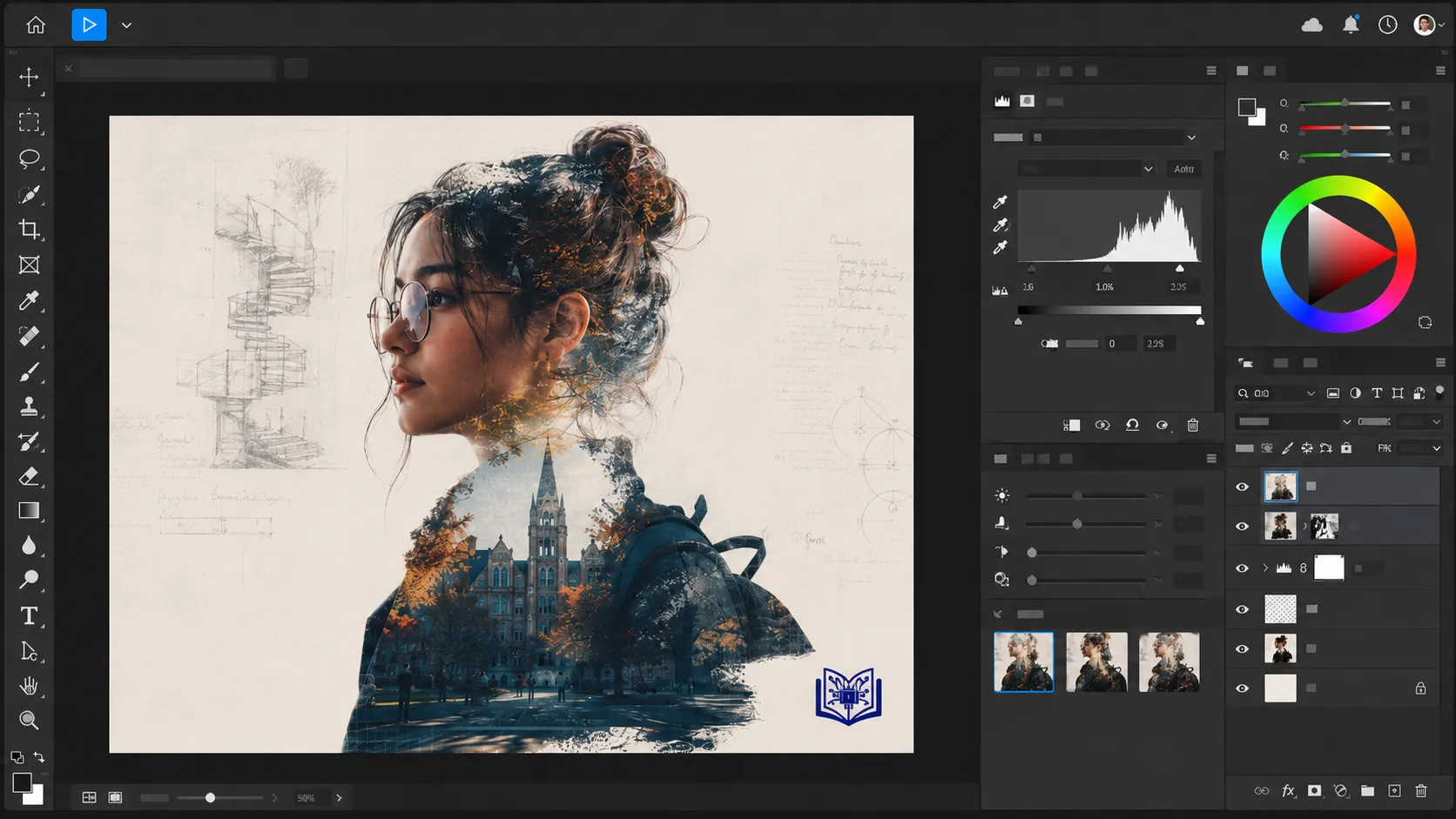
Adobe Photoshop remains the strongest choice for students who want professional-level editing power, especially those studying graphic design, photography, architecture, fashion, media production, digital art, or marketing. Its biggest advantage in 2026 is the integration of Adobe Firefly, which powers tools such as Generative Fill and AI-assisted image expansion. Adobe describes Generative Fill as a Firefly-powered feature that lets users add or remove content from images non-destructively using text prompts, which is exactly the type of workflow students need when refining posters, mockups, and portfolio visuals. (Adobe)
The reason we place Photoshop first is control. Many AI image editors can generate a quick result, but Photoshop lets students adjust that result with layers, masks, selections, blending, typography, color grading, and export settings. That matters when a teacher, client, or portfolio reviewer expects a polished final file rather than a quick AI-generated image. Firefly plans also include generative credits, with Adobe listing plans such as Firefly Standard at US$9.99/month with monthly generative credits and access to standard image features like Generative Fill. (Adobe) For serious students, Photoshop is like a full workshop: AI is the power tool, but the editing controls are the measuring tape, screwdriver, and finishing brush.
Adobe Photoshop with Firefly
Pros
- Best professional editing control
- Excellent for portfolios and design students
- Powerful AI features like generative editing
- Supports layers, masks, typography, and advanced exports
Cons
- Not the easiest tool for beginners
- Can be expensive for casual students
- Too advanced for simple class posters or slides
2. Canva Magic Studio: Best AI Image Editor for Student Presentations and Posters
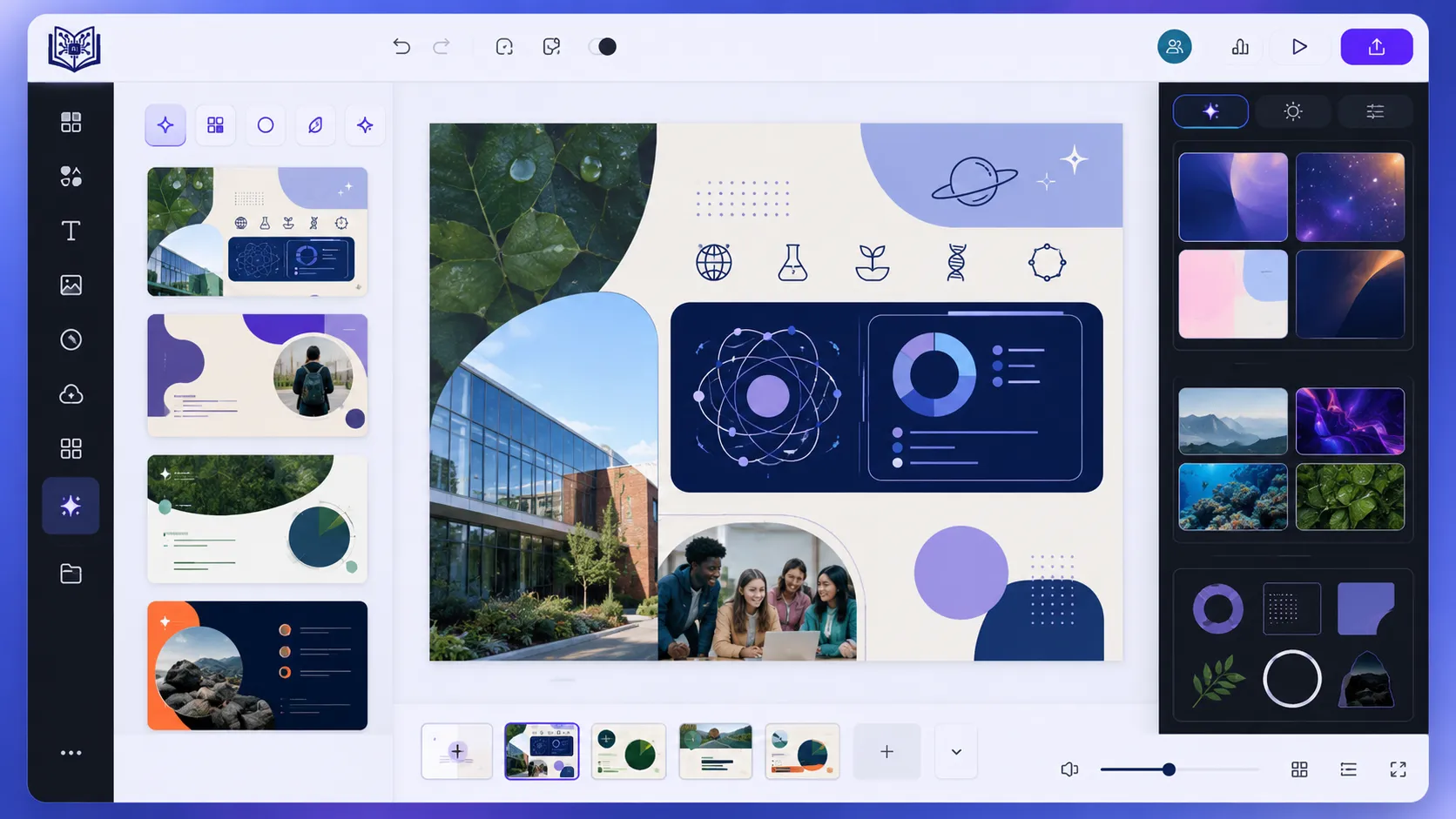
Canva is one of the best AI image editors for students because it understands the student workflow better than most tools. Students rarely edit images in isolation; they need slides, posters, infographics, resumes, Instagram posts, pitch decks, certificates, reports, and group project visuals. Canva’s core advantage is that it combines templates, stock assets, drag-and-drop editing, AI photo tools, and export options in one simple browser-based platform. Canva describes itself as a free-to-use online graphic design tool for social media posts, presentations, posters, videos, logos, and more. (Canva)
For students, Canva’s AI features are useful because they remove design friction. Instead of opening separate apps for background removal, text layout, image generation, resizing, and presentation design, we can do almost everything in one workspace. Canva’s app listing also describes it as a photo editor, logo maker, collage maker, video editor, and design app with built-in magic AI tools, including AI image generation. (Google Play) We recommend Canva for students who value speed, clean templates, and simple collaboration. It is not the deepest photo editor, but for class visuals, club posters, social content, and quick academic graphics, it is one of the most practical tools available.
Canva Magic Studio
Pros
- Very easy for students
- Great for presentations, posters, resumes, and social media
- Good collaboration features for group projects
- Strong template library
Cons
- Less control than Photoshop
- Some AI features require a paid plan
- Designs can look similar if students use common templates
3. Pixlr: Best Free Browser-Based AI Photo Editor for Students
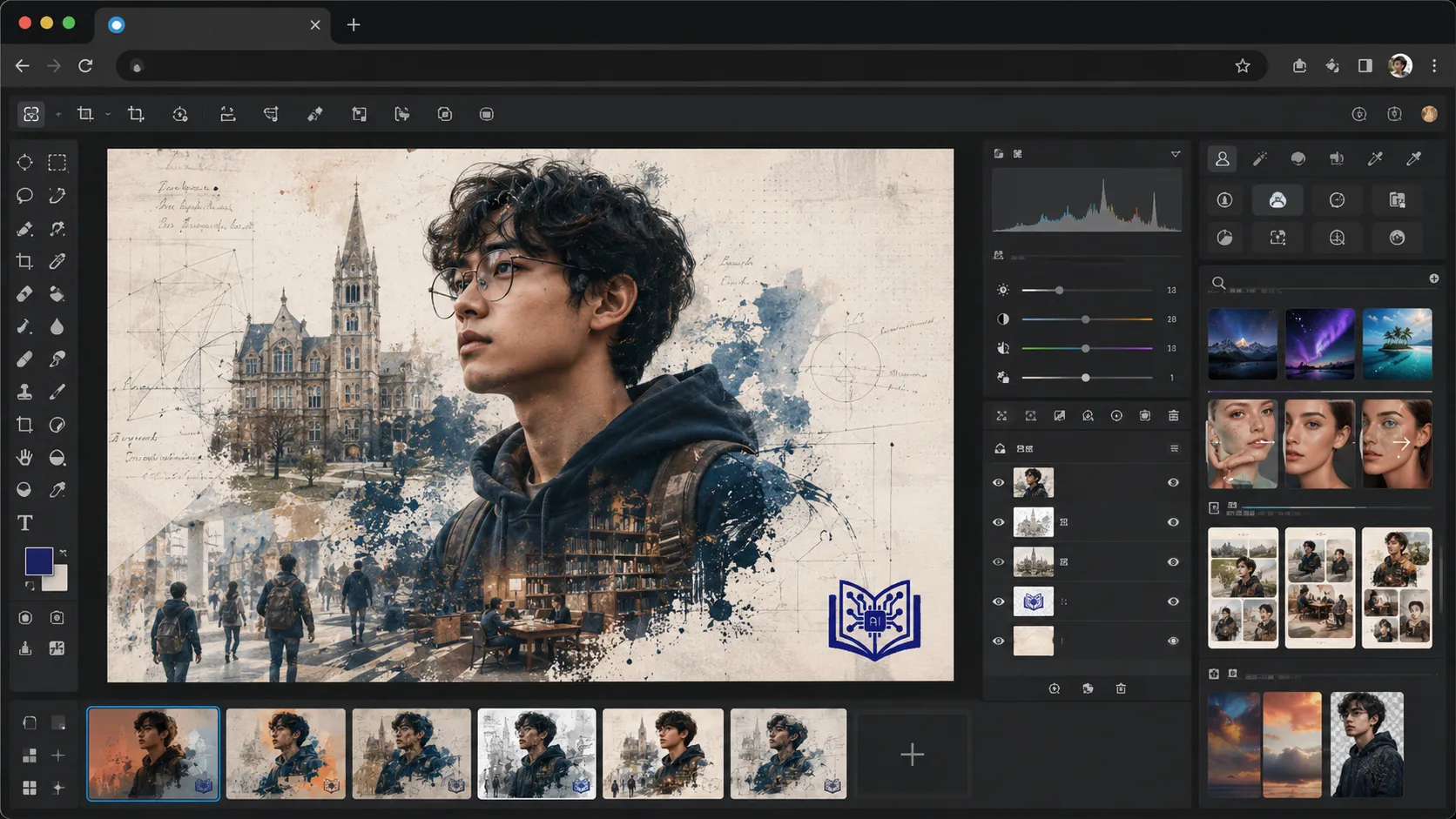
Pixlr is an excellent choice for students who want a lightweight AI image editor without installing heavy software. It runs in the browser, works across devices, and offers a familiar photo-editing experience with AI-powered tools. Pixlr’s own site describes it as a free AI photo editor and image generator that lets users edit photos, generate images, and design online through browser, mobile, or desktop access. (Pixlr.com – Creative AI suite) For students using shared computers, low-storage laptops, or campus lab machines, that flexibility is a major advantage.
Pixlr is especially useful for quick edits: cropping, resizing, removing backgrounds, adjusting exposure, creating simple graphics, and generating design elements. Its pricing page says Pixlr offers free and premium online photo editor access, with subscriptions unlocking more AI-powered features. (Pixlr.com – Creative AI suite) We recommend Pixlr for students who want something more flexible than a basic phone editor but less intimidating than Photoshop. It is the “open your browser and get it done” option, which makes it perfect for last-minute assignment visuals, club graphics, thumbnails, and simple edits that still need to look clean.
Pixlr
Pros
- Works in the browser
- Good free option for students
- More editing control than simple design apps
- Useful for quick photo edits and creative graphics
Cons
- Some features need premium access
- Interface may feel less polished than Canva
- Not as powerful as Photoshop
4. Fotor: Best Beginner AI Photo Editor for Quick Academic Visuals
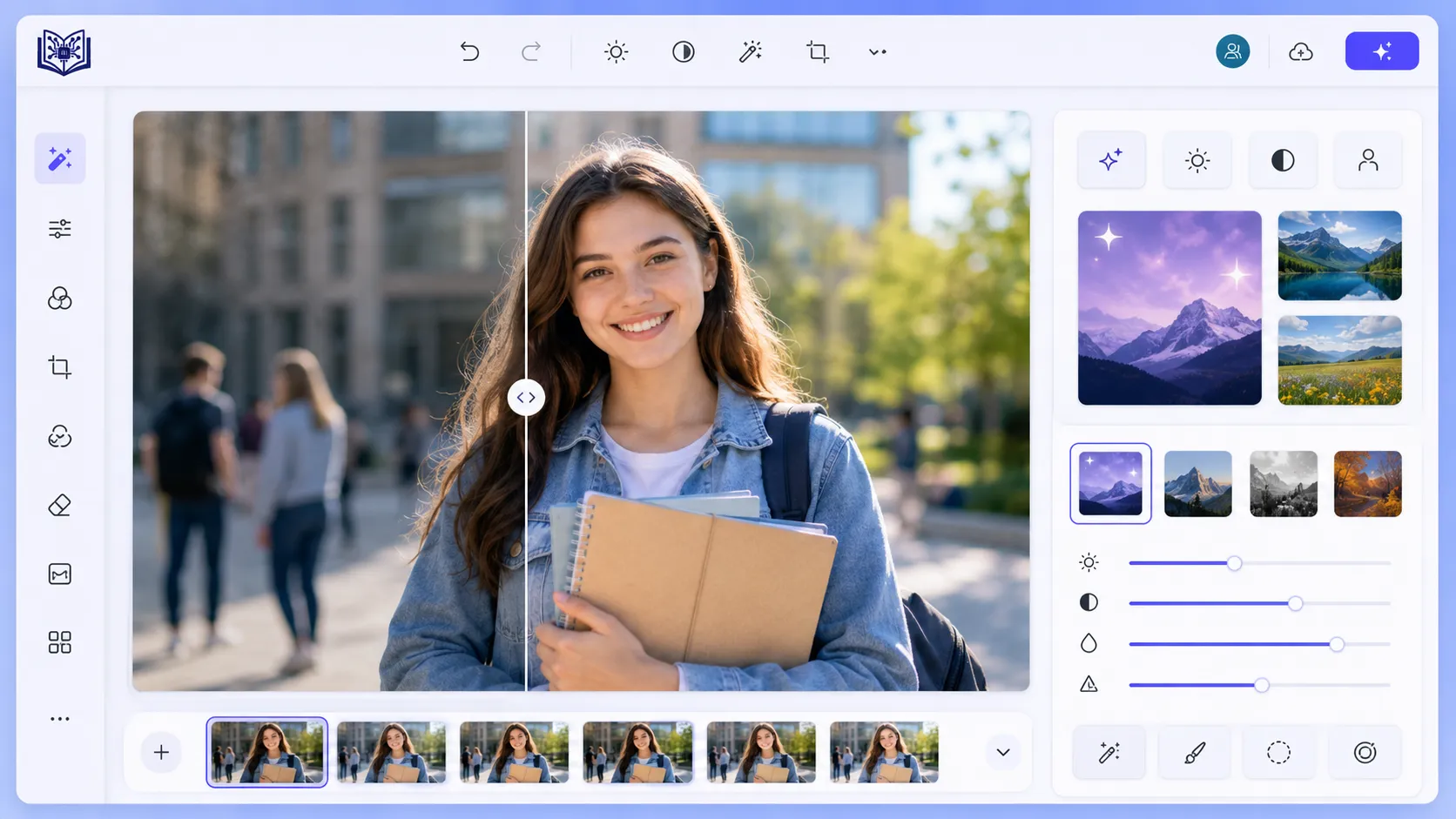
Fotor is a strong student option because it keeps image editing simple. Not every student wants to learn layers, masks, adjustment curves, and complex export settings. Sometimes, we just need to brighten an image, remove an object, retouch a portrait, create a collage, or generate a clean visual for a presentation. Fotor’s AI photo editor page says users can enhance photos, remove image backgrounds, retouch portraits, erase unwanted objects, replace objects, and edit images with text prompts. (Fotor)
Fotor is especially useful for students in business, education, communication, and social sciences who need polished visuals but are not studying design professionally. Its photo editor page positions it as less complex than Photoshop and useful for resizing, cropping, brightness and contrast adjustments, portrait beautification, text overlays, background removal, and collages. (Fotor) That makes it a friendly all-rounder. We would not choose Fotor over Photoshop for advanced design coursework, but for fast student projects, profile photos, assignment images, and simple visual improvements, Fotor offers a comfortable balance between AI automation and basic creative control.
Fotor
Pros
- Beginner-friendly
- Great for one-click photo enhancement
- Useful for portraits, retouching, and quick edits
- Simple interface
Cons
- Not ideal for advanced design work
- Some exports and AI features may be limited on the free plan
- Less suitable for professional portfolios
5. remove.bg: Best AI Background Remover for Students
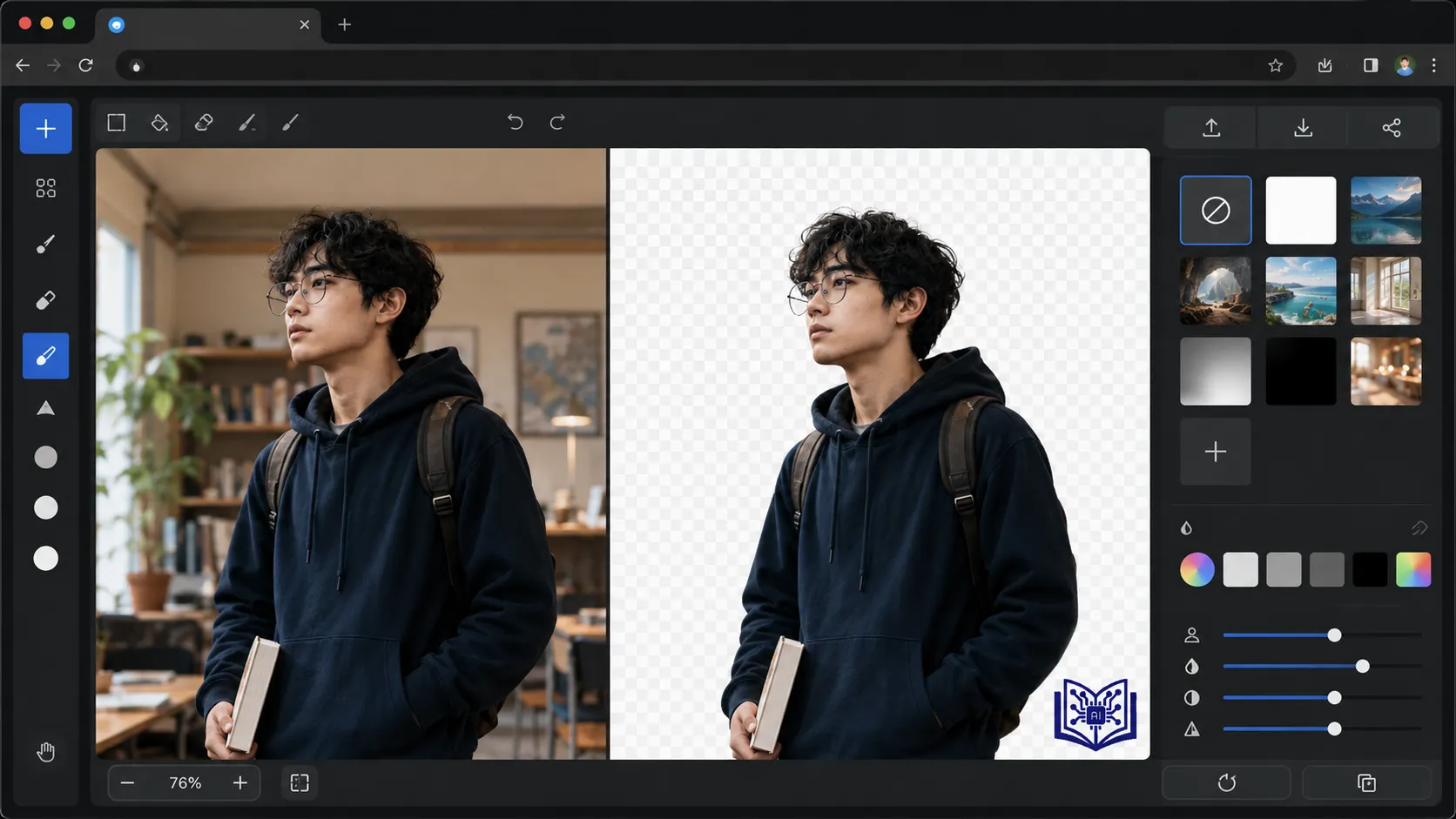
remove.bg does one job extremely well: it removes image backgrounds. That sounds simple, but students use background removal constantly. We need it for presentation cutouts, event posters, club banners, product mockups, profile images, YouTube thumbnails, business assignments, and design projects. remove.bg says it can remove image backgrounds automatically in five seconds with one click, which makes it one of the fastest specialist tools on this list. (remove.bg)
The biggest benefit of remove.bg is speed. Instead of manually tracing around hair, clothing, objects, or products, we upload an image and get a clean cutout. Its help page explains that free background removal supports low-resolution previews up to 0.25 megapixels, while free accounts also receive limited bonus and preview credits. (remove.bg) For students, the free preview is often enough for drafts, slides, and mockups, while higher-resolution exports may be needed for print posters or professional work. We recommend remove.bg as a companion tool rather than a complete editor. It pairs beautifully with Canva, PowerPoint, Google Slides, Photoshop, and Pixlr.
remove.bg
Pros
- Very fast background removal
- Simple one-task tool
- Great for presentations, posters, and product mockups
- Easy to use with Canva, PowerPoint, and Photoshop
Cons
- Not a complete image editor
- High-resolution downloads may require credits
- Limited creative editing features
6. Luminar Neo: Best AI Photo Editor for Photography Students
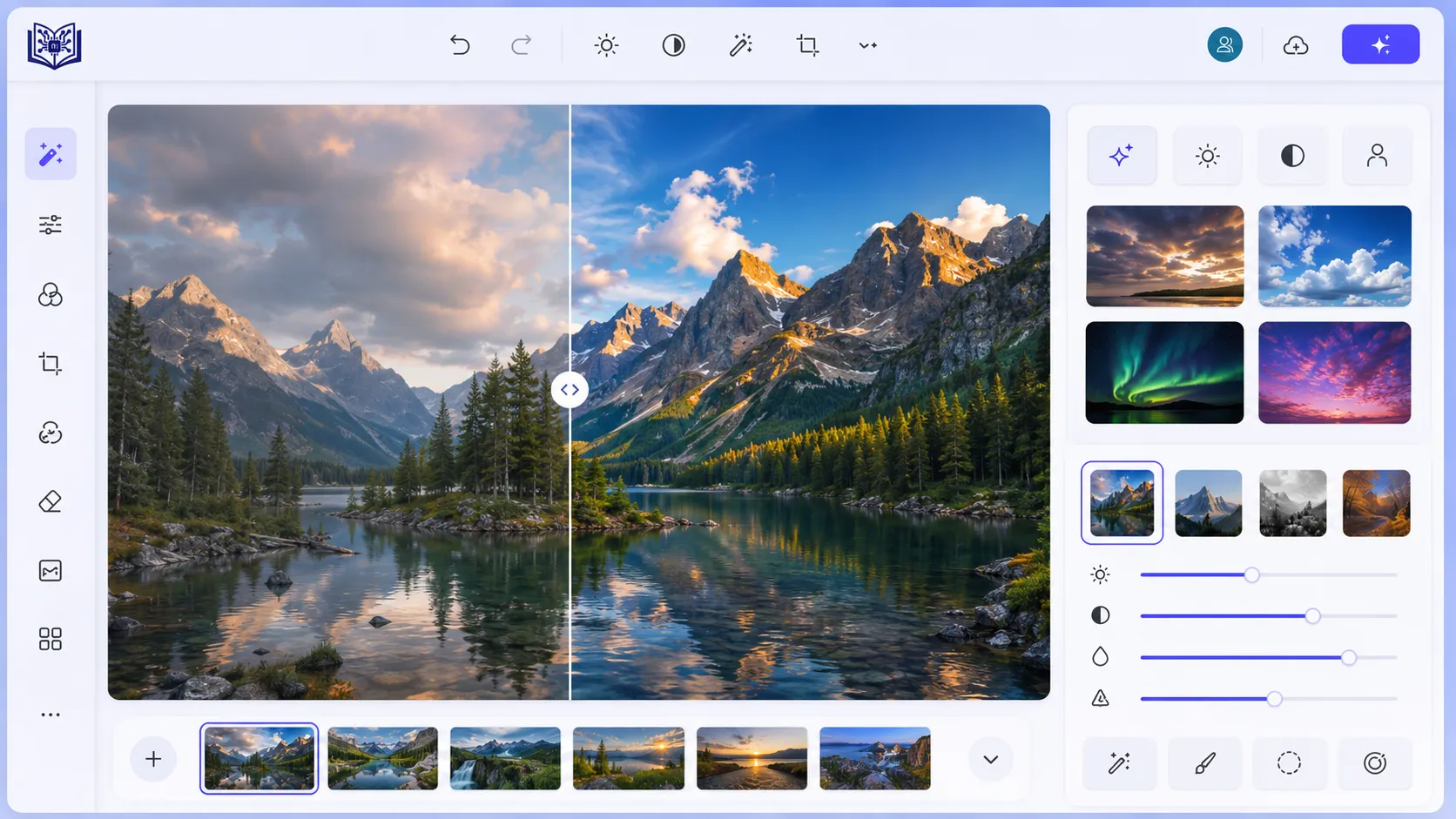
Luminar Neo is one of the best AI image editors for students who care about realistic photography rather than only graphic design. It is especially valuable for photography, journalism, media, travel, architecture, and visual communication students. Skylum describes Luminar Neo as photo editing software for PC and Mac with AI-powered tools, support for raw editing, layers, dodge and burn, cloning, and many common photo formats. (Skylum)
What makes Luminar Neo student-friendly is that it gives dramatic photo improvements without forcing the user to master every technical detail first. AI lighting adjustments, portrait improvements, sky tools, masking, and enhancement features can help students produce stronger images for portfolios and class submissions. Skylum’s pricing page confirms that Luminar Neo offers flexible lifetime editing options and plan choices, while its main product page highlights a 30-day money-back guarantee and one-time purchase messaging. (Skylum) We recommend Luminar Neo for students who shoot their own photos and want them to look professional without spending months learning a traditional raw workflow.
Luminar Neo
Pros
- Excellent for photography students
- Strong AI lighting and portrait tools
- Good for realistic image enhancement
- Easier than traditional professional photo software
Cons
- Not mainly built for posters or presentations
- Usually requires payment
- More useful for photo students than general students
7. Topaz Photo AI: Best AI Image Enhancer for Blurry or Low-Quality Photos
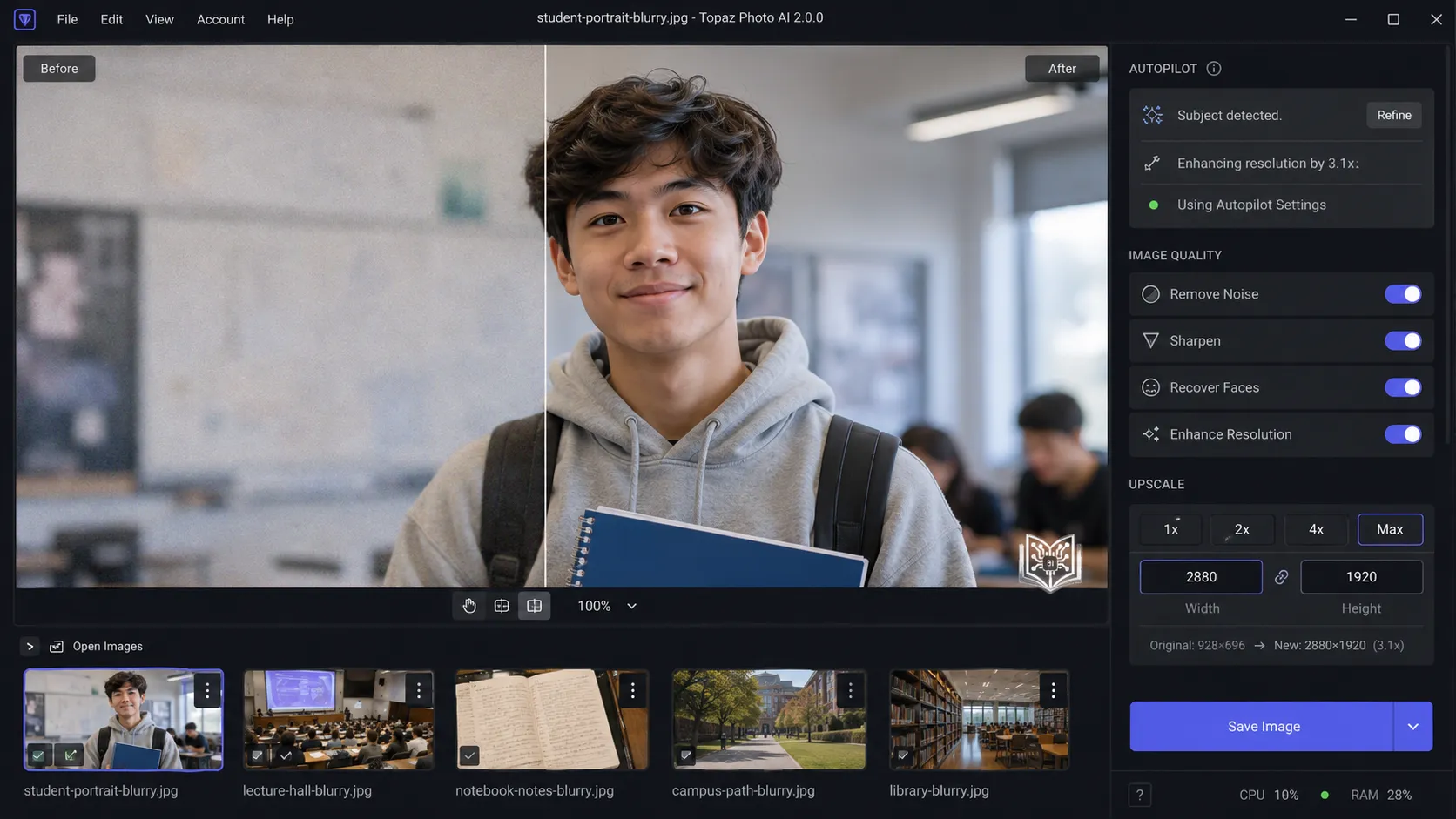
Topaz Photo AI is not a general student design tool. It is a specialist enhancement tool, and that is exactly why it deserves a place on this list. Students often work with imperfect images: old family photos for history projects, low-resolution screenshots, noisy event photos, blurry research images, or images captured in poor lighting. Topaz describes its photo software as an intelligent image enhancement tool that can sharpen details, restore focus, adjust lighting and color, upscale images, denoise, and recover faces. (Topaz Labs)
We recommend Topaz Photo AI for students who need image repair rather than image creation. It is useful for photography students, research students, digital archive projects, media students, and anyone preparing high-quality visual material from imperfect source files. Topaz’s pricing page currently presents subscription access through Topaz Studio, with plans shown for image and video finishing workflows. (Topaz Labs) The downside is cost: casual students may not need it. But when image quality matters, Topaz works like a digital rescue kit. It can turn a weak visual into something usable, and sometimes that is the difference between an average project and a polished one.
Topaz Photo AI
Pros
- Best for sharpening, denoising, and upscaling
- Very useful for fixing low-quality images
- Good for photography, research, and archive projects
- Can rescue blurry or noisy photos
Cons
- Not a full design tool
- Paid tool, so not ideal for every student
- Overkill for simple edits
8. Runway: Best AI Image and Video Editor for Creative Media Students
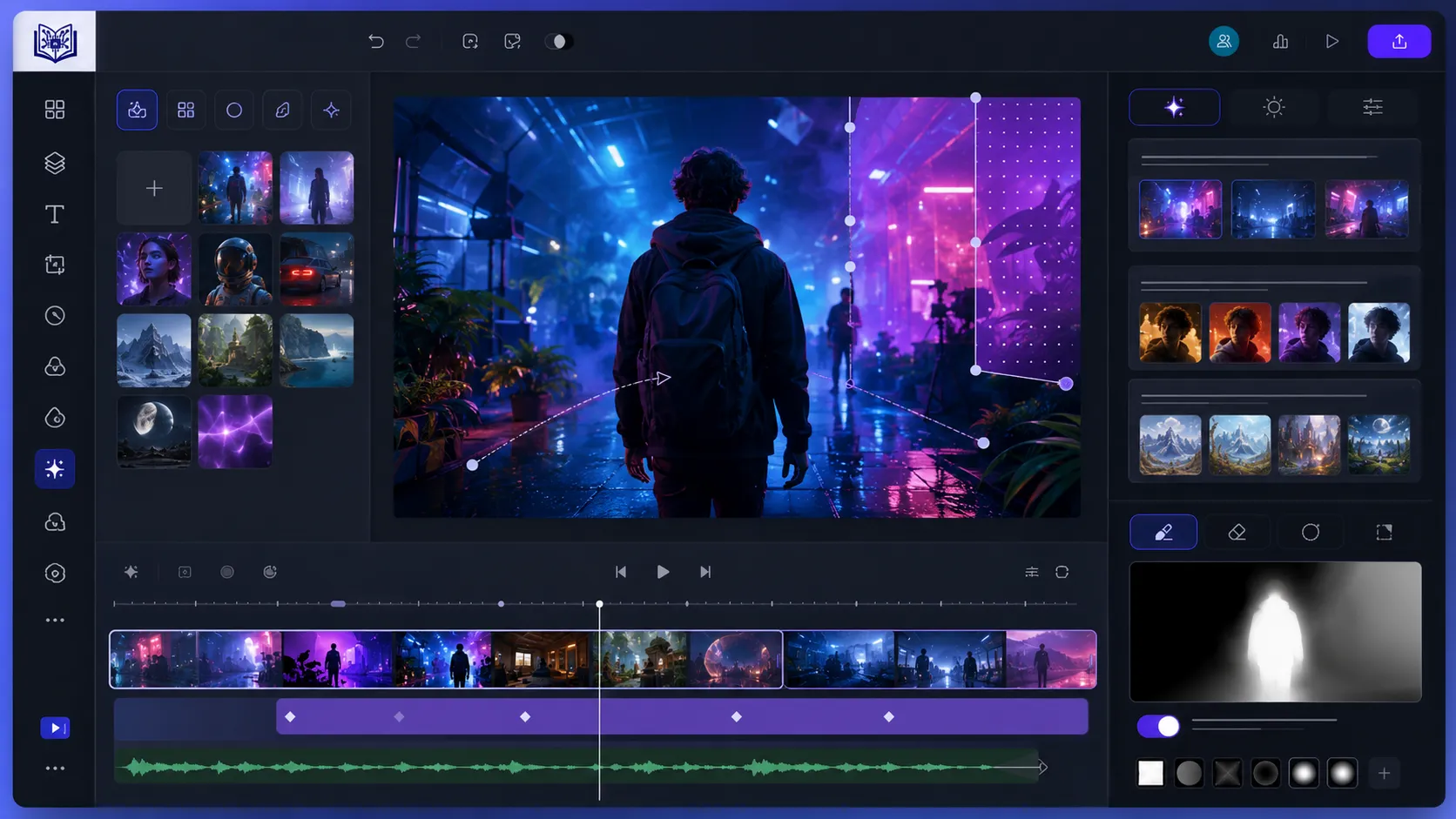
Runway is ideal for students working in film, animation, advertising, social media, digital storytelling, and creative media. It is more than a photo editor; it is a full AI creative platform. Runway describes its product as a toolkit for generating images, video, audio, editing, and language-based creative content, with access to multiple models and tools for creative workflows. (Runway) For students producing short films, campaign videos, moving posters, concept art, or multimedia projects, Runway can feel like a mini production studio inside the browser.
Runway is especially powerful when students need motion, not just still images. It supports image and video generation workflows, object removal from video, product shot transformations, and broader creative experimentation. Its pricing page lists Free, Standard, Pro, Unlimited, and Enterprise-style options, with the Unlimited plan shown at $76 per user per month billed annually and including monthly credits plus relaxed-rate unlimited generations in Explore Mode. (Runway) We recommend Runway for advanced creative students who want to experiment with the future of visual media. For simple image editing, it may be more than necessary, but for creative storytelling, it is one of the most exciting options in 2026.
Runway
Pros
- Excellent for creative media students
- Supports AI image and video workflows
- Great for storytelling, film, ads, and motion content
- Useful for experimental creative projects
Cons
- More complex than basic editors
- Credits can run out quickly
- Not necessary for simple photo editing
9. Adobe Express: Best Simple AI Design Tool for Students Who Want Adobe Without Complexity
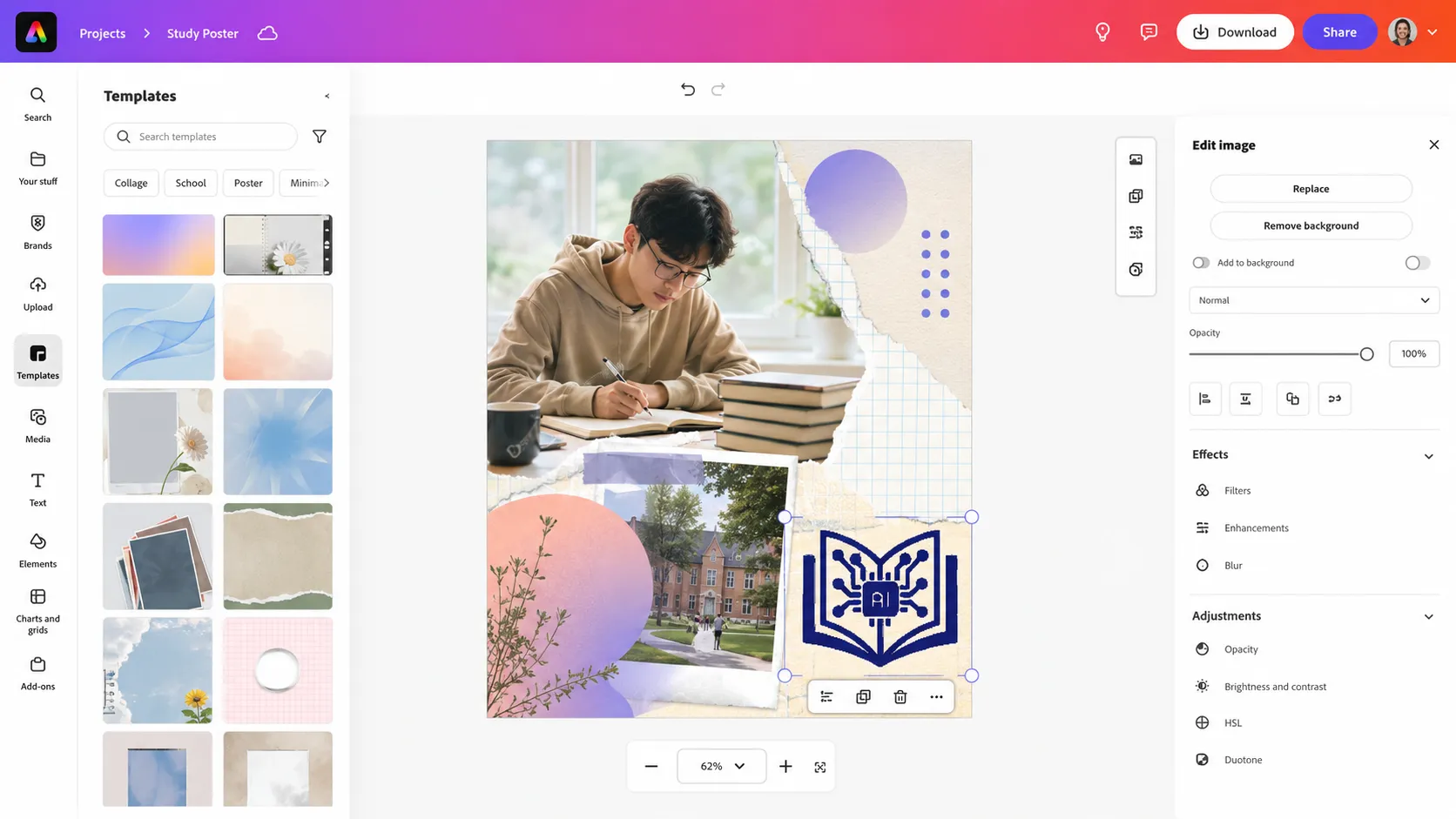
Adobe Express is a strong choice for students who like Adobe’s creative ecosystem but do not want the complexity of Photoshop. It is built for fast content creation: social posts, flyers, resumes, presentations, short videos, logos, banners, and branded graphics. Adobe Firefly plans also include Adobe Express Premium in several tiers, showing how Adobe is connecting quick design workflows with generative AI features. (Adobe)
For students, Adobe Express is useful because it sits between Canva and Photoshop. It is simpler than Photoshop but still benefits from Adobe’s AI ecosystem, fonts, templates, and brand-friendly design tools. We recommend it for students who need polished visuals quickly but may later move into deeper Adobe tools. It is also a practical choice for student entrepreneurs, campus societies, freelancers, and creators building a consistent online presence. If Canva is the easiest classroom design board, Adobe Express is the simplified Adobe creative desk—less intimidating, but still polished.
Adobe Express
Pros
- Easier than Photoshop
- Good for quick Adobe-style designs
- Useful for flyers, posts, banners, and student branding
- Simple browser-based workflow
Cons
- Less advanced than Photoshop
- Canva may feel easier for beginners
- Some premium features require payment
10. Kapwing: Best Collaborative AI Editor for Student Teams
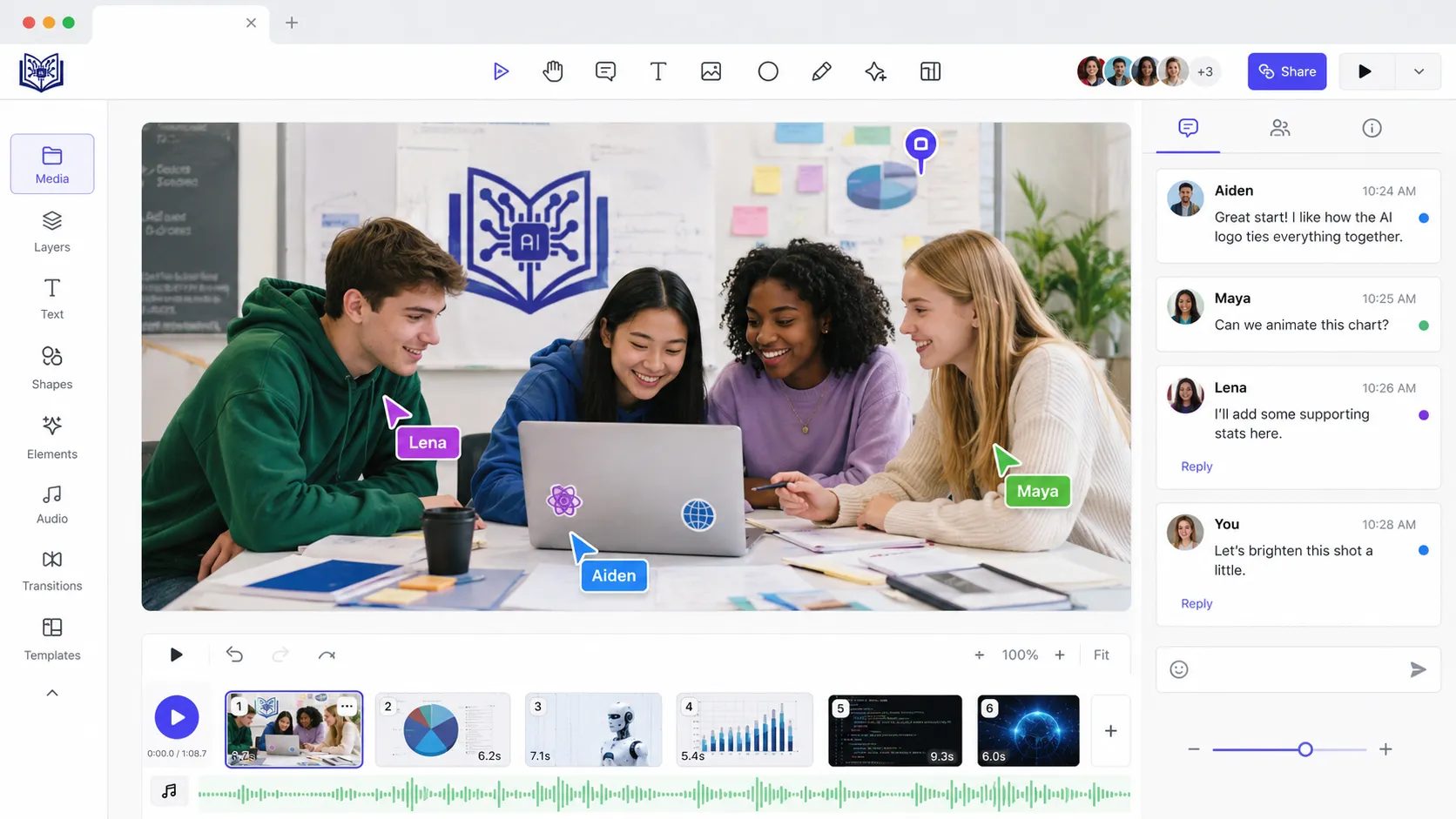
Kapwing is a practical option for group projects because it focuses on browser-based collaboration across images, videos, captions, memes, and social media content. While tools like Photoshop are stronger for deep editing, Kapwing is often easier for teams that need to work together quickly. Students can use it for campaign videos, class explainers, thumbnails, short-form content, visual presentations, and multimedia assignments.
The main reason we include Kapwing is workflow. In student group projects, the biggest problem is not always editing skill; it is coordination. One student has the image, another has the captions, another has the video clips, and someone else needs to export everything before the deadline. A collaborative editor helps keep the project moving. We recommend Kapwing for students in marketing, communication, media studies, education, and entrepreneurship who need shared creation more than advanced retouching.
Kapwing
Pros
- Great for group projects
- Useful for images, videos, captions, and thumbnails
- Works in the browser
- Good for social media and multimedia assignments
Cons
- Not as strong for deep photo editing
- Free exports may have limits
- Better for content creation than professional image editing
Canva vs Pixlr vs Fotor: Which One Should Students Choose?
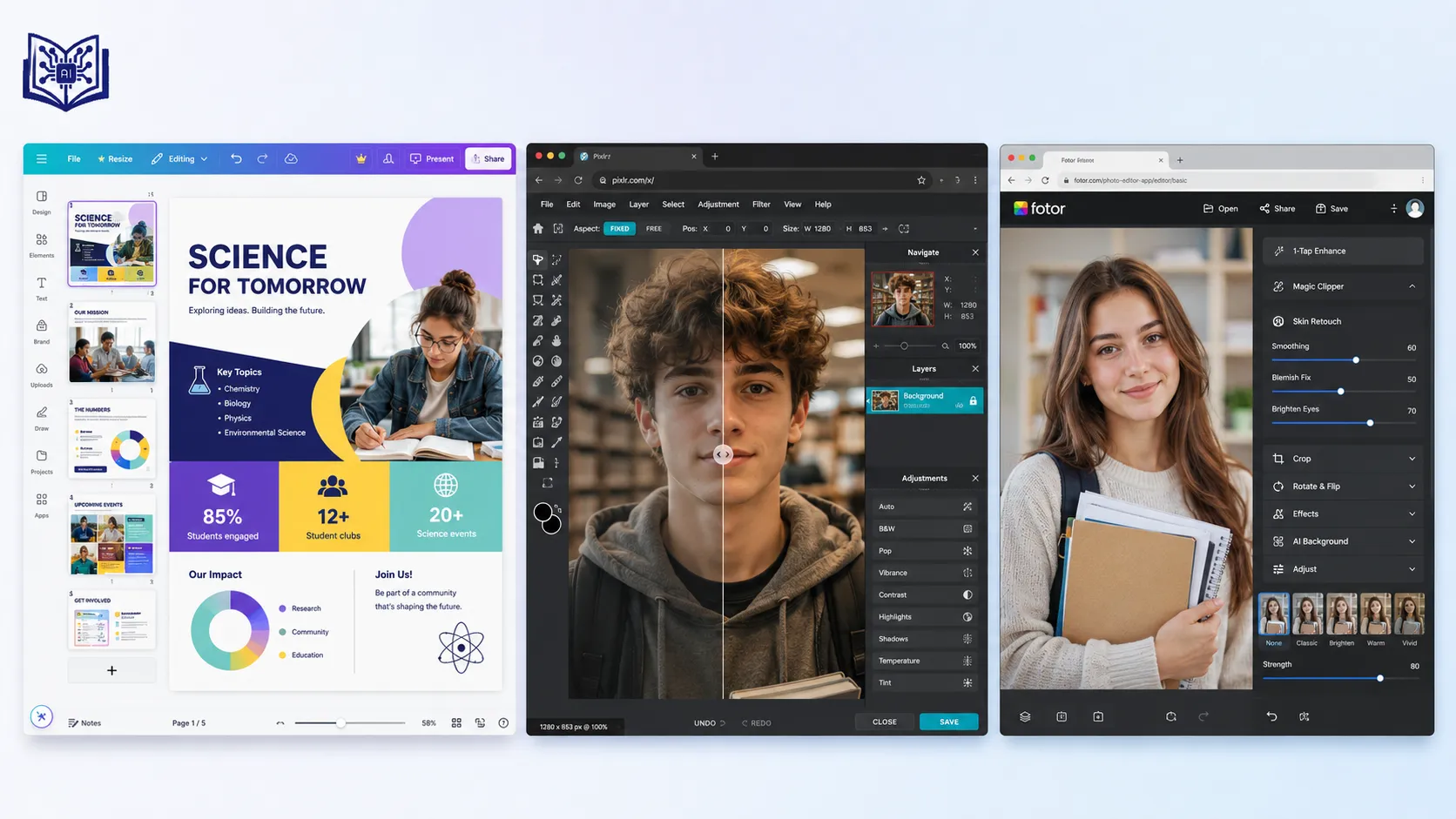
Canva, Pixlr, and Fotor are three of the most student-friendly AI image editors, but they are not the same. The best choice depends on the type of project.
Choose Canva if you need to create presentations, posters, flyers, resumes, infographics, social media posts, or group project designs. Canva is best when layout and design matter more than deep photo editing. It is especially useful for students who want polished results quickly without learning complicated software.
Choose Pixlr if you want a free online editor that feels closer to Photoshop. Pixlr is better for students who want more control over image editing, layers, cropping, adjustments, and creative effects while still working inside a browser.
Choose Fotor if you want quick AI photo improvements. Fotor is good for students who need to brighten images, retouch portraits, remove objects, enhance colors, or make simple edits without spending much time.
| Tool | Best For | Not Best For |
|---|---|---|
| Canva | Presentations, posters, group projects | Advanced photo editing |
| Pixlr | Free browser photo editing | Team presentation design |
| Fotor | Quick AI photo enhancement | Professional design portfolios |
Simple recommendation:
Use Canva for design, Pixlr for editing, and Fotor for quick photo fixes.
Who Should Avoid Each Tool?
Not every student needs every tool. Choosing the wrong AI image editor can waste time and money.
Students who only need simple posters or slides should avoid starting with Photoshop because it has a steeper learning curve. Canva or Adobe Express will be faster.
Students who need professional portfolio editing should not rely only on Canva, because it does not offer the same level of control as Photoshop.
Students who only want background removal do not need a full editing app. remove.bg is enough for quick cutouts.
Students who are not working with photography may not need Luminar Neo or Topaz Photo AI. These tools are more useful when image quality, sharpening, lighting, and photo repair matter.
Students who only need basic image edits may not need Runway, because it is better suited for creative media, video, animation, and generative storytelling.
Best AI Image Editor by Student Type
Different students need different tools. A business student, design student, and photography student will not always benefit from the same app.
| Student Type | Best Tool | Why |
|---|---|---|
| School students | Canva | Easy posters, slides, and class visuals |
| College students | Canva, Pixlr | Good balance of design and editing |
| Design students | Photoshop with Firefly | Professional control and portfolio quality |
| Photography students | Luminar Neo, Topaz Photo AI | Better photo enhancement and repair |
| Marketing students | Canva, Adobe Express, Kapwing | Social media, ads, and campaign visuals |
| Media students | Runway, Kapwing | Video, motion, and creative storytelling |
| Business students | Canva, Fotor | Pitch decks, posters, and product visuals |
| Architecture students | Photoshop, Canva | Presentation boards and visual layouts |
| Social media students | Canva, Kapwing, Pixlr | Fast content creation and editing |
Pricing Comparison: Free vs Paid AI Image Editors for Students
Many students need free or low-cost tools, so pricing is one of the most important factors. Free tools are enough for basic presentations, posters, background removal, and simple photo edits. Paid tools are better when students need high-resolution exports, professional portfolio work, advanced AI features, or watermark-free downloads.
| Tool | Free Plan | Best Free Use | Paid Plan Worth It For |
|---|---|---|---|
| Canva | Yes | Posters, slides, social graphics | Premium templates, brand kits, better AI features |
| Pixlr | Yes | Browser-based photo editing | More AI credits and advanced editing tools |
| Fotor | Yes | Quick photo enhancement | Better retouching, HD exports, more AI tools |
| remove.bg | Limited | Quick background previews | High-resolution cutouts |
| Adobe Photoshop | Trial/limited | Testing professional editing | Design, photography, portfolio work |
| Luminar Neo | Trial/paid | Testing photo enhancement | Photography students |
| Topaz Photo AI | Paid | Not ideal for casual free use | Fixing blurry, noisy, low-quality images |
| Runway | Yes | Creative AI experiments | Video, media, and advanced generative projects |
| Adobe Express | Yes | Simple Adobe-style designs | Premium templates and AI features |
| Kapwing | Yes | Group content projects | Watermark-free exports and team workflows |
For most students, the best free starting setup is Canva + Pixlr + remove.bg. This combination covers design, photo editing, and background removal without needing expensive software.
Best AI Image Editor by Student Use Case
| Student Need | Best Tool | Why We Recommend It |
|---|---|---|
| Professional portfolio editing | Photoshop with Firefly | Deep control, layers, generative editing |
| Class presentations | Canva | Templates, easy layouts, quick exports |
| Free browser editing | Pixlr | Lightweight, accessible, flexible |
| Beginner photo enhancement | Fotor | Simple AI edits and retouching |
| Background removal | remove.bg | Fast, accurate cutouts |
| Photography coursework | Luminar Neo | Realistic AI photo enhancement |
| Fixing blurry images | Topaz Photo AI | Upscale, denoise, sharpen |
| Film and media projects | Runway | AI image and video generation |
| Simple Adobe-style design | Adobe Express | Easy design plus Adobe AI ecosystem |
| Group visual projects | Kapwing | Collaborative browser workflow |
What Students Should Look for in an AI Image Editor
The best AI image editor for students should be affordable, fast, and easy to explain if a teacher asks how the visual was created. That last point matters more in 2026 because universities are paying closer attention to AI use. With AI adoption rising sharply in education, students should use AI image tools responsibly, document their process when needed, and follow their institution’s rules. HEPI’s 2026 survey shows AI is now common in assessed work, which makes transparency and ethical use more important, not less. (HEPI)
We recommend choosing tools based on the assignment, not hype. If the task is a business poster, Canva may be better than Photoshop. If the task is a professional photo portfolio, Luminar Neo or Photoshop may be better than Canva. If the task is cleaning up a poor-quality image, Topaz Photo AI may outperform a general editor. If the task is a social media campaign video, Runway or Kapwing may be the smarter choice. AI tools are like different pens in a pencil case: using the most expensive one does not automatically make the work better; using the right one does.
Free vs Paid AI Image Editors for Students
Free AI image editors are enough for many student tasks, especially when the output is for slides, drafts, classroom posters, or social media. Canva, Pixlr, Fotor, remove.bg, Adobe Express, Kapwing, and Runway all offer some form of free access or limited free use, although premium exports, higher resolution, more credits, brand kits, advanced AI models, or watermark-free downloads may require payment. Pixlr explicitly offers free and premium access, while remove.bg allows free low-resolution previews and limited free credits for testing high-resolution downloads. (Pixlr.com – Creative AI suite)
Paid tools become worth it when the work affects grades, portfolios, clients, internships, or professional branding. A design student may justify Photoshop. A photography student may justify Luminar Neo or Topaz. A media student may justify Runway. The key is not to subscribe to everything. We recommend starting with one free all-rounder, one specialist tool, and one professional tool only if the course demands it. For most students, a practical stack would be Canva + remove.bg + Pixlr. For creative majors, a stronger stack would be Photoshop + Runway + Topaz or Luminar Neo.
Responsible AI Image Editing for Academic Work
Students should treat AI image editing like a calculator, not like a ghostwriter. It can speed up the work, help with technical polish, and open creative possibilities, but the thinking should remain visible. If we generate an image for a project, we should check whether the assignment allows generated visuals. If we edit a photo, we should avoid misleading changes, especially in journalism, science, history, research, or evidence-based assignments. If a visual is AI-generated or heavily AI-modified, we should label it when academic rules require disclosure.
This is especially important because AI use in education is growing faster than many institutions can update their policies. Coursera reported in 2026 that 95% of students and educators are using AI on campus, while only a smaller share of educators feel fully prepared to use it effectively. (Coursera Blog) That gap creates confusion. Our practical advice is simple: use AI to improve clarity, design, and presentation quality, but do not use it to fabricate evidence, fake original photography, misrepresent research results, or hide the source of major creative input. Strong work does not need secrecy.
Best Free AI Image Editor Stack for Students
Students do not need to pay for every tool. A smart free toolkit can cover most academic needs.
The best free stack for most students is:
Canva for presentations, posters, resumes, and social graphics.
Pixlr for browser-based image editing and more control.
remove.bg for quick background removal.
Fotor for simple photo enhancement and retouching.
With these four tools, students can handle most visual tasks, including class slides, project posters, profile images, product mockups, thumbnails, and basic photo cleanup.
For serious creative students, the stack can be upgraded later with Photoshop, Luminar Neo, Topaz Photo AI, or Runway depending on the course and career goals.
How Students Should Disclose AI Image Editing in Assignments
Students should always follow their school, college, or university rules before using AI-generated or AI-edited images in assignments. Some teachers allow AI tools, while others may require disclosure or may not allow generated visuals at all.
A safe approach is to be transparent. If AI was used to create or heavily edit an image, mention the tool and the purpose.
Example disclosure:
This visual was edited using Canva AI to remove the background and improve brightness. The original image was selected and reviewed by the student.
Another example:
The concept image was generated with an AI image tool and then edited for layout, text, and presentation clarity.
Students should avoid using AI images as fake evidence, fake research visuals, fake historical photos, or misleading original photography. AI should help improve presentation quality, not replace honesty or academic work.
Final Recommendation: Which AI Image Editor Should Students Choose?
For most students, Canva is the best first choice because it handles the widest range of everyday academic visuals: presentations, posters, resumes, social graphics, infographics, and group projects. For students who need free browser editing with more photo-control, Pixlr is the best lightweight option. For design, photography, and portfolio work, Adobe Photoshop with Firefly remains the strongest professional tool. For fast background removal, remove.bg is the simplest specialist tool. For creative media students, Runway is the most exciting choice because it expands image editing into video and generative storytelling.
The smartest approach is to build a small AI editing toolkit instead of relying on one app for everything. We would choose Canva for layouts, remove.bg for cutouts, Pixlr or Fotor for quick edits, and Photoshop, Luminar Neo, Topaz, or Runway depending on the student’s major. In 2026, the winning student is not the one with the most apps. The winning student is the one who knows which tool to use, when to use it, and how to use it responsibly.
Conclusion
AI image editors are changing how students create visual work. They make it easier to design polished slides, repair poor-quality photos, create posters, generate concepts, remove backgrounds, and build stronger portfolios without spending endless hours learning complicated software. The best AI image editor for students in 2026 depends on the task: Canva for everyday academic design, Photoshop with Firefly for professional editing, Pixlr for free browser-based control, Fotor for beginner-friendly photo edits, remove.bg for background removal, Luminar Neo for photography, Topaz Photo AI for image repair, Runway for creative media, Adobe Express for simple Adobe-powered design, and Kapwing for team projects.
Used well, these tools do not replace student creativity. They amplify it. They remove the boring technical barriers so students can focus on ideas, storytelling, clarity, and presentation. That is the real value of AI image editing in education: not shortcuts, but stronger communication.
FAQs
1. What is the best free AI image editor for students in 2026?
The best free AI image editor for most students is Canva if the goal is presentations, posters, and social graphics. Pixlr is better for students who want a browser-based editor with more traditional photo-editing control. Fotor is also strong for quick AI enhancements and beginner-friendly edits.
2. Which AI image editor is best for removing backgrounds?
remove.bg is the best specialist tool for background removal because it is fast, simple, and focused on one task. Canva, Pixlr, Fotor, and Photoshop also offer background removal features, but remove.bg is the easiest option when students only need a quick cutout.
3. Is Photoshop worth it for students?
Photoshop is worth it for students studying design, photography, media, architecture, fashion, marketing, or digital art. It may be too advanced for basic class presentations, but it is still one of the strongest tools for professional portfolios and detailed creative control.
4. Can students use AI-generated images in assignments?
Students can use AI-generated images only when their school, college, or university allows it. The safest approach is to check assignment rules, disclose AI use when required, and avoid using AI images as fake evidence, fake research visuals, or misleading original photography.
5. What is the best AI image editor for student group projects?
Canva is usually the best option for group projects because it supports templates, easy collaboration, presentations, posters, and fast exporting. Kapwing is better when the group project includes video, captions, thumbnails, or social media content.
6. What is the easiest AI image editor for students?
Canva is the easiest AI image editor for most students because it has ready-made templates, simple drag-and-drop editing, AI design tools, and quick export options. Students can create posters, presentations, resumes, and social graphics without needing professional design skills.
7. What is the best AI image editor for school presentations?
Canva is the best AI image editor for school presentations because it combines slide templates, image editing, text tools, icons, stock photos, and AI features in one place. Adobe Express is also a good option for students who want simple Adobe-style designs.
8. Which AI image editor works without downloading software?
Canva, Pixlr, Fotor, remove.bg, Adobe Express, Runway, and Kapwing all work in the browser. These tools are useful for students who use Chromebooks, shared computers, school labs, or low-storage laptops.
9. Is Canva better than Pixlr for students?
Canva is better for presentations, posters, group projects, and social media designs. Pixlr is better for students who want more traditional photo-editing control in a browser. The better choice depends on whether the student needs design templates or deeper image editing.
10. Is Fotor good for beginner students?
Yes, Fotor is good for beginner students because it offers simple AI tools for photo enhancement, retouching, background editing, and quick visual improvements. It is easier to use than advanced software like Photoshop.
11. Can AI image editors remove objects from photos?
Yes, many AI image editors can remove unwanted objects from photos. Tools like Photoshop, Fotor, Canva, Pixlr, and Luminar Neo offer object removal or cleanup features. Results can vary depending on image quality and background complexity.
12. Which AI image editor is best for college portfolios?
Adobe Photoshop with Firefly is the best choice for college portfolios because it offers advanced editing control, layers, masking, typography, and professional export options. Photography students may also benefit from Luminar Neo or Topaz Photo AI.
13. Are free AI image editors enough for students?
Free AI image editors are enough for many student tasks, including presentations, posters, social media graphics, simple photo edits, and background removal. Paid tools are more useful for high-resolution exports, professional portfolios, advanced AI features, or commercial-quality projects.
14. What is the best AI image editor for Chromebook users?
Pixlr, Canva, Fotor, remove.bg, Adobe Express, Runway, and Kapwing are good options for Chromebook users because they work online without heavy installation. Canva is best for design, while Pixlr is better for browser-based photo editing.
15. Which AI image editor is best for social media projects?
Canva is the best AI image editor for most student social media projects because it offers templates for Instagram, TikTok, YouTube thumbnails, posters, reels covers, and ads. Kapwing is better when the project includes video, captions, or team collaboration.
16. What is the best AI image editor for removing backgrounds from product photos?
remove.bg is the fastest option for removing backgrounds from product photos. Canva, Pixlr, Fotor, and Photoshop can also remove backgrounds, but remove.bg is best when students need a quick and simple cutout.
17. Can students use AI image editors for resumes and LinkedIn photos?
Yes, students can use AI image editors to improve resume graphics, LinkedIn banners, profile photos, and portfolio visuals. However, profile photos should remain honest and realistic. Students should avoid over-editing images in a way that looks fake or misleading.
18. Which AI image editor is best for design students?
Adobe Photoshop with Firefly is the best AI image editor for design students because it offers professional-level control. Canva is useful for quick layouts, but Photoshop is stronger for detailed editing, branding, typography, and portfolio-quality work.
19. Which AI image editor is best for photography students?
Luminar Neo is a strong choice for photography students who want realistic AI photo enhancement. Topaz Photo AI is better for fixing blurry, noisy, or low-resolution images. Photoshop is also important for advanced photo editing and creative control.
20. Do AI image editors reduce creativity?
AI image editors do not reduce creativity when students use them properly. They can remove boring technical work and help students focus more on ideas, storytelling, layout, and presentation. The creative value still depends on the student’s choices, not only the tool.
About the Author
Prof. Irfan is an education and technology writer who focuses on helping students use digital tools more effectively for learning, assignments, presentations, and creative projects. In this guide on the best AI image editor tools for students in 2026, he explains practical AI tools in a simple, student-friendly way, covering options for presentations, background removal, photo cleanup, portfolio editing, and responsible academic use. His goal is to make modern AI tools easier to understand so students can create better visuals, save time, and use technology ethically in their studies.